Access and Review Student Work in the Wonders/Maravillas Binder
Overview of how to access and manage work using the Wonders Binder.
- Literacy
- SSO & Manual-Rostering
- Customer Support
- Grades & Assignments
- Direct Login & Auto-Rostering
- Wonders 2014
- Maravillas 2020 & 2017
- Core
- Direct Login & Manual-Rostering
- Classroom Teacher
- Wonders Balanced Literacy 2016
- Wonders 2023 2020 2017
- SSO & Auto-Rostering
- PreK-12
- Elementary School
- Middle School
- Kindergarten
- 1st Grade
- 2nd Grade
- 3rd Grade
- 4th Grade
- 5th Grade
- 6th Grade


Access the Binder
1. Hover over Binder in the Navigation Banner.
2. Select My Work from the menu.

My Work
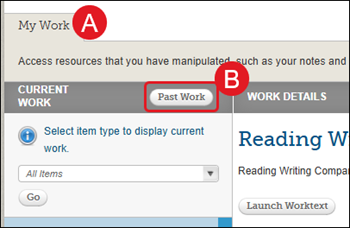
Access your work for the week on the My Work tab. This includes your notes, edits you made to the Presentation eBook, or Interactive White Board lessons this week.
A. Your Binder resources for the current Unit and Week is displayed on the My Work tab.
B. Click Past Work to view your notes from another unit and week.
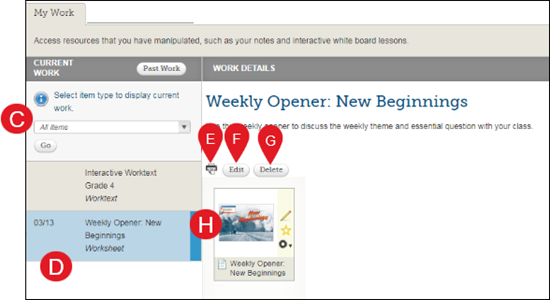
C. Filter the types of work by selecting the type of item from the drop-down list and clicking the Go button.
D. Click the item name to view the instructions and associated resources.
E. Click the print icon to print this item.
F. Click the Edit button to make changes to the item.
G. Click the Delete button to delete it.
H. Click the resources icon to view it.
My Students' Work
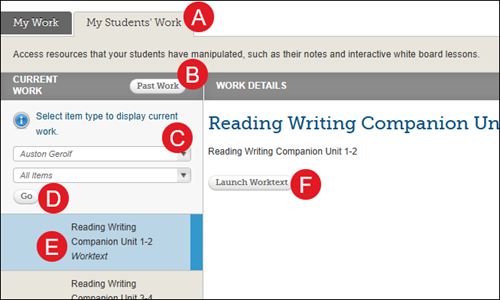
A. Access your students' work on the My Students Work tab. This includes your notes, edits you made to the Presentation eBook, or Interactive White Board lessons this week.
B. Click the Past Work button to view their work from another unit and week.
C. Select a student from the drop-down list.
D. Filter the types of work by selecting the type of item from the drop-down list and clicking the Go button.
E .Select an item to view it.
F. Click the Launch button to view the student's work.