View and Edit eAssessment Assignment Results
Review student eAssessment assignment scores and apply edits where necessary.
Tags
- Customer Support
- PreK-12
- Classroom Teacher
- Preschool
- Elementary School
- Middle School
- High School
- Direct Login & Auto-Rostering
- Direct Login & Manual-Rostering
- SSO & Auto-Rostering
- SSO & Manual-Rostering
- Core
- Intervention
- Supplemental
- AP, Honors & Electives
- Literacy
- Math
- Science
- Social Studies
- Health
- Visual & Performing Arts
- World Languages
- Asi se Dice 2016
- Building Blocks 2015
- Core Plus Math 2015
- Glencoe Health 2014
- Glencoe Algebra 1 2014
- Glencoe Algebra 1 2018
- Glencoe Algebra 2 2014
- Glenoce Algebra 2 2018
- Glencoe Geometry 2014
- Glencoe Geometry 2018
- Glencoe Math Accelerated
- Glencoe Math
- Glencoe Math Course 1
- Glencoe Math Course 2
- Glencoe Math Course 3
- Glencoe Science
- Glencoe Science 2017
- Inspire Science 2017
- iScience 2017
- McGraw Hill My Math 2013 & 2016
- Networks 2014 & 2016
- Networks 2014 (K-5)
- Number Worlds 2015
- Pre-Algebra 2012
- Wonders 2014
- Online Assessments
- Grades & Assignments


Article Contents
View Assignment Statuses and Manage Access
Manually Score or Edit Assignment Scores
Review and Export Teacher Reports
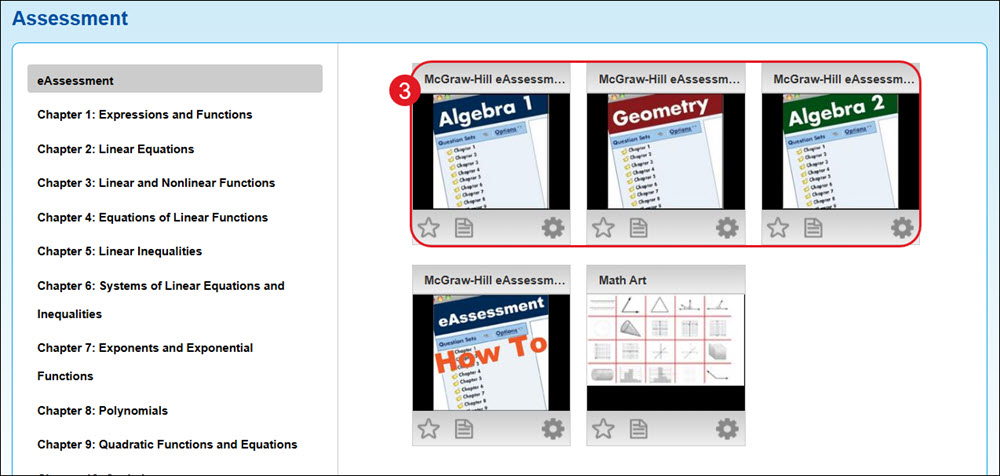
Access eAssessment
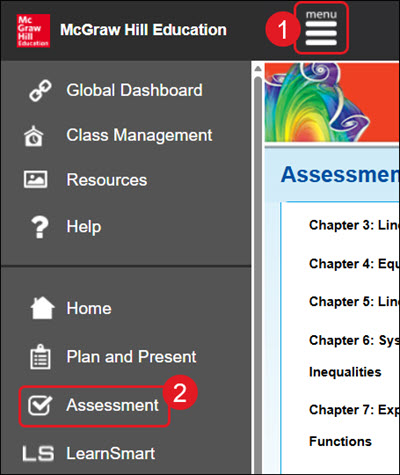
- Click Menu at the top left.
- Click on Assessment in the menu.
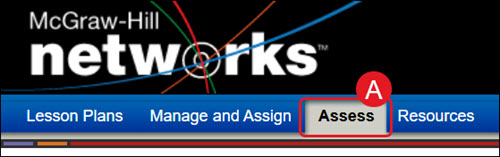
A. For certain programs, such as Networks, click on Assess from the navigation menu.
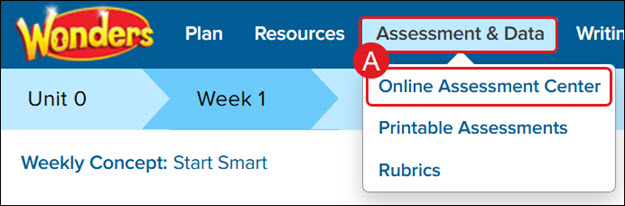
For Wonders ©2014, hover over Assessment & Data and select Online Assessment Center from the menu.
- Click on the eAssessment tile.
View Assignment Results
For steps on creating eAssessment assignments, see the Create, Edit, or Delete an eAssessment Assignment article.
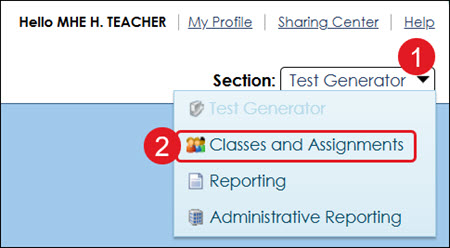
- Click on the Section drop-down at the top right.
- Click on Classes and Assignments from the menu.
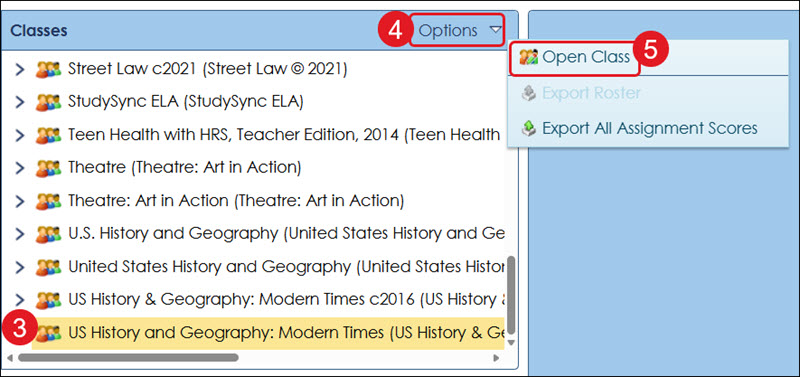
- Click on the Class name.
- Click on Options.
- Click on Open Class from the menu.
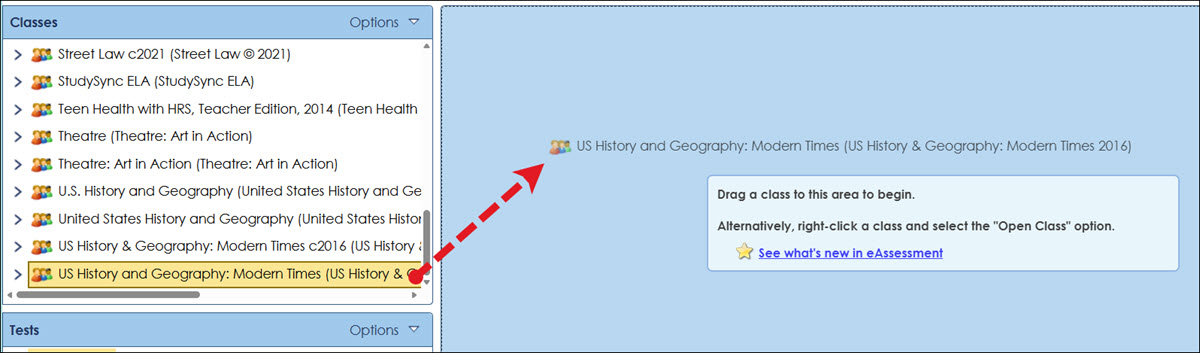
Other options are to click on the class name and drag it to the center of the page (blue area), or to right-click on the class name and click Open Class from the menu.
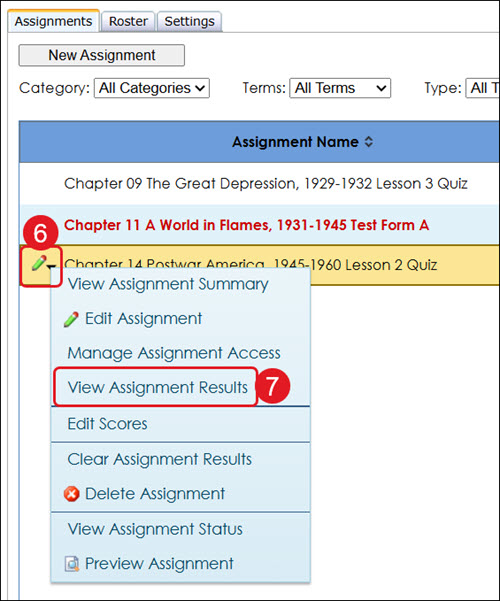
- Hover over the assignment and click on the pencil icon.
- Click on View Assignment Results from the menu.
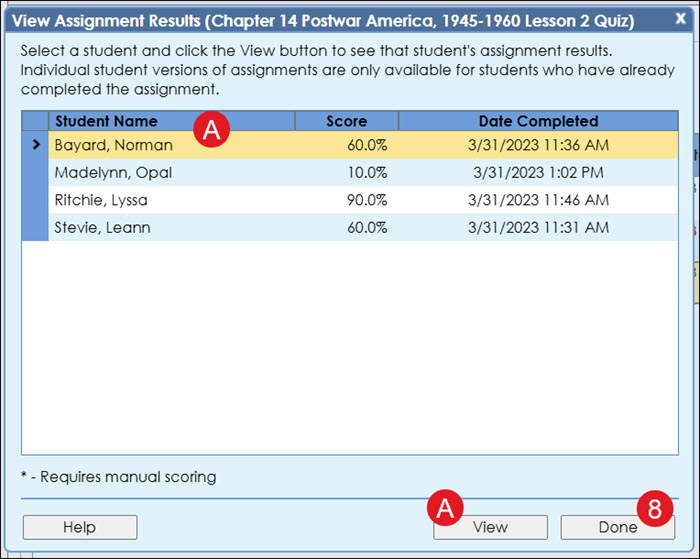
The View Assignment Results pop-up lists each student who has completed the assignment, their score, and the completion date.
A. Select a student name from the list and click the View button to access their completed assignment.
- Click the Done button to close out of the results.
Manually Score or Edit Assignment Scores
- Click on the Section drop-down at the top right.
- Click on Classes and Assignments from the menu.
- Click on the Class name.
- Click on Options.
- Click on Open Class from the menu.
Other options are to click on the class name and drag it to the center of the page (blue area), or to right-click on the class name and click Open Class from the menu.
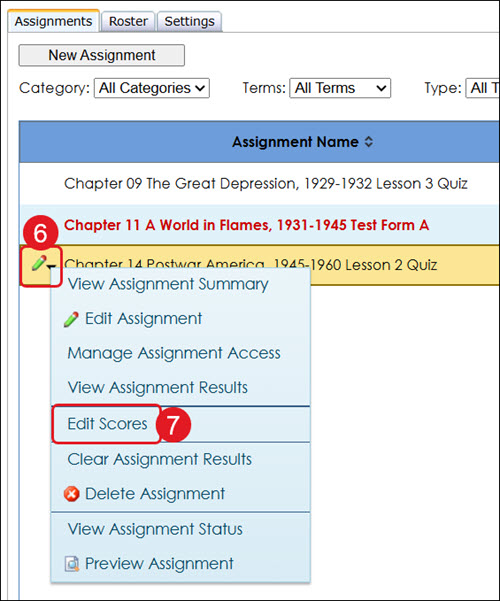
- Hover over the assignment and click on the pencil icon.
- Click on Edit Scores from the menu.
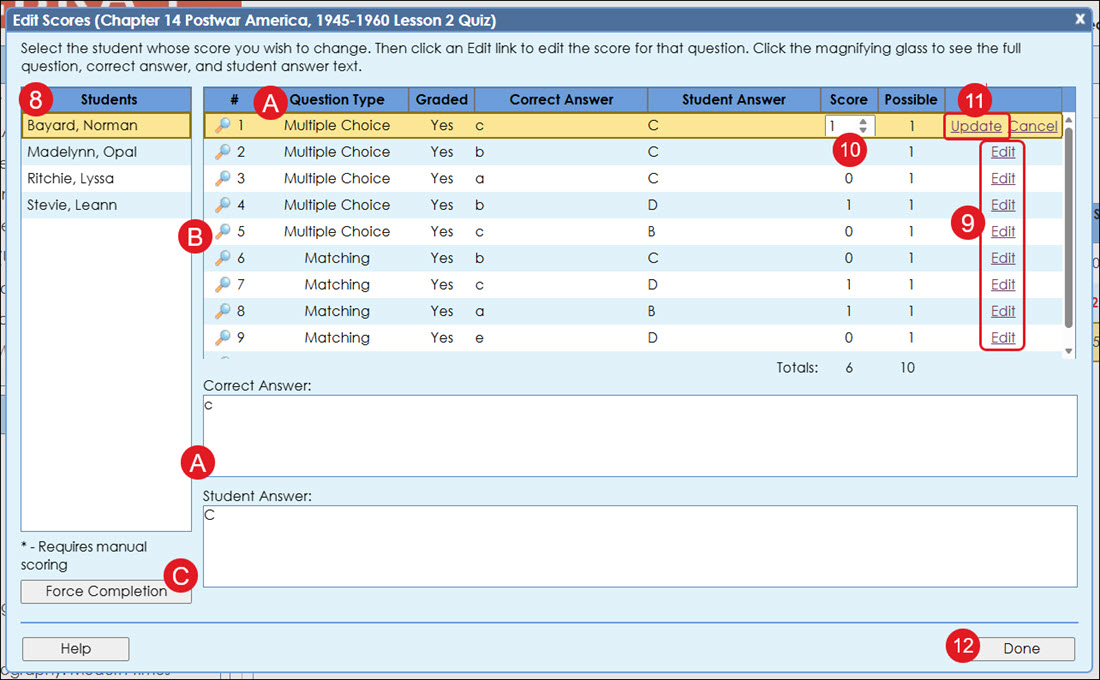
- On the pop-up, select a Student from the list.
Note: An asterisk appears next to the names of students who have questions that need to be scored manually, and the word "No" appears in the Graded column
A. Select a question to view the Correct Answer and the Student Answer.
B. To view the text of the question, click on the magnifying glass button.
C. Click the Force Completion button to submit the assignment for the student.
- Click the Edit link to the right of the question.
- Enter the preferred Score in the field.
- Click the Update link.
- Click the Done button when finished editing scores.