
Access StudySync Rubrics
Use StudySync rubrics to assess student work consistently across assignments and projects.
- StudySync 2021
- Literacy
- SSO & Manual-Rostering
- Customer Support
- Grades & Assignments
- Direct Login & Auto-Rostering
- StudySync 2015 & 2017
- Middle School
- Core
- Direct Login & Manual-Rostering
- High School
- StudySync
- Classroom Teacher
- SSO & Auto-Rostering
- PreK-12


Topics covered in this article:
Viewing a Rubric
Creating a Custom Rubric
Editing a Rubric
Viewing a Rubric:
1. After launching StudySync, click on Assignments in the top menu.
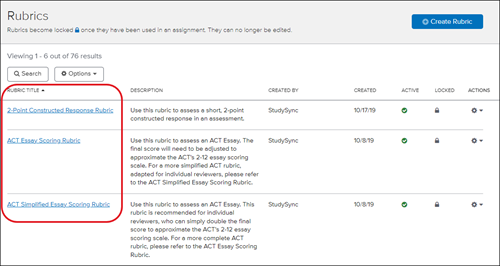
2. Click on Rubrics in the gray menu bar. All premade rubrics will be listed.

3. Click on the Rubric Title. You will then see the rubric criteria and the definitions of the scores.
Creating a Custom Rubric
1. From the Assignments tab, click on Rubrics.
2. Click Create Rubric.

3. Enter Rubric Name.
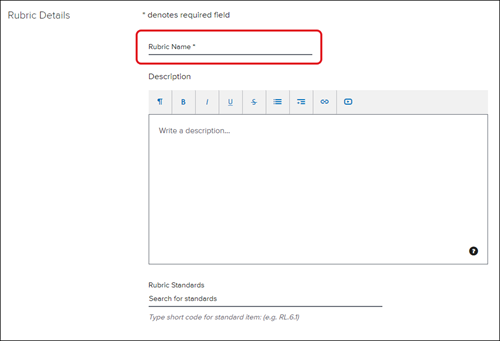
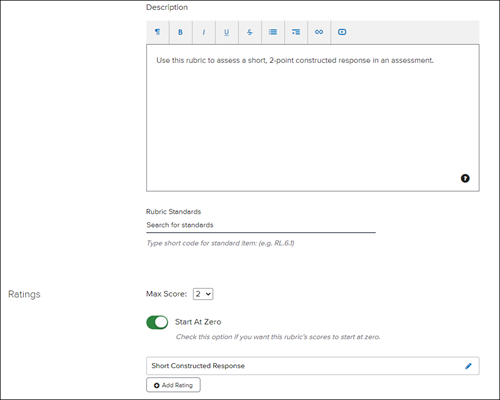
Optional: description, links, and embedded videos.
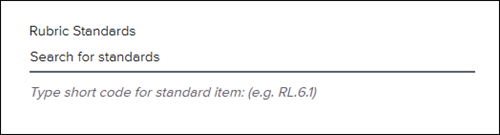
4. Add standards by typing in the provided space.
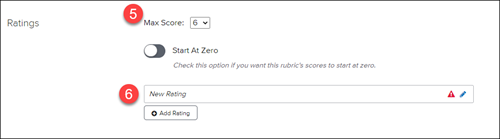
5. Set the Max Score.
6. Set the individual ratings.
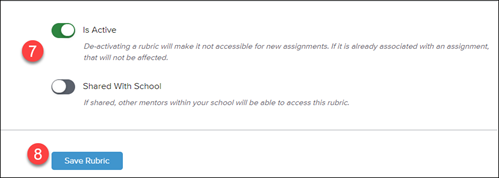
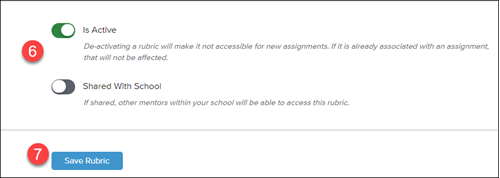
7. Toggle on/off if you would like to have it Active and if you want to Share With School your account is associated with. Active is defaulted to On.
8. Click Save Rubric.
Editing a Rubric:
1. From the Assignments tab, click on Rubrics.
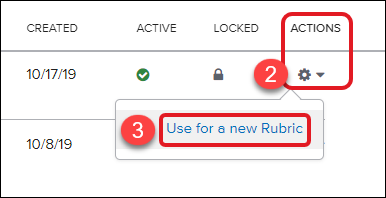
2. Click the Action icon to the right of the Rubric.
3. Click Use for a new Rubric from the pop-up menu. This will create a copy of the template for that rubric.
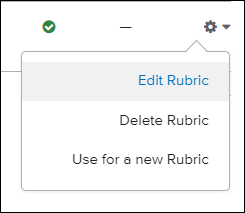
If the rubric is a copy or a custom rubric, additional menu options will be available.
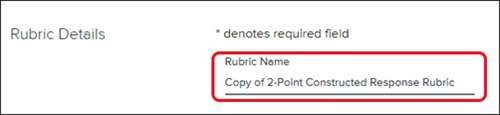
4. Enter desired Rubric Name. It defaults to "Copy of...".
5. Make desired changes to the Description, Rubric Standards, and Ratings.
6. Toggle on/off if you would like to have it Active and if you want to Share With School your account is associated with. Active is defaulted to On.
7. Click Save Rubric.
When viewing your rubric list, you will see the edited rubric with your name under the CREATED BY column.
