Once a student has signed in and completed their Placement Test, if you do not believe a student completed the assessment with the best of their abilities, you can reassign the test for them. Reassigning the Placement Test will remove all completed work and start the program over for the student.
1. Log into your teacher account.
2. Launch your SRA Reading Laboratory class.
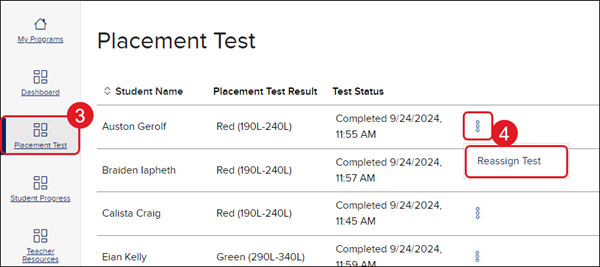
3. Click on Placement Test in the navigation menu.
4. Click on the kebob icon and select Reassign Test from the menu.
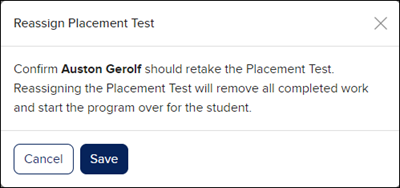
5. On the Reassign Placement Test pop-up, click Save to confirm.
Help us improve!
Let us know how we can improve our support information by providing feedback in this short survey.
Top
Regional Page Available
It looks like you're outside the United States. Do you want to see your regional version of this page?
Support Topics/Assessments & Reporting/Online Assessments
Programs & Solutions
Programs & Solutions/Direct Instruction
Context/Integration Type/SSO & Manual-Rostering
prek-12
2026-03-24T19:03:02.649-03:00
<p><strong>Clickable Walkthrough: <a href="https://hub.mheducation.com/share/pcufxdnp0mgj" target="_blank"><span>SRA Reading Laboratory - Reassign Placement Test</span></a></strong></p> <p>Once a student has signed in and completed their Placement Test, if you do not believe a student completed the assessment with the best of their abilities, you can reassign the test for them. Reassigning the Placement Test will remove all completed work and start the program over for the student.<br> <br> <br> 1. Log into your teacher account.<br> <br> 2. Launch your <strong>SRA Reading Laboratory</strong> class.<br> <br> 3. Click on <strong>Placement Test</strong> in the navigation menu.<br> <br> 4. Click on the kebob icon and select <strong>Reassign Test</strong> from the menu.<br> <br> <img alt="image.png" src="/content/dam/mhe/support/support-images/migrated/rtaImage--232852966.jpeg" data-assetref="rtaImage--232852966-1778787358187"><br> <br> 5. On the <strong>Reassign Placement Test</strong> pop-up, click <strong>Save </strong>to confirm.<br> <br> <img alt="image.png" src="/content/dam/mhe/support/support-images/migrated/rtaImage--232856795.jpeg" data-assetref="rtaImage--232856795-1778787358188"></p> dts SRA Reading Laboratory Reassign Placement Test: step-by-step guidance, requirements, and tips to help you complete this task successfully. 2025-11-21 Reassign SRA Reading Laboratory Placement Test SRA Reading Laboratory Reassign Placement Test: step-by-step guidance, requirements, and tips to help you complete this task successfully. Reassign the SRA Reading Laboratory placement test to update student placement data.
Reassign the SRA Reading Laboratory placement test to update student placement data.
Clickable Walkthrough: SRA Reading Laboratory - Reassign Placement Test Once a student has signed in and completed their Placement Test, if you do not believe a student completed the assessment with the best of their abilities, you can reassign the test for them. Reassigning the Placement Test will remove all completed work and start the program over for the student. 1. Log into your teacher account. 2. Launch your SRA Reading Laboratory class. 3. Click on Placement Test in the navigation menu. 4. Click on the kebob icon and select Reassign Test from the menu. 5. On the Reassign Placement Test pop-up, click Save to confirm.
dts
Direct Instruction, SSO & Manual-Rostering, Customer Support, Online Assessments, Direct Login & Auto-Rostering, Direct Login & Manual-Rostering, Classroom Teacher, SSO & Auto-Rostering, PreK-12, Preschool, Elementary School, Middle School, High School