
New ALEKS Time & Topic Report
Use the new ALEKS interface Time and Topic report to analyze how students spend learning time.
- Customer Support
- PreK-12
- Classroom Teacher
- Elementary School
- Middle School
- High School
- Direct Login & Auto-Rostering
- Direct Login & Manual-Rostering
- SSO & Auto-Rostering
- SSO & Manual-Rostering
- Supplemental
- Math
- ALEKS
- Reports & Analytics


View the demo in a separate tab.
View the Spanish version of the demo.
The Time & Topic Report allows you to monitor the amount of time a student is spending within the ALEKS Knowledge Checks, Learning Mode, and assignments. It also includes the number of topics a student has attempted over a particular period of time and how many of those topics the student has learned. However, this report does not provide time spent within the QuickTables.
Article Contents
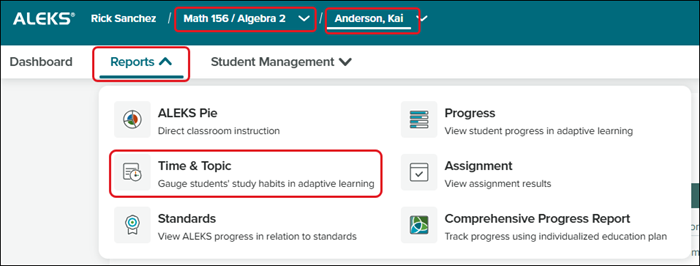
Access Time & Topic Report
1. SSO or sign in at my.mheducation.com.
2. Launch ALEKS.
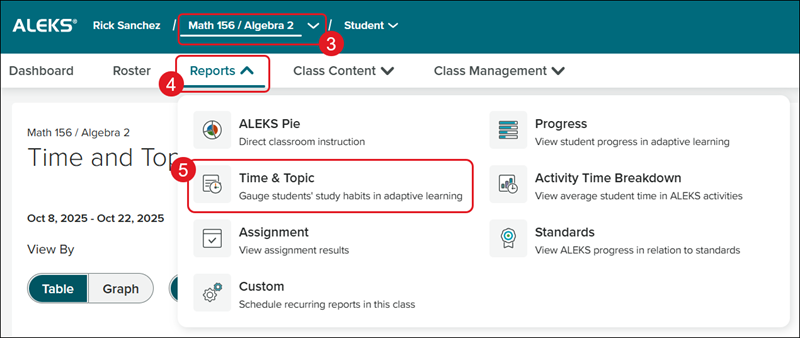
3. Select the class from the Class drop-down.
4. Click on Reports.
5. Click on Time & Topic from the menu.
Class Time & Topic Report
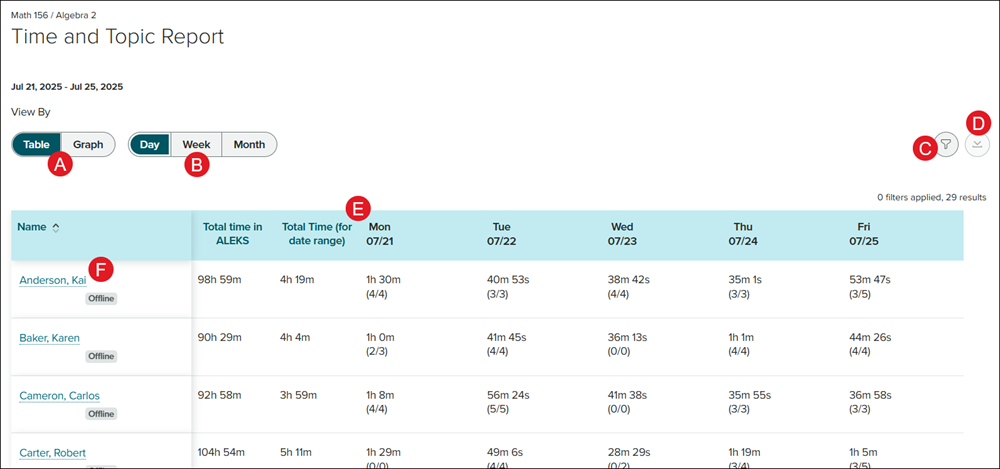
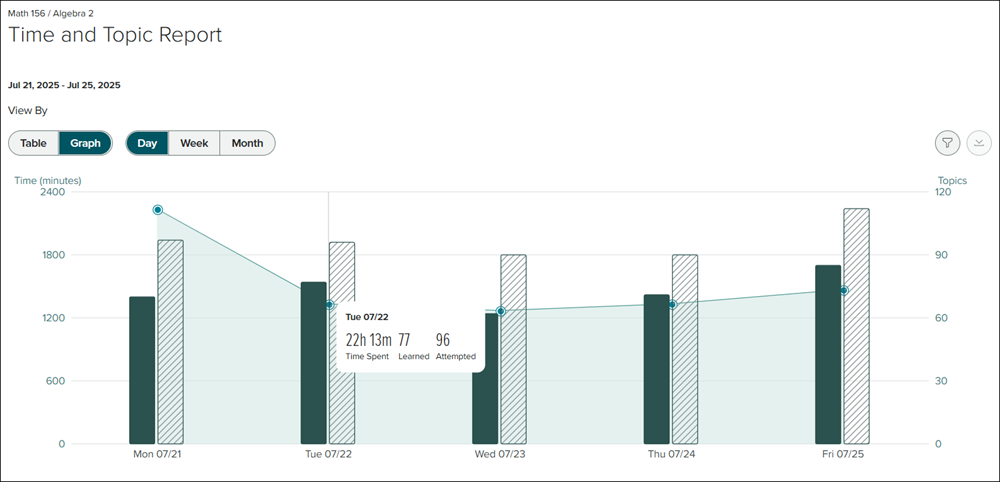
A. Toggle between the Table and Graph view.
Hover over a bar in the Graph view to view the Time Spent, topics Learned, and topics Attempted.
B. Toggle between viewing data by Day, Week, or Month.
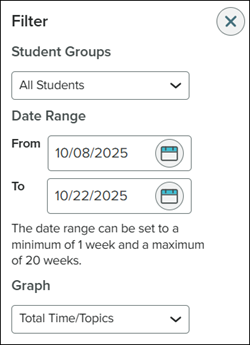
C. Click the Filters button to select the Student Group, Date Range, and Graph view.
D. Click the Download button to print/save the report.
E. Click a header to reorganize the data by that option.
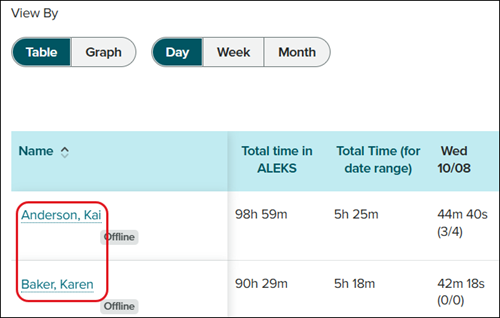
F. Click on a student Name on the Table to view the student report.
Student Time & Topic Report
1. Select the class from the Class drop-down.
2. Select the Student to view.
3. Click on Reports.
4. Click on Time & Topic from the menu.
You can also click on the student name from the class report view.
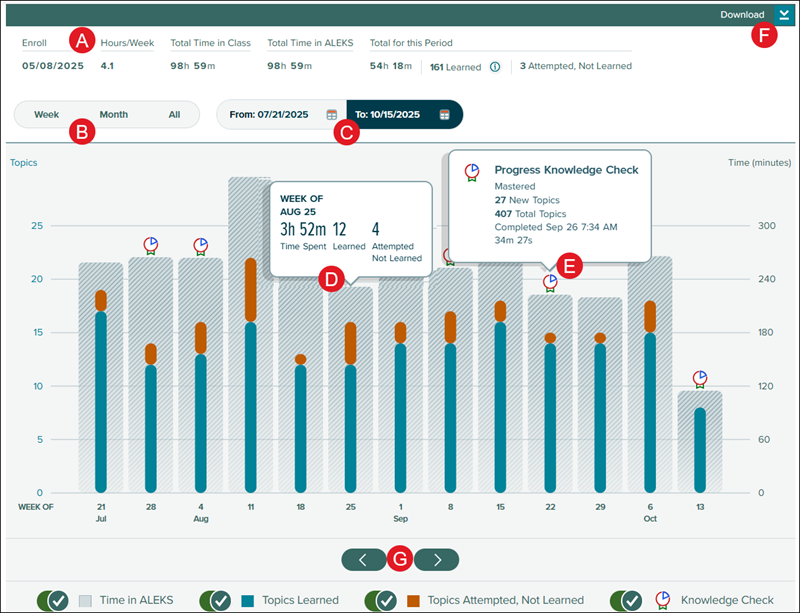
A. Shows when the student was Enrolled in the class, the Hours/Week spent in ALEKS, as well as Total Time in Class, ALEKS, and the selected Period.
B. Toggle between viewing my Week, Month, or All time.
C. Click on the calendar icon on From and To to change the date range.
D. Hover over a bar in the graph to view the Time Spent, Learned, and Attempted Not Learned information for that section.
E. Hover over a Knowledge Check (ribbon) icon to view the New Topics, Total Topics, and Completed date/time for the Knowledge Check.
F. Click the Download icon to print/save a PDF copy of the report.
G. Click the arrows at the bottom to navigate between the dates.
