New ALEKS Standards Report
Review standards-aligned performance using the new ALEKS view Standards report.
- Customer Support
- PreK-12
- Classroom Teacher
- Elementary School
- Middle School
- High School
- Direct Login & Auto-Rostering
- Direct Login & Manual-Rostering
- SSO & Auto-Rostering
- SSO & Manual-Rostering
- Supplemental
- Math
- ALEKS
- Reports & Analytics


View the demo in a separate tab.
View the Spanish version of the demo.
The class-level Standards Report shows the average student completion of standards-aligned ALEKS topics in the class. It can be used to monitor students' progress in stat standards based on their completion of standards-aligned ALEKS topics in Knowledge Checks, Learning Mode, and Assignments.
Article Contents
Access Standards Report
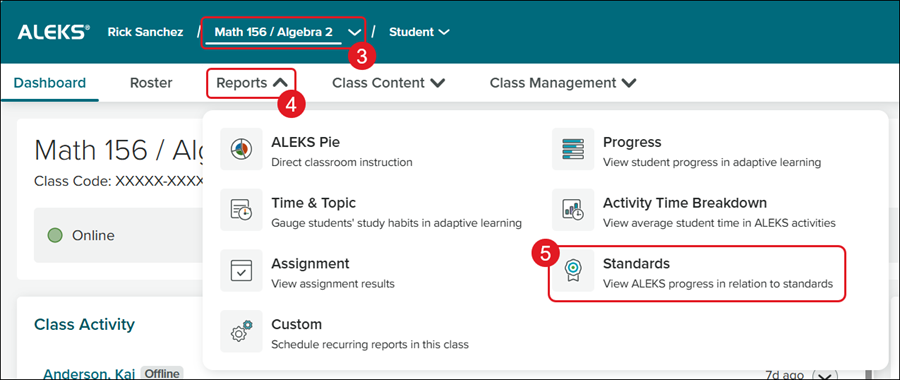
1. SSO or log in at my.mheducation.com.
2. Launch ALEKS.
3. Select the class from the Class drop-down.
4. Click on Reports.
5. Select Standards from the menu.
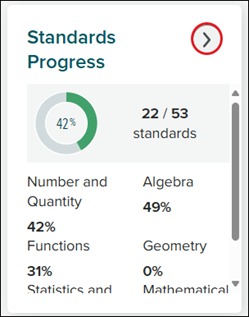
It can also be accessed by clicking on the arrow on the Standards Progress tile from the Dashboard.
Class Standards Report
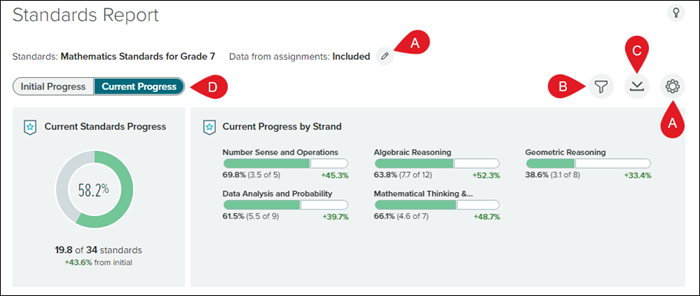
A. Click the pencil or gear icon to open the Report Settings.
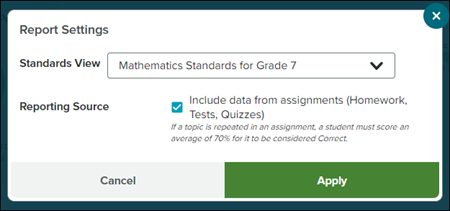
In the Report Settings pop-up, click the drop-down to select the desired Standards View. You can also check or uncheck the Reporting Source box to include Homework, Tests, and Quizzes in the report
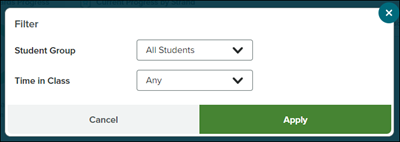
B. Click the Filters icon to select to view the report for a Student Group and/or Time spent in the class.
C. Click the Download icon to download the report into a CSV file.
D. Click Initial Progress and Current Progress to toggle between the two views.
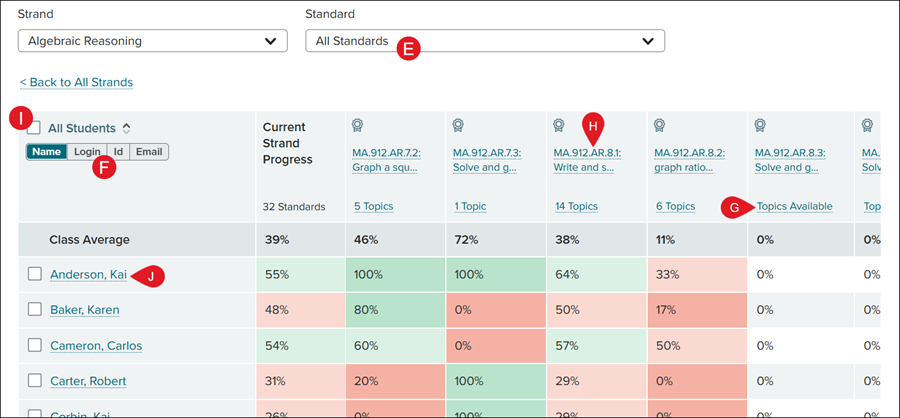
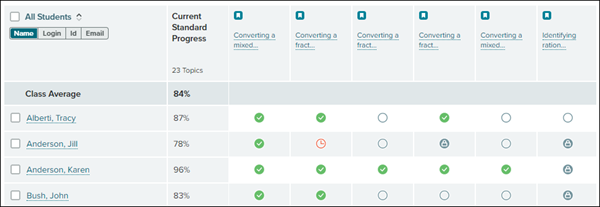
The color indicators gauge the students' completion of the ALEKS topics that align with each standard and pinpoint strengths and gaps.

E. Choose a Strand from the drop-down to filter down to that specific strand in the report. The table updates to display each student's current progress in the strand and the standards within the strand.
Note: The Standard drop-down does not show until a strand is chosen.
F. Select to view the list of students by Name, Login, ID, or Email.
G. If any ALEKS topics aligned to the standard are available, but not currently included in the class, Topics Available link will display.
Click on the ALEKS Topics link to view the list of available topics.
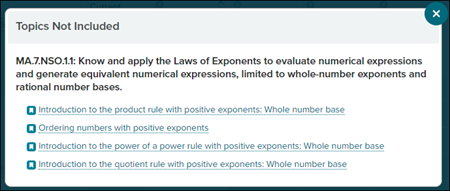
H. Click on the Standard or Topics link to narrow down the report to that specific standard and the topics that are linked to that standard.

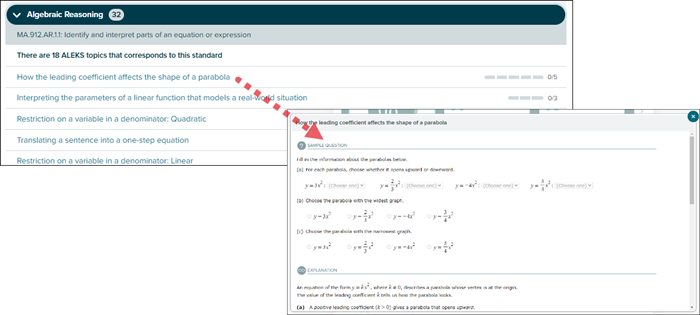
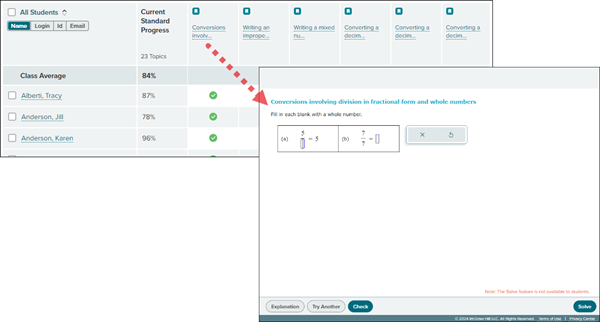
Click on a link in one of the columns to open an example question the students would receive.
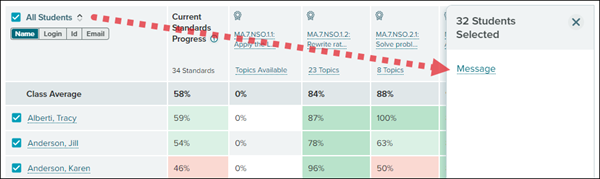
I. Check the box next to All Students to be able to send a Message to all the students in the class.
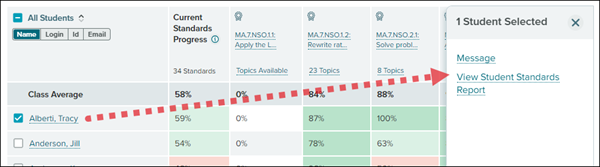
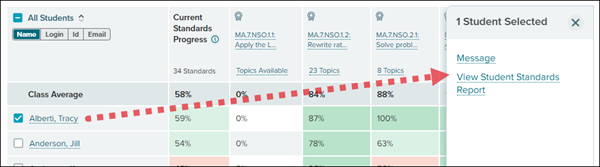
J. Click on a student's name or check the box next to the student's name to send them a Message or view the Student Standards Report.
Note: If more than one student is checked, the only option would be to send a Message.
Student Standards Report
The Student Standards Report can be accessed through the class Standards report by clicking on a student's name and then clicking on the View Student Standards Report link in the right-side panel pop-up.
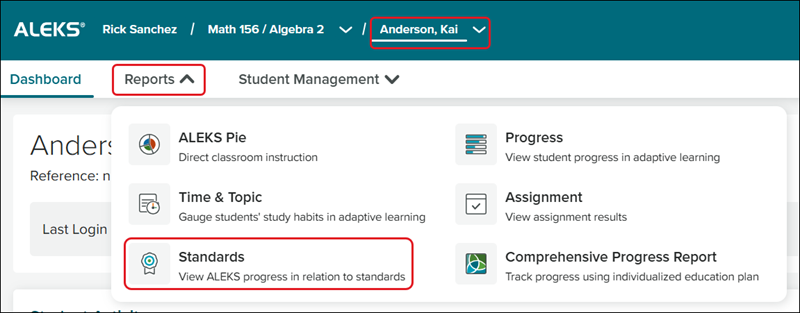
It can also be accessed by selecting a student's name from the Student drop-down, hovering over the Reports, and selecting Standards from the menu.
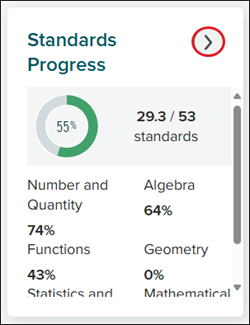
You can also access the student Standards report from the student's Dashboard by clicking on the arrow on the Standards Progress tile.
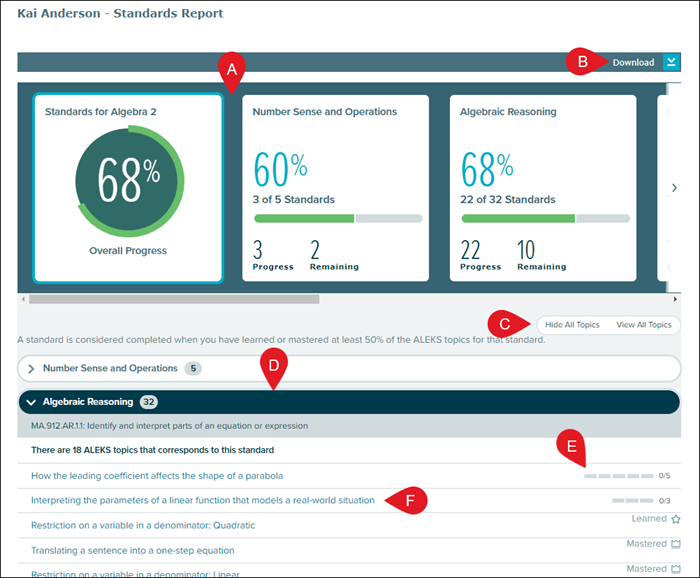
A. Click on a tile to filter the report view to that specific topic.
B. Click the Download button to download the report into a PDF.
C. Use the toggle to Hide All Topics or View All Topics.
D. Click a topic blade to expand the section. Each section will include the standards associated with and the problems for the topic that corresponds with the standard.
E. To the left of each question you will be able to see how many correct answers have been given for the question, or if the student has Learned or Mastered the question. If they have not reached a particular question within the program, it will show as Locked.
F. Click on a topic to open an example question.