Support Topics/Assessments & Reporting/Reports & Analytics
Personas
Personas/School Educator
Personas/School Educator/Classroom Teacher
Context/Subject
Context/Subject/Math
Context/Curriculum Type
Context/Curriculum Type/Supplemental
Asset Format Type
Asset Format Type/Customer Support
Context/Education Level/Middle School
Context/Integration Type/SSO & Manual-Rostering
prek-12
2026-03-24T19:20:17.486-03:00
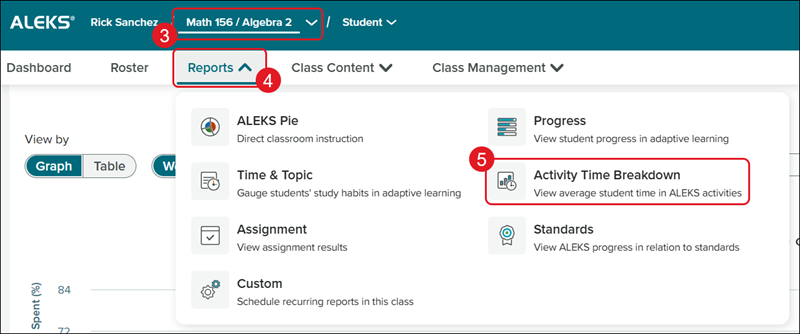
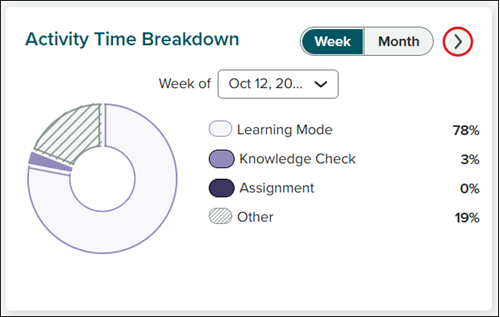
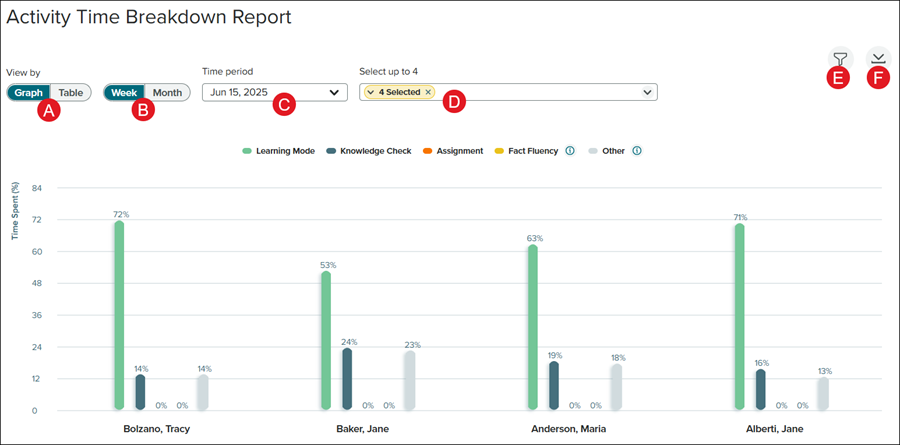
<p>For a full page view of the demo, <a href="https://hub.mheducation.com/share/gdijpadfz1lr" target="_blank">click here</a>.</p> <p>For a Spanish version of the demo, <a href="https://hub.mheducation.com/share/kfqokp6v1azy" target="_blank">click here</a>.</p> <p><span><strong>Article Contents</strong></span></p> <p><a href="#access_report" target="_self">Access Activity Time Breakdown Report</a></p> <p><a href="#breakdown_report" target="_self">Activity Time Breakdown Report</a></p> <p> </p> <h3><a id="access_report"></a>Access Activity Time Breakdown Report</h3> <p>1. SSO or login at <a href="https://my.mheducation.com/login" target="_blank">my.mheducation.com</a>.</p> <p>2. Launch <strong>ALEKS</strong>.</p> <p>3. Select the <strong>Class </strong>from the drop-down.</p> <p>4. Click on <strong>Reports</strong>.</p> <p>5. Click on <strong>Activity Time Breakdown</strong> from the menu.</p> <p><img src="/content/dam/mhe/support/support-images/migrated/rtaImage-423399885.jpeg" data-assetref="rtaImage-423399885-1777323795342"></p> <p>You can also access the report by clicking on the arrow on the <strong>Activity Time Breakdown</strong> tile on the <strong>Dashboard</strong>.</p> <p>The Activity Time Breakdown tile shows the average time a student spends on each activity category in ALEKS.</p> <ul> <li><p>The <strong>Other </strong>category counts as any time the student was logged in but was outside of Learning Mode and Knowledge Checks.</p> </li> </ul> <p><img src="/content/dam/mhe/support/support-images/migrated/rtaImage-423400688.jpeg" data-assetref="rtaImage-423400688-1777323795342"></p> <p> </p> <h3><a id="breakdown_report"></a>Activity Time Breakdown Report</h3> <p>The report updates the weekly report view every week and only shows completed months in the monthly report view.</p> <p><strong>Fact Fluency</strong> - Time spent in QuickTables or ALEKS Adventure fact fluency games is counted toward "Fact Fluency." </p> <p><strong>Other </strong>- Counts as any time the student was logged in but was outside of Learning Mode and Knowledge Checks.</p> <p><img src="/content/dam/mhe/support/support-images/migrated/rtaImage-422705729.jpeg" data-assetref="rtaImage-422705729-1777323795343"></p> <p>A. Toggle between <strong>Graph </strong>and <strong>Table </strong>view.</p> <p>B. Toggle between viewing by <strong>Week </strong>or <strong>Month</strong>.</p> <p>C. Select the <strong>Time period</strong> to view.</p> <p>D. When in <strong>Graph </strong>view, <strong>Select up to 4 students</strong> to view at a time.</p> <p>E. Click the <strong>Filters </strong>button to select a specific date range.</p> <p>D. Click the <strong>Download </strong>button to download/save the report in a .xlsx file.</p> dts Analyze student engagement using the new ALEKS activity time breakdown report. 2026-03-09 New ALEKS View Activity Time Breakdown Report Analyze student engagement using the new ALEKS activity time breakdown report. Analyze student engagement using the new ALEKS view Activity Time Breakdown report.
Analyze student engagement using the new ALEKS view Activity Time Breakdown report.
For a full page view of the demo, click here. For a Spanish version of the demo, click here. Article Contents Access Activity Time Breakdown Report Activity Time Breakdown Report Access Activity Time Breakdown Report 1. SSO or login at my.mheducation.com. 2. Launch ALEKS. 3. Select the Class from the drop-down. 4. Click on Reports. 5. Click on Activity Time Breakdown from the menu. You can also access the report by clicking on the arrow on the Activity Time Breakdown tile on the Dashboard. The Activity Time Breakdown tile shows the average time a student spends on each activity category in ALEKS. The Other category counts as any time the student was logged in but was outside of Learning Mode and Knowledge Checks. Activity Time Breakdown Report The report updates the weekly report view every week and only shows completed months in the monthly report view. Fact Fluency - Time spent in QuickTables or ALEKS Adventure fact fluency games is counted toward "Fact Fluency." Other - Counts as any time the student was logged in but was outside of Learning Mode and Knowledge Checks. A. Toggle between Graph and Table view. B. Toggle between viewing by Week or Month. C. Select the Time period to view. D. When in Graph view, Select up to 4 students to view at a time. E. Click the Filters button to select a specific date range. D. Click the Download button to download/save the report in a .xlsx file.