mcgraw hill social studies
aleks
illustrative math
actively learn
redbird
networks
impact social studies
arrive math
mcgraw hill my math
music! its role
wonders
corrective reading
achieve3000 literacy
redbird math
glencoe math
ocr foundational skills kit
spotlight on music
5 steps to a 5 - ap test prep
aleks adventure
glencoe science
connecting math concepts
reveal math (k-12)
spelling mastery
early interventions in reading
glencoe-math
ap-edition
5-steps-to-a-5-test-prep
glencoe-health
teen-health
arrive-math
building-blocks
number-worlds
reading-laboratory
reading-mastery
achieve3000-literacy
actively-learn
mcgraw-hill-literacy
open-court-reading
studysync
aleks-adventure
reveal-math
illustrative-math
redbird-math
mcgraw-hill-math
inspire-science
mcgraw-hill-science
impact
mh-social-studies
asi-se-dice
mcgraw-hill-cte
level-up
mcgraw-hill-health
connecting-math-concepts
corrective-reading
early-interventions-in-reading
spelling-mastery
wonderworks
maravillas
ocr-foundational-skills-kit
wow
core-plus-math
everyday-math
my-math
mcgraw-hill-pre-algebra
glencoe-science
iscience
music-its-role
spotlight-on-music
student
school-parent
Programs & Solutions
Programs & Solutions/McGraw Hill Social Studies
Programs & Solutions/StudySync
Programs & Solutions/StudySync/StudySync 2015 & 2017
Context
Context/Education Level
Context/Education Level/High School
Context/Subject
Context/Subject/Science
Programs & Solutions/AP Edition
Programs & Solutions/AP Edition/AP Music Theory
Programs & Solutions/ALEKS
Programs & Solutions/McGraw Hill Social Studies/FL Social Studies 2024 (K-12)
Programs & Solutions/Impact Social Studies
Programs & Solutions/Impact Social Studies/CA Impact 2019
Context/Subject/World Languages
Programs & Solutions/Illustrative Math
Programs & Solutions/Networks
Programs & Solutions/Networks/Networks 2014 (K-5)
Programs & Solutions/Actively Learn
Programs & Solutions/Building Blocks
Programs & Solutions/Building Blocks/Building Blocks 2015
Programs & Solutions/World of Wonders
Programs & Solutions/World of Wonders/World of Wonders 2017
Programs & Solutions/AP Edition/AP Public Speaking
Programs & Solutions/Redbird
Programs & Solutions/McGraw Hill Pre-Algebra
Programs & Solutions/McGraw Hill Pre-Algebra/Pre-Algebra 2012
Personas
Personas/School Student
Programs & Solutions/McGraw Hill Literacy
Programs & Solutions/McGraw Hill Literacy/McGraw Hill Literacy Soar!
Programs & Solutions/Wonders
Programs & Solutions/Wonders/Wonders 2014
Context/Subject/Math
Support Topics
Support Topics/User Guides & Account Management
Support Topics/User Guides & Account Management/Log-In & Passwords
Programs & Solutions/McGraw Hill Math
Programs & Solutions/McGraw Hill Math/Texas Math
Programs & Solutions/AP Edition/AP Chemistry
Programs & Solutions/Building Blocks/Building Blocks 2024
Programs & Solutions/Arrive Math
Context/Subject/Literacy
Programs & Solutions/McGraw Hill My Math
Programs & Solutions/McGraw Hill CTE
Programs & Solutions/McGraw Hill CTE/CTE - Health Science
Programs & Solutions/AP Edition/AP History & Geography
Programs & Solutions/Networks/Networks 2018
Programs & Solutions/Music! Its Role
Programs & Solutions/McGraw Hill My Math/McGraw Hill My Math 2018
Programs & Solutions/Reveal Math (K-12)
Programs & Solutions/Reveal Math (K-12)/CA Reveal Math (K-12)
Programs & Solutions/McGraw Hill Health
Programs & Solutions/McGraw Hill Health/McGraw Hill Health 2014
Programs & Solutions/McGraw Hill Literacy/McGraw Hill Literacy Emerge!
Programs & Solutions/Wonders/Wonders EL 2016
Context/Education Level/Preschool
Programs & Solutions/McGraw Hill Science
Programs & Solutions/McGraw Hill Science/FL Science 2025 (K-12)
Programs & Solutions/Corrective Reading
Programs & Solutions/Achieve3000 Literacy
Programs & Solutions/Number Worlds
Programs & Solutions/Number Worlds/Number Worlds 2024
Programs & Solutions/Redbird Math
Programs & Solutions/Reading Laboratory
Programs & Solutions/Reading Laboratory/SRA Reading Laboratory 2025
Programs & Solutions/Building Blocks/Building Blocks PreK 2025
Programs & Solutions/AP Edition/AP Economics
Programs & Solutions/Wonders/Wonders Balanced Literacy 2016
Programs & Solutions/McGraw Hill Science/TN Science (K-12)
Programs & Solutions/Glencoe Math
Programs & Solutions/Glencoe Math/Glencoe Math Course 1
Programs & Solutions/Teen Health
Programs & Solutions/Teen Health/Teen Health 2021
Programs & Solutions/McGraw Hill CTE/CTE - Criminal Justice
Programs & Solutions/Glencoe Math/Glencoe Math Course 2
Programs & Solutions/Glencoe Math/Glencoe Math Course 3
Programs & Solutions/Core Plus Math
Programs & Solutions/Core Plus Math/Core Plus Math 2015
Business Unit
Business Unit/PreK-12
Programs & Solutions/AP Edition/AP Precalculus
Programs & Solutions/OCR Foundational Skills Kit
Programs & Solutions/AP Edition/AP Biology
Programs & Solutions/Spotlight on Music
Programs & Solutions/Number Worlds/Number Worlds 2015
Programs & Solutions/Glencoe Health
Programs & Solutions/Glencoe Health/Glencoe Health 2022
Programs & Solutions/Open Court Reading
Programs & Solutions/Open Court Reading/Open Court Reading 2025
Programs & Solutions/McGraw Hill CTE/CTE - Culinary Arts
Asset Format Type
Asset Format Type/Customer Support
Context/Curriculum Type
Context/Curriculum Type/Supplemental
Programs & Solutions/AP Edition/AP Statistics
Programs & Solutions/McGraw Hill Science/TX Science 2025 (K-12)
Programs & Solutions/Wonders/Wonders 2023 2020 2017
Context/Subject/Health
Programs & Solutions/Asi Se Dice
Programs & Solutions/Asi Se Dice/Asi se Dice 2024
Programs & Solutions/5 Steps to a 5 - AP Test Prep
Programs & Solutions/ALEKS Adventure
Programs & Solutions/Level Up
Programs & Solutions/Level Up/Level Up 9–12
Support Topics/Getting Started & Orientation
Programs & Solutions/Glencoe Health/Glencoe Health 2014
Context/Curriculum Type/Career & Technical Education
Programs & Solutions/Networks/Networks 2014 & 2016
Programs & Solutions/Open Court Reading/Open Court Reading 2016, 2018, 2023
Programs & Solutions/Glencoe Math/Glencoe Algebra 2 2014
Programs & Solutions/McGraw Hill CTE/CTE - Agriculture
Programs & Solutions/Glencoe Math/Glencoe Algebra 2 2018
Context/Curriculum Type/AP, Honors & Electives
Programs & Solutions/WonderWorks
Programs & Solutions/WonderWorks/WonderWorks 2022 & 2014
Context/Curriculum Type/Intervention
Programs & Solutions/McGraw Hill CTE/CTE - Computing and Technology
Programs & Solutions/iScience
Programs & Solutions/iScience/iScience 2017
Programs & Solutions/Open Court Reading/OCR Word Analysis Kit
Programs & Solutions/Everyday Mathematics
Programs & Solutions/Everyday Mathematics/Everyday Mathematics 4 (K-6)
Programs & Solutions/Asi Se Dice/Asi se Dice 2016
Context/Integration Type
Context/Integration Type/Direct Login & Manual-Rostering
Context/Curriculum Type/Core
Programs & Solutions/AP Edition/AP Language and Composition
Programs & Solutions/Glencoe Science
Programs & Solutions/Inspire Science
Programs & Solutions/Inspire Science/Inspire Science 2020
Context/Subject/Visual & Performing Arts
Programs & Solutions/AP Edition/AP Computer Science
Programs & Solutions/Inspire Science/Inspire Science 2017
Context/Subject/Social Studies
Programs & Solutions/Glencoe Math/Glencoe Algebra 1 2018
Programs & Solutions/Connecting Math Concepts
Context/Education Level/Middle School
Programs & Solutions/Glencoe Math/Glencoe Algebra 1 2014
Programs & Solutions/Glencoe Math/Glencoe Geometry 2014
Support Topics/User Guides & Account Management/Account Management
Programs & Solutions/Maravillas
Programs & Solutions/Maravillas/Maravillas 2020 & 2017
Programs & Solutions/McGraw Hill CTE/CTE - Early Childhood Education
Programs & Solutions/Glencoe Science/Glencoe Science 2017
Personas/School Parent
Programs & Solutions/AP Edition/AP African American Studies
Programs & Solutions/Glencoe Math/Glencoe Math Accelerated
Programs & Solutions/Glencoe Math/Glencoe Geometry 2018
Programs & Solutions/McGraw Hill CTE/CTE - Business, Marketing, and Finance
Context/Education Level/Elementary School
Programs & Solutions/Level Up/Level Up K–5
Programs & Solutions/McGraw Hill Literacy/McGraw Hill Literacy Summit!
Programs & Solutions/McGraw Hill My Math/McGraw Hill My Math 2013 & 2016
Programs & Solutions/AP Edition/AP Psychology
Programs & Solutions/StudySync/StudySync 2021
Programs & Solutions/Spelling Mastery
Programs & Solutions/Inspire Science/CA Inspire Science 2020
Programs & Solutions/Reading Mastery
Programs & Solutions/Reading Mastery/SRA Reading Mastery Transformations
Programs & Solutions/Level Up/Level Up 6–8
Programs & Solutions/Early Interventions in Reading
prek-12
2026-03-24T18:31:38.609-03:00
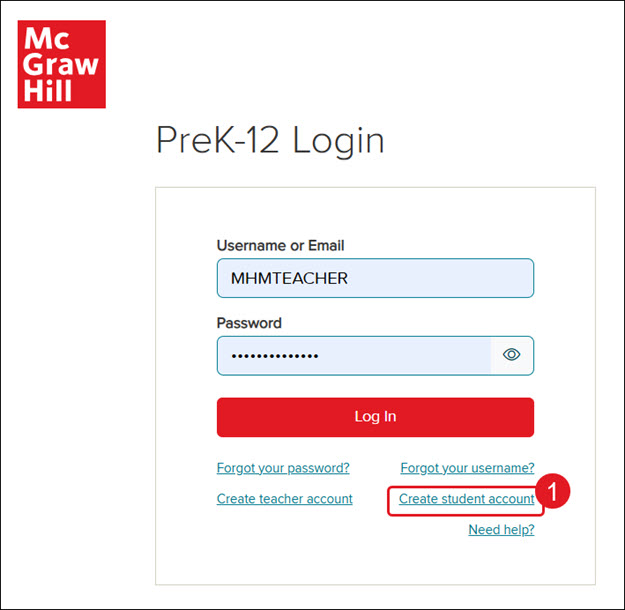
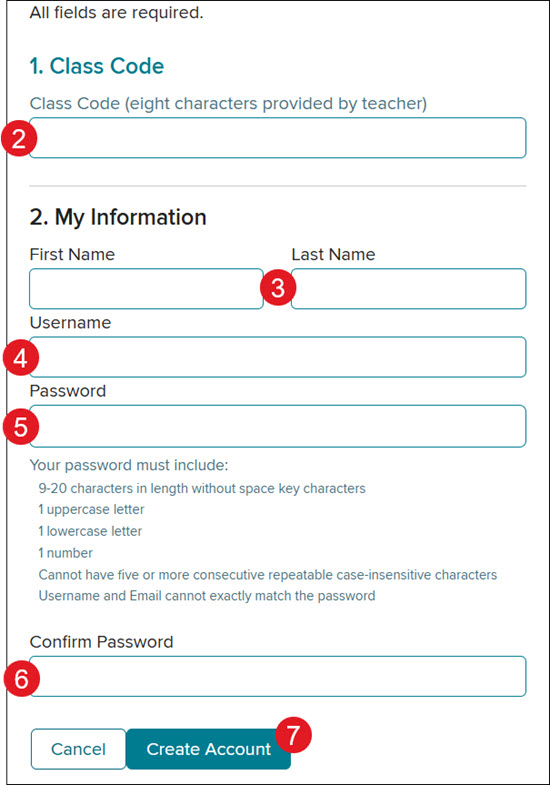
<p><a href="https://hub.mheducation.com/share/rub9ag9xpwjm" target="_blank">View the demo in a separate tab.</a></p> <p><a href="https://hub.mheducation.com/share/0y7l9pns7f0s" target="_blank">View the Spanish version of the demo.</a></p> <p><a href="https://youtu.be/WnVCjJHjBN0" target="_blank">View a video walkthrough.</a></p> <p> </p> <p>To create an account, students must first <strong>contact their teacher</strong> to get an 8-character class code. <em>Only the teacher can provide them with this code. </em>If their teacher has already created a student account for them, they should not create another account.</p> <p><strong>Please note!</strong> Students only need to create one account. If they have multiple classes, each of those classes can be added to the same student account by following the steps in the <a href="https://www.mheducation.com/prek-12/support/knowledge/my-mheducation-com-join-a-class.html" target="_blank">How to Join a McGraw Hill Class and Redeem Content</a> article.</p> <p> </p> <ol> <li>On the <a href="https://my.mheducation.com/" target="_blank">McGraw Hill PreK-12 Login</a> page, click the <strong>Create student account</strong> link.<br> <br> <img src="/content/dam/mhe/support/support-images/dts-k12-images/create-a-mcgraw-hill-student-account/create-student-account-1.jpg" data-assetref="create-student-account-1-1794505026554"><br> <br> </li> <li>Enter the 8-character <strong>Class Code </strong>you received from your teacher. If you were provided with multiple codes, you only need to use one of them.<br> <br> </li> <li>Enter your <strong>First </strong>and <strong>Last Name</strong>.<br> <br> </li> <li>Enter a <strong>Username</strong>. We recommend using your school-affiliated email address if you have one.<br> <br> <strong>Note:</strong> Do not add spaces to the username, as it will cause errors when trying to log in to your account.<br> <br> </li> <li>Enter a <strong>Password</strong>.<br> <br> The password must include:<br> <br> - 9-20 characters in length with no spaces<br> <br> - At least 1 uppercase letter<br> <br> - At least 1 lowercase letter<br> <br> - At least 1 number<br> <br> - It cannot have five or more consecutive repeatable case-insensitive characters.<br> <br> Example of what it <strong>cannot be</strong>: McGraaAaaw<br> <br> Example of what it <strong>could be</strong>: McGraaAaw<br> <br> - The Username cannot exactly match the password.<br> <br> </li> <li>Enter the same password in the <strong>Confirm Password</strong> field.<br> <br> </li> <li>Click the <strong>Create Account</strong> button.<br> <br> <img src="/content/dam/mhe/support/support-images/dts-k12-images/create-a-mcgraw-hill-student-account/create-student-account-2.jpg" data-assetref="create-student-account-2-1794505799557"><br> <br> If you experience problems creating a student account, please reach out to your teacher.</li> </ol> dts Instructions for students on how to create a new McGraw Hill account. 2026-11-12 Create a McGraw Hill Student Account Instructions for students on how to create a new McGraw Hill account. Instructions for students on how to create a new McGraw Hill account.
Instructions for students on how to create a new McGraw Hill account.
View the demo in a separate tab. View the Spanish version of the demo. View a video walkthrough. To create an account, students must first contact their teacher to get an 8-character class code. Only the teacher can provide them with this code. If their teacher has already created a student account for them, they should not create another account. Please note! Students only need to create one account. If they have multiple classes, each of those classes can be added to the same student account by following the steps in the How to Join a McGraw Hill Class and Redeem Content article. On the McGraw Hill PreK-12 Login page, click the Create student account link. Enter the 8-character Class Code you received from your teacher. If you were provided with multiple codes, you only need to use one of them. Enter your First and Last Name. Enter a Username. We recommend using your school-affiliated email address if you have one. Note: Do not add spaces to the username, as it will cause errors when trying to log in to your account. Enter a Password. The password must include: - 9-20 characters in length with no spaces - At least 1 uppercase letter - At least 1 lowercase letter - At least 1 number - It cannot have five or more consecutive repeatable case-insensitive characters. Example of what it cannot be: McGraaAaaw Example of what it could be: McGraaAaw - The Username cannot exactly match the password. Enter the same password in the Confirm Password field. Click the Create Account button. If you experience problems creating a student account, please reach out to your teacher.
dts
Customer Support, PreK-12, Glencoe Algebra 2 2018, School Student, School Parent, Preschool, Elementary School, Middle School, High School, Direct Login & Manual-Rostering, Core, Intervention, Supplemental, AP, Honors & Electives, Career & Technical Education, Literacy, Math, Science, Social Studies, Health, Visual & Performing Arts, World Languages, AP Biology, AP Chemistry, AP History & Geography, AP Psychology, AP Economics, AP African American Studies, AP Precalculus, AP Statistics, AP Computer Science, AP Language and Composition, AP Public Speaking, AP Music Theory, 5 Steps to a 5 - AP Test Prep, Glencoe Health 2022, Teen Health 2021, Arrive Math, Building Blocks 2024, Building Blocks PreK 2025, Number Worlds 2024, SRA Reading Laboratory 2025, SRA Reading Mastery Transformations, Achieve3000 Literacy, Actively Learn, McGraw Hill Literacy Emerge!, McGraw Hill Literacy Summit!, McGraw Hill Literacy Soar!, Open Court Reading 2025, Redbird, StudySync 2021, ALEKS, ALEKS Adventure, CA Reveal Math (K-12), Illustrative Math, Redbird Math, Reveal Math (K-12), Texas Math, CA Inspire Science 2020, FL Science 2025 (K-12), Inspire Science 2020, TN Science (K-12), TX Science 2025 (K-12), CA Impact 2019, FL Social Studies 2024 (K-12), Impact Social Studies, McGraw Hill Social Studies, Asi se Dice 2024, CTE - Business, Marketing, and Finance, CTE - Health Science, CTE - Computing and Technology, CTE - Agriculture, CTE - Culinary Arts, CTE - Early Childhood Education, CTE - Criminal Justice, Level Up K–5, Level Up 6–8, Level Up 9–12, Glencoe Health 2014, McGraw Hill Health 2014, Building Blocks 2015, Connecting Math Concepts, Number Worlds 2015, Corrective Reading, Early Interventions in Reading, Spelling Mastery, WonderWorks 2022 & 2014, Maravillas 2020 & 2017, OCR Foundational Skills Kit, OCR Word Analysis Kit, Open Court Reading 2016, 2018, 2023, StudySync 2015 & 2017, Wonders, Wonders 2014, Wonders 2023 2020 2017, Wonders Balanced Literacy 2016, Wonders EL 2016, World of Wonders 2017, Core Plus Math 2015, Everyday Mathematics 4 (K-6), Glencoe Algebra 1 2014, Glencoe Algebra 1 2018, Glencoe Algebra 2 2014, Glencoe Math, Glencoe Geometry 2014, Glencoe Geometry 2018, Glencoe Math Course 1, Glencoe Math Course 2, Glencoe Math Course 3, Glencoe Math Accelerated, McGraw Hill My Math, McGraw Hill My Math 2013 & 2016, McGraw Hill My Math 2018, Pre-Algebra 2012, Glencoe Science, Glencoe Science 2017, Inspire Science 2017, iScience 2017, Networks, Networks 2014 (K-5), Networks 2014 & 2016, Networks 2018, Music! Its Role, Spotlight on Music, Asi se Dice 2016, Account Management, Getting Started & Orientation, Log-In & Passwords