ap-edition
5-steps-to-a-5-test-prep
glencoe-health
teen-health
arrive-math
building-blocks
number-worlds
reading-laboratory
reading-mastery
achieve3000-literacy
actively-learn
mcgraw-hill-literacy
open-court-reading
redbird
studysync
aleks
aleks-adventure
reveal-math
illustrative-math
redbird-math
mcgraw-hill-math
inspire-science
mcgraw-hill-science
impact
mh-social-studies
all-sorts
asi-se-dice
mcgraw-hill-cte
mcgraw-hill-health
2inform
connecting-math-concepts
corrective-reading
early-interventions-in-reading
spelling-mastery
wonderworks
maravillas
ocr-foundational-skills-kit
wonders
wow
core-plus-math
everyday-math
glencoe-math
my-math
mcgraw-hill-pre-algebra
glencoe-science
iscience
networks
music-its-role
spotlight-on-music
school-parent
student
instructor
Personas
Personas/School Parent
Context
Context/Education Level
Context/Education Level/Preschool
Personas/School Educator
Personas/School Educator/School Administrator
Business Unit
Business Unit/PreK-12
Context/Integration Type
Context/Integration Type/Direct Login & Manual-Rostering
Context/Education Level/High School
Personas/School Student
Context/Integration Type/Direct Login & Auto-Rostering
Context/Education Level/Elementary School
Personas/School Educator/Classroom Teacher
Support Topics
Support Topics/Devices & Applications
Support Topics/Devices & Applications/Mobile Apps
Asset Format Type
Asset Format Type/Customer Support
Context/Education Level/Middle School
prek-12
2026-05-11T17:26:00.733-04:00
<p><strong>Direct Login and Auto-Rostering<br> Direct Login and Manual Rostering</strong></p> <p><em>This article applies to districts that use Direct Login Access Service. Direct Login means that teachers, students, and administrators log in at </em><a href="https://my.mheducation.com/login" target="_blank"><em>my.mheducation.com</em></a><em>.<br> <br> If you are unsure which Access Service applies to your district, please see </em><a href="/content/mheducation/us/en/prek-12/support/knowledge/access-service-descriptions.html" target="_self"><em>this article</em></a><em> for more information.</em><strong></strong></p> <p>This article walks users through how to install and log in to the McGraw Hill K-12 Portal app, download content, and use the app.</p> <p><strong>Article Contents</strong></p> <p><a href="#Intro" target="_self">Introduction</a></p> <p><a href="#install_app" target="_self">Install the App</a></p> <p><a href="#login" target="_self">Log In</a></p> <p><a href="#download_books" target="_self">Download eBooks</a></p> <p><a href="#remove_books" target="_self">Remove eBooks</a></p> <p><a href="#open_books" target="_self">Open Books and Resources</a></p> <p><a href="#cedprograms" target="_self">Access Through Web Browser</a></p> <p><a href="#thirdparty" target="_self">Third-Party Apps</a></p> <p><a href="#offline_access" target="_self">Offline Access</a></p> <h2><a id="Intro"></a>Introduction</h2> <p>Most McGraw Hill K-12 programs offer a mobile version of the course eBooks. The McGraw Hill K-12 Portal app enables you to download and view eBooks even when you are not connected to the internet. In addition to offline access, students will now be able to annotate and complete work in their eBook that will sync with the platform once the student is back online.</p> <p>Be aware that the McGraw Hill K-12 Portal app does not include planning, assigning, or testing capabilities. Accessing program content and resources for programs using a web browser is also explained.</p> <h2><a id="install_app"></a>Install the App</h2> <p>Follow the steps below to install the McGraw Hill K-12 Portal app on a Chromebook™. Go to <a href="/content/mheducation/us/en/prek-12/support/knowledge/mcgraw-hill-system-requirements.html" target="_self">McGraw Hill System Requirements</a> to check the system requirements. If your device meets the system requirements:</p> <p>1. Access the appropriate <strong>App Store</strong>.</p> <p>2. You can search for "<strong>McGraw Hill K-12 Portal</strong>" or use the following direct link: <a href="https://play.google.com/store/apps/details?id=com.mheducation.learningtools.k12" target="_blank">Google Play</a></p> <p>3. Select the <strong>McGraw Hill K-12 Portal</strong> icon.</p> <p><img src="/content/dam/mhe/support/support-images/migrated/rtaImage--961557184.jpeg" data-assetref="rtaImage--961557184-1778534441660"></p> <p>4. Follow your normal process to install the McGraw Hill K-12 Portal app.</p> <h2><a id="login"></a>Log In</h2> <p>Since Single Sign-On (SSO) users do not log in directly at my.mheducation.com, they cannot directly log into the McGraw Hill K-12 Portal app. SSO users need to launch the app from <strong>my.mheducation.com</strong> using a web browser.</p> <p>1. Log into your district's <strong>Learning Management System (LMS)</strong> or <strong>SSO </strong>portal.</p> <p>2. Select the SSO link to access your program content in a web browser.</p> <p>3. The app links shown below only appear when you are using a tablet, phone, or Chromebook. Teachers right click (or long press on touchscreen) Launch App that appears on the right side of the page.</p> <p><img src="/content/dam/mhe/support/support-images/migrated/rtaImage--961536661.jpeg" data-assetref="rtaImage--961536661-1778534425920"> </p> <p>Students right click (or long press 2 to 3 seconds on touchscreen) the McGraw Hill K-12 Portal app button on the right side of the My Classes page.</p> <p><img src="/content/dam/mhe/support/support-images/migrated/rtaImage--961535517.jpeg" data-assetref="rtaImage--961535517-1778534415581"></p> <p>4. Select "<strong>Open with K-12 Portal</strong>" from the menu option.</p> <p><img src="/content/dam/mhe/support/support-images/migrated/rtaImage--961527262.jpeg" data-assetref="rtaImage--961527262-1778534406693"> </p> <p>5. The McGraw Hill K-12 Portal app opens and automatically logs you in.</p> <h2><a id="download_books"></a>Download eBooks</h2> <p>The My Classes page contains all of your licensed eBooks. If your account has several books, select the title you wish to access. A program may have one or more eBooks. Tap the download icon next to the eBook to begin the download process. Be aware that it may take several minutes to download each eBook depending on the download speed in your current location. Remain connected to the internet while downloading eBooks.</p> <h2><a id="remove_books"></a>Remove eBooks</h2> <p>To provide offline access, eBooks are downloaded and saved on your mobile device. The number of books that can be downloaded is dependent on the amount of storage space on your device. To remove eBooks and free up storage space on your device, on the My Classes page, go to the Download Manager (icon in the top right). Swipe left on the eBook you wish to remove and click the delete button.</p> <h2><a id="open_books"></a>Open Books and Resources</h2> <p>To open a downloaded eBook, select the book title. Keep in mind that functionality is limited when using a tablet device. Greater functionality is provided by accessing the program using a web browser on the device.</p> <p>It is recommended that teachers access the program resources, such as videos and worksheets, using a web browser as the majority of teacher resources are not available through the app.</p> <h2>Access Through Web Browser<a href="cedprograms" target="_self"></a><a href="cedprograms" target="_self"></a></h2> <p>It is recommended that teachers access program resources, such as videos and worksheets, using the Chrome browser. Follow these steps to access program content:</p> <p>1. Launch a web browser on your mobile device and go to <a href="https://my.mheducation.com/" target="_blank">my.mheducation.com</a>.</p> <p>2. Enter the same username and password you use to access your programs.</p> <p>3. Navigate to class and program resources just as you would on a computer or laptop.</p> <h2><a id="thirdparty"></a>Third-Party Apps</h2> <p>Worksheets and other resources open up as PDFs on mobile devices. There are a wide variety of apps that enable users to save and annotate PDF content. A few apps that store content include Dropbox, Google Drive™, Microsoft OneDrive™, Evernote®, and iCloud®. Annotation and notetaking apps include PDF Writer, Adobe® Reader®, Pages®, Evernote®, Microsoft OneNote™, Notability, Google Docs™, Google Keep™, and Simplenote, to name a few.</p> <h2><a id="offline_access"></a>Offline Access</h2> <p>Student eBooks can be viewed without an internet connection. Be sure to download eBooks completely before going offline. Students can annotate and complete work in their eBook while offline. All work completed offline in the eBook will synchronize with the platform once the student is back online and has logged into the app. </p> <p><img src="/content/dam/mhe/support/support-images/migrated/rtaImage--961555437.jpeg" data-assetref="rtaImage--961555437-1778534382171">Teachers and students need to remain logged in to the app if they plan to view eBooks offline. If a user logs out of the app, an internet connection is required to log back in.</p> dts McGraw Hill K-12 Portal On A Chromebook: step-by-step guidance, requirements, and tips to help you complete this task successfully. 2026-03-06 McGraw Hill K-12 Portal on a Chromebook™ for Direct Login Districts McGraw Hill K-12 Portal On A Chromebook: step-by-step guidance, requirements, and tips to help you complete this task successfully. Learn how to access the McGraw Hill K‑12 Portal on a Chromebook.
Learn how to access the McGraw Hill K‑12 Portal on a Chromebook.
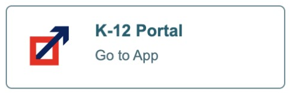
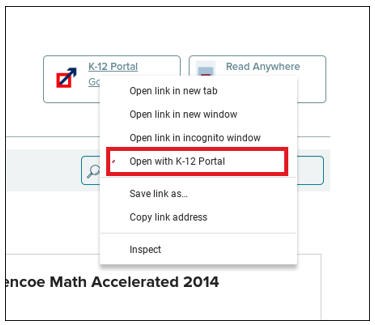
Direct Login and Auto-Rostering Direct Login and Manual Rostering This article applies to districts that use Direct Login Access Service. Direct Login means that teachers, students, and administrators log in at my.mheducation.com. If you are unsure which Access Service applies to your district, please see this article for more information. This article walks users through how to install and log in to the McGraw Hill K-12 Portal app, download content, and use the app. Article Contents Introduction Install the App Log In Download eBooks Remove eBooks Open Books and Resources Access Through Web Browser Third-Party Apps Offline Access Introduction Most McGraw Hill K-12 programs offer a mobile version of the course eBooks. The McGraw Hill K-12 Portal app enables you to download and view eBooks even when you are not connected to the internet. In addition to offline access, students will now be able to annotate and complete work in their eBook that will sync with the platform once the student is back online. Be aware that the McGraw Hill K-12 Portal app does not include planning, assigning, or testing capabilities. Accessing program content and resources for programs using a web browser is also explained. Install the App Follow the steps below to install the McGraw Hill K-12 Portal app on a Chromebook™. Go to McGraw Hill System Requirements to check the system requirements. If your device meets the system requirements: 1. Access the appropriate App Store. 2. You can search for "McGraw Hill K-12 Portal" or use the following direct link: Google Play 3. Select the McGraw Hill K-12 Portal icon. 4. Follow your normal process to install the McGraw Hill K-12 Portal app. Log In Since Single Sign-On (SSO) users do not log in directly at my.mheducation.com, they cannot directly log into the McGraw Hill K-12 Portal app. SSO users need to launch the app from my.mheducation.com using a web browser. 1. Log into your district's Learning Management System (LMS) or SSO portal. 2. Select the SSO link to access your program content in a web browser. 3. The app links shown below only appear when you are using a tablet, phone, or Chromebook. Teachers right click (or long press on touchscreen) Launch App that appears on the right side of the page. Students right click (or long press 2 to 3 seconds on touchscreen) the McGraw Hill K-12 Portal app button on the right side of the My Classes page. 4. Select "Open with K-12 Portal" from the menu option. 5. The McGraw Hill K-12 Portal app opens and automatically logs you in. Download eBooks The My Classes page contains all of your licensed eBooks. If your account has several books, select the title you wish to access. A program may have one or more eBooks. Tap the download icon next to the eBook to begin the download process. Be aware that it may take several minutes to download each eBook depending on the download speed in your current location. Remain connected to the internet while downloading eBooks. Remove eBooks To provide offline access, eBooks are downloaded and saved on your mobile device. The number of books that can be downloaded is dependent on the amount of storage space on your device. To remove eBooks and free up storage space on your device, on the My Classes page, go to the Download Manager (icon in the top right). Swipe left on the eBook you wish to remove and click the delete button. Open Books and Resources To open a downloaded eBook, select the book title. Keep in mind that functionality is limited when using a tablet device. Greater functionality is provided by accessing the program using a web browser on the device. It is recommended that teachers access the program resources, such as videos and worksheets, using a web browser as the majority of teacher resources are not available through the app. Access Through Web Browser It is recommended that teachers access program resources, such as videos and worksheets, using the Chrome browser. Follow these steps to access program content: 1. Launch a web browser on your mobile device and go to my.mheducation.com. 2. Enter the same username and password you use to access your programs. 3. Navigate to class and program resources just as you would on a computer or laptop. Third-Party Apps Worksheets and other resources open up as PDFs on mobile devices. There are a wide variety of apps that enable users to save and annotate PDF content. A few apps that store content include Dropbox, Google Drive™, Microsoft OneDrive™, Evernote®, and iCloud®. Annotation and notetaking apps include PDF Writer, Adobe® Reader®, Pages®, Evernote®, Microsoft OneNote™, Notability, Google Docs™, Google Keep™, and Simplenote, to name a few. Offline Access Student eBooks can be viewed without an internet connection. Be sure to download eBooks completely before going offline. Students can annotate and complete work in their eBook while offline. All work completed offline in the eBook will synchronize with the platform once the student is back online and has logged into the app. Teachers and students need to remain logged in to the app if they plan to view eBooks offline. If a user logs out of the app, an internet connection is required to log back in.
dts
PreK-12, Customer Support, Mobile Apps, Direct Login & Auto-Rostering, Direct Login & Manual-Rostering, School Parent, School Student, Preschool, Elementary School, Middle School, School Administrator, High School, Classroom Teacher, Core, Intervention, Supplemental, AP, Honors & Electives, Literacy, Math, Science, Social Studies, Health, Visual & Performing Arts, World Languages, AP Biology, AP Chemistry, AP History & Geography, AP Psychology, AP Economics, AP African American Studies, AP Precalculus, AP Statistics, AP Computer Science, AP Language and Composition, AP Public Speaking, AP Music Theory, 5 Steps to a 5 - AP Test Prep, Glencoe Health 2022, Teen Health 2021, Arrive Math, Building Blocks 2024, Building Blocks PreK 2025, Number Worlds 2024, SRA Reading Laboratory 2025, SRA Reading Mastery Transformations, Achieve3000 Literacy, Actively Learn, McGraw Hill Literacy Emerge!, McGraw Hill Literacy Summit!, McGraw Hill Literacy Soar!, Open Court Reading 2025, Redbird, StudySync 2021, ALEKS, ALEKS Adventure, CA Reveal Math (K-12), Illustrative Math, Redbird Math, Reveal Math (K-12), Texas Math, CA Inspire Science 2020, FL Science 2025 (K-12), Inspire Science 2020, TN Science (K-12), TX Science 2025 (K-12), CA Impact 2019, FL Social Studies 2024 (K-12), Impact Social Studies, McGraw Hill Social Studies, All Sorts 2026 (K-5), Asi se Dice 2024, CTE - Health Science, CTE - Agriculture, CTE - Computing and Technology, CTE - Culinary Arts, CTE - Early Childhood Education, CTE - Business, Marketing, and Finance, CTE - Criminal Justice, Glencoe Health 2014, McGraw Hill Health 2014, 2Inform, Connecting Math Concepts, Number Worlds 2015, Corrective Reading, Early Interventions in Reading, Spelling Mastery, WonderWorks 2022 & 2014, Maravillas 2020 & 2017, OCR Foundational Skills Kit, OCR Word Analysis Kit, Open Court Reading 2016, 2018, 2023, StudySync 2015 & 2017, Wonders, Wonders 2014, Wonders 2023 2020 2017, Wonders Balanced Literacy 2016, Wonders EL 2016, World of Wonders 2017, Core Plus Math 2015, Everyday Mathematics 4 (K-6), Glencoe Algebra 1 2014, Glencoe Algebra 2 2014, Glencoe Algebra 1 2018, Glencoe Algebra 2 2018, Glencoe Math, Glencoe Geometry 2014, Glencoe Geometry 2018, Glencoe Math Course 1, Glencoe Math Course 2, Glencoe Math Course 3, Glencoe Math Accelerated, McGraw Hill My Math, McGraw Hill My Math 2013 & 2016, McGraw Hill My Math 2018, Pre-Algebra 2012, Glencoe Science, Glencoe Science 2017, Inspire Science 2017, iScience 2017, Networks, Networks 2014 (K-5), Networks 2018, Networks 2014 & 2016, Music! Its Role, Spotlight on Music, Asi se Dice 2016, Chromebooks, Dashboard & Navigation Overview, Log-In & Passwords, Account Management



 Teachers and students need to remain logged in to the app if they plan to view eBooks offline. If a user logs out of the app, an internet connection is required to log back in.
