
Submit LearnSmart® Feedback
Steps on how to submit feedback on LearnSmart® assignments.
- FL Science 2025 (K-12)
- Math
- TX Science 2025 (K-12)
- SSO & Manual-Rostering
- Customer Support
- Direct Login & Auto-Rostering
- School Student
- Middle School
- Core
- Direct Login & Manual-Rostering
- High School
- Classroom Teacher
- School Parent
- SSO & Auto-Rostering
- PreK-12
- Science
- Reveal Math (K-12)
- CA Reveal Math (K-12)
- LearnSmart®


For a full page view of the demo, click here.
For a Spanish version of the demo, click here.
If you come across an issue within the LearnSmart program, such as a correct answer being marked as incorrect, or a typo/grammatical error, follow these steps on how to submit feedback about the mistake.
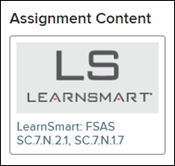
1. Launch the LearnSmart (LS) assignment.
2. Click on Start Questions.
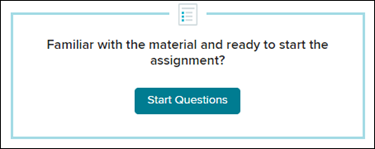
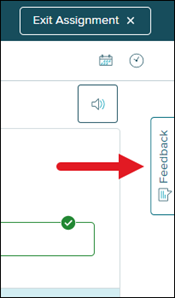
For the Feedback tab to display, you need to answer the current question.
3. Click on Feedback to expand the panel.
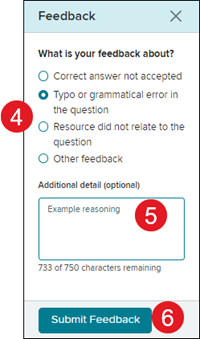
4. Select the radio button next to the reason for the feedback.
5. Enter in any Additional details. This is optional but helpful if additional information is provided.
6. Click on the Submit Feedback button.
Note: Due to user information not being captured when the feedback is submitted, you will not receive further communication about the reported issue. If you would like to be notified further about an issue you have come across in the program, you will need to contact our K-12 Technical Support team to report the issue instead of using the Feedback option.