Share eAssessment Tests and Question Sets With Other Teachers
Learn how to share eAssessment tests and question sets with other teachers within your school or district.
Tags
- Customer Support
- PreK-12
- Classroom Teacher
- Preschool
- Elementary School
- Middle School
- High School
- Direct Login & Auto-Rostering
- Direct Login & Manual-Rostering
- SSO & Auto-Rostering
- SSO & Manual-Rostering
- Core
- Intervention
- Supplemental
- AP, Honors & Electives
- Literacy
- Math
- Science
- Social Studies
- Health
- Visual & Performing Arts
- World Languages
- Asi se Dice 2016
- Building Blocks 2015
- Core Plus Math 2015
- Glencoe Health 2014
- Glencoe Algebra 1 2014
- Glencoe Algebra 1 2018
- Glencoe Algebra 2 2014
- Glenoce Algebra 2 2018
- Glencoe Geometry 2014
- Glencoe Geometry 2018
- Glencoe Math Accelerated
- Glencoe Math
- Glencoe Math Course 1
- Glencoe Math Course 2
- Glencoe Math Course 3
- Glencoe Science
- Glencoe Science 2017
- Inspire Science 2017
- iScience 2017
- McGraw Hill My Math 2013 & 2016
- Networks 2014 & 2016
- Networks 2014 (K-5)
- Pre-Algebra 2012
- Wonders 2014
- Number Worlds 2015
- Online Assessments


If you have the Organization Administrator role assigned, you have the ability to use the Sharing Center to share question sets and assessments with teachers and other administrators. See the Share eAssessment Tests and Question Sets as an Administrator article to learn more.
Article Contents
Export Assessments/Question Banks
Import Assessments/Question Banks
Export Assessments/Question Banks
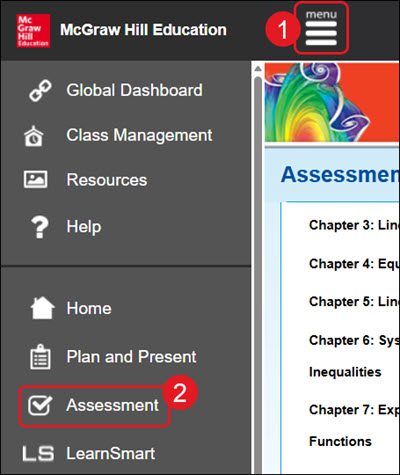
- Click Menu at the top left.
- Click Assessment from the menu.
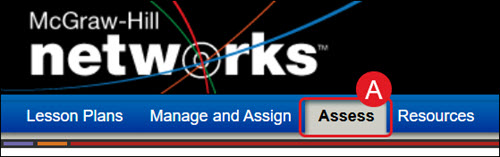
A. For certain programs, such as Networks, click on Assess from the navigation menu.
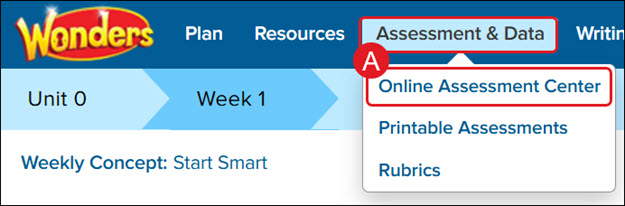
For Wonders ©2014, hover over Assessment & Data and select Online Assessment Center from the menu.
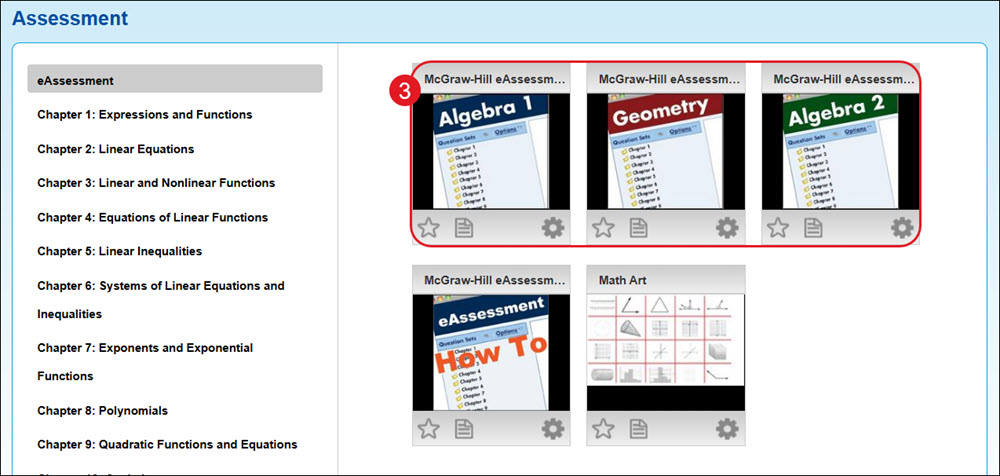
- Click on the eAssessment tile.
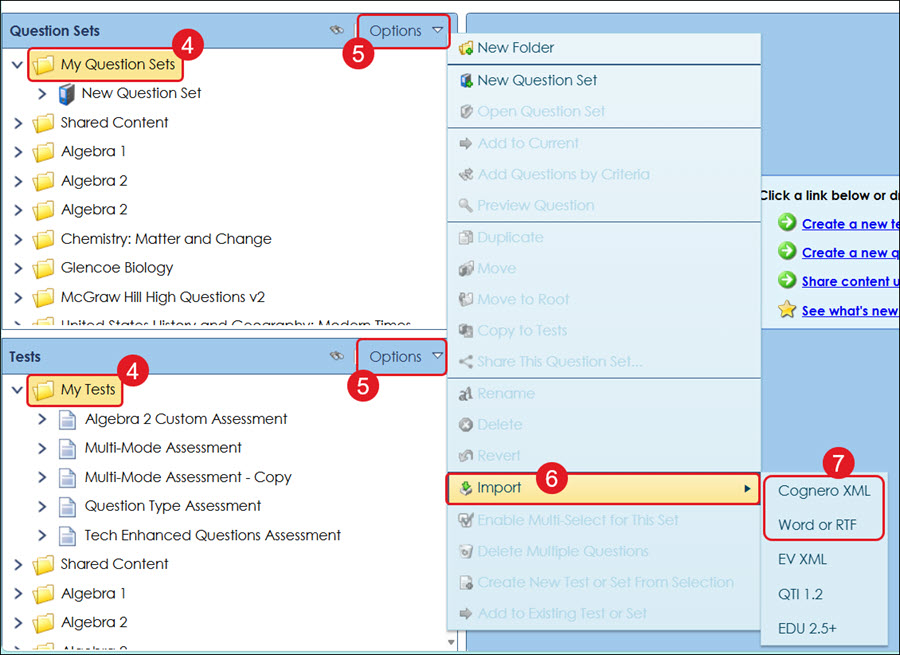
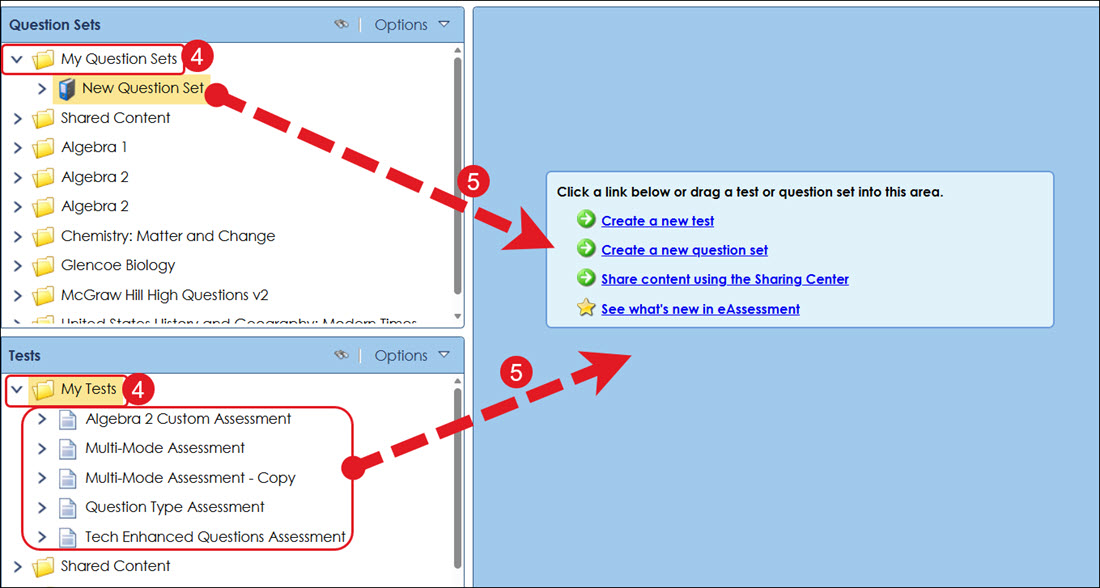
- Expand the My Question Sets or My Tests folder.
- Click and drag the question set or assessment into the middle of the screen (blue area).
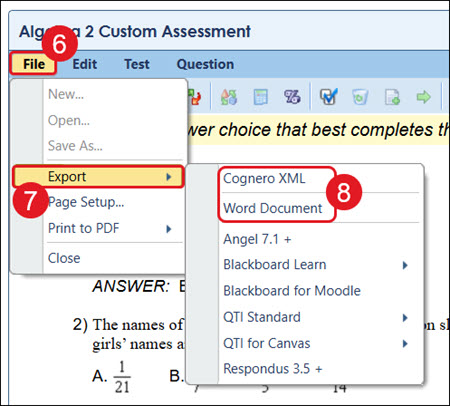
- Click on File.
- Click Export from the menu.
- Click on Cognero XML or Word Document.
Import Assessments/Question Banks
- Click Menu at the top left.
- Click Assessment from the menu.
- Click on the eAssessment tile.
- Click on the folder where you want to import the custom question set or test.
- Click on Options for Question Sets or Tests, depending on what you want to import.
- Click Import from the menu.
- Click Cognero XML or Word or RTF from the menu.