Classic ALEKS Assignments Report
Analyze assignment completion and performance using the classic ALEKS view assignments report.
- Customer Support
- PreK-12
- Classroom Teacher
- Elementary School
- Middle School
- High School
- Direct Login & Auto-Rostering
- Direct Login & Manual-Rostering
- SSO & Auto-Rostering
- SSO & Manual-Rostering
- Supplemental
- Math
- ALEKS
- Reports & Analytics


View the demo in a separate tab.
View the Spanish version of the demo.
Article Contents
All Assignments
1. SSO or log in at my.mheducation.com.
2. Launch your ALEKS course.
3. Select the Class from the drop-down.
4. Hover over Reports.
5. Click on Assignments from the menu.
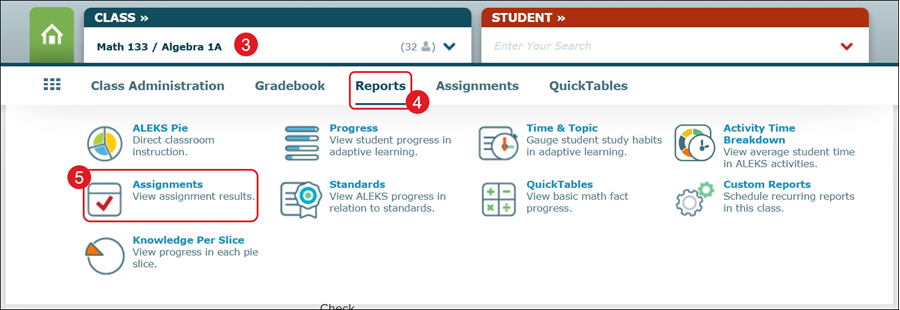
The page will default to the list of all assignments created and completed, including the Initial Knowledge Check.
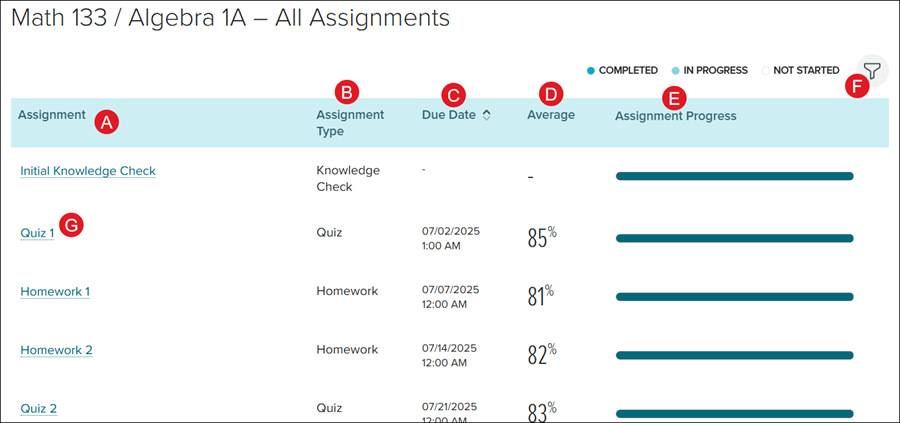
A. The Assignment column shows what has been assigned to students.
B. The Assignment Type shows if it's a Knowledge Check, Quiz, Homework, etc.
C. The selected Due Date and time for the assignment.
D. The Average column shows the overall class percentage for the assignment.
E. The Assignment Progress bar shows if the assignment has been Completed, is In Progress, or has Not Started.
F. Use the Filters to display specific assignments in the list view.
G. Click the Assignment name to view a breakdown of student completion for that individual assignment.
Individual Assignment
Click on an Assignment name from the Assignments report. If you click on Initial Knowledge Check, it will navigate you to the Pie Report.
Results
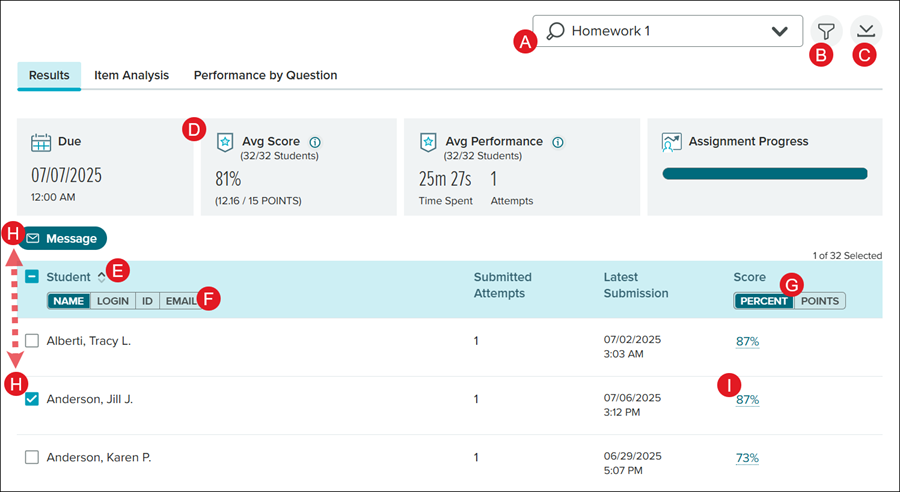
A. Use the search field to locate different assignments that were created.
B. Click the Filters button to filter by students, score, or attempts.
C. Click the Download button to download an Excel file with the assignment report data.
D. The Results page shows the assignments Due date and time, Avg Score for the class, the Time Spent and Attempts for the class, and the Assignment Progress.
E. Click a header to sort the data by that column.
F. Click Name, Login, ID, or Email to sort the students by that option.
G. Click Percent or Points to toggle between the two different views for the Score column.
H. Checkmark a student name to send them a Message.
I. Click on a student's percentage or points in the Score column to navigate to the student's individual Assignments report.
Item Analysis
Click on an Assignment name from the Assignments report then click on the Item Analysis tab.
If you click on Initial Knowledge Check, it will navigate you to the Pie Report.
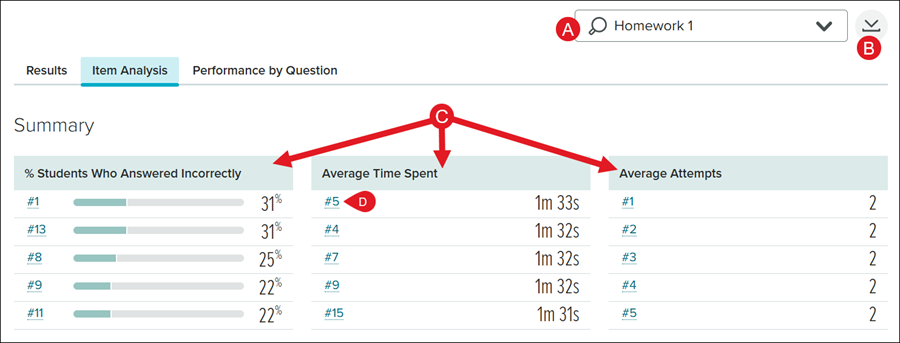
A. Use the search field to locate different assignments that were created.
B. Click the Download button to download an Excel file with the assignment report data.
C. The % (percentage) Students Who Answered Incorrectly, Average Time Spent, and Average Attempts list the top five questions for each.
D. Click on a question number to view the topic that was covered, the class percentage of Correct, Incorrect, and Not Answered for the question, Avg Time Spent, and Avg Attempts for the class.
E. Click on the topic link on the pop-up to view an example question.
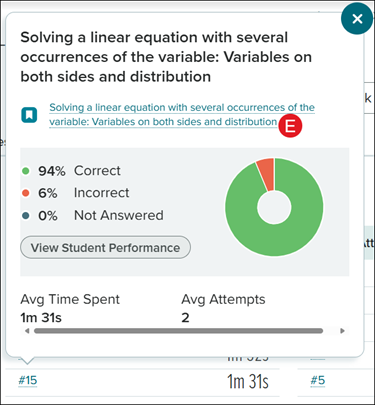
F. Click Graph or Table to toggle between the two views.
G. On the Graph view, click % (percent) Incorrect, Time Spent, or Attempts to toggle between the different graph views.
H. Click the Sort by drop-down to toggle between the Question Number, % (percent) Incorrect, Time Spent, or Attempts view.
I. Click on a question number to view the topic that was covered, the class percentage of Correct, Incorrect, and Not Answered for the question, Avg Time Spent, and Avg Attempts for the class.
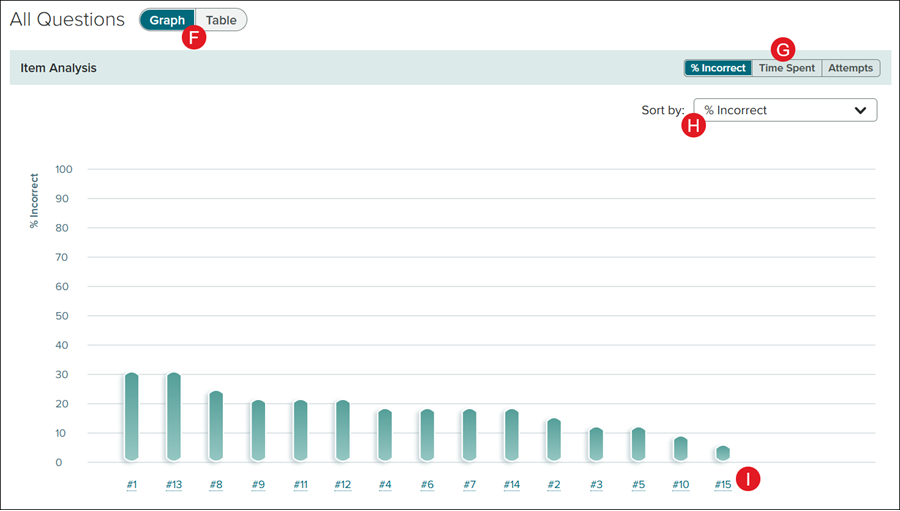
J. Click on the topic link on the pop-up to view an example question.
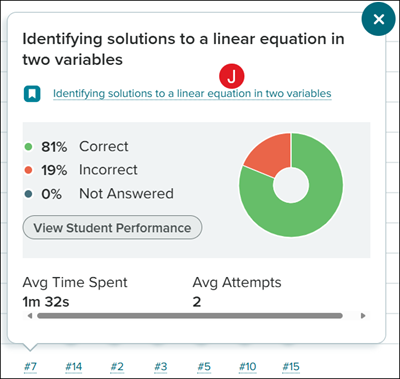
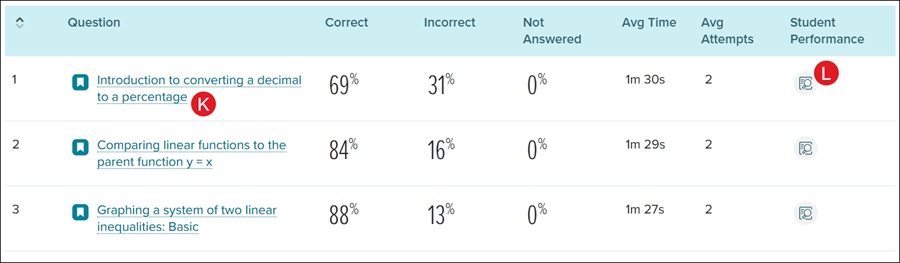
K. On the Table view, click on a Question to view an example that was given for that topic.
L. Click on the Student Performance icon to view the student breakdown for that question.
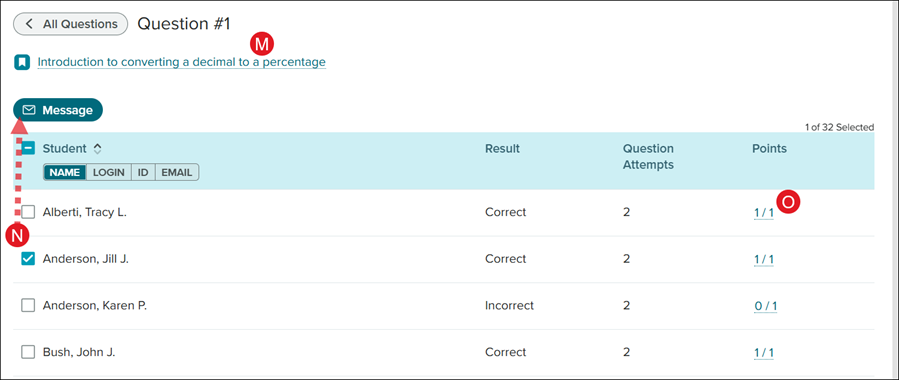
M. Click on the topic link on the pop-up to view an example question.
N. Checkmark a student name to send them a Message.
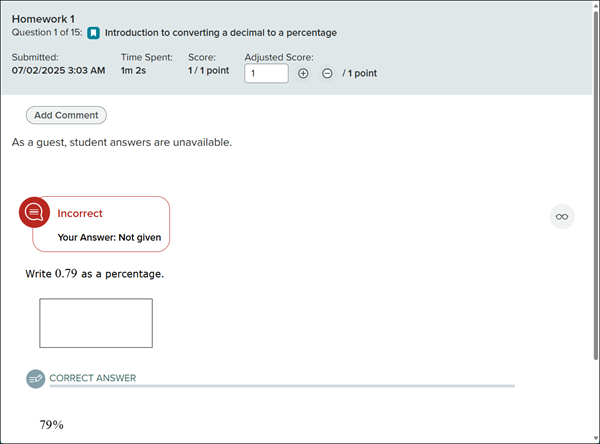
O. Click on a Points number to view information on the Submitted date and time, the Time Spent, and the received Score for that question for the selected student.
You also have the ability to adjust the score for that question for the selected student from the pop-up.
Performance by Question
Click on an Assignment name from the Assignments report then click on the Performance by Question tab.
If you click on Initial Knowledge Check, it will navigate you to the Pie Report.
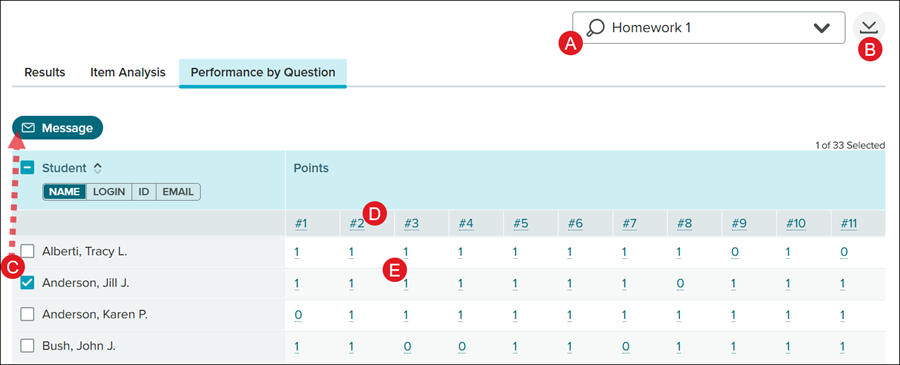
A. Use the search field to locate different assignments that were created.
B. Click the Download button to download an Excel file with the assignment report data.
C. Checkmark a student's name to send them a Message.
D. Click on a question number to navigate to the Item Analysis page for that question.
E. Click on a Points number to view information on the Submitted date and time, the Time Spent, and the received Score for that question for the selected student.
You also have the ability to adjust the score for that question for the selected student from the pop-up.
Student Assignment Report
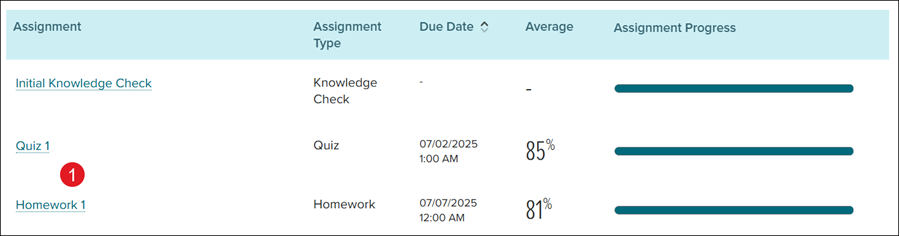
1. Click on an Assignment name from the Assignments report. If you click on Initial Knowledge Check, it will navigate you to the Pie Report.
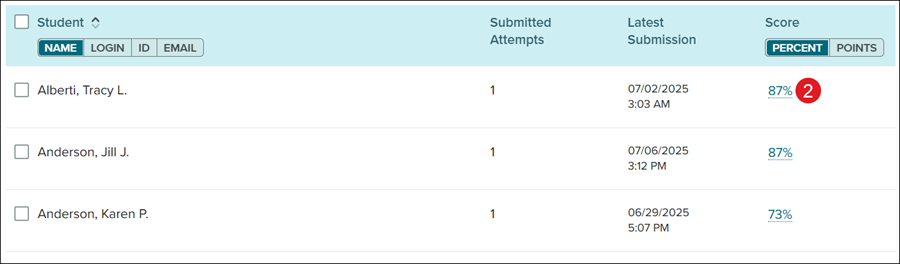
2. Click on the number in the Score column for the student.
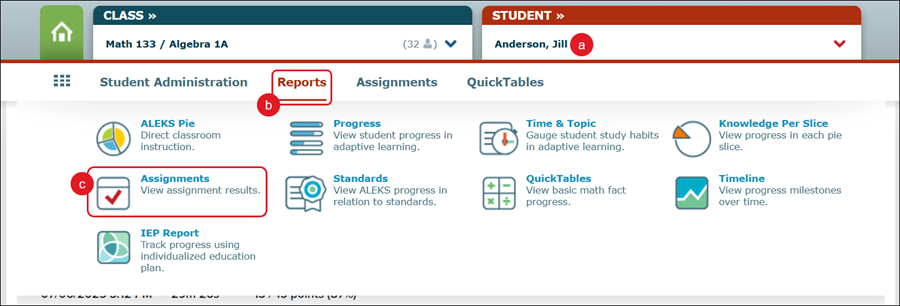
You can also access the student report by selecting the Student (a) from the drop-down, hovering over Reports (b), and clicking on Assignments (c) from the menu.
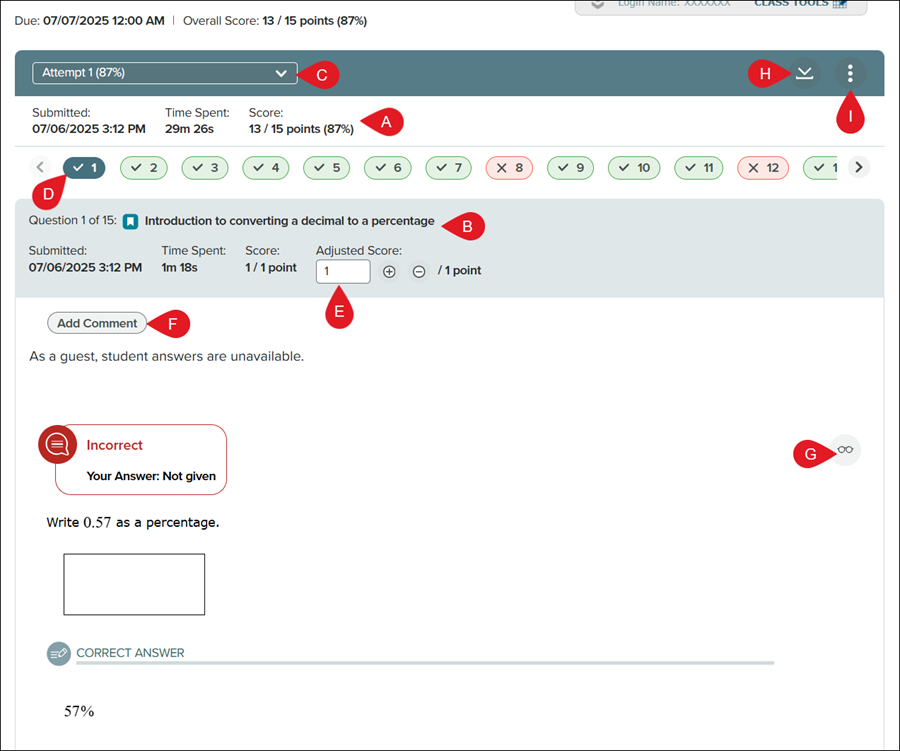
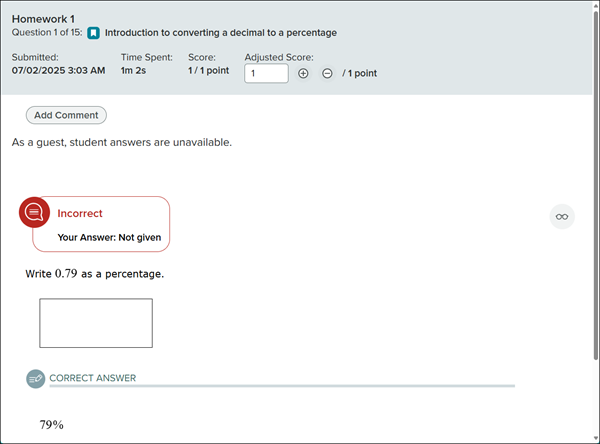
A. The page will show the Submitted date and time, Time Spent, and the overall Score for the assignment.
B. It will also show the Submitted date and time, Time Spent, and the Score received for the Question.
C. Click the drop-down to navigate to a different Attempt.
D. Click the Question number to navigate between the different question views.
E. Click in the Adjusted Score column to make changes to the score received for that question, if needed.
F. Click the Add Comment button to leave a note for the student for that question.
G. Click the Explanation button to view a breakdown of the question.
H. Click the Download button to download/save a PDF or Excel copy of the question.
I. Click the kebob icon to Delete this Attempt.