
Classic ALEKS Activity Time Breakdown Report
Analyze student activity time breakdowns in the classic ALEKS view.
- PreK-12
- Customer Support
- Classroom Teacher
- Elementary School
- Middle School
- High School
- Direct Login & Auto-Rostering
- Direct Login & Manual-Rostering
- SSO & Auto-Rostering
- SSO & Manual-Rostering
- Supplemental
- Math
- ALEKS
- Reports & Analytics


View the demo in a separate tab.
View the Spanish version of the demo.
Article Contents
Access Activity Time Breakdown
Activity Time Breakdown Report
Access Activity Time Breakdown
1. SSO or log in at my.mheducation.com.
You may need to toggle between roles and organizations to get to your administrator tools.
2. Launch your ALEKS course.
3. Select the Class from the drop-down.
4. Hover over Reports.
5. Click on Activity Time Breakdown from the menu.
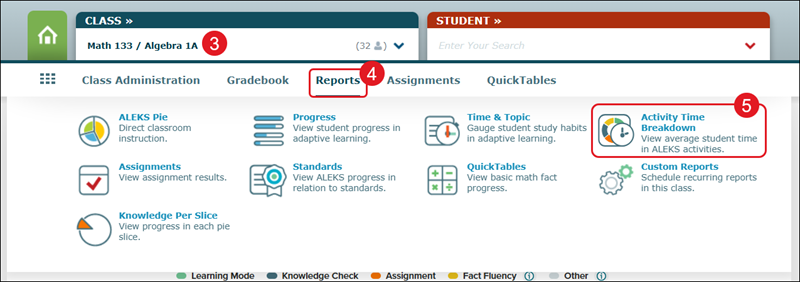
You can also access the report by clicking on the View Full Report link on the Activity Time Breakdown tile on the Dashboard.
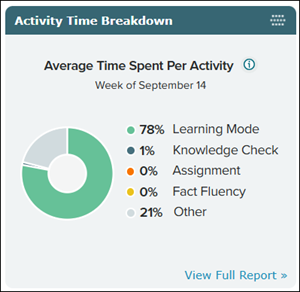
The Activity Time Breakdown tile shows the average time a student spends on each activity category in ALEKS.
The Other category counts as any time the student was logged in but was outside of Learning Mode and Knowledge Checks.
Activity Time Breakdown Report
The report updates the weekly report view every week and only shows completed months in the monthly report view.
Fact Fluency - Time spent in QuickTables or ALEKS Adventure fact fluency games is counted toward "Fact Fluency."
Other - Counts as any time the student was logged in but was outside of Learning Mode and Knowledge Checks.
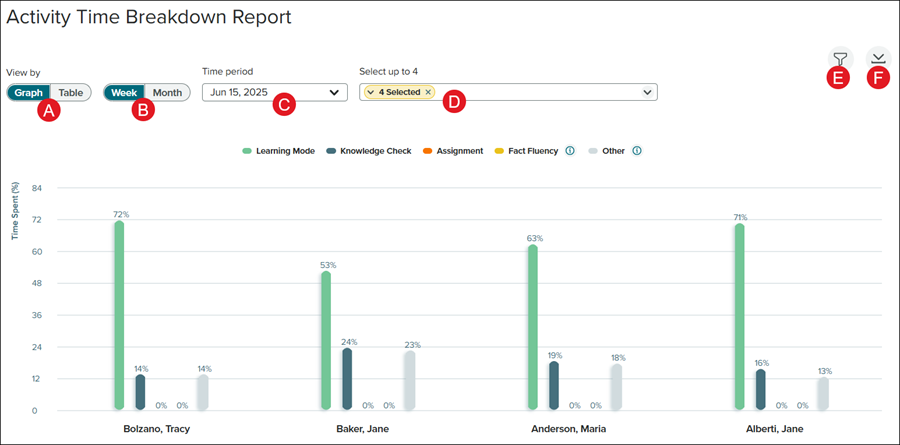
A. Toggle between Graph and Table view.
B. Toggle between viewing by Week or Month.
C. Select the Time period to view.
D. When in Graph view, select up to 4 students to view at a time.
E. Click the Filters button to select a specific date range.
D. Click the Download button to download/save the report in an .xlsx file.
