Generate Report for Student No Longer on Roster in Classic ALEKS
Instructions on how to generate a report for students no longer on the class roster in the classic ALEKS view.
Tags
- Customer Support
- PreK-12
- Classroom Teacher
- Elementary School
- Middle School
- High School
- Direct Login & Auto-Rostering
- Direct Login & Manual-Rostering
- SSO & Auto-Rostering
- SSO & Manual-Rostering
- Supplemental
- Math
- ALEKS
- Reports & Analytics


View the demo in a separate tab.
View the Spanish version of the demo.
1. SSO or sign in at my.mheducation.com.
2. Launch ALEKS.
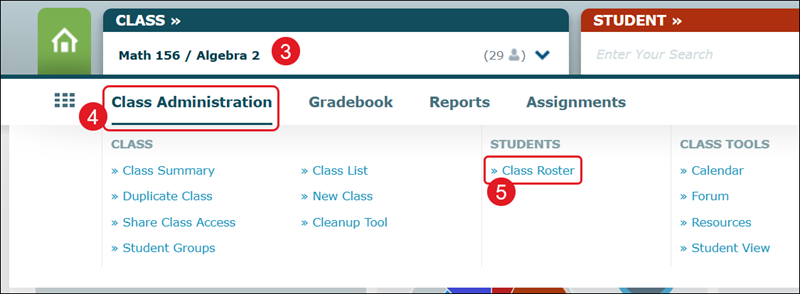
3. Select the Class the student was associated with from the drop-down.
4. Hover over Class Administration.
5. Click on Class Roster from the menu.
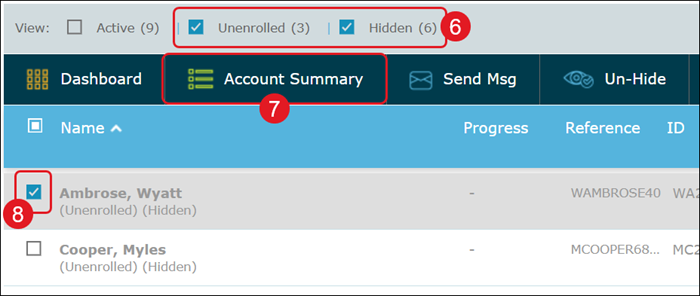
6. Check the boxes next to Unenrolled and Hidden.
7. Check the box next to the student Name.
8. Click Account Summary.
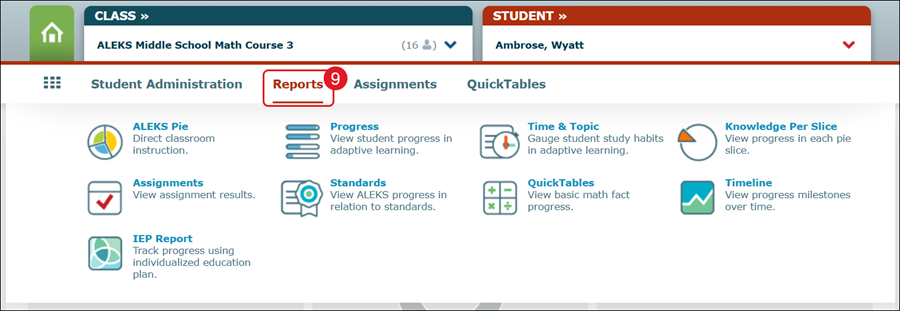
9. Hover over Reports and select the report option you would like to view.