Assign Actively Learn Assignments to Absent or New Students
Assign Actively Learn assignments to absent or newly added students for them to complete.
- PreK-12
- Customer Support
- Classroom Teacher
- Elementary School
- Middle School
- High School
- Direct Login & Auto-Rostering
- Direct Login & Manual-Rostering
- SSO & Auto-Rostering
- SSO & Manual-Rostering
- Supplemental
- Literacy
- Science
- Social Studies
- Actively Learn
- Grades & Assignments


When a teacher assigns content to a class in Actively Learn, that assignment gets added to the students' assignment page. If a student is absent when a new assignment is assigned to their class, the student will have access to the assignment as soon as their next login. Additionally, if a new student is added, the new student will have access to all assignments on the assignment page as soon as they are added to the class roster.
However, if a teacher has set a due date for an assignment, or assigned it to only certain students, how can absent (or new) students make up that work?
This article will walk you through the best way to navigate assigning work to students who were absent.
There are a couple of different features available to you to use:
Use the Set Start and Due Date Feature
Use the Assign to Individuals Feature
Use the Set Start and Due Date Feature
If a teacher knows that a student will be absent on the day of an assignment, or if an absent student will need additional time to complete an assignment, we would recommend using the Set Start and Due Date feature. Using the Set Start and Due date feature, you have the option to set a start and a due date for specific students in your class. By assigning this assignment and setting a due date for all present students, you'll give them access on the start date and remove access on the due date. Meaning, that for all non-absent students, you'll be setting a specific start date and end date for the assignment. For any absent students, they won't be affected by this start and due date and the assignment will remain open for them whenever they need to make it up.
Create a Duplicate Copy
The last option is that you can duplicate the assignment and assign it just to one (or more absent students). By doing this, you will not need to change anything about the original assignment and assign a separate but duplicate assignment to the absent students. However, please note that this means the duplicate assignment will show up on your assignments page as two different assignment tiles, as well as two separate columns in your Gradebook.
Use the Assign to Individuals Feature
If a student was absent and your other students have finished working on the assignment, you can use the Assign to Individuals Feature. The assign to individuals feature will hide the results from all of the other students that are not selected for the assignment. The only way to see all of the student's results is to reassign them to the full class. You can wait until those absent students have completed the assignment, and then assign it to the full class again.
If there was a due date for this particular assignment, you will also need to change that. Meaning that once you assign to the students that were absent, you will also need to change or remove the due date so they may access it.
1. Click on Menu.

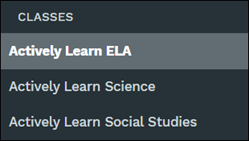
2. In the Classes section, select the class.
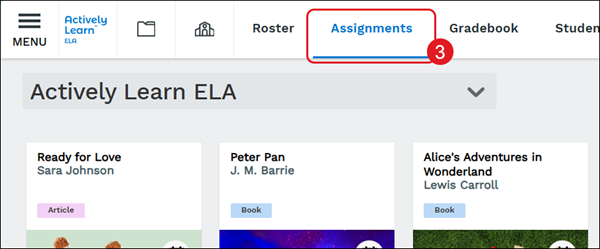
3. Click on Assignments.
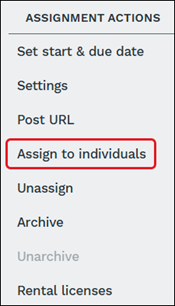
4. Under Assignment Actions on the right-hand panel, click Assign to individuals.
5. Select the assignment.
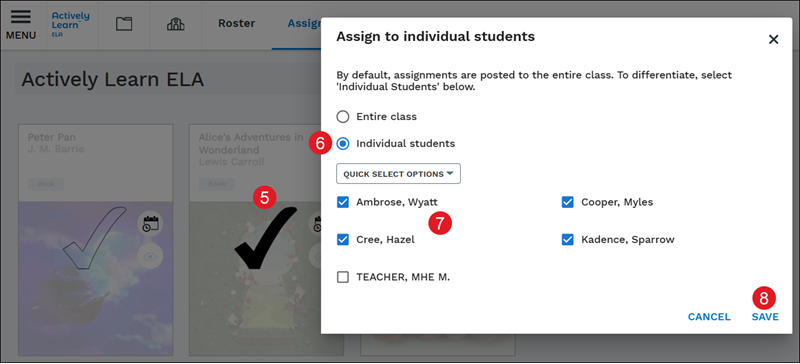
6. On the Assign to individual students pop-up, select the Individual students radio button.
7. Checkmark the student(s) to individually assign.
8. Click the Save button.