Support Topics/Assessments & Reporting/Grades & Assignments
Context/Integration Type/SSO & Manual-Rostering
prek-12
2026-03-24T18:53:10.492-03:00
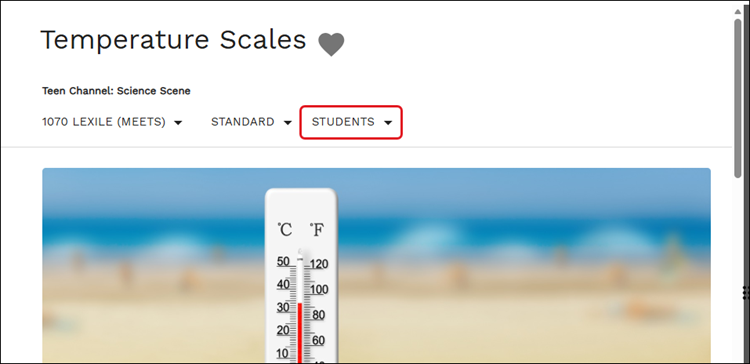
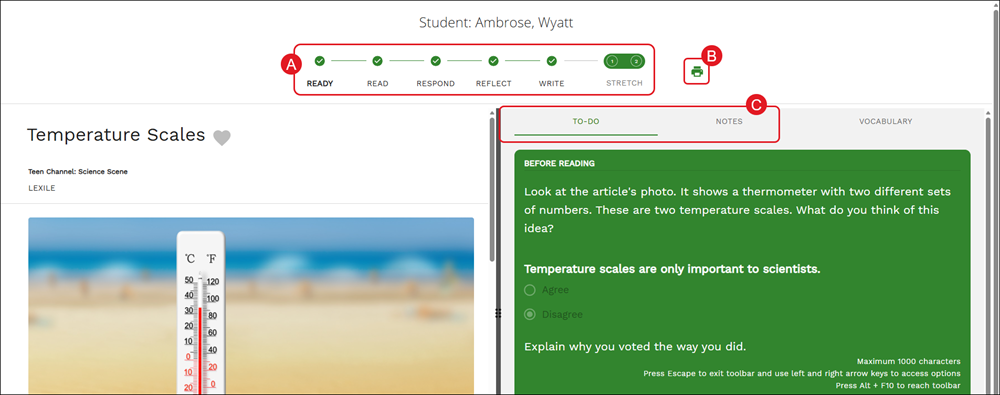
<p>From within the teacher view of the lesson, to view a specific student's work, select the user from the <strong>Students </strong>drop-down.</p> <p><img src="/content/dam/mhe/support/support-images/dts-k12-images/a3k-completed-student-work/a3k-completed-student-work-1.jpg" data-assetref="a3k-completed-student-work-1-1780935530642"></p> <p>A secondary web page will open with the selected student's work. </p> <p><img src="/content/dam/mhe/support/support-images/dts-k12-images/a3k-completed-student-work/a3k-completed-student-work-2.jpg" data-assetref="a3k-completed-student-work-2-1780935537490"></p> <p>A. Click on the lesson points to navigate between the different questions the student answered.</p> <p>B. Click the <strong>Print</strong> icon to save/download the lesson article and questions.</p> <p><strong>Note:</strong> Printing the lesson on this page does not include the answers that the student submitted for the lesson, but it does include the Poll results.</p> <p>C. Click between the<strong> To-Do</strong> and <strong>Notes </strong>tabs to view student responses to questions and notes entered by the student.</p> <p> </p> <p>To view reports for lessons completed by students, refer to the <a href="https://mh.my.site.com/DTS/s/article/Achieve-Literacy-Student-Reports?dc=Getting_Started_Teacher" target="_blank">Navigating Achieve3000 Literacy Student Reports</a> article.</p> dts Achieve Literacy View Student Lessons: step-by-step guidance, requirements, and tips to help you complete this task successfully. 2026-01-15 View Completed Student Achieve3000 Literacy Work Achieve Literacy View Student Lessons: step-by-step guidance, requirements, and tips to help you complete this task successfully. View student work in Achieve3000 Literacy to monitor completion and progress.
View student work in Achieve3000 Literacy to monitor completion and progress.
From within the teacher view of the lesson, to view a specific student's work, select the user from the Students drop-down. A secondary web page will open with the selected student's work. A. Click on the lesson points to navigate between the different questions the student answered. B. Click the Print icon to save/download the lesson article and questions. Note: Printing the lesson on this page does not include the answers that the student submitted for the lesson, but it does include the Poll results. C. Click between the To-Do and Notes tabs to view student responses to questions and notes entered by the student. To view reports for lessons completed by students, refer to the Navigating Achieve3000 Literacy Student Reports article.