Adjust Supervised Student Work Time in Achieve3000 Literacy as a Teacher
Adjust supervised student work time settings in Achieve Literacy to manage LevelSet assessment access.
- Customer Support
- PreK-12
- Classroom Teacher
- Elementary School
- Middle School
- High School
- Direct Login & Auto-Rostering
- Direct Login & Manual-Rostering
- SSO & Auto-Rostering
- SSO & Manual-Rostering
- Supplemental
- Literacy
- Achieve3000 Literacy
- User Management
- Grades & Assignments
- Online Assessments


LevelSet can be administered up to three times a year to enhance the validity of students’ Lexile® reading scores, allow for greater precision in measuring reading gains, and track progress toward College and Career Readiness targets and/or state proficiency targets. Once the date is set, teachers can edit the Supervised Student Work Time (SSWT) at the class level or the student level to ensure students are being prompted.
Note: Some schools/districts have the Supervised Student Work Time set at the school/district level which prevents teachers from being able to make changes.
Article Contents
Set at Class Level
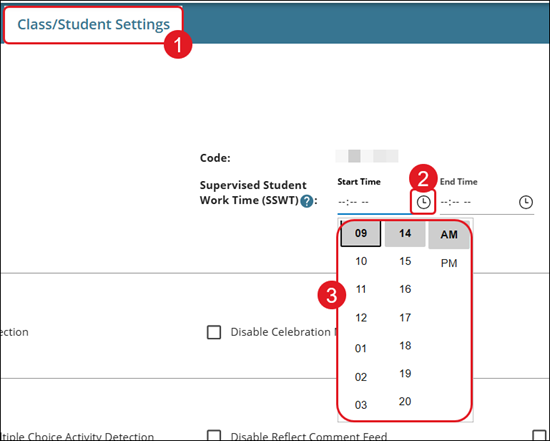
1. Click on Class/Student Settings from the home page.
2. To the right of the Class Settings page, for the Supervised Student Work Time (SSWT) section, click on the clock icon for each field.
3. Select the Start and End Time.
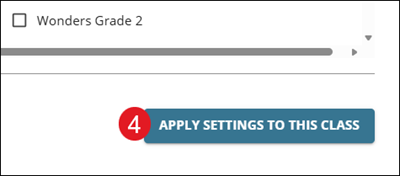
4. Click the Apply Settings To This Class button at the bottom of the page.
Set at Student Level
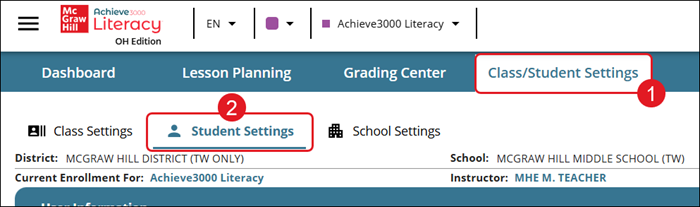
1. Click on Class/Student Settings from the home page.
2. Click on Student Settings.
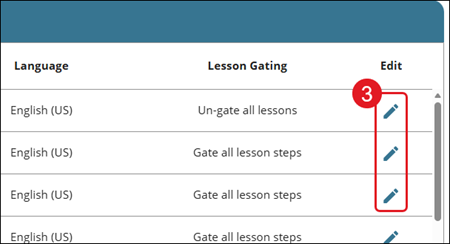
3. Click the Edit User (pencil) icon in the Edit column for the student.
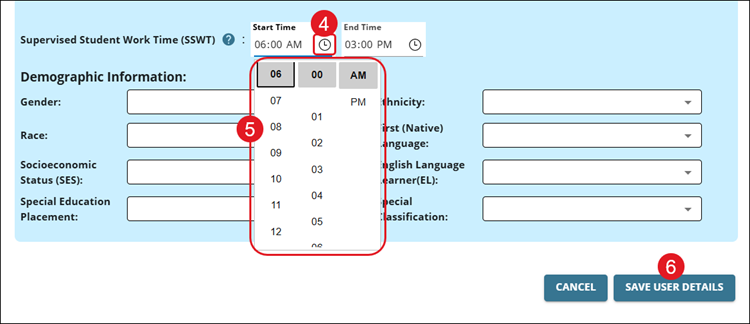
4. On the pop-up, in the Supervised Student Work Time (SSWT) section, click the clock icon for each field.
5. Select the Start and End Time.
6. Click the Save User Details button.