
Grade Sync - Troubleshoot Grade Sync in LTI Advantage
Troubleshoot grade sync issues between Connect and LMS platforms using LTI Advantage.
- Higher Education
- Customer Support
- Connect
- Instructor


Student scores will automatically sync to your LMS with LTI Advantage. However, sometimes students may register late, forget to link their account, or due to unforeseen circumstances, scores may fail to sync. The Grade sync option will allow you to manually resend scores to your LMS in these situations.
It's important to know that your assignments must first be deployed to your LMS and your students must complete their account pairing before assignments will start syncing automatically.
If you do not see your LMS logo icon next to the assignment names in your Connect section home, your assignments are not yet deployed. To learn how to deploy assignments, please refer to the user guide for your LMS, located in this article. If you're having trouble deploying your assignments, please see the Assignment Relink article.
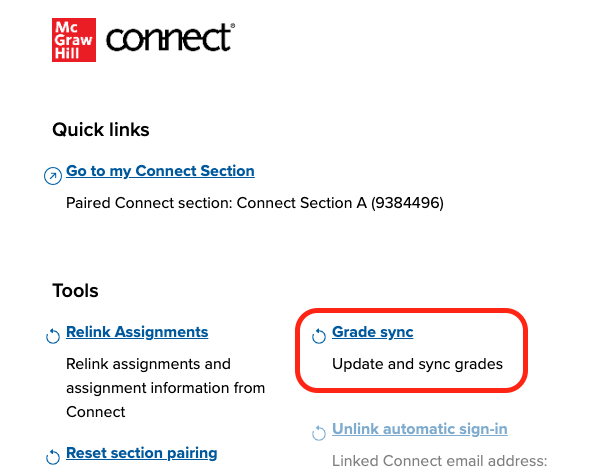
Next, ensure that your students successfully paired their Connect accounts with their LMS accounts. The quickest way to check is to launch the LTI Advantage widget from your LMS and click Grade sync. If a student has more than one account and accidentally paired the wrong one, please refer them to this article to reset their pairing. Once the student pairs the correct account, please use the Grade sync to send their scores to your LMS.
If any of your students have an X next to their name, it means that they have not yet paired their account or the pairing process is not complete. Please ask those students to relaunch any deployed assignment from your LMS. Doing so will ensure their Single Sign On access is established. Once that is completed, please re-sync their scores.
Once your assignments are deployed and students have completed their account pairing, scores will begin to sync as students complete their assignments. If there are any scores that do not sync with your LMS, please use the Grade sync feature.
Grade Sync
NOTE: Please be aware that resyncing grades may overwrite any manual grade changes you may have done in your LMS grade book. This behavior differs between LMS'.
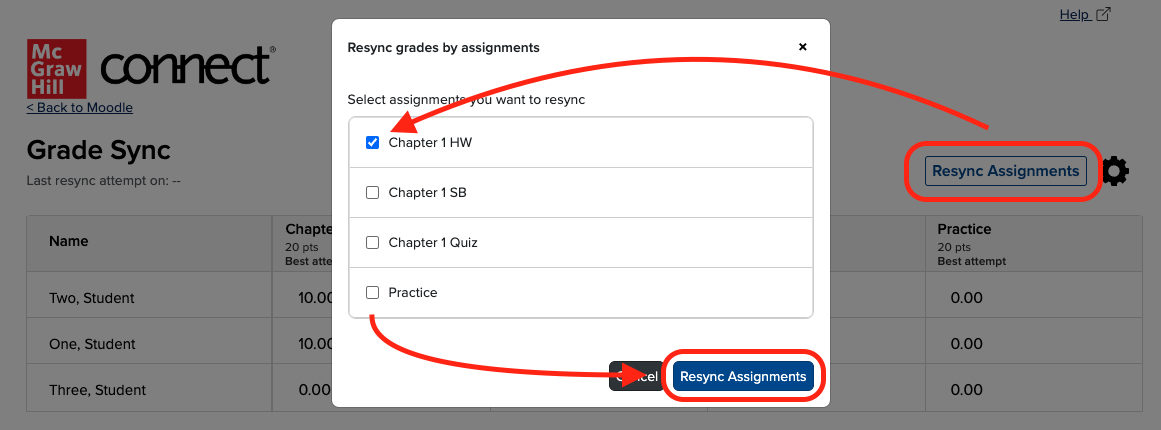
To resync all scores for specific assignment(s), click the Resync Assignments option, choose the assignments you would like to resync and click Resync Assignments.
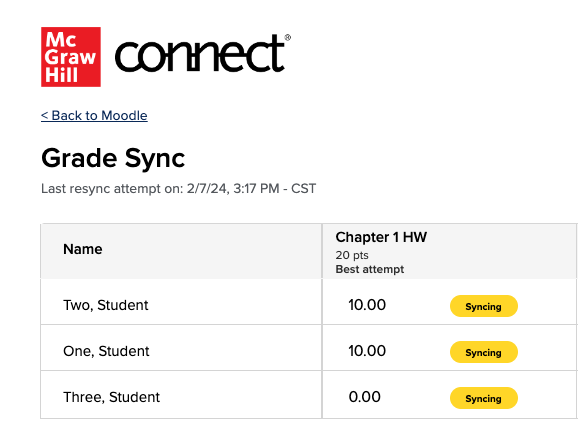
Once you resync the assignments, you will see a notification indicating that the assignments are syncing. Please note that this page will not automatically refresh. Depending on your LMS and the amount of assignments and students you are resyncing, it may take some time to finish. During peak times, you may see a delay of up to 45 minutes. You can use the link below the Connect logo to return to your LMS.
Force grading:
By default, if a student does not complete an assignment, a zero score will automatically be sent to your LMS at the due date, (or if applicable, after the exception date, or late submittal date), even if a student did not start their Connect assignment. As a result, you may see a 0 score in your LMS and no score in Connect. If you allow late submittal, a late submission date is required. You can change this behavior using the gear icon in the Grade Sync widget. Click here for more information.
Manually graded assignments:
Assignments that require manual grading will not sync with the LMS until they are graded in Connect. If the due date, late submit date, or extension date passes, a 0 score will not be sent to the LMS automatically until the assignments are graded. Only graded attempts will sync with the LMS if a student attempts a manually graded assignment more than once.

You may see the Sync Failed indicator if any student from your Connect roster is no longer enrolled in your LMS course. However, if you see the Sync Failed indicator for students that are still enrolled in Connect and the LMS or you still see a discrepancy between Connect scores and your LMS, please contact our Customer Experience Group.
