
Connect - How to take an assignment in Brightspace (D2L)
Follow steps for taking a Connect assignment in Brightspace D2L.
Tags
- Higher Ed Student
- Higher Education
- Customer Support
- Connect


Step 1: Log into D2L and navigate to your course.
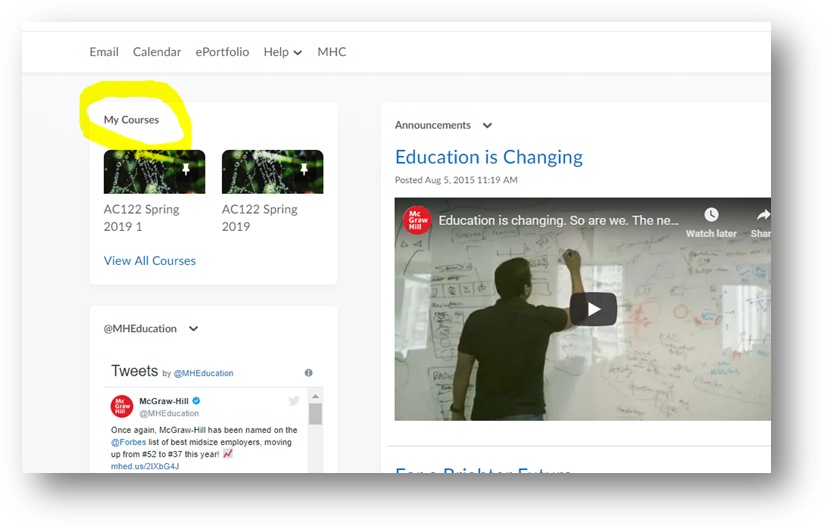
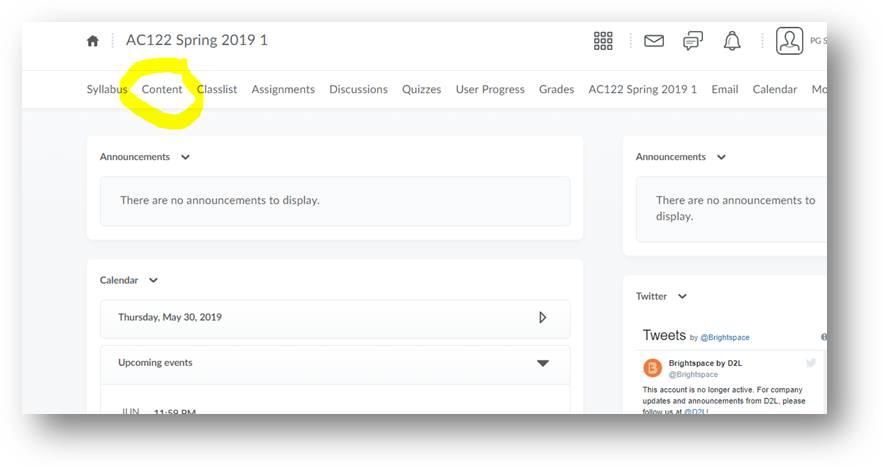
Step 2: Click on Content.
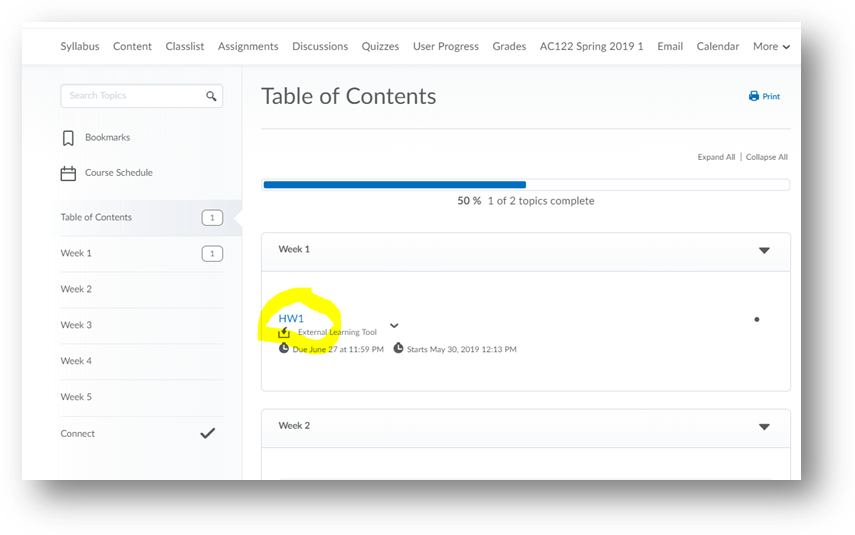
Step 3: Locate and click on a Connect assignment link.
*The Connect assignment will automatically launch into a new browser tab. If the assignment fails to launch, please make the appropriate browser setting adjustment to allow a new browser window to load (pop-up).
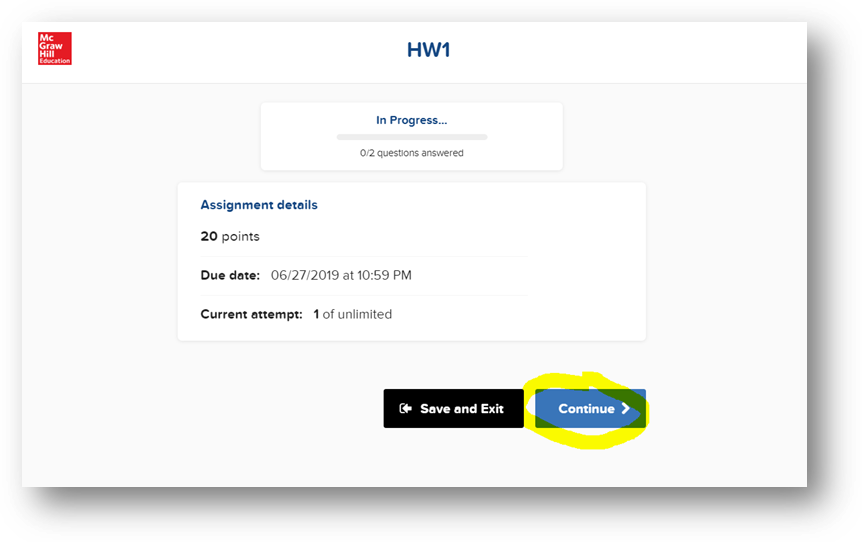
 Step 4: Click on Continue to open the assignment.
 Step 5: After you have completed the Connect assignment, click Submit.
*Upon assignment submission, your Connect grade will auto sync (record) via your D2L gradebook.
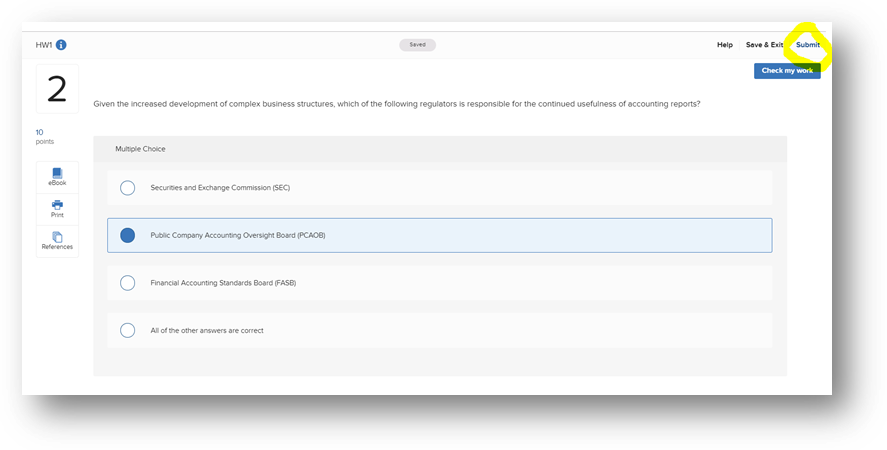
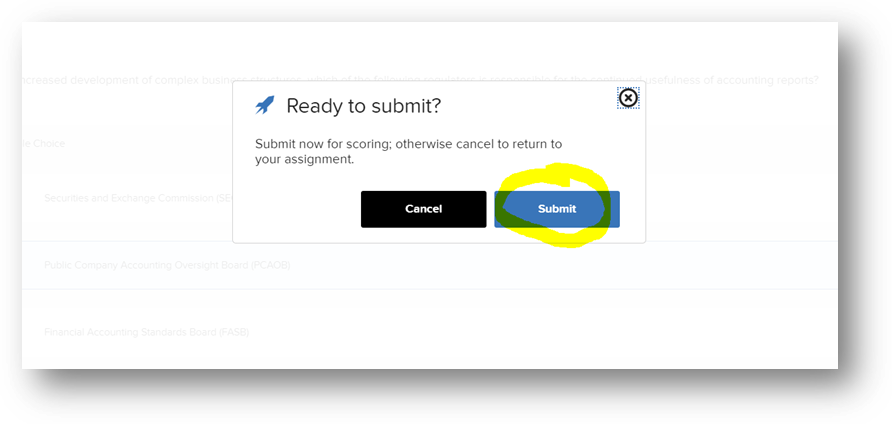
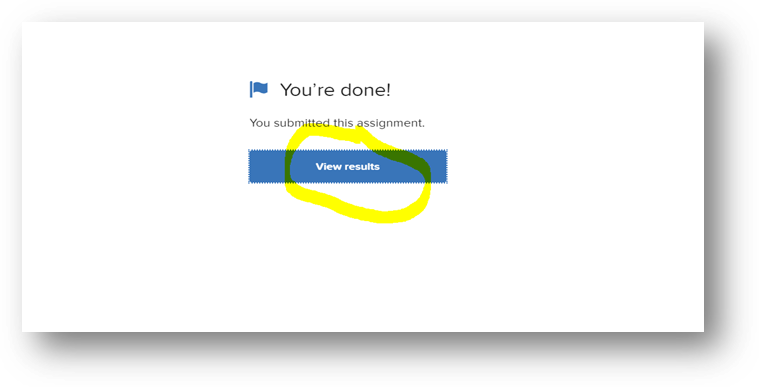
Step 6: Click on View Results to view assignment results and feedback.
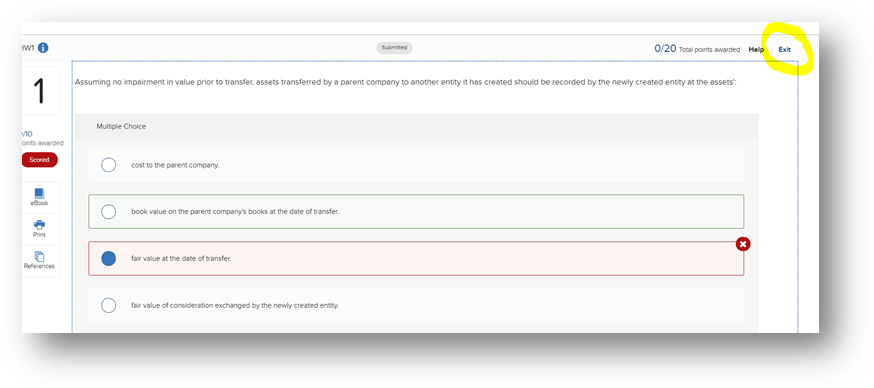
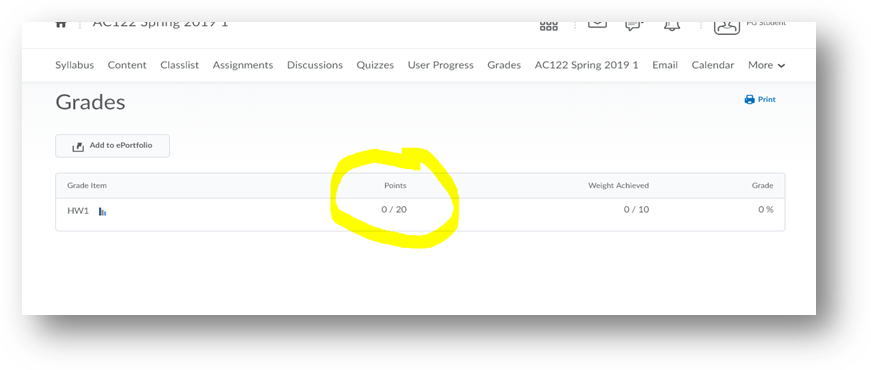
 Step 7: Click Exit to return to D2L. Your Connect grade should have synced automatically over into your D2L gradebook.
Step 2: Click on Content.
Step 3: Locate and click on a Connect assignment link.
*The Connect assignment will automatically launch into a new browser tab. If the assignment fails to launch, please make the appropriate browser setting adjustment to allow a new browser window to load (pop-up).
*Upon assignment submission, your Connect grade will auto sync (record) via your D2L gradebook.
Step 6: Click on View Results to view assignment results and feedback.