
Connect - How to pair an account in Brightspace (D2L) as a student
Learn how students pair an existing Connect account with Brightspace D2L using LTI Advantage.
- Higher Ed Student
- Higher Education
- Customer Support
- Connect


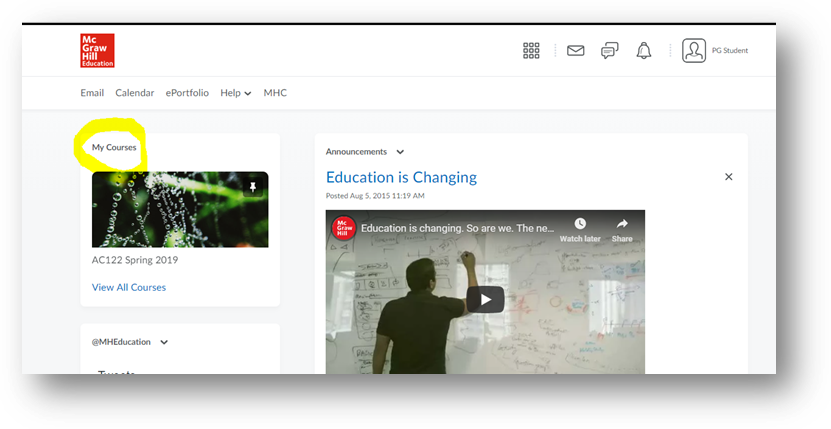
Step 1: Log into D2L and navigate to course.
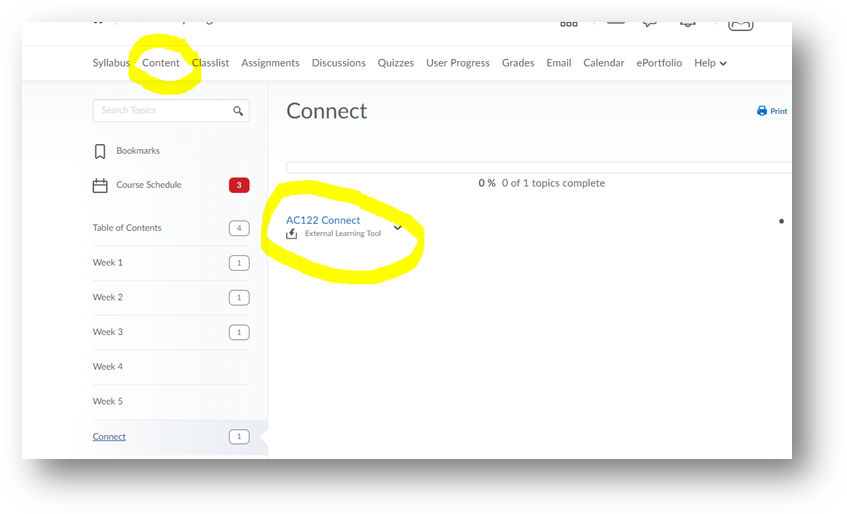
Step 2: Under Content, locate and click on a McGraw Hill Connect external tool link OR a Connect assignment link.
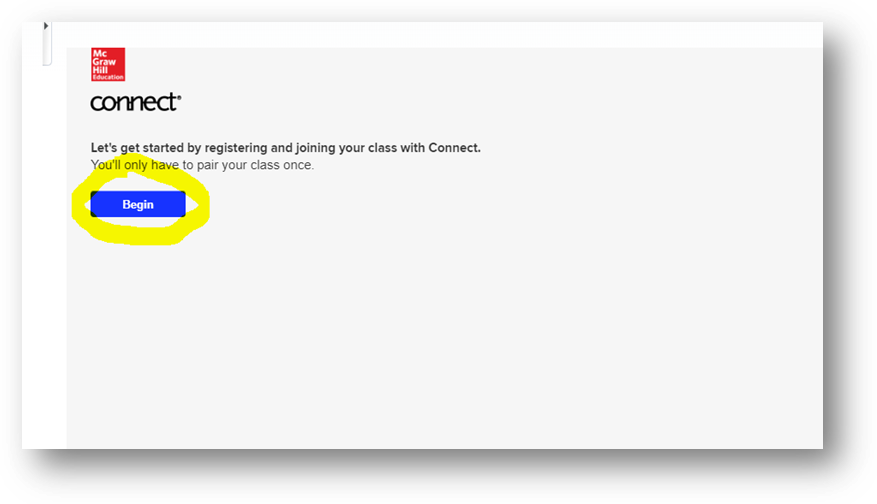
Step 3: Click Begin.
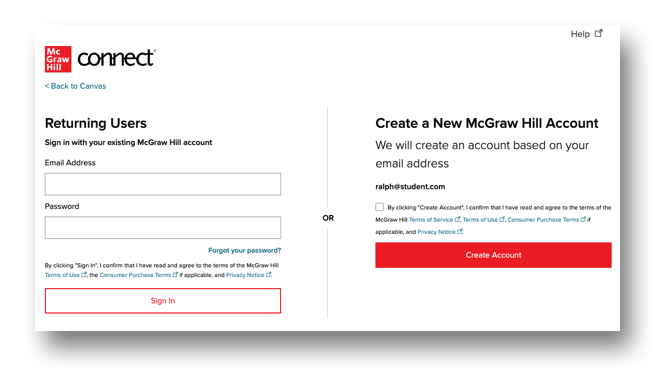
Step 4: If you're a new Connect user, click on Create Account. If you're a returning Connect user, enter your Email Address and Password and click Sign In. If your school email is the same as an existing account, you will be prompted to log in to that account.
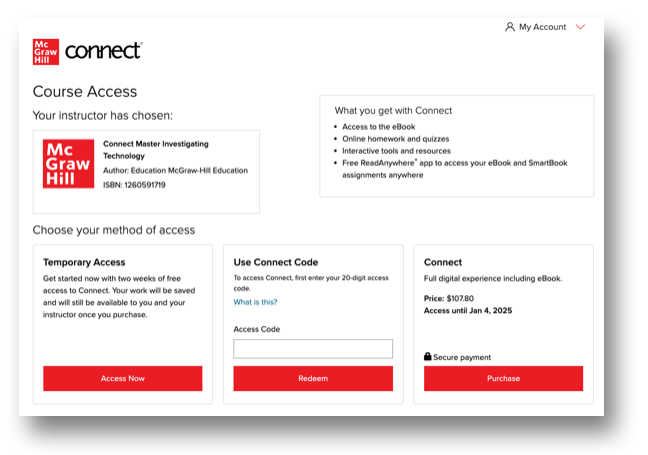
Step 5: Select the appropriate registration option to complete the Connect registration process.
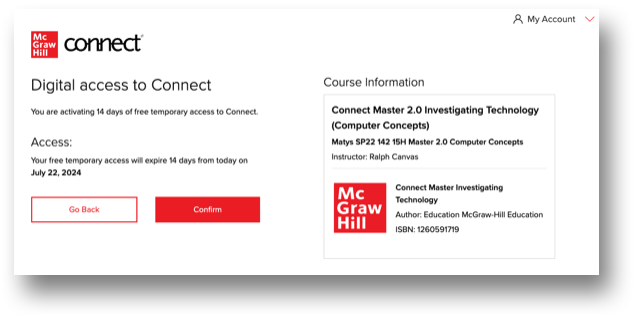
Step 6: Click Confirm.
Step 7: Click Complete Registration.
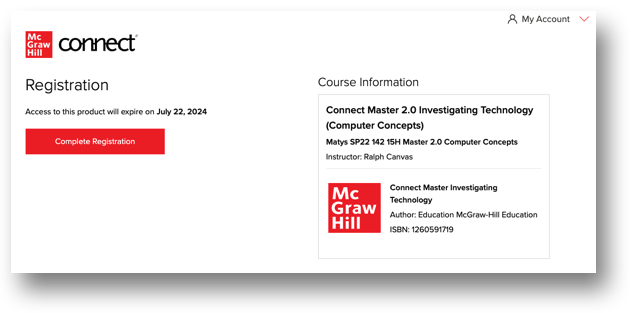
*You have completed the pairing (single sign-on) process between D2L and Connect. Please return to D2L in order to begin accessing/taking your Connect assignments.
