Connect - Grading question bank assignments
Learn how instructors grade question bank assignments in Connect.
- Higher Education
- Customer Support
- Connect
- Instructor


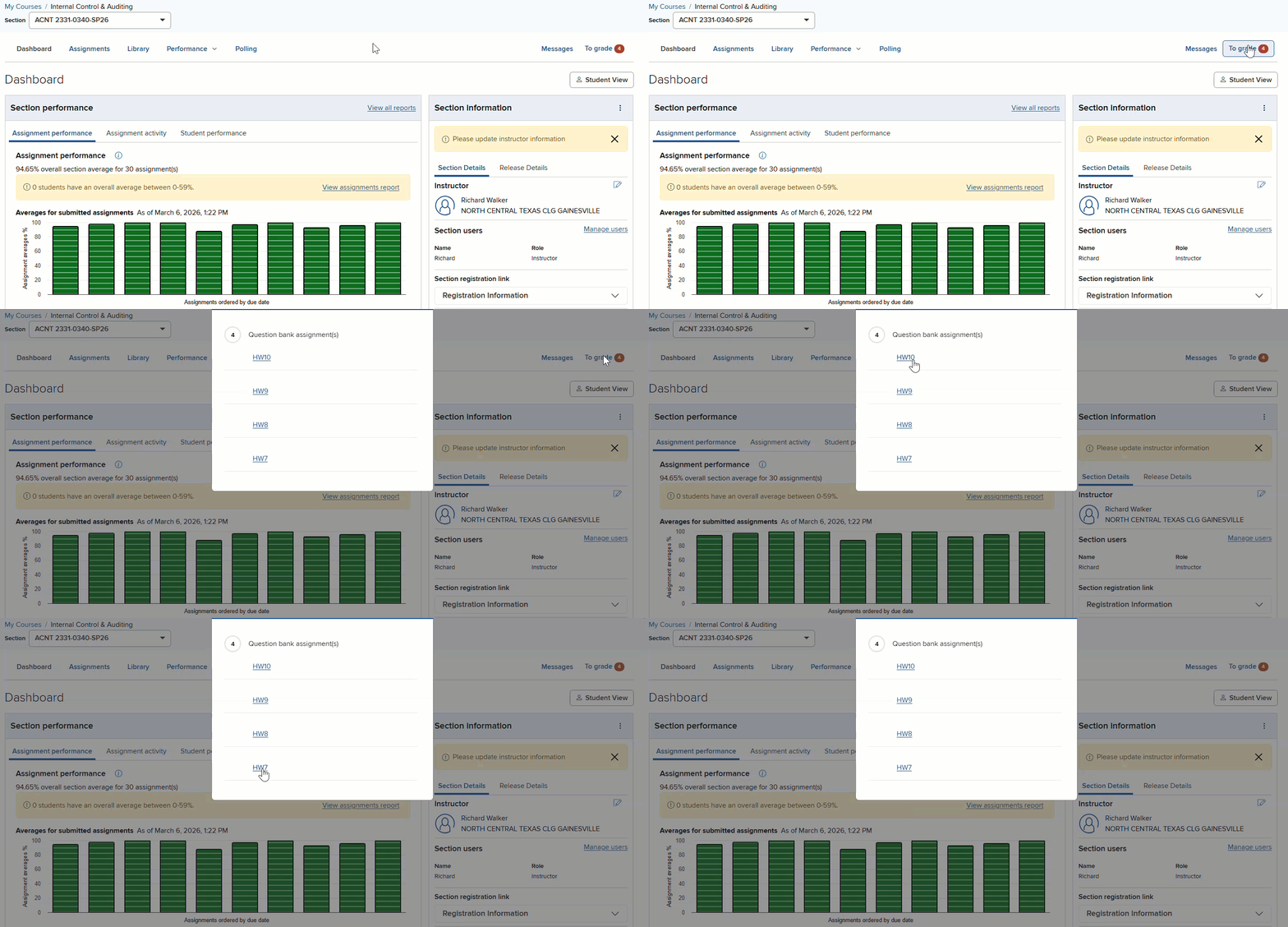
Your Section will notify you when you have assignments ready to be graded. Click To grade for the full list of assignments and then select the specific assignment to get started.
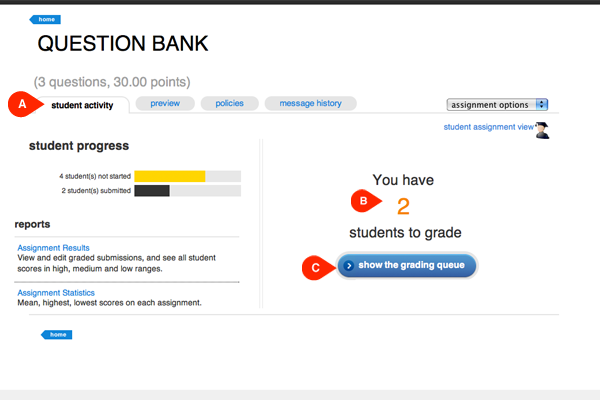
In the student activity tab (A), you’ll see the number of students who are ready to be graded (B). Click show the grading queue (C) to begin grading.
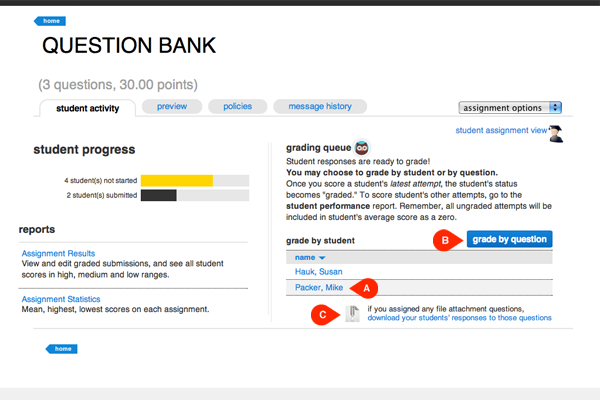
In the grading queue, you can grade each student individually by clicking on a student name (A) or you can grade all question individually by clicking grade by question (B). To view file attachment questions, click download your students’ responses to these questions (C).
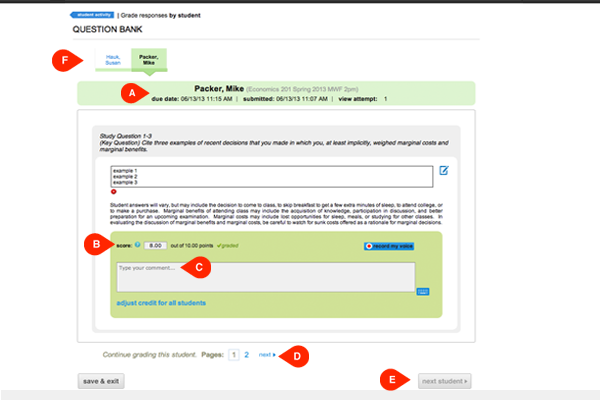
When grading by student, you’ll see the student’s most recent assignment attempt and submission date (A).
To grade a question, enter the student’s score (B) and add optional comments (C). Once a score is entered, the box will turn green and a check mark with the word graded will appear next to the score box (B). If there is more than one page of questions, click next (D) to continue grading the student. Once you’ve finished grading, click next student (E) to move on. You can also select the next student you wish to grade by click his name at the top of the page (F). If you’ve scored every question and graded the student’s most recent attempt, the student will disappear from the grading queue. Students who submit additional attempts will reappear in the grading queue.