Connect - Grading parts of a question
Review how to grade individual parts of a multi-part question in Connect.
- Higher Education
- Customer Support
- Connect
- Instructor
- Assignment Management


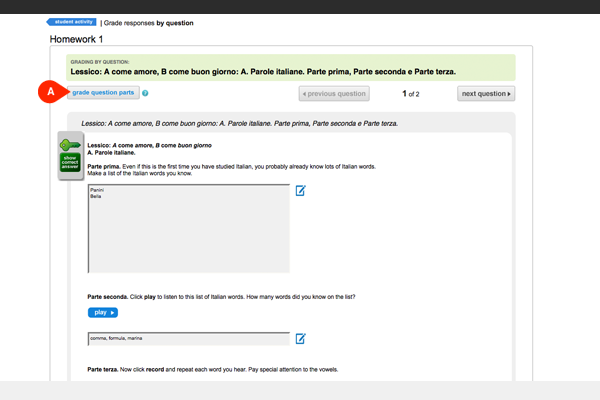
With certain types of manually graded worksheet assignments, you will have the option of grading each part of a question at a time. This means that within question 1, you would grade all students’ responses to part A, and then all responses to part B, and so on. If this is an option for you, the grade question parts button (A) will appear at the top of your screen when you click grade by question in the grading queue. Click grade question parts (A) to begin.
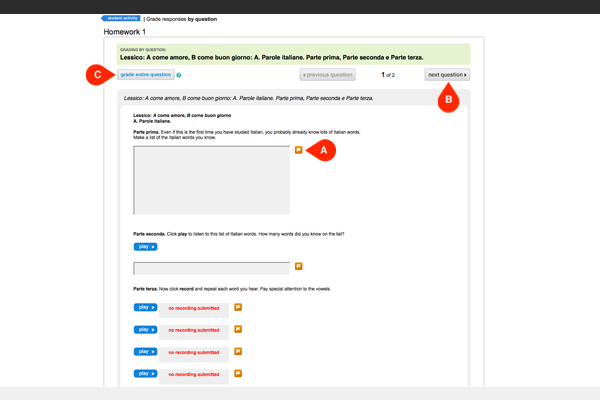
A flag icon (A) will appear next to each question part. Click any flag to begin grading that part. Once you’ve graded all students’ responses to a part, you will be directed back to this page to choose another. Click next question (B) to jump between questions. Click grade entire question (C) to revert back to grading by question, not question part.
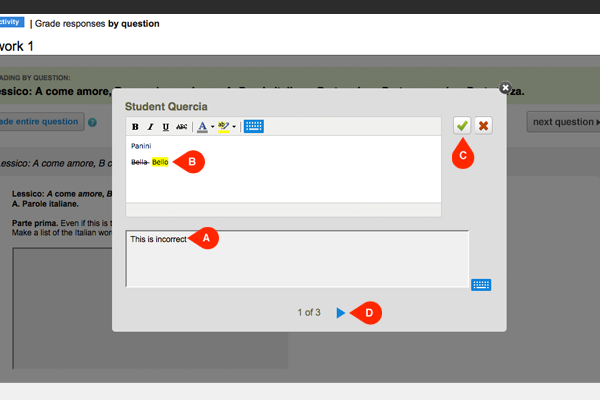
When grading an essay response, you have the option to add comments in a separate box (A) or add in-line comments (B). Click the check mark or X (C) to mark it as correct or incorrect. Once marked, the next student’s response will appear. To move between students use the blue arrows at the bottom (D).
Note: Anything added in-line with the student’s response (B) will appear as the final response so you should never delete a student’s response, only add to it. As shown here (B), using the strike-through key to cross out a student’s response and add in your comment highlighted is a clear way to differentiate between you and the student.
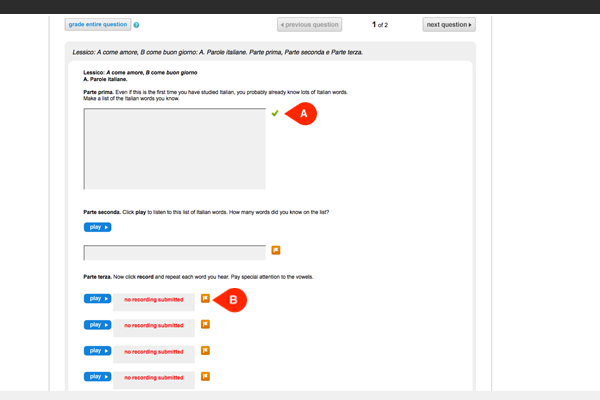
A green check mark (A) will appear next to question parts for which you have graded all responses. When grading an audio-recorded response (B), you will have the option to record your own audio as well.