
Connect - Creating Multiple Connect Sections
Create multiple Connect sections to organize courses and enroll students.
Tags
- Higher Ed Student
- Higher Education
- Customer Support
- Connect
- Course Management
- Instructor


A Connect course can be made up of one or more sections, corresponding to the actual sections you are teaching at your institution. Each section maintains it's own roster and student results. To save time, you can build assignments in one section and apply them across all sections within your course.
You have two options to create multiple sections from your courses page: from the course options menu, select + Add section (A) and from the section options menu, select Duplicate section (B).
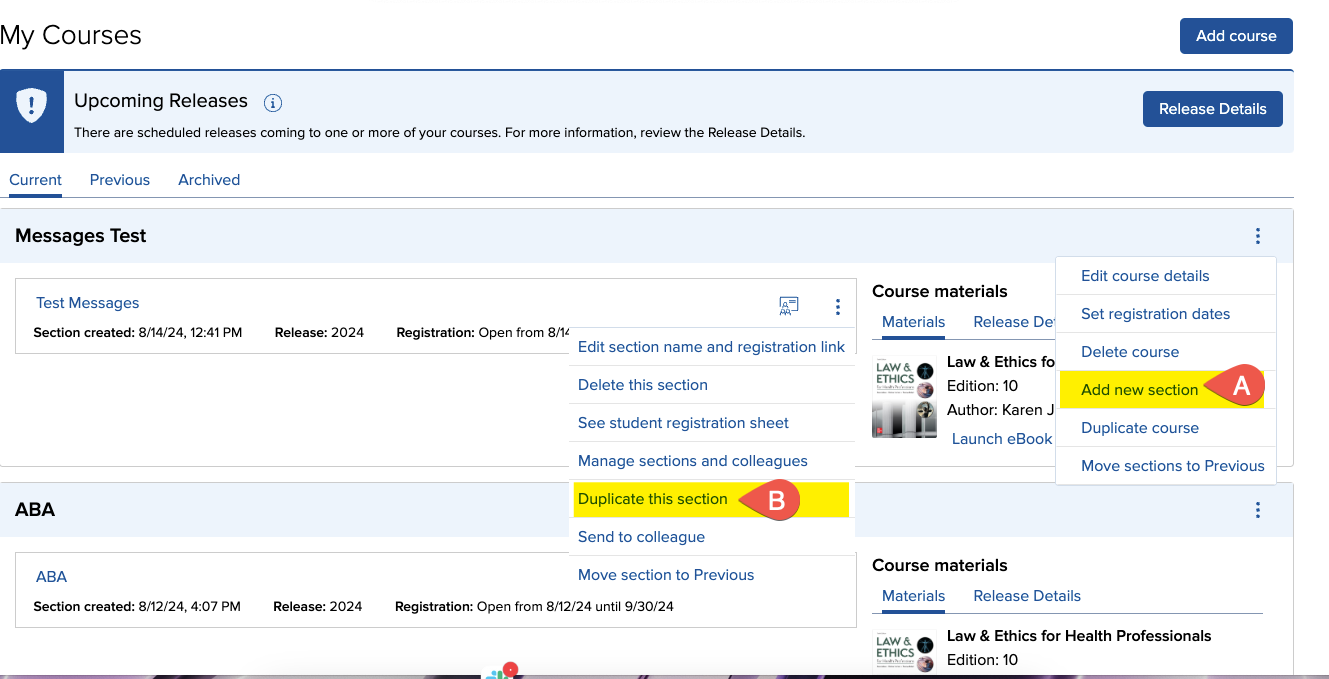
Choose to add a section if you want to create multiple sections from scratch. You'll be able to share assignments from other sections in your course, as well as run reports across all sections that have shared assignments.
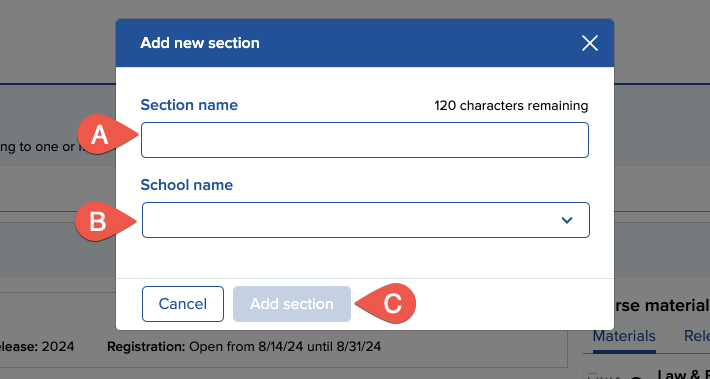
When you add a section, a modal will appear and ask you to name the new section (A). Select the School name (B) Click Add section (C) to add the section.and proceed.
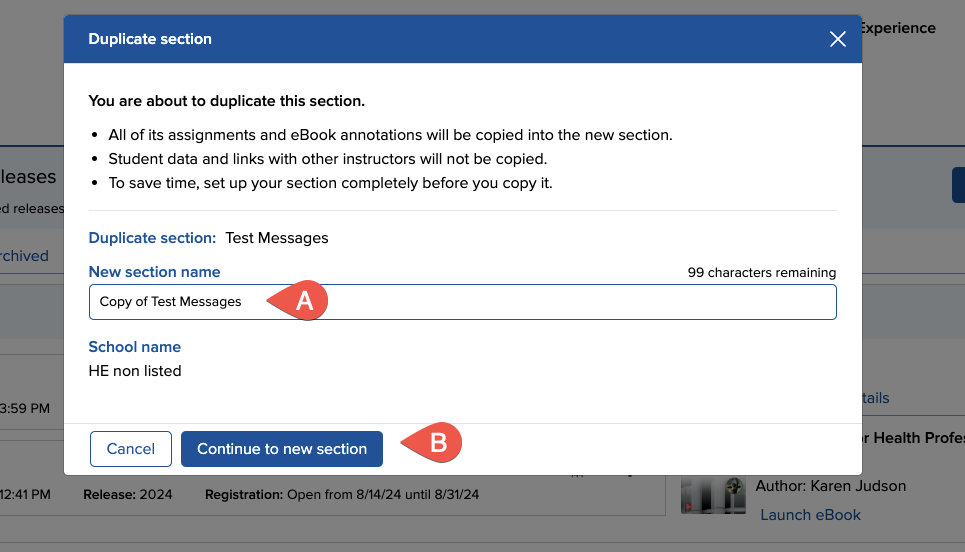
Choose to duplicate a section if you want to create an exact replica of an existing section while maintaining independent operation. Duplicate sections will contain the same assignments as the original, but they will not be shared. Edits to assignments and reports in the original section will not affect the duplicated versions and vice versa.
Name the new section (A) and click Continue to new section (B).
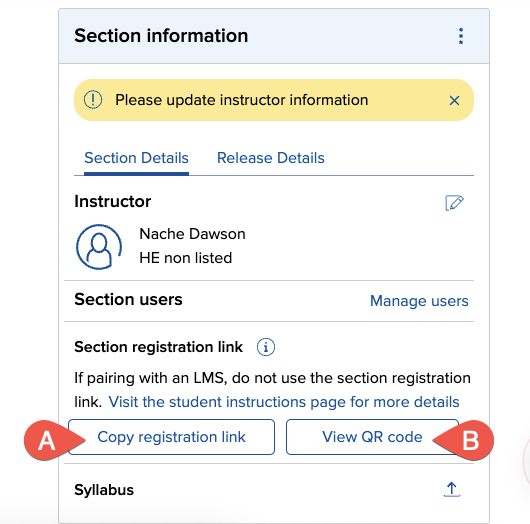
After you've added a section or created a duplicate, the Section Dashboard will appear. Section registration link area. It will contain copy registration link button (A) and View QR code button (B). you can use these buttons to provide to students the link so that they can register for your course.
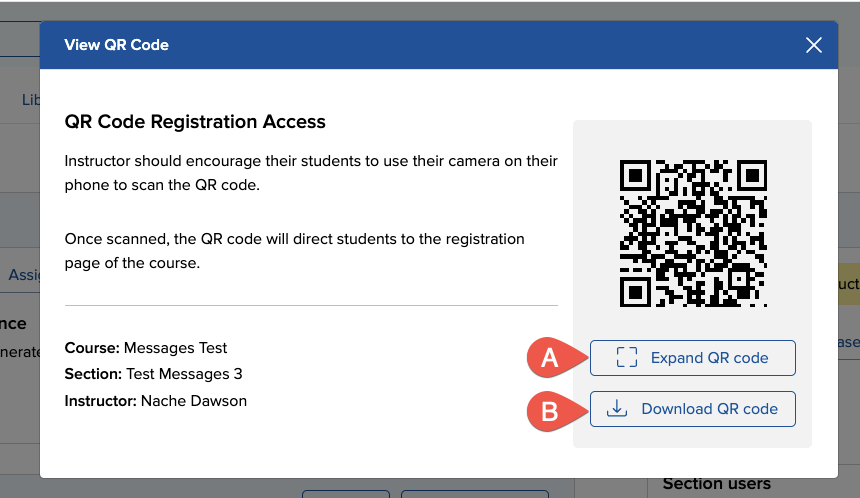
If you click view QR code, a modal pops up with the option to Expand QR code (A) or Download QR code (B)
Best Practices:
A Connect course can be made up of one or more sections, corresponding to the actual sections you are teaching at your institution. Each section maintains it's own roster and student results. To save time, you can build assignments in one section and apply them across all sections within your course.
You have two options to create multiple sections from your courses page: from the course options menu, select + Add section (A) and from the section options menu, select Duplicate section (B).
Choose to add a section if you want to create multiple sections from scratch. You'll be able to share assignments from other sections in your course, as well as run reports across all sections that have shared assignments.
When you add a section, a modal will appear and ask you to name the new section (A). Select the School name (B) Click Add section (C) to add the section.and proceed.
Name the new section (A) and click Continue to new section (B).
After you've added a section or created a duplicate, the Section Dashboard will appear. Section registration link area. It will contain copy registration link button (A) and View QR code button (B). you can use these buttons to provide to students the link so that they can register for your course.
If you click view QR code, a modal pops up with the option to Expand QR code (A) or Download QR code (B)
A Connect course can be made up of one or more sections, corresponding to the actual sections you are teaching at your institution. Each section maintains it's own roster and student results. To save time, you can build assignments in one section and apply them across all sections within your course.