
Connect - Creating item analysis reports
Create item analysis reports in Connect to evaluate question performance and student responses.
Tags
- Higher Education
- Customer Support
- Connect
- Instructor
- Assignment Management


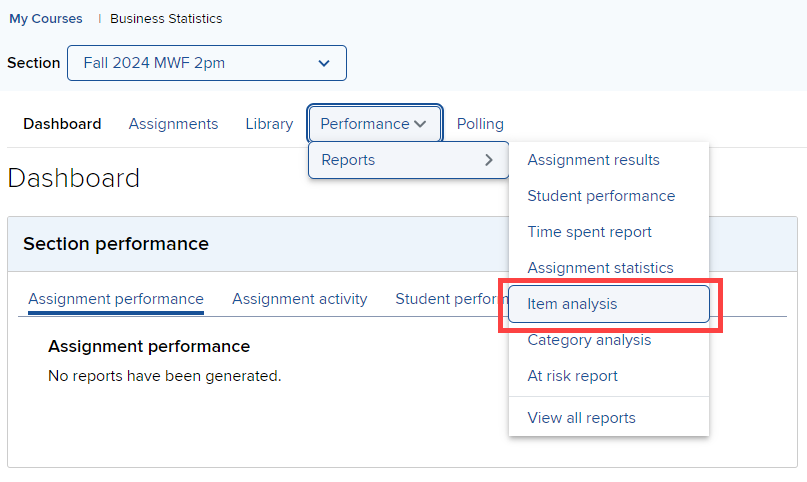
In your Course-Section home page, click Item analysis from the Performance > Reports drop down list.
 Next you need to select report options.
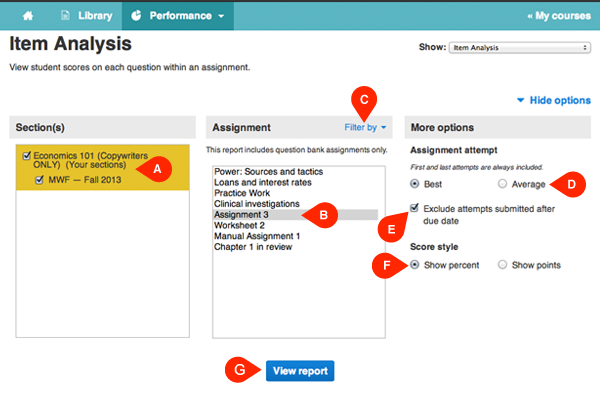
Available report options: - Select section(s) – Select which section(s) (A) will be on the report. Choose from the current section, linked sections within the same course and secondary instructor’s linked sections.
- Select one assignment– Select one assignment (B) to be displayed in the report. Your choice of sections determines the assignments listed here. Note that only question bank assignments can be used for this report. Click filter by (C) to filter specific assignment types (Homework, Quiz, etc.).
-Select an assignment attempt (D)- First and last assignment attempt scores are always included, but you can select whether you also want to see the best or average assignment attempt score. You can also check the box to exclude attempts submitted after the due date (E)
-Last, select if you want to show scores in percentages or points (F).
Click view report (G)
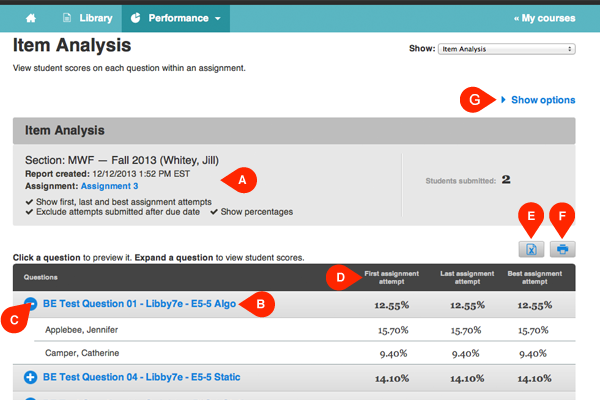
Here you will see your selections from the previous screen (A) and the report below. You can click a question (B) to preview it, or click the plus sign (C) to view individual student scores. Next to each question/student name you will see the first, last, and best or average assignment attempt score (D). You can select to export (E) or print (F) the report.
Edit your report options any time by clicking show options (G).
Available report options: - Select section(s) – Select which section(s) (A) will be on the report. Choose from the current section, linked sections within the same course and secondary instructor’s linked sections.
- Select one assignment– Select one assignment (B) to be displayed in the report. Your choice of sections determines the assignments listed here. Note that only question bank assignments can be used for this report. Click filter by (C) to filter specific assignment types (Homework, Quiz, etc.).
-Select an assignment attempt (D)- First and last assignment attempt scores are always included, but you can select whether you also want to see the best or average assignment attempt score. You can also check the box to exclude attempts submitted after the due date (E)
-Last, select if you want to show scores in percentages or points (F).
Click view report (G)
Here you will see your selections from the previous screen (A) and the report below. You can click a question (B) to preview it, or click the plus sign (C) to view individual student scores. Next to each question/student name you will see the first, last, and best or average assignment attempt score (D). You can select to export (E) or print (F) the report.
Edit your report options any time by clicking show options (G).
