
Connect - Create web activities
Learn how instructors create web activities in Connect.
Tags
- Higher Education
- Customer Support
- Connect
- Instructor
- Assignment Management


How to Create a Web Activity Assignment
- From the My Courses page, access the section where you wish to create the Web Activity
- Click the Assignment tab, top left:
- Click the Add assignment button
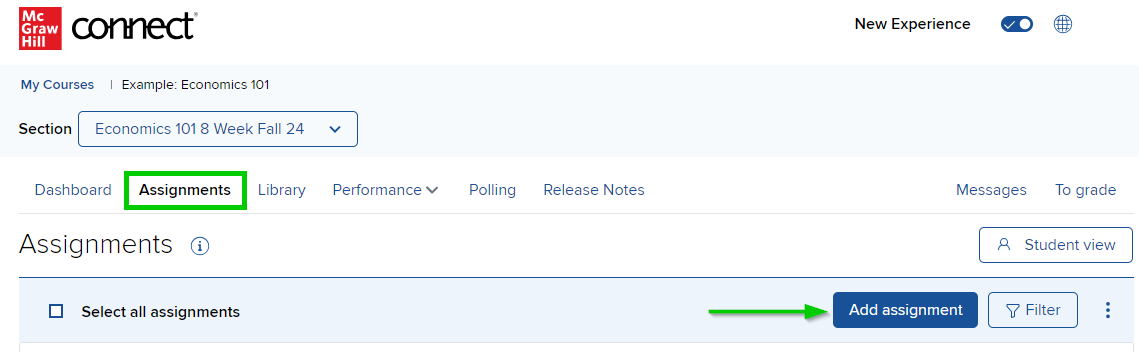
- Click web activity from the list of assignment types
- Note, that the list will vary depending on the title of the book
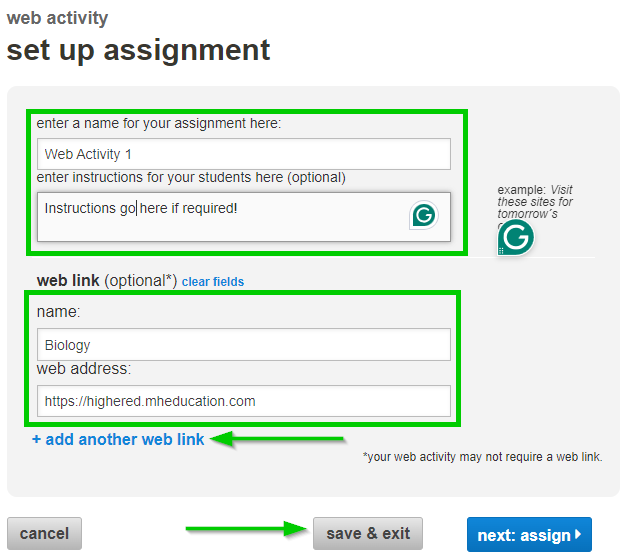
On the next page, enter:
- An assignment name
- Instructions for students (optional)
If you're using a link to a web page for students to navigate to, enter:
- A name for the link
- The web address
- Check the web address is valid before creating the assignment and that it is open source (you have permission to use it)
- You may add multiple web addresses by clicking + add another web link
- When you are happy with your selections, click save and exit to save your changes, or click next: assign to set availability dates
NOTE: Web activities are not graded assignments
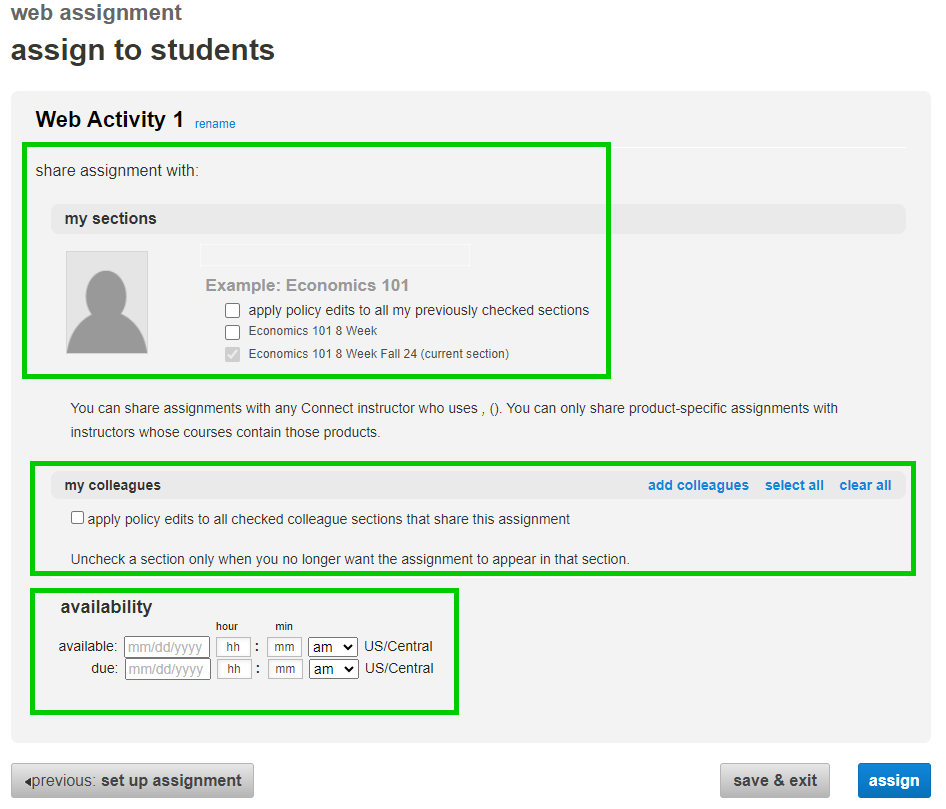
On the next page, select your sharing preferences if sharing the assignment, and enter the Start due dates before clicking assign
Best Practices:
- Web activities are a great way to create open-ended, real-world assignments or to enrich learning experiences by providing links to timely and relevant web resources!
- Use this feature to highlight relevant websites or other resources, such as material from the Library Tab Resources
- NOTE: The items you post in Web Activities are non-gradable and will not be visible in the Connect Reports area
