
Connect - Copy your Blackboard course and re-pair with Connect
Learn how to copy a Blackboard course and re-pair it with Connect.
Tags
- Higher Education
- Customer Support
- Connect
- Instructor


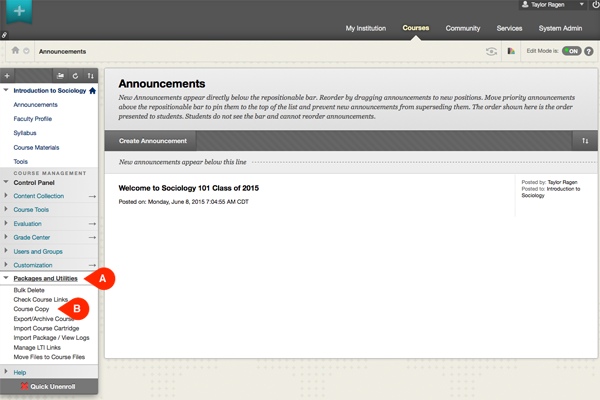
To copy a Blackboard course that contains Connect assignments, begin by going to the course homepage. From the left menu, select Packages and Utilities (A) and then Course Copy (B).
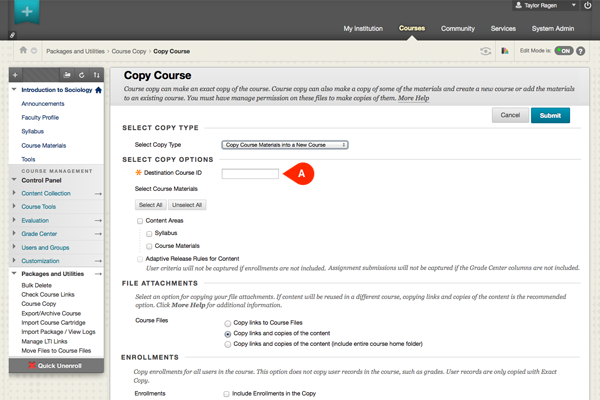
In the Copy Course page, enter the Destination Course ID (A) and select the course materials you want to copy. You may want to contact your Blackboard administrator for assistance here.
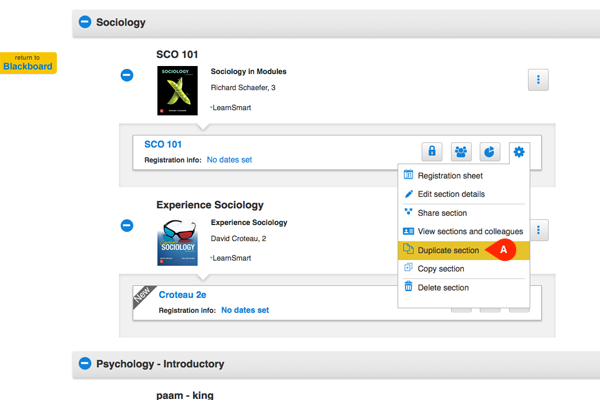
Once the Blackboard course has been copied, you'll need to copy the corresponding Connect section with which the original Blackboard course is paired. In your Connect course list, find the section currently paired with Blackboard; from the section options drop-down menu, select Duplicate section (A).
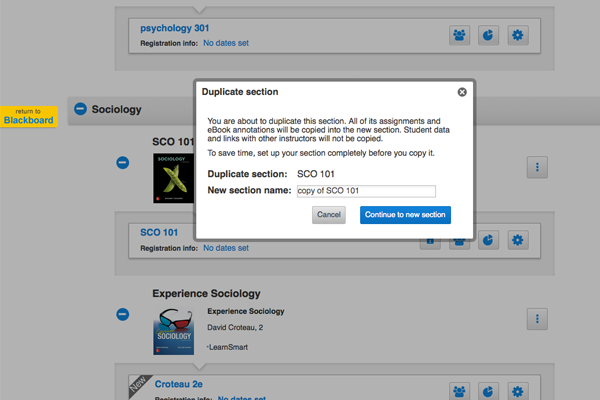
Rename the copied section to the name of your choosing. Tip: if you are using LearnSmart assignments, we recommend you enter your Connect section and remove the “Copy of” that is placed in the title of the assignment name.
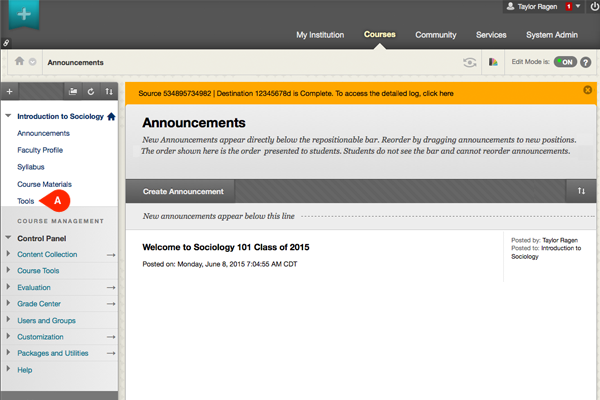
Once you've duplicated your section, you'll need to pair it to the copied Blackboard course. Return to the Blackboard and enter the copied course's homepage. Click Tools (A).
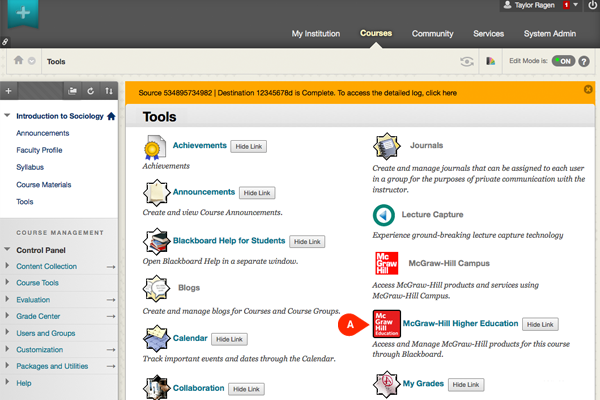
In the tools page, select McGraw-Hill Higher Education (A).
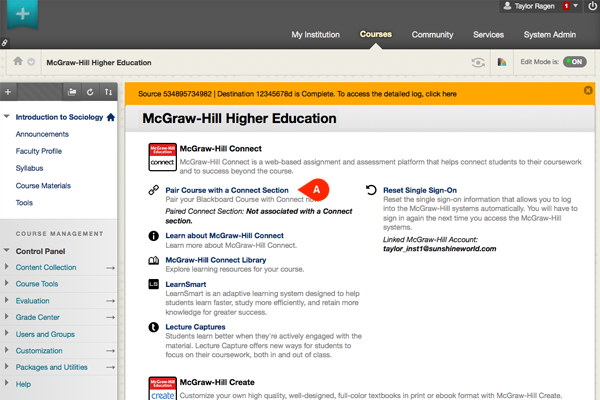
Then, select Pair Course with a Connect Section (A). Proceed through the pairing flow. For more information on pairing, please refer to the tutorial Pair Your Blackboard Course With Connect.
Related Topics:
In the Copy Course page, enter the Destination Course ID (A) and select the course materials you want to copy. You may want to contact your Blackboard administrator for assistance here.
Once the Blackboard course has been copied, you'll need to copy the corresponding Connect section with which the original Blackboard course is paired. In your Connect course list, find the section currently paired with Blackboard; from the section options drop-down menu, select Duplicate section (A).
Rename the copied section to the name of your choosing. Tip: if you are using LearnSmart assignments, we recommend you enter your Connect section and remove the “Copy of” that is placed in the title of the assignment name.
Once you've duplicated your section, you'll need to pair it to the copied Blackboard course. Return to the Blackboard and enter the copied course's homepage. Click Tools (A).
In the tools page, select McGraw-Hill Higher Education (A).
Then, select Pair Course with a Connect Section (A). Proceed through the pairing flow. For more information on pairing, please refer to the tutorial Pair Your Blackboard Course With Connect.
Related Topics:
