Follow step‑by‑step instructions to request a refund for products purchased on mheducation.com.
Tags
PreK-12
Higher Education
Professional
Customer Support
Billing & Order Fulfillment
Share:
Follow these quick steps to request a refund for a product you purchased on mheducation.com.
1. Go to mheducation.com, then click Sign In in the top right corner of the page.
If you’re already signed in, skip to Step 4.
2. Choose the Correct Sign-In Option
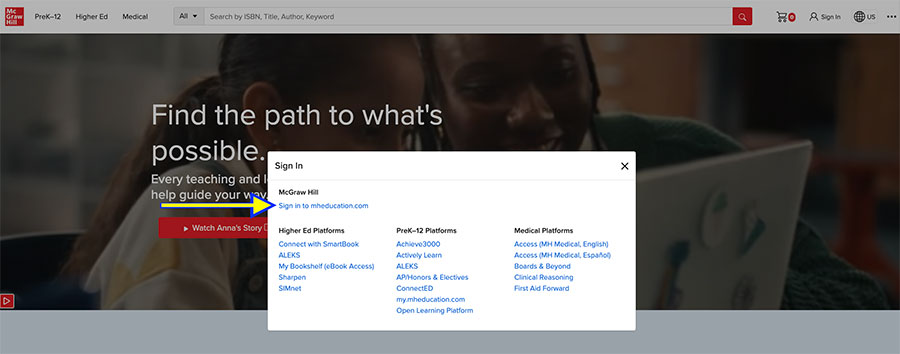
In the sign in window, click “Sign in to mheducation.com”.
3. Enter Your Sign-In Details
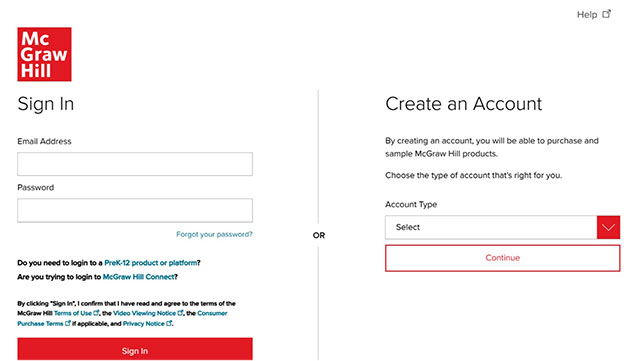
Use the same email and password you used to make your purchase, even if you originally created your account in a different part of the site.
4. Go to Order History
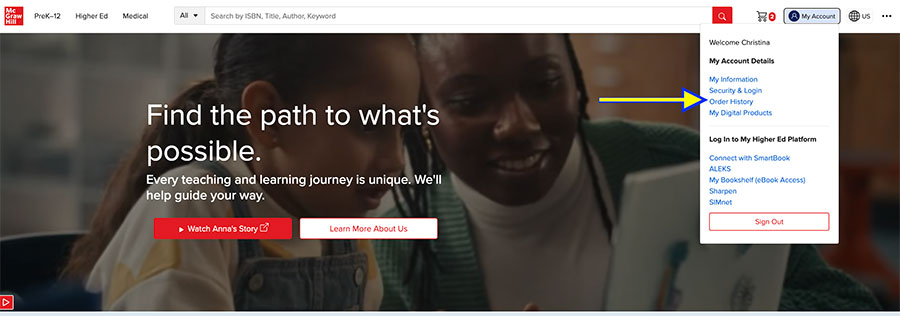
Once signed in, click My Account in the top right corner. Then, select Order History from the dropdown menu.
5. Request a Return
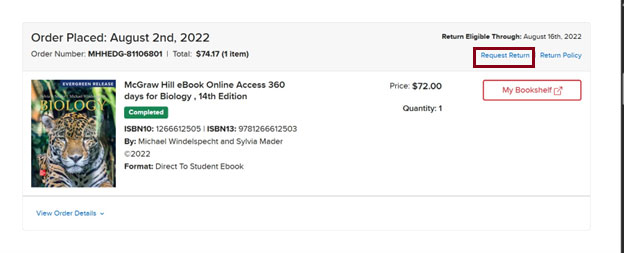
Find the order you want to return. Click Request Return, then follow the on-screen instructions.
The steps may vary depending on the product type.
For more information or questions about returns, please visit our Return Policy Page.
Help us improve!
Let us know how we can improve our support information by providing feedback in this short survey.
Top
Regional Page Available
It looks like you're outside the United States. Do you want to see your regional version of this page?
Business Unit
Business Unit/Professional
Business Unit/PreK-12
Asset Format Type
Asset Format Type/Customer Support
Business Unit/Higher Education
Support Topics
Support Topics/Billing & Order Fulfillment
professional
prek-12
highered
2026-04-24T14:09:44.331-04:00
<p>Follow these quick steps to request a refund for a product you purchased on mheducation.com.</p> <p>1. Go to <a href="/content/mheducation/us/en.html" target="_self">mheducation.com</a>, then click <strong>Sign In</strong> in the top right corner of the page. </p> <p><em>If you’re already signed in, skip to Step 4.</em></p> <p><img src="/content/dam/mhe/support/support-pdfs/2026/request-refund-1.jpg" data-assetref="request-refund-1-1777053231079"></p> <p>2. <strong>Choose the Correct Sign-In Option</strong></p> <p>In the sign in window, click “<strong>Sign in to mheducation.com</strong>”.</p> <p><img src="/content/dam/mhe/support/support-pdfs/2026/request-refund-2.jpg" data-assetref="request-refund-2-1777053462383"> </p> <p>3. <strong>Enter Your Sign-In Details</strong></p> <p>Use the same email and password you used to make your purchase, even if you originally created your account in a different part of the site.</p> <p><img src="/content/dam/mhe/support/support-pdfs/2026/request-refund-3.jpg" data-assetref="request-refund-3-1777053441135"></p> <p>4. <strong>Go to Order History</strong></p> <p>Once signed in, click <strong>My Account</strong> in the top right corner. Then, select <strong>Order History</strong> from the dropdown menu.</p> <p><img src="/content/dam/mhe/support/support-pdfs/2026/request-refund-4.jpg" data-assetref="request-refund-4-1777053411372"></p> <p>5. <strong>Request a Return</strong></p> <p>Find the order you want to return. Click <strong>Request Return</strong>, then follow the on-screen instructions.</p> <p>The steps may vary depending on the product type.</p> <p><img src="/content/dam/mhe/support/support-pdfs/2026/request-refund-5.jpg" data-assetref="request-refund-5-1777053387290"></p> <p>For more information or questions about returns, please visit our <a href="/content/mheducation/us/en/about-us/policy-center/return-policy.html" target="_self">Return Policy Page</a>.</p> corp csom Learn how to request a refund from McGraw Hill by signing in to your account, accessing order history, and submitting a return for eligible purchases. 2026-04-24 How to Request a Refund Learn how to request a refund from McGraw Hill by signing in to your account, accessing order history, and submitting a return for eligible purchases. Follow step‑by‑step instructions to request a refund for products purchased on mheducation.com.
Follow step‑by‑step instructions to request a refund for products purchased on mheducation.com.
Follow these quick steps to request a refund for a product you purchased on mheducation.com. 1. Go to mheducation.com, then click Sign In in the top right corner of the page. If you’re already signed in, skip to Step 4. 2. Choose the Correct Sign-In Option In the sign in window, click “Sign in to mheducation.com”. 3. Enter Your Sign-In Details Use the same email and password you used to make your purchase, even if you originally created your account in a different part of the site. 4. Go to Order History Once signed in, click My Account in the top right corner. Then, select Order History from the dropdown menu. 5. Request a Return Find the order you want to return. Click Request Return, then follow the on-screen instructions. The steps may vary depending on the product type. For more information or questions about returns, please visit our Return Policy Page.
csom
PreK-12, Higher Education, Professional, Customer Support, Billing & Order Fulfillment