mcgraw hill social studies
aleks
illustrative math
actively learn
redbird
networks
impact social studies
arrive math
mcgraw hill my math
music! its role
wonders
corrective reading
achieve3000 literacy
redbird math
glencoe math
ocr foundational skills kit
spotlight on music
5 steps to a 5 - ap test prep
aleks adventure
2inform
glencoe science
connecting math concepts
reveal math (k-12)
spelling mastery
early interventions in reading
ap-edition
5-steps-to-a-5-test-prep
glencoe-health
teen-health
arrive-math
building-blocks
number-worlds
reading-laboratory
reading-mastery
achieve3000-literacy
actively-learn
mcgraw-hill-literacy
open-court-reading
studysync
aleks-adventure
reveal-math
illustrative-math
redbird-math
mcgraw-hill-math
inspire-science
mcgraw-hill-science
impact
mh-social-studies
all-sorts
asi-se-dice
mcgraw-hill-cte
mcgraw-hill-health
connecting-math-concepts
corrective-reading
early-interventions-in-reading
spelling-mastery
wonderworks
maravillas
ocr-foundational-skills-kit
wow
core-plus-math
everyday-math
glencoe-math
my-math
mcgraw-hill-pre-algebra
glencoe-science
iscience
music-its-role
spotlight-on-music
instructor
Programs & Solutions
Programs & Solutions/McGraw Hill Social Studies
Context
Context/Education Level
Context/Education Level/High School
Programs & Solutions/StudySync
Programs & Solutions/StudySync/StudySync 2015 & 2017
Context/Subject
Context/Subject/Science
Programs & Solutions/AP Edition
Programs & Solutions/AP Edition/AP Music Theory
Context/Integration Type
Context/Integration Type/SSO & Auto-Rostering
Programs & Solutions/ALEKS
Support Topics
Support Topics/Tools & Product Integrations
Support Topics/Tools & Product Integrations/Access Manager
Programs & Solutions/Impact Social Studies
Programs & Solutions/Impact Social Studies/CA Impact 2019
Programs & Solutions/McGraw Hill Social Studies/FL Social Studies 2024 (K-12)
Context/Subject/World Languages
Programs & Solutions/Illustrative Math
Programs & Solutions/Actively Learn
Programs & Solutions/Networks
Programs & Solutions/Networks/Networks 2014 (K-5)
Programs & Solutions/Building Blocks
Programs & Solutions/Building Blocks/Building Blocks 2015
Programs & Solutions/World of Wonders
Programs & Solutions/World of Wonders/World of Wonders 2017
Programs & Solutions/AP Edition/AP Public Speaking
Programs & Solutions/Redbird
Programs & Solutions/All Sorts
Programs & Solutions/All Sorts/All Sorts 2026 (K-5)
Programs & Solutions/McGraw Hill Pre-Algebra
Programs & Solutions/McGraw Hill Pre-Algebra/Pre-Algebra 2012
Programs & Solutions/McGraw Hill Literacy
Programs & Solutions/McGraw Hill Literacy/McGraw Hill Literacy Soar!
Programs & Solutions/Wonders
Programs & Solutions/Wonders/Wonders 2014
Context/Subject/Math
Programs & Solutions/McGraw Hill Math
Programs & Solutions/McGraw Hill Math/Texas Math
Programs & Solutions/AP Edition/AP Chemistry
Programs & Solutions/Building Blocks/Building Blocks 2024
Programs & Solutions/Arrive Math
Context/Subject/Literacy
Programs & Solutions/McGraw Hill CTE
Programs & Solutions/McGraw Hill CTE/CTE - Health Science
Programs & Solutions/McGraw Hill My Math
Programs & Solutions/AP Edition/AP History & Geography
Programs & Solutions/Networks/Networks 2018
Programs & Solutions/Music! Its Role
Programs & Solutions/McGraw Hill My Math/McGraw Hill My Math 2018
Programs & Solutions/Reveal Math (K-12)
Programs & Solutions/Reveal Math (K-12)/CA Reveal Math (K-12)
Programs & Solutions/McGraw Hill Health
Programs & Solutions/McGraw Hill Health/McGraw Hill Health 2014
Programs & Solutions/McGraw Hill Literacy/McGraw Hill Literacy Emerge!
Programs & Solutions/Wonders/Wonders EL 2016
Context/Education Level/Preschool
Programs & Solutions/McGraw Hill Science
Programs & Solutions/McGraw Hill Science/FL Science 2025 (K-12)
Programs & Solutions/Corrective Reading
Programs & Solutions/Achieve3000 Literacy
Programs & Solutions/Number Worlds
Programs & Solutions/Number Worlds/Number Worlds 2024
Programs & Solutions/Redbird Math
Programs & Solutions/Reading Laboratory
Programs & Solutions/Reading Laboratory/SRA Reading Laboratory 2025
Programs & Solutions/AP Edition/AP Economics
Programs & Solutions/Building Blocks/Building Blocks PreK 2025
Programs & Solutions/Wonders/Wonders Balanced Literacy 2016
Support Topics/User Guides & Account Management
Support Topics/User Guides & Account Management/Products & Licenses
Programs & Solutions/McGraw Hill Science/TN Science (K-12)
Programs & Solutions/Glencoe Math
Programs & Solutions/Glencoe Math/Glencoe Math Course 1
Programs & Solutions/Teen Health
Programs & Solutions/Teen Health/Teen Health 2021
Programs & Solutions/McGraw Hill CTE/CTE - Criminal Justice
Programs & Solutions/Glencoe Math/Glencoe Math Course 2
Programs & Solutions/Core Plus Math
Programs & Solutions/Core Plus Math/Core Plus Math 2015
Programs & Solutions/Glencoe Math/Glencoe Math Course 3
Business Unit
Business Unit/PreK-12
Programs & Solutions/AP Edition/AP Precalculus
Programs & Solutions/OCR Foundational Skills Kit
Context/Integration Type/Direct Login & Auto-Rostering
Programs & Solutions/AP Edition/AP Biology
Programs & Solutions/Spotlight on Music
Programs & Solutions/Number Worlds/Number Worlds 2015
Programs & Solutions/Glencoe Health
Programs & Solutions/Glencoe Health/Glencoe Health 2022
Programs & Solutions/Open Court Reading
Programs & Solutions/Open Court Reading/Open Court Reading 2025
Programs & Solutions/McGraw Hill CTE/CTE - Culinary Arts
Asset Format Type
Asset Format Type/Customer Support
Context/Curriculum Type
Context/Curriculum Type/Supplemental
Programs & Solutions/AP Edition/AP Statistics
Programs & Solutions/McGraw Hill Science/TX Science 2025 (K-12)
Programs & Solutions/Wonders/Wonders 2023 2020 2017
Context/Subject/Health
Programs & Solutions/5 Steps to a 5 - AP Test Prep
Programs & Solutions/Asi Se Dice
Programs & Solutions/Asi Se Dice/Asi se Dice 2024
Programs & Solutions/ALEKS Adventure
Context/Curriculum Type/Career & Technical Education
Programs & Solutions/Glencoe Health/Glencoe Health 2014
Programs & Solutions/Open Court Reading/Open Court Reading 2016, 2018, 2023
Programs & Solutions/Networks/Networks 2014 & 2016
Programs & Solutions/McGraw Hill CTE/CTE - Agriculture
Programs & Solutions/Glencoe Math/Glencoe Algebra 2 2014
Programs & Solutions/2Inform
Programs & Solutions/Glencoe Math/Glencoe Algebra 2 2018
Context/Curriculum Type/AP, Honors & Electives
Programs & Solutions/WonderWorks
Programs & Solutions/WonderWorks/WonderWorks 2022 & 2014
Context/Curriculum Type/Intervention
Programs & Solutions/McGraw Hill CTE/CTE - Computing and Technology
Programs & Solutions/iScience
Programs & Solutions/iScience/iScience 2017
Programs & Solutions/Open Court Reading/OCR Word Analysis Kit
Programs & Solutions/Everyday Mathematics
Programs & Solutions/Everyday Mathematics/Everyday Mathematics 4 (K-6)
Programs & Solutions/Asi Se Dice/Asi se Dice 2016
Context/Curriculum Type/Core
Programs & Solutions/AP Edition/AP Language and Composition
Programs & Solutions/Glencoe Science
Programs & Solutions/Inspire Science
Programs & Solutions/Inspire Science/Inspire Science 2020
Context/Subject/Visual & Performing Arts
Programs & Solutions/AP Edition/AP Computer Science
Programs & Solutions/Inspire Science/Inspire Science 2017
Context/Subject/Social Studies
Programs & Solutions/Glencoe Math/Glencoe Algebra 1 2018
Programs & Solutions/Connecting Math Concepts
Context/Education Level/Middle School
Programs & Solutions/Glencoe Math/Glencoe Algebra 1 2014
Programs & Solutions/Glencoe Math/Glencoe Geometry 2014
Programs & Solutions/McGraw Hill CTE/CTE - Early Childhood Education
Programs & Solutions/Maravillas
Programs & Solutions/Maravillas/Maravillas 2020 & 2017
Programs & Solutions/Glencoe Science/Glencoe Science 2017
Personas
Personas/School Educator
Personas/School Educator/School Administrator
Programs & Solutions/AP Edition/AP African American Studies
Programs & Solutions/Glencoe Math/Glencoe Math Accelerated
Programs & Solutions/Glencoe Math/Glencoe Geometry 2018
Support Topics/Classroom & Course Management
Support Topics/Classroom & Course Management/Class Management
Context/Education Level/Elementary School
Programs & Solutions/McGraw Hill Literacy/McGraw Hill Literacy Summit!
Programs & Solutions/McGraw Hill My Math/McGraw Hill My Math 2013 & 2016
Programs & Solutions/AP Edition/AP Psychology
Programs & Solutions/StudySync/StudySync 2021
Programs & Solutions/Spelling Mastery
Programs & Solutions/Inspire Science/CA Inspire Science 2020
Programs & Solutions/Reading Mastery
Programs & Solutions/Reading Mastery/SRA Reading Mastery Transformations
Programs & Solutions/Early Interventions in Reading
prek-12
2026-03-24T18:33:39.503-03:00
<p><a href="https://hub.mheducation.com/share/czktksclakeg" target="_blank">View the demo in a separate tab.</a></p> <p><a href="https://hub.mheducation.com/share/w9vdflhjx4ek" target="_blank">View the Spanish version of the demo.</a></p> <p><a href="https://www.youtube.com/embed/oDBIIRJHOwA" target="_blank">View a video walkthrough.</a></p> <p> </p> <h2><span style="font-weight: normal;">Article Contents</span></h2> <p><a href="#tips" target="_self">Helpful Tips</a></p> <p><a href="#assign" target="_self">Assign Content</a></p> <p><a href="#Remove" target="_self">Remove Content</a></p> <p> </p> <h3><a id="tips"></a><span style="font-weight: normal;">Helpful Tips</span></h3> <ul> <li>You can assign products from multiple purchasing accounts. Most purchasing accounts are at the district level, but in some cases, a school may have their own purchasing account for their school's licenses. Click the Accounts dropdown on the Assign tab to switch to the account you wish to manage.</li> </ul> <ul> <li>When more than one product is assigned to a class, separate classes are created such that each product is assigned to its own class. For example, if an elementary class has both Science and Social Studies products assigned to it, teachers and students will see two classes with the same class name—one class for Science and the other for Social Studies.</li> </ul> <ul> <li>When adding an <a href="/content/mheducation/us/en/prek-12/support/knowledge/core-products-and-add-on-products" target="_blank">add-on product</a>, assign the core product <em>first</em> and then assign the add-on product. The reverse process should be followed when you unassign products as well—remove the add-on product <em>first </em>and then remove the core product. When assigning content with OneRoster<sup>®</sup> 1.1 files, the products do not need to be listed on the files in any special order.</li> </ul> <ul> <li>When new users are added to a course via the OneRoster® files, each user is assigned content as the file is processed by Access Manager. If mapping by course, course mapping is maintained as long as the course 'sourcedId' does not change. You only need to map content when you create new courses or when you change the ‘sourcedId’ for a course.</li> </ul> <div> </div> <ul> <li>Content should not be managed via Access Manager if you use the OneRoster<sup>®</sup> 1.1 resources.csv to assign content. Only use one source for content assignments—assign content via your OneRoster<sup>®</sup> 1.1 files or assign content on Access Manager.</li> </ul> <ul> <li>If no master schedule is set in the SIS<strong> </strong>(Student Information System), or if the SIS does not create courses for elementary students, content may need to be assigned for individual classes, as courses will not apply to more than one class.</li> </ul> <ul> <li>To successfully create and roster all ALEKS classes, assign all ALEKS content the same way across the district—either by class or course, but not both. </li> </ul> <h3> </h3> <h3><a id="assign"></a><span style="font-weight: normal;">Assign Content</span></h3> <p>ConnectED products can be assigned to courses, classes, and individual users. Open Learning Platform products can be assigned to courses and classes, but not individual users.</p> <p><strong><em>Tip!</em></strong> The most efficient way to assign content on Access Manager is to assign content by course, as courses can apply to all classes across the district that use a specific product.</p> <p>1. SSO or log in at <a href="https://my.mheducation.com" target="_blank" style="background-color: rgb(255,255,255);">my.mheducation.com</a>.</p> <p>2. <a href="https://www.mheducation.com/prek-12/support/knowledge/how-to-toggle-between-roles-and-orgs.html" target="_blank">Access your administrator account</a> and click on <strong>Access Manager </strong>from the navigation menu<strong>. </strong>Access Manager will open in a new browser window.</p> <p><img src="/content/dam/mhe/support/support-images/migrated/rtaImage--833308454.jpeg" data-assetref="rtaImage--833308454-1777040812488"></p> <p>Some customers may need to <a href="https://access.mheducation.com/login" target="_blank">sign into Access Manager directly</a>.</p> <p><img src="/content/dam/mhe/support/support-images/migrated/rtaImage--833317945.jpeg" width="381" height="340" data-assetref="rtaImage--833317945-1777040812488"></p> <p>3. Click <strong>Assign</strong> on the navigation menu.</p> <p>A. If you have multiple purchasing accounts, select the account you would like to manage.</p> <p>4. Click the radio button next to the product you need to assign.</p> <p>5. Click the <strong>Next </strong>button.</p> <p><img src="/content/dam/mhe/support/support-images/migrated/rtaImage--833308360.jpeg" data-assetref="rtaImage--833308360-1777040812488"></p> <p><strong>Note:</strong> When assigning ALEKS content, be sure to select the “<strong>ALEKS K12 Standard</strong>” product (B) and not the “<strong>ALEKS Add-On 6-12 Subscription Bundle...</strong>” product (C). To successfully create and roster all ALEKS classes, be sure to assign the content the same way across the district—either by class or course, but not both.</p> <p><img src="/content/dam/mhe/support/support-images/migrated/rtaImage--833305560.jpeg" width="485" height="348" data-assetref="rtaImage--833305560-1777040812489"></p> <p>D. If assigning an ALEKS program, select the <strong>Resource Name</strong>.</p> <p>For steps on assigning ALEKS using ALEKS Master Templates, see the <a href="https://www.mheducation.com/prek-12/support/knowledge/aleks-assign-master-templates-in-access-manager.html" target="_blank">Assign ALEKS Master Templates in Access Manager</a> article.</p> <p>E. Click the <strong>Next </strong>button.</p> <p><img src="/content/dam/mhe/support/support-images/migrated/rtaImage--833305497.jpeg" data-assetref="rtaImage--833305497-1777040812489"></p> <p>6. Select <strong>Course </strong>or <strong>Class </strong>from the drop-down menu. Only ConnectED content can be assigned to individual <strong>Users</strong>.</p> <p><img alt="image.png" src="/content/dam/mhe/support/support-images/migrated/rtaImage--847061222.jpeg" data-assetref="rtaImage--847061222-1777040812489"></p> <p>7. Check the box to the left of the <strong>Course</strong>, <strong>Class</strong>, or <strong>User</strong>.</p> <p>F. Use the search for courses or classes by <strong>name</strong>, <strong>ID</strong>, or <strong>code</strong>. The course and class lists should contain all courses and classes sent to us via the OneRoster<sup>®</sup> file or the roster sync.</p> <p>G. The system automatically selects all schools for the content assignment. To limit the content assignment to specific schools, click the <strong>Assign Schools</strong> drop-down and uncheck any schools you do not want to assign the program to.</p> <p>We recommend leaving all schools selected unless you are trying to filter schools out that have the course but do not need the content. Keep in mind, the content will only be assigned to the selected course(s) regardless of the schools selected.</p> <p><strong>Note:</strong> Make sure to double-check the school selections if a specific subset of schools are selected. The selections automatically get cached in the system, so all subsequent mappings will also automatically be only for that subset of schools selected.</p> <p>8. Click the <strong>Assign </strong>button.</p> <p><img src="/content/dam/mhe/support/support-images/migrated/rtaImage--833313125.jpeg" data-assetref="rtaImage--833313125-1777040812489"></p> <p>A summary page displays the product assigned to your selected courses and schools. Both Teacher and Student Editions will be assigned once a product is mapped.</p> <p><img src="/content/dam/mhe/support/support-images/migrated/rtaImage--833307354.jpeg" data-assetref="rtaImage--833307354-1777040812489"></p> <p> </p> <h3><a id="Remove"></a><span style="font-weight: normal;">Remove Content Assignments</span></h3> <p>1. SSO or log in at <a href="https://my.mheducation.com" target="_blank">my.mheducation.com</a>.</p> <p>2. <a href="https://www.mheducation.com/prek-12/support/knowledge/how-to-toggle-between-roles-and-orgs.html">Access your administrator account</a> and click on <strong>Access Manager </strong>from the navigation menu<strong>. </strong>Access Manager will open in a new browser window.</p> <p><img src="/content/dam/mhe/support/support-images/migrated/rtaImage--833308454-1.jpeg" data-assetref="rtaImage--833308454-1-1777040812489"></p> <p>Some customers may need to <a href="https://access.mheducation.com/login">sign into Access Manager directly</a>.</p> <p><img src="/content/dam/mhe/support/support-images/migrated/rtaImage--833317945-1.jpeg" width="381" height="340" data-assetref="rtaImage--833317945-1-1777040812489"></p> <p>3. Click <strong>Assign</strong> on the navigation menu.</p> <p>A. If you have multiple purchasing accounts, select the account you would like to manage.</p> <p>4. Click the radio button next to the product you need to assign.</p> <p>5. Click the <strong>Next </strong>button.</p> <p><img src="/content/dam/mhe/support/support-images/migrated/rtaImage--833308360-1.jpeg" data-assetref="rtaImage--833308360-1-1777040812489"></p> <p>D. If unassigning an ALEKS program, select the <strong>Resource Name</strong>.</p> <p>E. Click the <strong>Next </strong>button.</p> <p><img src="/content/dam/mhe/support/support-images/migrated/rtaImage--833305497-1.jpeg" data-assetref="rtaImage--833305497-1-1777040812489"></p> <p>6. Select <strong>Course </strong>or <strong>Class </strong>from the drop-down menu.</p> <p><img alt="image.png" src="/content/dam/mhe/support/support-images/migrated/rtaImage--847061222-1.jpeg" data-assetref="rtaImage--847061222-1-1777040812489"></p> <p>7. Uncheck the box to the left of the <strong>Course</strong>, <strong>Class</strong>, or <strong>User</strong>.</p> <p>F. Use the search for courses or classes by <strong>name</strong>, <strong>ID</strong>, or <strong>code</strong>. The course and class lists should contain all courses and classes sent to us via the OneRoster<sup>®</sup> file or the roster sync.</p> <p>G. To only unassign certain schools from the program, click on the schools drop-down and uncheck any <strong>schools </strong>you no longer want assigned to the program.<br> <br> 8. Click the <strong>Assign </strong>button.</p> <p><img src="/content/dam/mhe/support/support-images/migrated/rtaImage--833309722.jpeg" data-assetref="rtaImage--833309722-1777040812489"></p> <p>If you're unsure what program is assigned to a course, class, or user, hover over the checked box to view a pop-up with the program name.</p> <p><img src="/content/dam/mhe/support/support-images/migrated/rtaImage--833335643.jpeg" data-assetref="rtaImage--833335643-1777040812489"></p> <p>A summary page displays the product assigned to your selected courses and schools. Both Teacher and Student Editions will be assigned once a product is mapped.</p> <p><img src="/content/dam/mhe/support/support-images/migrated/rtaImage--833307354-1.jpeg" data-assetref="rtaImage--833307354-1-1777040812489"></p> <div>OneRoster <sup>®</sup> is a trademark of the IMS Global Learning Consortium, Inc.</div> dts Assign Content On Access Manager: step-by-step guidance, requirements, and tips to help you complete this task successfully. 2026-03-09 Manage Content on Access Manager Assign Content On Access Manager: step-by-step guidance, requirements, and tips to help you complete this task successfully. Assign content using Access Manager to control which products and materials are available to classes.
Assign content using Access Manager to control which products and materials are available to classes.
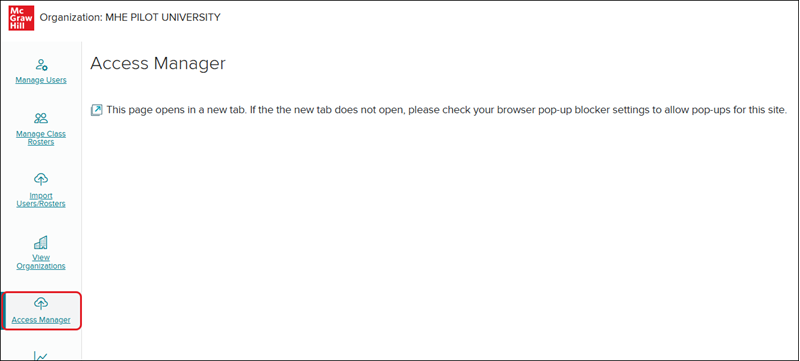
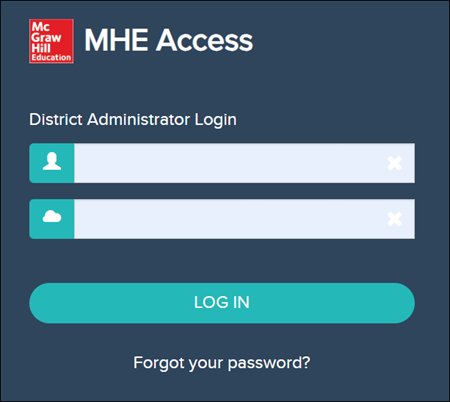
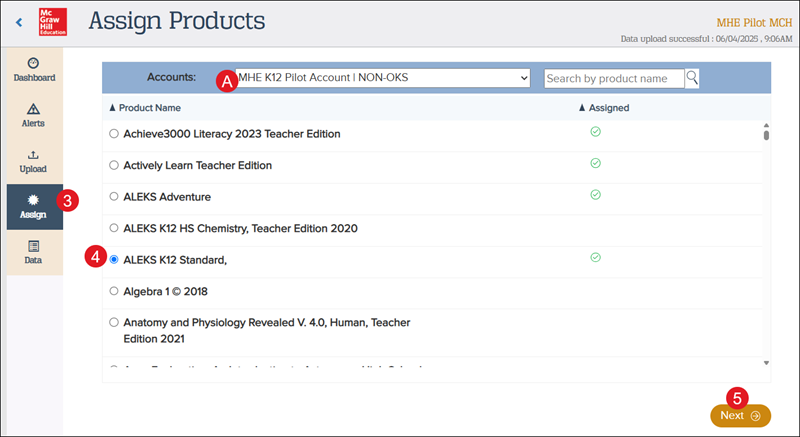
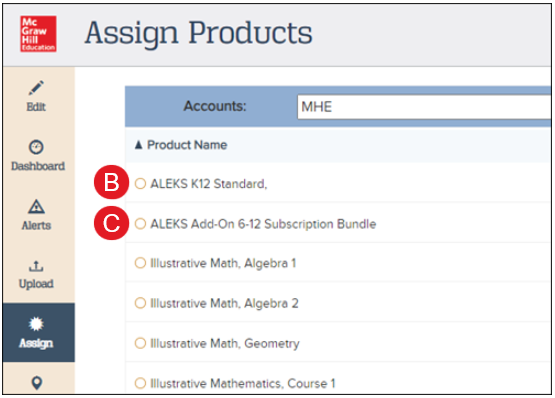
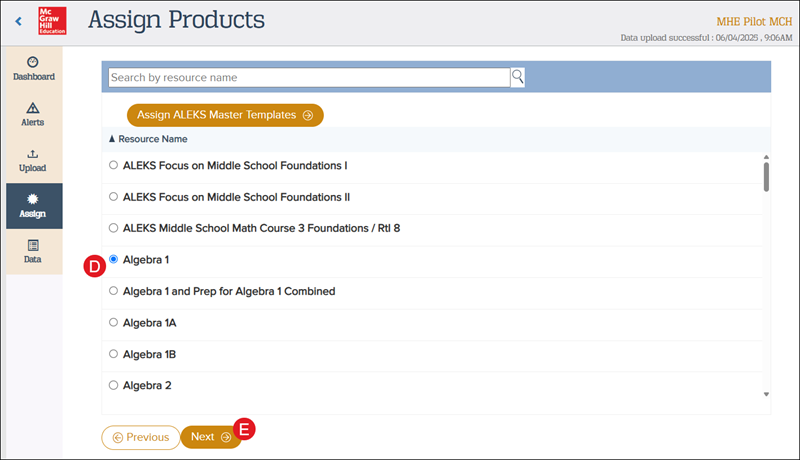
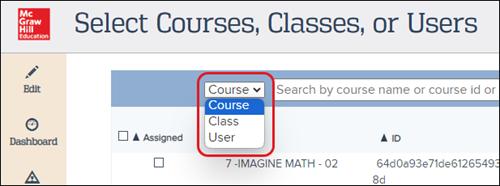
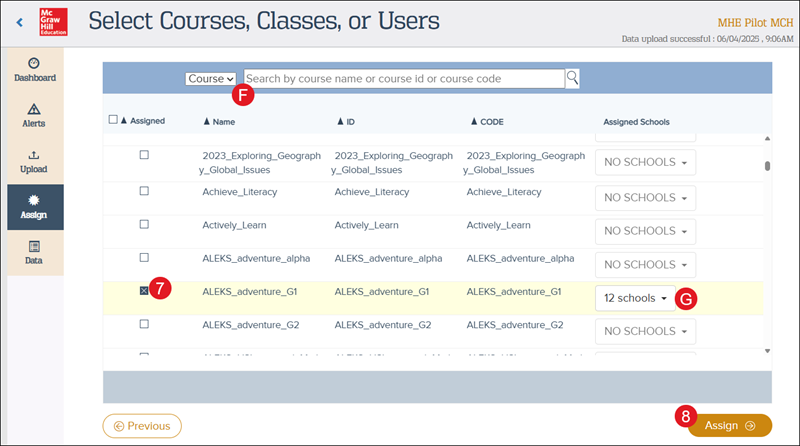
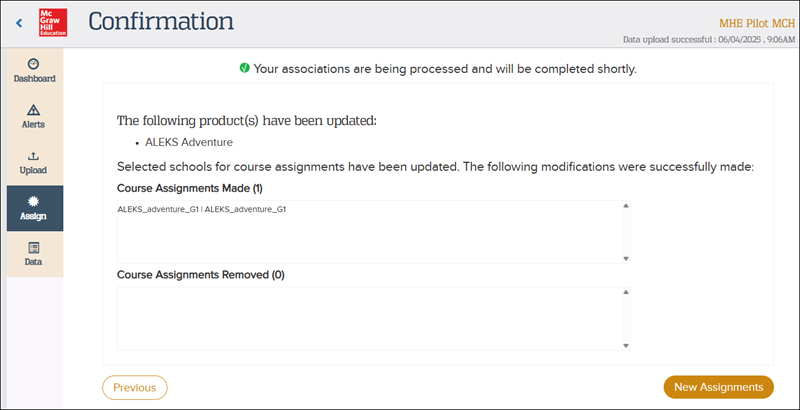
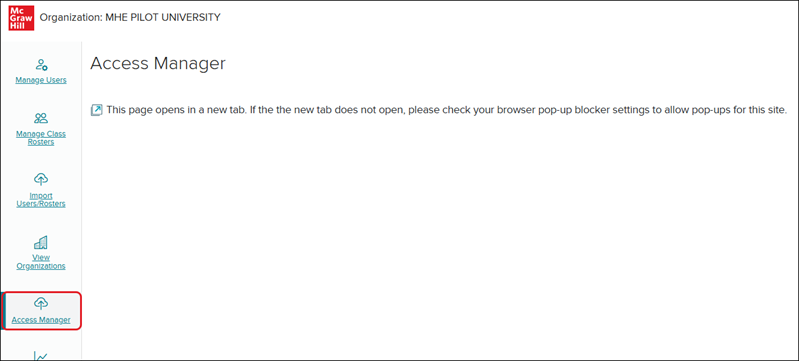
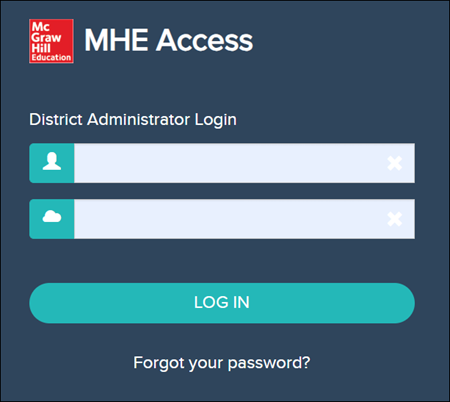
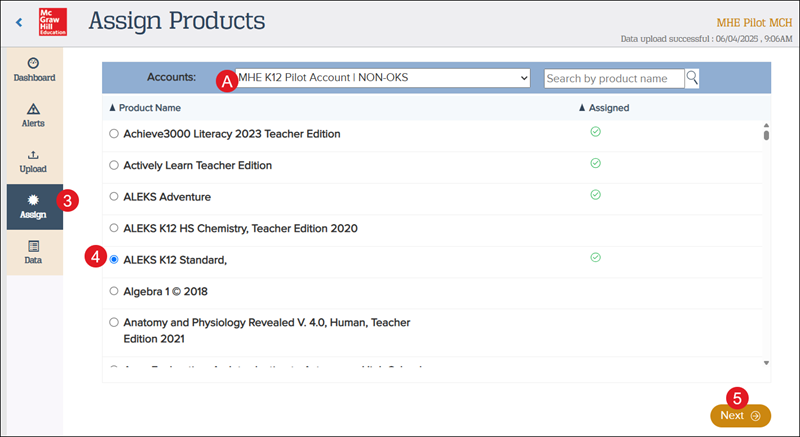
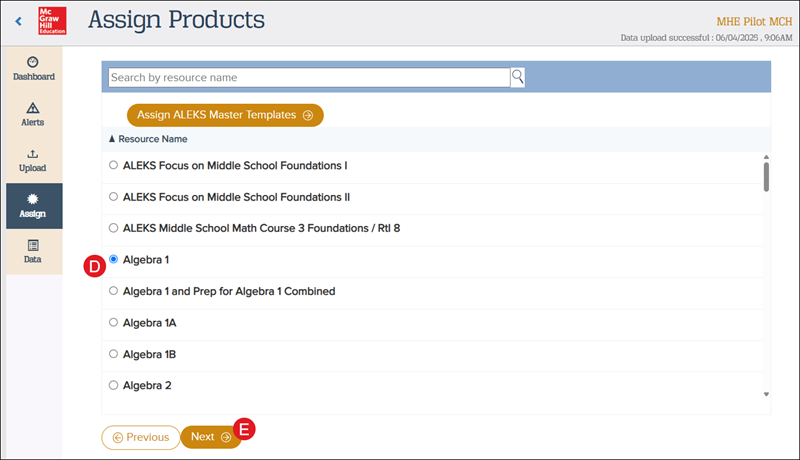
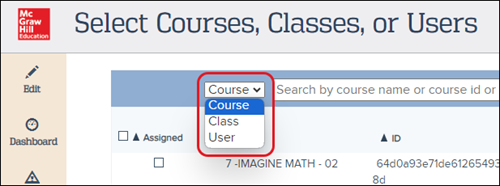
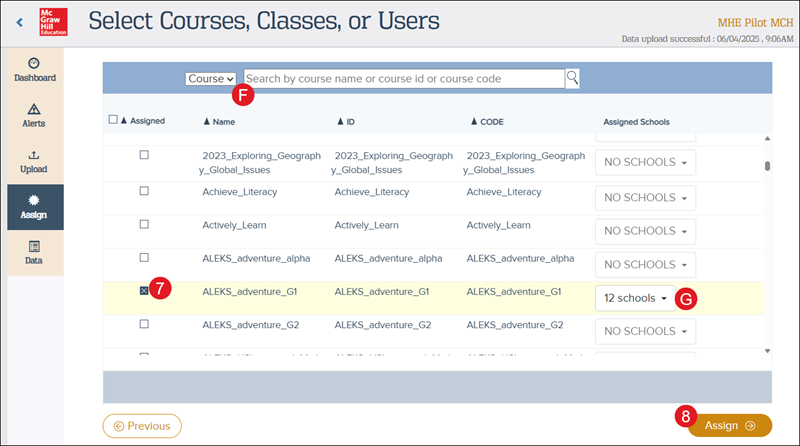
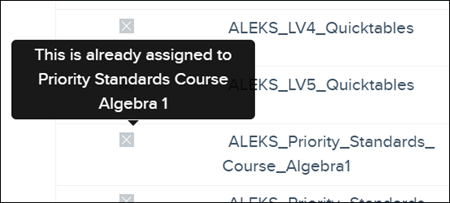
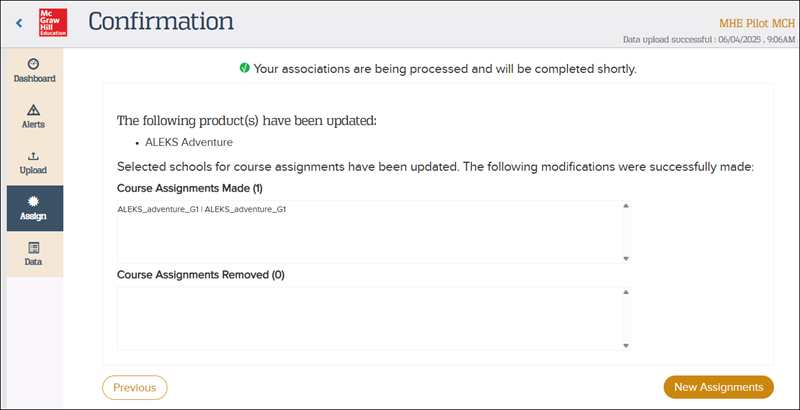
View the demo in a separate tab. View the Spanish version of the demo. View a video walkthrough. Article Contents Helpful Tips Assign Content Remove Content Helpful Tips You can assign products from multiple purchasing accounts. Most purchasing accounts are at the district level, but in some cases, a school may have their own purchasing account for their school's licenses. Click the Accounts dropdown on the Assign tab to switch to the account you wish to manage. When more than one product is assigned to a class, separate classes are created such that each product is assigned to its own class. For example, if an elementary class has both Science and Social Studies products assigned to it, teachers and students will see two classes with the same class name—one class for Science and the other for Social Studies. When adding an add-on product, assign the core product first and then assign the add-on product. The reverse process should be followed when you unassign products as well—remove the add-on product first and then remove the core product. When assigning content with OneRoster® 1.1 files, the products do not need to be listed on the files in any special order. When new users are added to a course via the OneRoster® files, each user is assigned content as the file is processed by Access Manager. If mapping by course, course mapping is maintained as long as the course 'sourcedId' does not change. You only need to map content when you create new courses or when you change the ‘sourcedId’ for a course. Content should not be managed via Access Manager if you use the OneRoster® 1.1 resources.csv to assign content. Only use one source for content assignments—assign content via your OneRoster® 1.1 files or assign content on Access Manager. If no master schedule is set in the SIS (Student Information System), or if the SIS does not create courses for elementary students, content may need to be assigned for individual classes, as courses will not apply to more than one class. To successfully create and roster all ALEKS classes, assign all ALEKS content the same way across the district—either by class or course, but not both. Assign Content ConnectED products can be assigned to courses, classes, and individual users. Open Learning Platform products can be assigned to courses and classes, but not individual users. Tip! The most efficient way to assign content on Access Manager is to assign content by course, as courses can apply to all classes across the district that use a specific product. 1. SSO or log in at my.mheducation.com. 2. Access your administrator account and click on Access Manager from the navigation menu. Access Manager will open in a new browser window. Some customers may need to sign into Access Manager directly. 3. Click Assign on the navigation menu. A. If you have multiple purchasing accounts, select the account you would like to manage. 4. Click the radio button next to the product you need to assign. 5. Click the Next button. Note: When assigning ALEKS content, be sure to select the “ALEKS K12 Standard” product (B) and not the “ALEKS Add-On 6-12 Subscription Bundle...” product (C). To successfully create and roster all ALEKS classes, be sure to assign the content the same way across the district—either by class or course, but not both. D. If assigning an ALEKS program, select the Resource Name. For steps on assigning ALEKS using ALEKS Master Templates, see the Assign ALEKS Master Templates in Access Manager article. E. Click the Next button. 6. Select Course or Class from the drop-down menu. Only ConnectED content can be assigned to individual Users. 7. Check the box to the left of the Course, Class, or User. F. Use the search for courses or classes by name, ID, or code. The course and class lists should contain all courses and classes sent to us via the OneRoster® file or the roster sync. G. The system automatically selects all schools for the content assignment. To limit the content assignment to specific schools, click the Assign Schools drop-down and uncheck any schools you do not want to assign the program to. We recommend leaving all schools selected unless you are trying to filter schools out that have the course but do not need the content. Keep in mind, the content will only be assigned to the selected course(s) regardless of the schools selected. Note: Make sure to double-check the school selections if a specific subset of schools are selected. The selections automatically get cached in the system, so all subsequent mappings will also automatically be only for that subset of schools selected. 8. Click the Assign button. A summary page displays the product assigned to your selected courses and schools. Both Teacher and Student Editions will be assigned once a product is mapped. Remove Content Assignments 1. SSO or log in at my.mheducation.com. 2. Access your administrator account and click on Access Manager from the navigation menu. Access Manager will open in a new browser window. Some customers may need to sign into Access Manager directly. 3. Click Assign on the navigation menu. A. If you have multiple purchasing accounts, select the account you would like to manage. 4. Click the radio button next to the product you need to assign. 5. Click the Next button. D. If unassigning an ALEKS program, select the Resource Name. E. Click the Next button. 6. Select Course or Class from the drop-down menu. 7. Uncheck the box to the left of the Course, Class, or User. F. Use the search for courses or classes by name, ID, or code. The course and class lists should contain all courses and classes sent to us via the OneRoster® file or the roster sync. G. To only unassign certain schools from the program, click on the schools drop-down and uncheck any schools you no longer want assigned to the program. 8. Click the Assign button. If you're unsure what program is assigned to a course, class, or user, hover over the checked box to view a pop-up with the program name. A summary page displays the product assigned to your selected courses and schools. Both Teacher and Student Editions will be assigned once a product is mapped. OneRoster ® is a trademark of the IMS Global Learning Consortium, Inc.
dts
PreK-12, Customer Support, School Administrator, Preschool, Elementary School, Middle School, High School, Direct Login & Auto-Rostering, SSO & Auto-Rostering, Core, Intervention, Supplemental, AP, Honors & Electives, Career & Technical Education, Literacy, Math, Science, Social Studies, Health, Visual & Performing Arts, World Languages, AP Biology, AP Chemistry, AP History & Geography, AP Psychology, AP Economics, AP African American Studies, AP Precalculus, AP Statistics, AP Computer Science, AP Language and Composition, AP Public Speaking, AP Music Theory, 5 Steps to a 5 - AP Test Prep, Glencoe Health 2022, Teen Health 2021, Arrive Math, Building Blocks 2024, Building Blocks PreK 2025, Number Worlds 2024, SRA Reading Laboratory 2025, SRA Reading Mastery Transformations, Achieve3000 Literacy, Actively Learn, McGraw Hill Literacy Emerge!, McGraw Hill Literacy Summit!, McGraw Hill Literacy Soar!, Open Court Reading 2025, Redbird, StudySync 2021, ALEKS, ALEKS Adventure, CA Reveal Math (K-12), Illustrative Math, Redbird Math, Reveal Math (K-12), Texas Math, CA Inspire Science 2020, FL Science 2025 (K-12), Inspire Science 2020, TN Science (K-12), TX Science 2025 (K-12), CA Impact 2019, FL Social Studies 2024 (K-12), Impact Social Studies, McGraw Hill Social Studies, All Sorts 2026 (K-5), Asi se Dice 2024, CTE - Health Science, CTE - Computing and Technology, CTE - Agriculture, CTE - Culinary Arts, CTE - Early Childhood Education, CTE - Criminal Justice, Glencoe Health 2014, McGraw Hill Health 2014, 2Inform, Building Blocks 2015, Connecting Math Concepts, Number Worlds 2015, Corrective Reading, Early Interventions in Reading, Spelling Mastery, WonderWorks 2022 & 2014, Maravillas 2020 & 2017, OCR Foundational Skills Kit, OCR Word Analysis Kit, Open Court Reading 2016, 2018, 2023, StudySync 2015 & 2017, Wonders, Wonders 2014, Wonders 2023 2020 2017, Wonders Balanced Literacy 2016, Wonders EL 2016, World of Wonders 2017, Core Plus Math 2015, Everyday Mathematics 4 (K-6), Glencoe Algebra 1 2014, Glencoe Algebra 1 2018, Glencoe Algebra 2 2014, Glencoe Algebra 2 2018, Glencoe Math, Glencoe Geometry 2014, Glencoe Geometry 2018, Glencoe Math Course 1, Glencoe Math Course 2, Glencoe Math Course 3, Glencoe Math Accelerated, McGraw Hill My Math, McGraw Hill My Math 2013 & 2016, McGraw Hill My Math 2018, Pre-Algebra 2012, Glencoe Science, Glencoe Science 2017, Inspire Science 2017, iScience 2017, Networks, Networks 2014 (K-5), Networks 2014 & 2016, Networks 2018, Music! Its Role, Spotlight on Music, Asi se Dice 2016, Class Management, Access Manager, Products & Licenses