Request a Knowledge Check for an Individual Student in Classic ALEKS
Learn how to request a Knowledge Check for an individual ALEKS student.
Tags
Customer Support
PreK-12
Classroom Teacher
Elementary School
Middle School
High School
Direct Login & Auto-Rostering
Direct Login & Manual-Rostering
SSO & Auto-Rostering
SSO & Manual-Rostering
Supplemental
Math
ALEKS
Online Assessments
Share:
A teacher may wish to manually request a knowledge check for an individual student. Follow the steps below to request a Knowledge Check for a student to complete. If you want to assign a Knowledge Check to the entire class or a group of students, refer to the Request a Knowledge Check for the Class in Classic ALEKS article. If you are looking to reset a student's Knowledge Check, you'll need to reach out to the ALEKS support team.
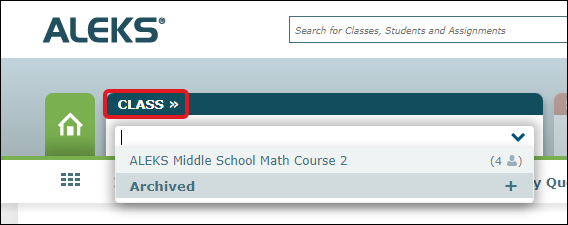
1. From the Class drop-down, select the class the student is associated with.
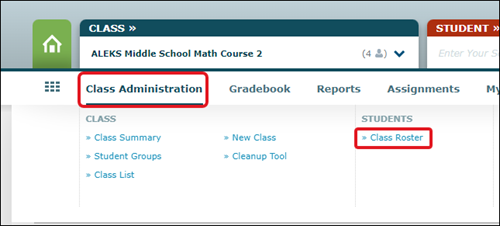
2. Hover over Class Administration and select Class Roster from the menu.
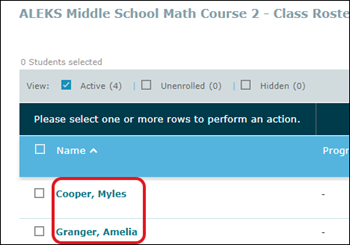
3. Click on the student's name.
Another option is to select a class from the Class drop-down and then select a student from the Student drop-down.
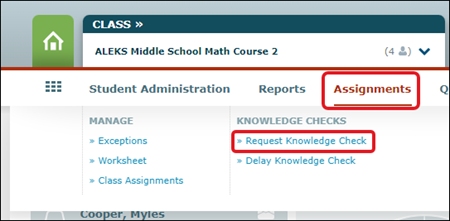
4. Hover over Assignments and select Request Knowledge Check from the menu.
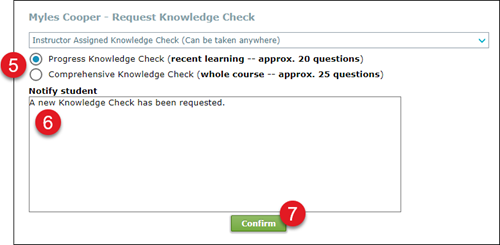
5. Select the radio button to request a Progress Knowledge Check that covers their recent learning, or a Comprehensive Knowledge Check that covers the whole course.
6. Enter any notes or instructions you want the student to read in the Notify Student box.
7. Click the Confirm button.
Help us improve!
Let us know how we can improve our support information by providing feedback in this short survey.
Top
Regional Page Available
It looks like you're outside the United States. Do you want to see your regional version of this page?
Support Topics/Assessments & Reporting/Online Assessments
Context/Integration Type/SSO & Manual-Rostering
prek-12
2026-03-24T18:55:05.070-03:00
<p>A teacher may wish to manually request a knowledge check for an individual student. Follow the steps below to request a Knowledge Check for a student to complete. If you want to assign a Knowledge Check to the entire class or a group of students, refer to the <a href="/content/mheducation/us/en/prek-12/support/knowledge/aleks-request-a-knowledge-check-for-the-class.html" target="_blank">Request a Knowledge Check for the Class in Classic ALEKS</a> article. If you are looking to reset a student's Knowledge Check, you'll need to reach out to the <a href="https://www.aleks.com/support/form/" target="_blank">ALEKS support team</a>.<br> <br> 1. From the <strong>Class </strong>drop-down, select the class the student is associated with.<br> <br> <img alt="image.png" src="/content/dam/mhe/support/support-images/migrated/rtaImage-1816550406.jpeg" data-assetref="rtaImage-1816550406-1777988634608"><br> <br> 2. Hover over <strong>Class Administration</strong> and select <strong>Class Roster</strong> from the menu.<br> <br> <img alt="image.png" src="/content/dam/mhe/support/support-images/migrated/rtaImage-1816550428.jpeg" data-assetref="rtaImage-1816550428-1777988634609"><br> <br> 3. Click on the student name.<br> <br> <img alt="image.png" src="/content/dam/mhe/support/support-images/migrated/rtaImage-1816550443.jpeg" data-assetref="rtaImage-1816550443-1777988634609"><br> <br> Another option is to select a class from the <strong>Class </strong>drop-down and then select a student from the <strong>Student </strong>drop-down.<br> <br> <img alt="image.png" src="/content/dam/mhe/support/support-images/migrated/rtaImage-1188386899.jpeg" data-assetref="rtaImage-1188386899-1777988634609"><br> <br> 4. Hover over <strong>Assignments </strong>and select <strong>Request Knowledge Check</strong> from the menu.<br> <br> <img alt="image.png" src="/content/dam/mhe/support/support-images/migrated/rtaImage-1816550440.jpeg" data-assetref="rtaImage-1816550440-1777988634609"><br> <br> 5. Select the radio button to request a <strong>Progress Knowledge Check</strong> that covers their recent learnings, or a <strong>Comprehensive Knowledge Check</strong> that covers the whole course.<br> <br> 6. Enter any notes or instructions you want the student to read in the <strong>Notify Student</strong> box.<br> <br> 7. Click the <strong>Confirm </strong>button.<br> <br> <img alt="image.png" src="/content/dam/mhe/support/support-images/migrated/rtaImage-1816550503.jpeg" data-assetref="rtaImage-1816550503-1777988634609"></p> <div> </div> dts ALEKS Request A Knowledge Check For An Individual Student: step-by-step guidance for ALEKS, including key requirements, tips, and troubleshooting where needed. 2025-11-21 Request a Knowledge Check for an Individual Student in Classic ALEKS ALEKS Request A Knowledge Check For An Individual Student: step-by-step guidance for ALEKS, including key requirements, tips, and troubleshooting where needed. Learn how to request a Knowledge Check for an individual ALEKS student.
Learn how to request a Knowledge Check for an individual ALEKS student.
A teacher may wish to manually request a knowledge check for an individual student. Follow the steps below to request a Knowledge Check for a student to complete. If you want to assign a Knowledge Check to the entire class or a group of students, refer to the Request a Knowledge Check for the Class in Classic ALEKS article. If you are looking to reset a student's Knowledge Check, you'll need to reach out to the ALEKS support team. 1. From the Class drop-down, select the class the student is associated with. 2. Hover over Class Administration and select Class Roster from the menu. 3. Click on the student name. Another option is to select a class from the Class drop-down and then select a student from the Student drop-down. 4. Hover over Assignments and select Request Knowledge Check from the menu. 5. Select the radio button to request a Progress Knowledge Check that covers their recent learnings, or a Comprehensive Knowledge Check that covers the whole course. 6. Enter any notes or instructions you want the student to read in the Notify Student box. 7. Click the Confirm button.
dts
Customer Support, PreK-12, Classroom Teacher, Elementary School, Middle School, High School, Direct Login & Auto-Rostering, Direct Login & Manual-Rostering, SSO & Auto-Rostering, SSO & Manual-Rostering, Supplemental, Math, ALEKS, Online Assessments