Connect - How to take an assignment in Brightspace (D2L)
Follow steps for taking a Connect assignment in Brightspace D2L.
Tags
- Higher Ed Student
- Higher Education
- Customer Support
- Connect


Learn how to access, complete, and submit a Connect assignment in Brightspace (D2L) and view your results.
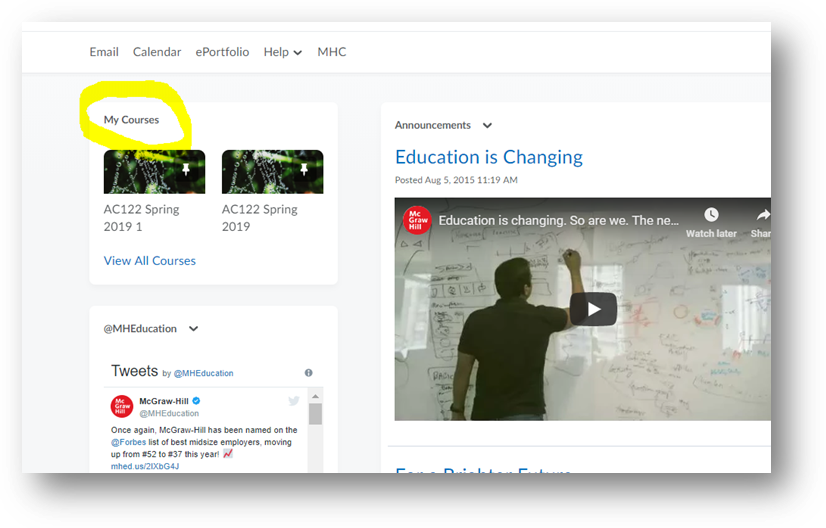
- Log into D2L and navigate to your course.
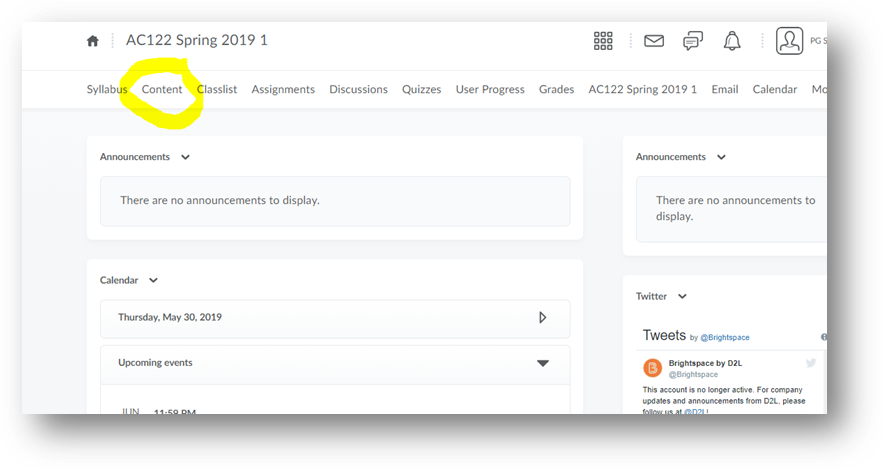
- Click on Content.
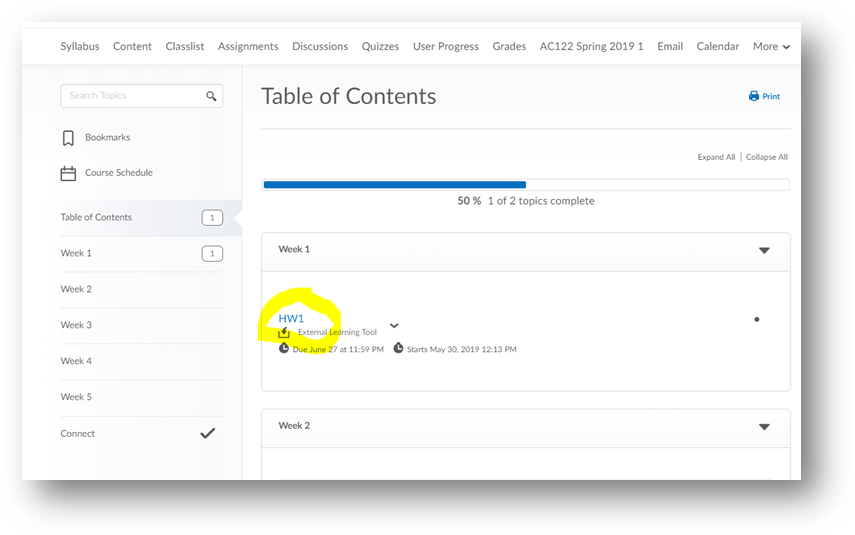
- Locate and click on a Connect assignment link.
*The Connect assignment will automatically launch into a new browser tab. If the assignment fails to launch, please make the appropriate browser setting adjustment to allow a new browser window to load (pop-up).
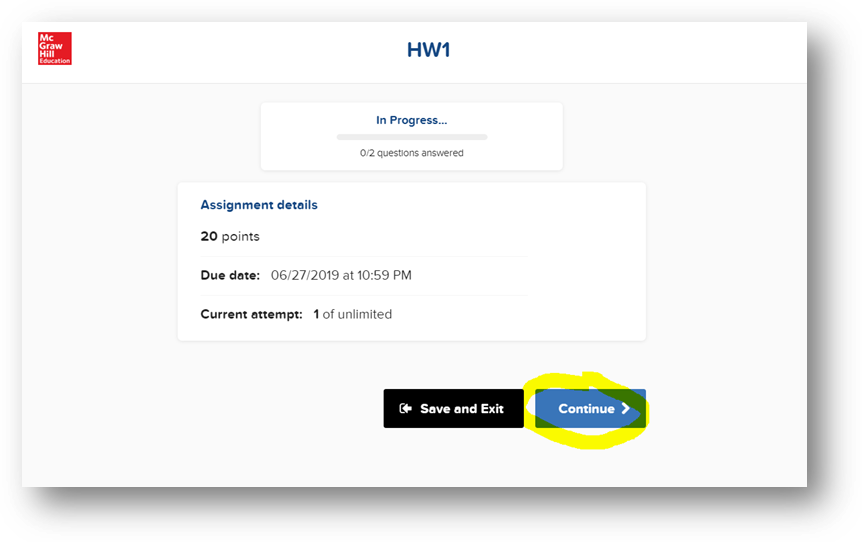
- Click on Continue to open the assignment.
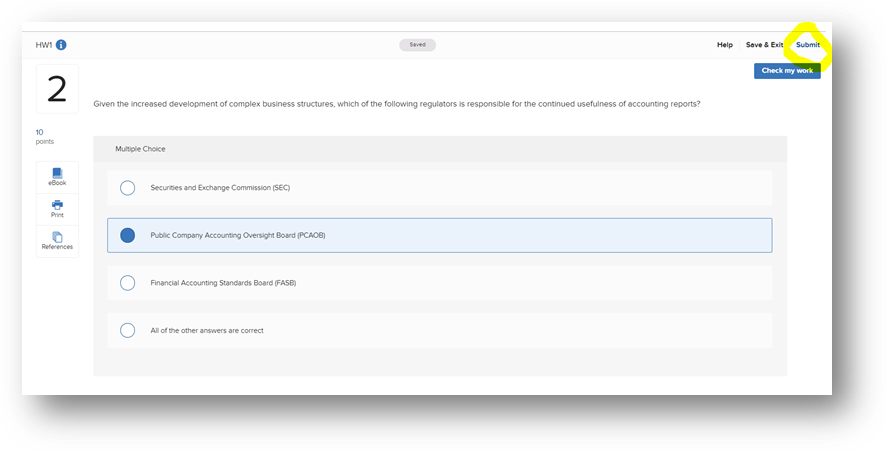
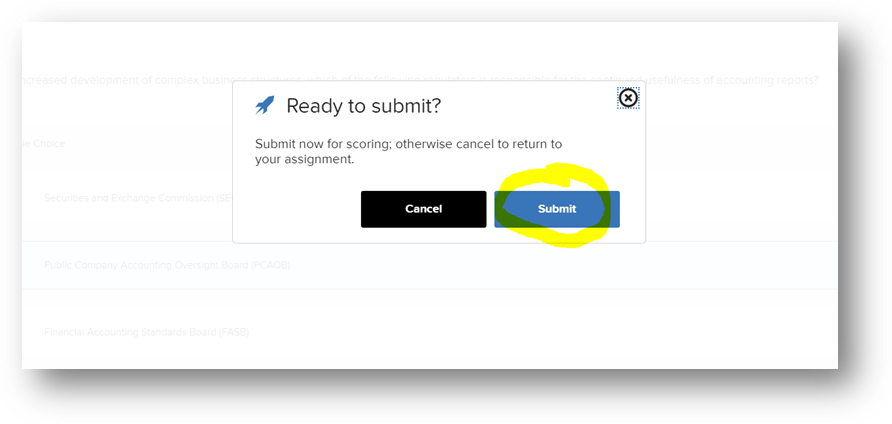
- After you have completed the Connect assignment, click Submit.
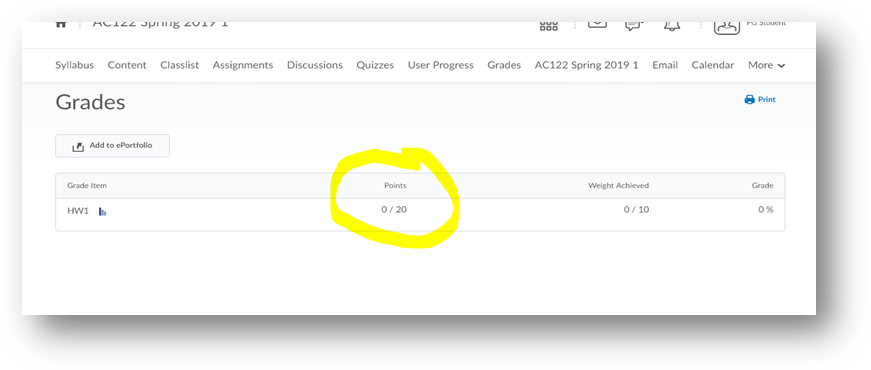
*Upon assignment submission, your Connect grade will auto sync (record) via your D2L gradebook.
.
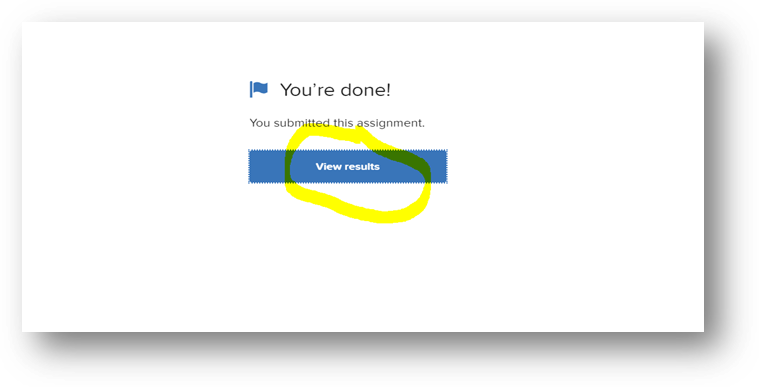
- Click on View Results to view assignment results and feedback.
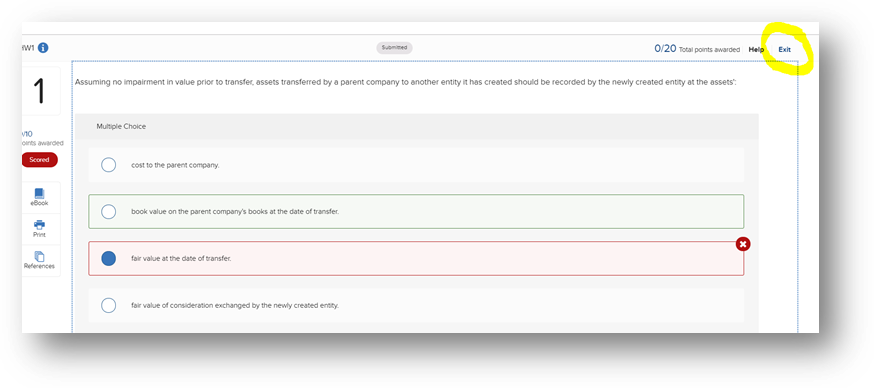
- Click Exit to return to D2L. Your Connect grade should have synced automatically over into your D2L gradebook
.