Connect - Sorry, We encountered a problem. Please try again. Error
Allow third-party cookies to ensure Connect features function properly.
Tags
Higher Ed Student
Higher Education
Customer Support
Connect
Instructor
Share:
When launching Connect from Canvas or D2L (Brightspace), you may receive a "Sorry, We encountered a problem . . ." message. This may be related to recent changes in browsers and you may need to allow 3rd Party Cookies within your browser settings and/or clear your internet browser cache in order to resolve this issue. Please follow the instructions below for your specific browser. It is important that you close and re-open all browser windows after updating settings or clearing your internet browser cache before attempting to re-access the site.
Google Chrome - Enable 3rd Party Cookies
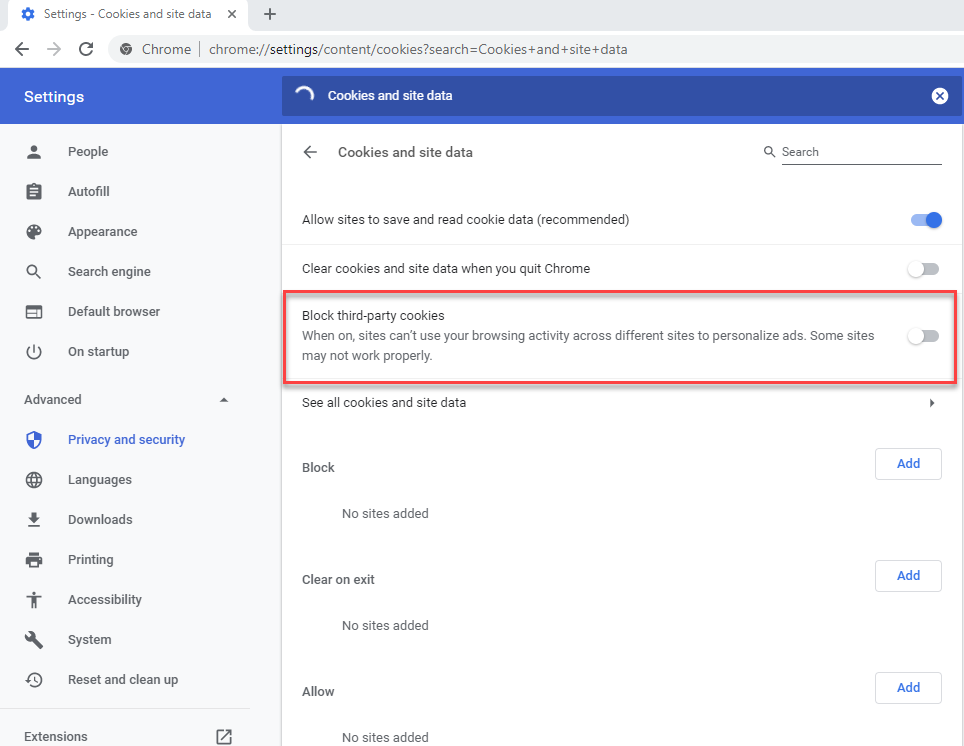
In Chrome go to chrome://settings/content/cookies?search=Cookies+and+site+data
ConfirmBlock third-party cookiesis disabled
Google Chrome - SameSite Settings
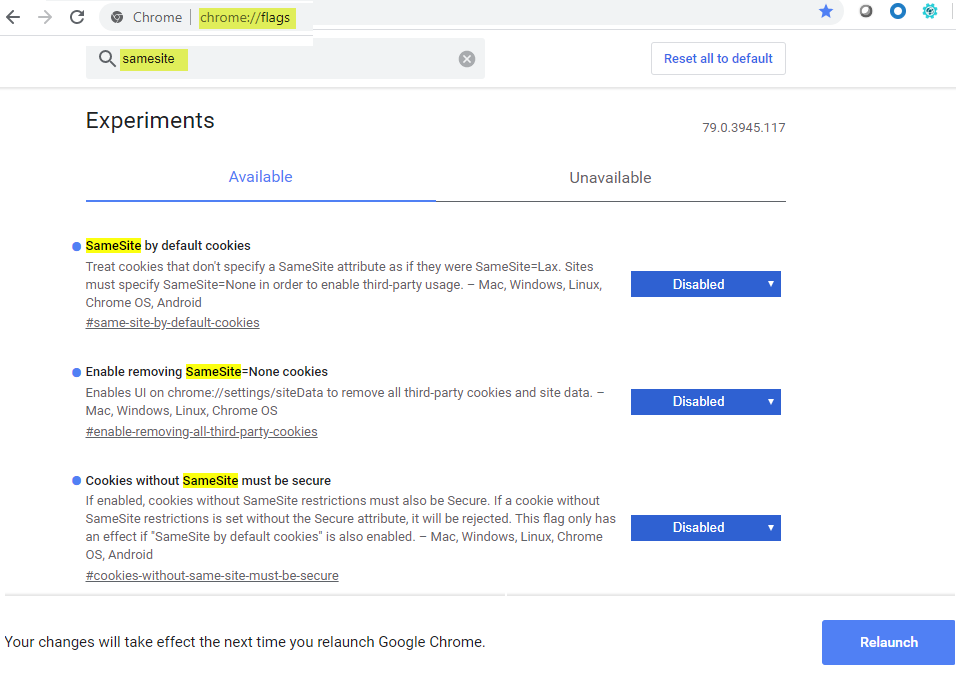
In Chrome go to chrome://flags
In the search field, search for samesite
In the 3 results, change each to Disabled for
SameSite by default cookies
Enable removing SameSite=None cookies
Cookies without SameSite must be secure
Click Relaunch to confirm if issue is resolved.
If the issue is still not resolved, follow the additional instructions provided below
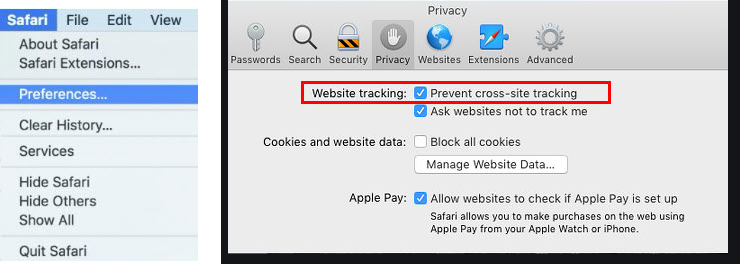
Force close and relaunch Safari to confirm if issue is resolved.
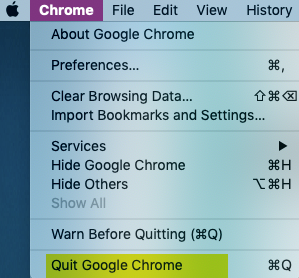
If the above instructions don't resolve the issue, please ensure you are closing / force quitting your internet browser (see screenshot below for instructions on how to force quit on a Mac). If closing / force quitting your browser does not resolve the issue, clearing your internet browser's cache may help. Click clear internet browser cachefor instructions on how to clear your internet browser cache.
Let us know how we can improve our support information by providing feedback in this short survey.
Top
Regional Page Available
It looks like you're outside the United States. Do you want to see your regional version of this page?
connect
student
instructor
Personas
Personas/Higher Ed Educator
Personas/Higher Ed Educator/Instructor
Asset Format Type
Asset Format Type/Customer Support
Business Unit
Business Unit/Higher Education
Personas/Higher Ed Student
Programs & Solutions
Programs & Solutions/Connect
highered
2026-03-24T18:36:05.818-03:00
<p><span>When launching Connect from Canvas or D2L (Brightspace), you may receive a <span>"<strong>Sorry, We encountered a problem . . .</strong>"</span> message. This may be related to recent changes in browsers and you may need to allow 3rd Party Cookies within your browser settings and/or clear your internet browser cache in order to resolve this issue. Please follow the instructions below for your specific browser. <span><span><span class="detail">It is important that you close and re-open all browser windows after updating settings or clearing your internet browser cache before attempting to re-access the site.</span></span></span></span></p> <h2><strong>Google Chrome - Enable 3rd Party Cookies</strong></h2> <ol> <li class="xxmsonormal"><span><span>In Chrome go to <strong>chrome://settings/content/cookies?search=Cookies+and+site+data</strong></span></span></li> <li class="xxmsonormal"><span><span>Confirm<span> </span><strong>Block third-party cookies</strong><span> </span>is disabled<br> </span></span><img alt="" src="/content/dam/mhe/support/support-images/migrated/rtaImage-127089557.jpeg" data-assetref="rtaImage-127089557-1787153669701"></li> </ol> <h2><strong>Google Chrome - SameSite Settings</strong></h2> <ol> <li><span>In Chrome go to </span><strong>chrome://flags</strong></li> <li><span><span>In the search field, search for <strong>samesite</strong></span></span></li> <li><span><span>In the 3 results, change each to <strong>Disabled</strong> for</span></span><ul> <li><span><span> SameSite by default cookies</span></span></li> <li><span><span> Enable removing SameSite=None cookies</span></span></li> <li><span><span> Cookies without SameSite must be secure</span></span></li> </ul> </li> <li><span><span>Click <strong>Relaunch</strong> to confirm if issue is resolved.</span></span></li> <li><span><span>If the issue is still not resolved, follow the additional instructions provided below<br> </span></span><img alt="" src="/content/dam/mhe/support/support-images/migrated/rtaImage-127083921.jpeg" data-assetref="rtaImage-127083921-1787153669701"></li> </ol> <h2><span><span><strong>Safari</strong></span></span></h2> <ol> <li>Click<span style="font-size: 16px; font-weight: 300;"> </span><strong>Safari</strong><span style="font-size: 16px; font-weight: 300;"> in the menu bar</span></li> <li class="xxmsonormal"><span><span>Click<span> </span><strong>Preferences</strong></span></span></li> <li class="xxmsonormal"><span><span>Under<span> </span><strong>Privacy</strong>,<span> </span><strong>un-check</strong><span> </span>the option for<span> </span><strong>Prevent cross-site tracking</strong></span></span></li> <li class="xxmsonormal"><span><span>Force close and relaunch Safari to confirm if issue is resolved.<br> </span></span><img alt="" src="/content/dam/mhe/support/support-images/migrated/rtaImage-127089562.jpeg" data-assetref="rtaImage-127089562-1787153669702"></li> </ol> <p>If the above instructions don't resolve the issue, please ensure you are closing / force quitting your internet browser (see screenshot below for instructions on how to force quit on a Mac). If closing / force quitting your browser does not resolve the issue,<strong> clearing your internet browser's cache may help</strong>. Click <strong><a href="http://mpss.mhhe.com/cxg/How_to_clear_internet_browser_cache.pdf">clear internet </a><a href="https://mh.my.site.com/CXG/s/article/Clear-Your-Web-Browser-History">browser </a><a href="https://mh.my.site.com/CXG/s/article/Clear-Your-Web-Browser-History">cache</a></strong><a href="https://mh.my.site.com/CXG/s/article/Clear-Your-Web-Browser-History"> </a>for instructions on how to clear your internet browser cache.</p> <p><a href="/content/mheducation/us/en/support.html#he-cs" target="_self"><strong>Click Here to Contact a Technical Support Representative for further assistance.</strong></a></p> <h2><strong>Mac Chrome - Quit Browser<br> </strong><br> <img alt="" src="/content/dam/mhe/support/support-images/migrated/rtaImage-127086816.jpeg" data-assetref="rtaImage-127086816-1787153669702"></h2> <div> </div> dts Allow third-party cookies to ensure Connect features function properly. 2026-03-04 Connect - Sorry, We encountered a problem. Please try again. Error Allow third-party cookies to ensure Connect features function properly. Allow third-party cookies to ensure Connect features function properly.
Allow third-party cookies to ensure Connect features function properly.
When launching Connect from Canvas or D2L (Brightspace), you may receive a "Sorry, We encountered a problem . . ." message. This may be related to recent changes in browsers and you may need to allow 3rd Party Cookies within your browser settings and/or clear your internet browser cache in order to resolve this issue. Please follow the instructions below for your specific browser. It is important that you close and re-open all browser windows after updating settings or clearing your internet browser cache before attempting to re-access the site. Google Chrome - Enable 3rd Party Cookies In Chrome go to chrome://settings/content/cookies?search=Cookies+and+site+data Confirm Block third-party cookies is disabled Google Chrome - SameSite Settings In Chrome go to chrome://flags In the search field, search for samesite In the 3 results, change each to Disabled for SameSite by default cookies Enable removing SameSite=None cookies Cookies without SameSite must be secure Click Relaunch to confirm if issue is resolved. If the issue is still not resolved, follow the additional instructions provided below Safari Click Safari in the menu bar Click Preferences Under Privacy, un-check the option for Prevent cross-site tracking Force close and relaunch Safari to confirm if issue is resolved. If the above instructions don't resolve the issue, please ensure you are closing / force quitting your internet browser (see screenshot below for instructions on how to force quit on a Mac). If closing / force quitting your browser does not resolve the issue, clearing your internet browser's cache may help. Click clear internet browser cache for instructions on how to clear your internet browser cache. Click Here to Contact a Technical Support Representative for further assistance. Mac Chrome - Quit Browser
dts
Higher Ed Student, Higher Education, Customer Support, Connect, Instructor