We're making updates to improve your experience. Some products and checkout may be unavailable on Saturday, November 21 and Sunday, November 22. Thanks for your patience. Check our status page for updates.
Support Topics/Assessments & Reporting/Grades & Assignments
Context/Integration Type/SSO & Manual-Rostering
prek-12
2026-10-23T16:08:25.803-04:00
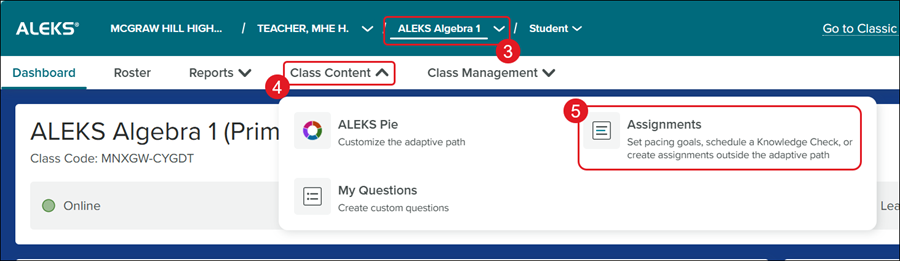
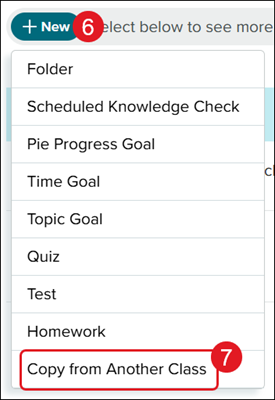
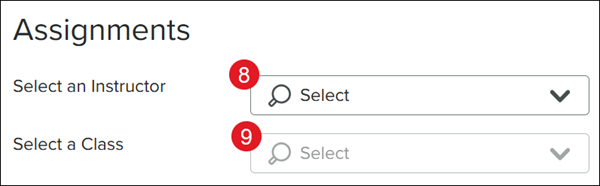
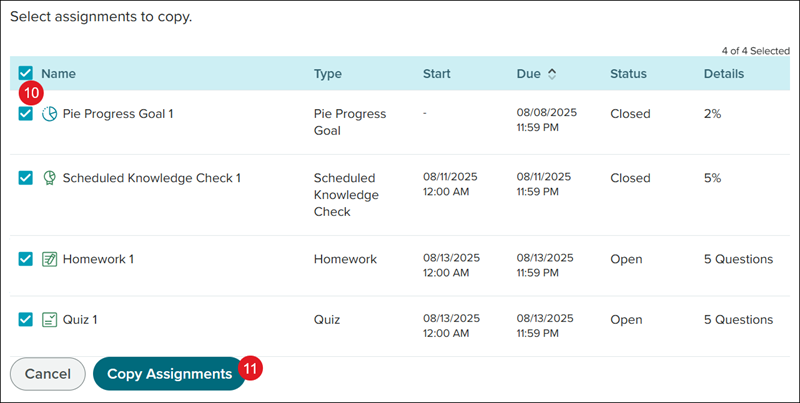
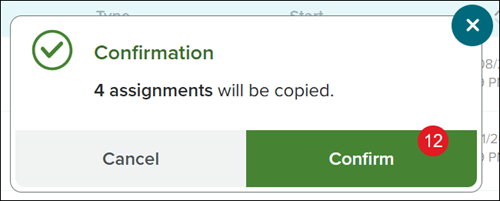
<p><a href="https://hub.mheducation.com/share/od19xhwqyeo4" target="_blank">View the demo in a separate tab.</a></p> <p><a href="https://hub.mheducation.com/share/pbzregpzv4nd" target="_blank">View the Spanish version of the demo.</a></p> <p> </p> <p>1. SSO or log in at <a href="https://my.mheducation.com/" target="_blank">my.mheducation.com</a>.</p> <p>2. Launch your <strong>ALEKS </strong>course.</p> <p>3. Select the <strong>Class </strong>from the drop-down.</p> <p>4. Click on <strong>Class Content</strong>.</p> <p>5. Click <strong>Assignments </strong>from the menu.</p> <p><img src="/content/dam/mhe/support/support-images/migrated/rtaImage-1959071965.jpeg" data-assetref="rtaImage-1959071965-1780079147976"></p> <p>6. Click the <strong>+New</strong> button.</p> <p>7. Click <strong>Copy from Another Class</strong> from the menu.</p> <p><img src="/content/dam/mhe/support/support-images/migrated/rtaImage-1959267416.jpeg" data-assetref="rtaImage-1959267416-1780079147977"></p> <p>8. <strong>Select an Instructor</strong> from the drop-down.</p> <p>9. <strong>Select a Class</strong> from the drop-down.</p> <p><img src="/content/dam/mhe/support/support-images/migrated/rtaImage-1959267731.jpeg" data-assetref="rtaImage-1959267731-1780079147977"></p> <p>10. Check the assignments you want to copy.</p> <p>11. Click the <strong>Copy Assignments</strong> button.</p> <p><img src="/content/dam/mhe/support/support-images/migrated/rtaImage-1959267964.jpeg" data-assetref="rtaImage-1959267964-1780079147977"></p> <p>12. On the <strong>Confirmation </strong>pop-up, click the <strong>Confirm </strong>button.</p> <p><img src="/content/dam/mhe/support/support-images/migrated/rtaImage-1959268434.jpeg" data-assetref="rtaImage-1959268434-1780079147977"></p> corp dts Copy assignments from another class in New ALEKS. 2025-11-19 Copy Assignments in the New ALEKS View from Another Class Copy assignments from another class in New ALEKS. Learn how to copy assignments in the new ALEKS view from one class to another.
Learn how to copy assignments in the new ALEKS view from one class to another.
View the demo in a separate tab. View the Spanish version of the demo. 1. SSO or log in at my.mheducation.com. 2. Launch your ALEKS course. 3. Select the Class from the drop-down. 4. Click on Class Content. 5. Click Assignments from the menu. 6. Click the +New button. 7. Click Copy from Another Class from the menu. 8. Select an Instructor from the drop-down. 9. Select a Class from the drop-down. 10. Check the assignments you want to copy. 11. Click the Copy Assignments button. 12. On the Confirmation pop-up, click the Confirm button.