Support Topics/Assessments & Reporting/Grades & Assignments
Context/Integration Type/SSO & Auto-Rostering
Programs & Solutions
Programs & Solutions/ALEKS
Personas
Personas/School Educator
Personas/School Educator/Classroom Teacher
Context/Integration Type/SSO & Manual-Rostering
prek-12
2026-03-24T19:14:21.211-03:00
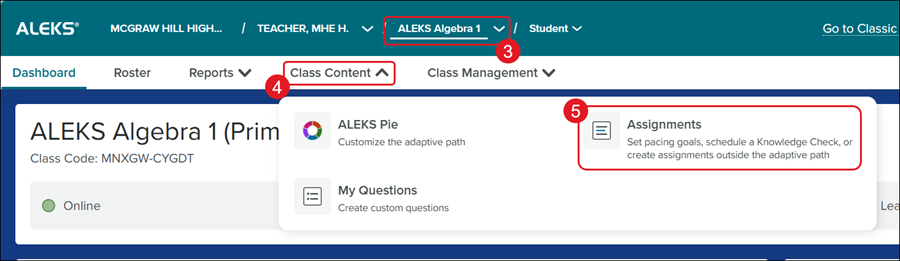
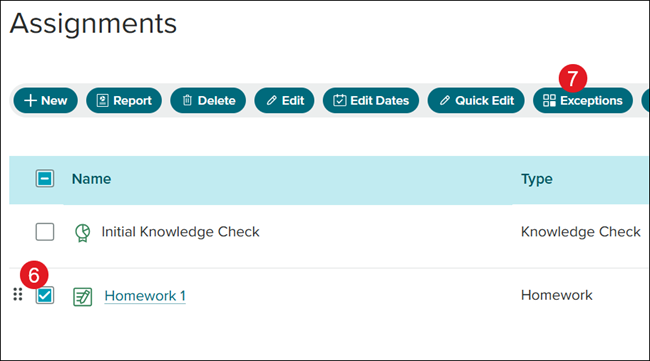
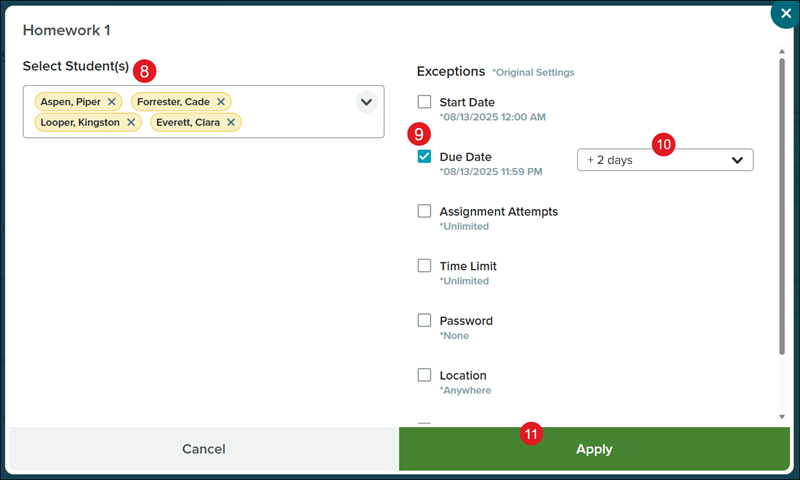
<p>For a full page view of the demo, <a href="https://hub.mheducation.com/share/bapxvsvqtqv9" target="_blank">click here</a>.</p> <p>For a Spanish version of the demo, <a href="https://hub.mheducation.com/share/kgi0v1z0m4tu" target="_blank">click here</a>.</p> <p>1. SSO or log in at <a target="_blank" href="https://my.mheducation.com/">my.mheducation.com</a>.</p> <p>2. Launch your <strong>ALEKS </strong>course.</p> <p>3. Select the <strong>Class </strong>from the drop-down.</p> <p>4. Click on <strong>Class Content</strong>.</p> <p>5. Click <strong>Assignments </strong>from the menu.</p> <p><img src="/content/dam/mhe/support/support-images/migrated/rtaImage-1048943073.jpeg" data-assetref="rtaImage-1048943073-1780082591493"></p> <p>6. Check the box next to the assignment you want to set exceptions for.</p> <p>7. Click the <strong>Exceptions </strong>button.</p> <p><strong>Note:</strong> Goal assignments will not have this option.</p> <p><img src="/content/dam/mhe/support/support-images/migrated/rtaImage-1049162800.jpeg" data-assetref="rtaImage-1049162800-1780082591493"></p> <p>8. Select the <strong>Student(s)</strong> from the drop-down.</p> <p>9. Check the box next to the <strong>Exceptions </strong>you want to provide.</p> <p>10. Select the preferred option from the drop-down, if applicable.</p> <p>11. Click the <strong>Apply </strong>button.</p> <p><img src="/content/dam/mhe/support/support-images/migrated/rtaImage-1049162693.jpeg" data-assetref="rtaImage-1049162693-1780082591493"></p> dts Learn how to set ALEKS assignment exceptions and extensions for individual students in the new ALEKS interface. 2025-11-19 Set Assignment Extensions in New ALEKS Learn how to set ALEKS assignment exceptions and extensions for individual students in the new ALEKS interface. Set assignment exceptions in the new ALEKS view for individual students.
Set assignment exceptions in the new ALEKS view for individual students.
For a full page view of the demo, click here. For a Spanish version of the demo, click here. 1. SSO or log in at my.mheducation.com. 2. Launch your ALEKS course. 3. Select the Class from the drop-down. 4. Click on Class Content. 5. Click Assignments from the menu. 6. Check the box next to the assignment you want to set exceptions for. 7. Click the Exceptions button. Note: Goal assignments will not have this option. 8. Select the Student(s) from the drop-down. 9. Check the box next to the Exceptions you want to provide. 10. Select the preferred option from the drop-down, if applicable. 11. Click the Apply button.