Review Interactive Student Work in Wonders/Maravillas
Review and assess student work in Reading Wonders using built-in tools and reports.
- Literacy
- SSO & Manual-Rostering
- Customer Support
- Grades & Assignments
- Direct Login & Auto-Rostering
- Wonders 2014
- Maravillas 2020 & 2017
- Core
- Direct Login & Manual-Rostering
- Classroom Teacher
- Wonders Balanced Literacy 2016
- Wonders 2023 2020 2017
- SSO & Auto-Rostering
- PreK-12
- Elementary School
- Kindergarten
- 1st Grade
- 2nd Grade
- 3rd Grade
- 4th Grade
- 5th Grade
- 6th Grade
- Middle School


Assignment Manager
1. Launch your Wonders Teacher Edition.
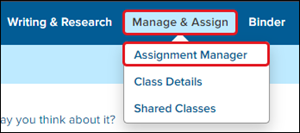
2. Hover over Manage & Assign and select Assignment Manger from the menu.
3. Click on the Details link to the right of the assignment.
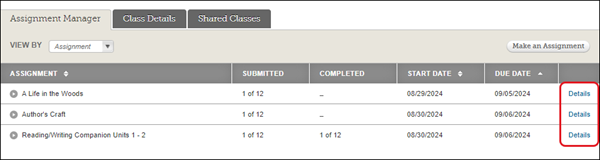
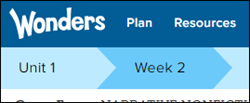
If you do not see the correct assignment, you may need to change the selected Unit and Week.
4. Click on the attached resource from within the Resources box to the right.
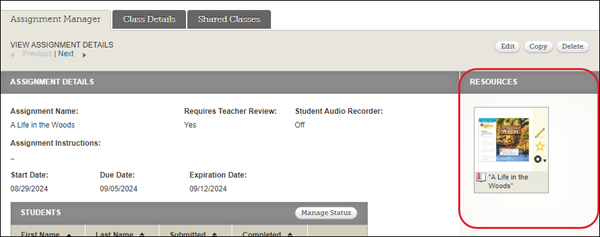
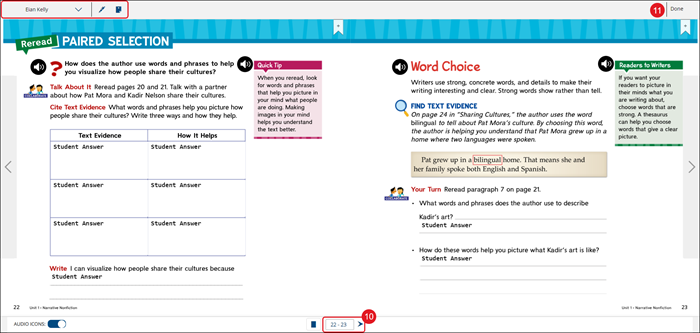
5. In the top toolbar of the eBook, click the Review (teacher/gear) icon.

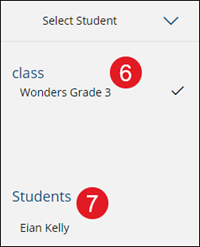
6. In the Select Student panel, select the Class the student is associated with.
7. Select the Student you want to view work for.
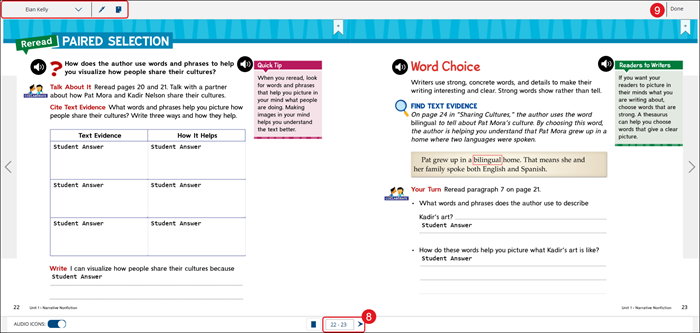
8. Navigate to the page(s) the student completed.
Use the Pen and Notes features to mark the completed pages for the student to view.
Click on the student name at the top-left to reopen the Select Student panel.
9. Click the Done button at the top-right once all markings are complete.
Binder
The Binder provides teachers with access to launch the Reading/Writing Companion and to review the guided notes from the eBook the student has entered.
1. Launch your Wonders Teacher Edition.
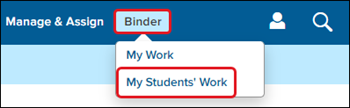
2. Hover over Binder and select My Students' Work from the menu.
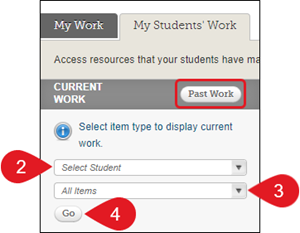
Click the Past Work button if you want to view work completed within a certain date range.
2. Select Student from the drop-down you want to view the work for.
3. Select an item to view from the drop-down, or leave on All Items.
4. Click the Go button.
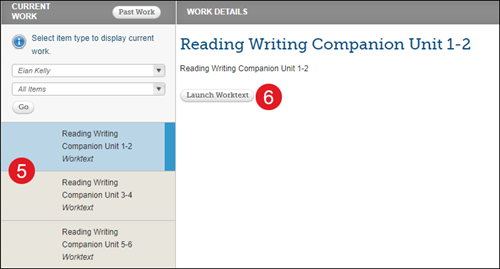
5. Click on the student's work from the list of options in the Current Work panel on the left.
6. Click the Launch Worktext button in the Work Details section on the right. Keep in mind, this button may vary based on the work selected.
7. In the top toolbar of the eBook, click the Review (teacher/gear) icon.

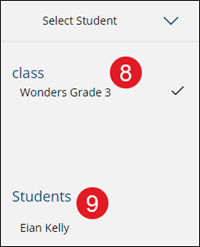
8. In the Select Student panel, select the Class the student is associated with.
9. Select the Student you want to view work for.
10. Navigate to the page(s) the student completed.
Use the Pen and Notes features to mark the completed pages for the student to view.
Click on the student name at the top-left to reopen the Select Student panel.
11. Click the Done button at the top-right once all markings are complete.