
Reading Mastery Transformations - ORFA Fluency Reports
Analyze ORFA fluency reports in Reading Mastery Transformations to monitor oral reading fluency.
Tags
- Open Learning Platform
- Getting Started & Orientation
- Direct Instruction
- SSO & Manual-Rostering
- Customer Support
- Direct Login & Auto-Rostering
- Reports & Analytics
- Direct Login & Manual-Rostering
- Classroom Teacher
- SSO & Auto-Rostering
- PreK-12
- Preschool
- Elementary School


Access the ORFA Fluency Reports
The ORFA Fluency Reports, also known as the Oral Reading Fluency Reports, can be accessed in two ways:
Option 1:
1. From the
Assignments page in your
Reading Mastery Transformations class, click on the
assigned Fluency Check.
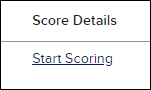
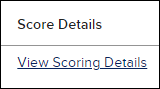
2. Click the Start Scoring or View Scoring Details link in the Score Details column. The link available will depend on whether the Fluency Check has been manually scored yet.
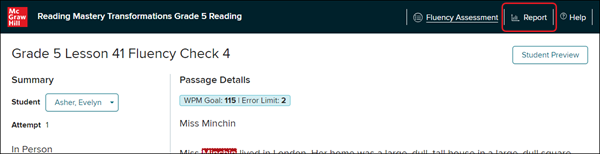
3. Click on the Report link at the top-right of the opened Fluency Assessment.
Option 2:
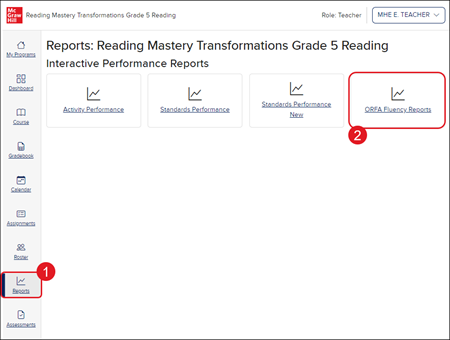
1. After launching your Reading Mastery Transformations class, click on Reports in the Navigation menu.2. Click on the ORFA Fluency Reports button. The report will open in a secondary browser tab.
ORFA Fluency Reports Overview
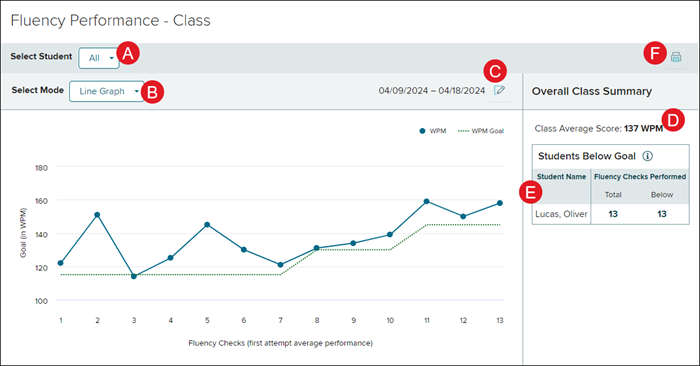
A. The Select Student field defaults to All. Click the drop-down to select an individual student.
B. Click the Select Mode drop-down to view the Line Graph or Data Grid for the report.
C. Change the date range by clicking the Edit icon.
D. The Class Average Score appears on the right of the report display when Select Student (A) is set to All.
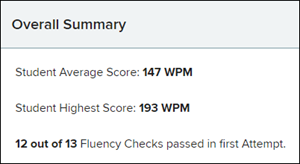
If an individual is selected, it will show the Student Average, the Student Highest Score, and the number of Fluency Checks passed on the first Attempt.
E. The Students Below Goal table shows the list of students who scored below goal on 80% or more of their first attempts for all passages.
F. Click the Print icon to print the selected report.