glencoe math
glencoe science
asi-se-dice
building-blocks
core-plus-math
glencoe-health
glencoe-math
glencoe-science
inspire-science
iscience
my-math
networks
number-worlds
mcgraw-hill-pre-algebra
wonders
instructor
Business Unit
Business Unit/PreK-12
Context
Context/Education Level
Context/Education Level/High School
Programs & Solutions
Programs & Solutions/Glencoe Math
Context/Subject
Context/Subject/Science
Context/Integration Type
Context/Integration Type/Direct Login & Auto-Rostering
Context/Integration Type/SSO & Auto-Rostering
Programs & Solutions/Number Worlds
Programs & Solutions/Number Worlds/Number Worlds 2015
Context/Subject/World Languages
Asset Format Type
Asset Format Type/Customer Support
Context/Curriculum Type
Context/Curriculum Type/Supplemental
Programs & Solutions/Networks
Programs & Solutions/Networks/Networks 2014 (K-5)
Programs & Solutions/Building Blocks
Programs & Solutions/Building Blocks/Building Blocks 2015
Support Topics
Support Topics/Assessments & Reporting
Support Topics/Assessments & Reporting/Online Assessments
Context/Subject/Health
Programs & Solutions/McGraw Hill Pre-Algebra
Programs & Solutions/McGraw Hill Pre-Algebra/Pre-Algebra 2012
Programs & Solutions/Glencoe Health
Programs & Solutions/Glencoe Health/Glencoe Health 2014
Programs & Solutions/Networks/Networks 2014 & 2016
Programs & Solutions/Glencoe Math/Glencoe Algebra 2 2014
Programs & Solutions/Wonders
Programs & Solutions/Wonders/Wonders 2014
Context/Subject/Math
Programs & Solutions/Glencoe Math/Glencoe Algebra 2 2018
Context/Curriculum Type/AP, Honors & Electives
Context/Curriculum Type/Intervention
Programs & Solutions/iScience
Programs & Solutions/iScience/iScience 2017
Programs & Solutions/Asi Se Dice
Programs & Solutions/Asi Se Dice/Asi se Dice 2016
Context/Integration Type/Direct Login & Manual-Rostering
Context/Curriculum Type/Core
Context/Subject/Literacy
Programs & Solutions/Glencoe Science
Context/Subject/Visual & Performing Arts
Programs & Solutions/Inspire Science
Programs & Solutions/Inspire Science/Inspire Science 2017
Context/Subject/Social Studies
Programs & Solutions/Glencoe Math/Glencoe Algebra 1 2018
Context/Education Level/Middle School
Programs & Solutions/Glencoe Math/Glencoe Algebra 1 2014
Programs & Solutions/Glencoe Math/Glencoe Geometry 2014
Programs & Solutions/Glencoe Science/Glencoe Science 2017
Context/Education Level/Preschool
Programs & Solutions/Glencoe Math/Glencoe Math Accelerated
Programs & Solutions/Glencoe Math/Glencoe Geometry 2018
Context/Education Level/Elementary School
Programs & Solutions/McGraw Hill My Math
Programs & Solutions/McGraw Hill My Math/McGraw Hill My Math 2013 & 2016
Personas
Personas/School Educator
Personas/School Educator/Classroom Teacher
Programs & Solutions/Glencoe Math/Glencoe Math Course 1
Programs & Solutions/Glencoe Math/Glencoe Math Course 2
Programs & Solutions/Core Plus Math
Programs & Solutions/Core Plus Math/Core Plus Math 2015
Programs & Solutions/Glencoe Math/Glencoe Math Course 3
Support Topics/Assessments & Reporting/Grades & Assignments
Context/Integration Type/SSO & Manual-Rostering
prek-12
2026-10-19T12:36:16.724-04:00
<h2 class="fs-5">Article Contents</h2> <p><a href="#access_eassessment">Access eAssessment</a></p> <p><a href="https://www.mheducation.com/prek-12/support/knowledge/assign-an-eassessment-test" target="_blank">Create, Edit, or Delete an eAssessment Assignment</a></p> <p><a href="#print_eassessment">Print Test or Question Set</a></p> <p><a href="#preview_test">Preview Test</a></p> <p><a href="#preview_assignment">Preview Assignment</a></p> <p> </p> <h3 class="fs-5"><a id="access_eassessment"></a>Access eAssessment</h3> <ol> <li>Click <strong>Menu </strong>at the top right.<br> <br> </li> <li>Click <strong>Assessment </strong>from the menu.<br> <br> <img src="/content/dam/mhe/support/support-images/dts-k12-images/print-preview-eassessment-tests-qs-assignments/print-preview-eassessment-1.jpg" data-assetref="print-preview-eassessment-1-1792426694345"><br> <br> A. For certain programs, such as <strong>Networks</strong>, click on <strong>Assess</strong> from the navigation menu.<br> <br> <img src="/content/dam/mhe/support/support-images/dts-k12-images/print-preview-eassessment-tests-qs-assignments/print-preview-eassessment-2.jpg" data-assetref="print-preview-eassessment-2-1792426706445"><br> <br> For <strong><em>Wonders </em>©2014</strong>, hover over <strong>Assessment & Data</strong> and select <strong>Online Assessment Center</strong> from the menu.<br> <br> <img src="/content/dam/mhe/support/support-images/dts-k12-images/print-preview-eassessment-tests-qs-assignments/print-preview-eassessment-3.jpg" data-assetref="print-preview-eassessment-3-1792426717117"><br> <br> </li> <li>Click on the <strong>eAssessment </strong>tile.<br> <br> <img src="/content/dam/mhe/support/support-images/dts-k12-images/print-preview-eassessment-tests-qs-assignments/print-preview-eassessment-4.jpg" data-assetref="print-preview-eassessment-4-1792426730530"></li> </ol> <p> </p> <h3 class="fs-5"><a id="print_eassessment"></a>Print Test or Question Set</h3> <ol> <li>Click on the test or question set name and drag it to the center page (blue area).<br> <br> <img src="/content/dam/mhe/support/support-images/dts-k12-images/print-preview-eassessment-tests-qs-assignments/print-preview-eassessment-5.jpg" data-assetref="print-preview-eassessment-5-1792426820737"><br> <br> Another option is to right-click on the test or question set name (A), click on <strong>Options </strong>(B), and select <strong>Open Test</strong> (C) or <strong>Open Question Set</strong> from the menu.<br> <br> <img src="/content/dam/mhe/support/support-images/dts-k12-images/print-preview-eassessment-tests-qs-assignments/print-preview-eassessment-8.jpg" data-assetref="print-preview-eassessment-8-1792426873838"><br> <br> </li> <li>Click on <strong>File </strong>in the toolbar.<br> <br> </li> <li>Click <strong>Print to PDF</strong> from the menu.<br> <br> </li> <li>Select <strong>Single Version</strong> or <strong>Multiple Versions</strong> to print.<br> <br> <img src="/content/dam/mhe/support/support-images/dts-k12-images/print-preview-eassessment-tests-qs-assignments/print-preview-eassessment-6.jpg" data-assetref="print-preview-eassessment-6-1792426888785"><br> <br> </li> <li>On the <strong>Print Options</strong> pop-up, select the preferred settings. These will vary based on the option selected.<br> <br> D. For <strong>Multiple Versions</strong>, you will need to enter the <strong>Total versions printed</strong> in the provided field.<br> <br> </li> <li>Click the <strong>Print New Version</strong> button.<br> <br> <img src="/content/dam/mhe/support/support-images/dts-k12-images/print-preview-eassessment-tests-qs-assignments/print-preview-eassessment-8.jpg" data-assetref="print-preview-eassessment-8-1792426900135"></li> </ol> <p> </p> <h3 class="fs-5"><a id="preview_test"></a>Preview Test</h3> <ol> <li>Click on the test or question set name and drag it to the center page (blue area).<br> <br> <img src="/content/dam/mhe/support/support-images/dts-k12-images/print-preview-eassessment-tests-qs-assignments/print-preview-eassessment-5.jpg" data-assetref="print-preview-eassessment-5-1792427455527"><br> <br> Another option is to right-click on the test or question set name (A), click on <strong>Options </strong>(B), and select <strong>Open Test</strong> (C) or <strong>Open Question Set</strong> from the menu.<br> <br> <img src="/content/dam/mhe/support/support-images/dts-k12-images/print-preview-eassessment-tests-qs-assignments/print-preview-eassessment-8.jpg" data-assetref="print-preview-eassessment-8-1792427472548"><br> <br> </li> <li>Click on <strong>Test </strong>in the toolbar.<br> <br> </li> <li>Click <strong>Preview Online Test</strong> from the menu.<br> <br> <img src="/content/dam/mhe/support/support-images/dts-k12-images/print-preview-eassessment-tests-qs-assignments/print-preview-eassessment-12.jpg" data-assetref="print-preview-eassessment-12-1792427634041"></li> </ol> <p> </p> <h3 class="fs-5"><a id="preview_assignment"></a>Preview Assignment</h3> <p>For steps on creating assignments, see the <a href="https://www.mheducation.com/prek-12/support/knowledge/assign-an-eassessment-test">Create, Edit, or Delete an eAssessment Assignment</a> article.</p> <ol> <li>Click on the <strong>Section </strong>drop-down.<br> <br> </li> <li>Select <strong>Classes and Assignments</strong> from the menu.<br> <br> <img src="/content/dam/mhe/support/support-images/dts-k12-images/print-preview-eassessment-tests-qs-assignments/print-preview-eassessment-9.jpg" data-assetref="print-preview-eassessment-9-1792427064987"><br> <br> </li> <li>Click on the <strong>Class </strong>name.<br> <br> </li> <li>Click on <strong>Options</strong>.<br> <br> </li> <li>Click <strong>Open Class</strong> from the menu.<br> <br> <img src="/content/dam/mhe/support/support-images/dts-k12-images/print-preview-eassessment-tests-qs-assignments/print-preview-eassessment-10.jpg" data-assetref="print-preview-eassessment-10-1792427165418"><br> <br> Another option is to click on the class name and drag it to the center of the page (blue area), or right-click on the class name and select <strong>Open Class</strong> from the menu.<br> <br> </li> <li>Hover over the assignment and click on the <strong>pencil icon</strong>.<br> <br> </li> <li>Click <strong>Preview Assignment</strong> from the menu.<br> <br> <img src="/content/dam/mhe/support/support-images/dts-k12-images/print-preview-eassessment-tests-qs-assignments/print-preview-eassessment-11.jpg" data-assetref="print-preview-eassessment-11-1792427373336"><br> <br> The assignment will open in a new browser window, and you'll be able to view and navigate the test as a student would.</li> </ol> dts Preview eAssessment assignments from the student's perspective and print tests or question sets for offline use. 2026-10-19 Preview and Print eAssessment Tests, Question Sets, and Assignments Preview eAssessment assignments from the student's perspective and print tests or question sets for offline use. Preview eAssessment assignments from the student's perspective and print tests or question sets for offline use.
Preview eAssessment assignments from the student's perspective and print tests or question sets for offline use.
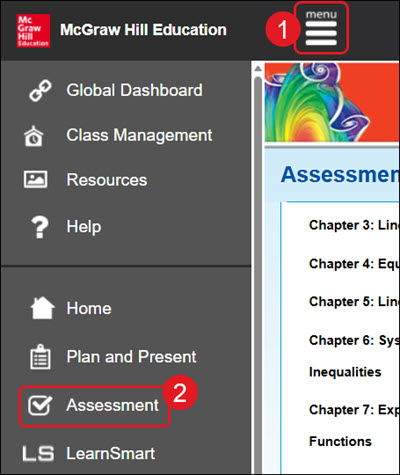
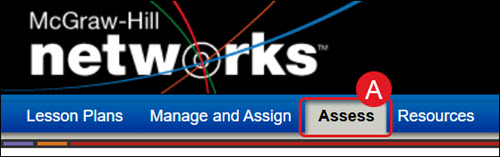
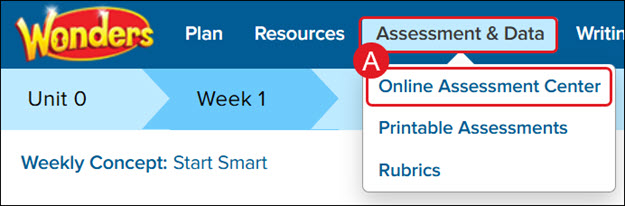
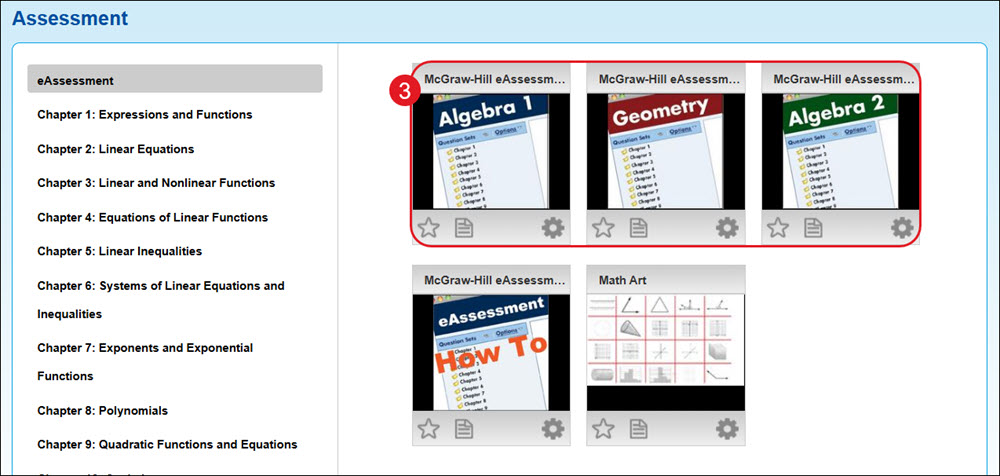
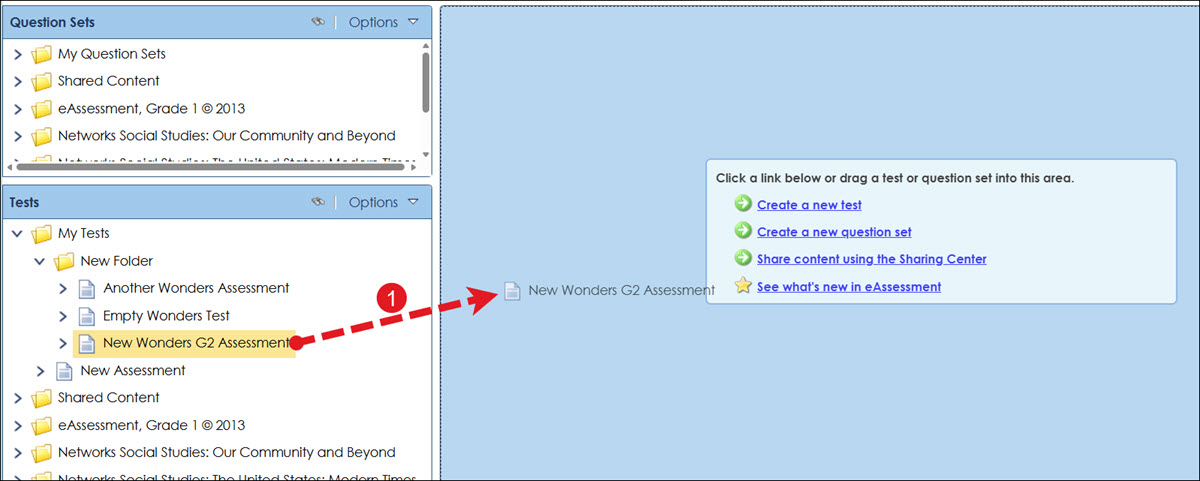
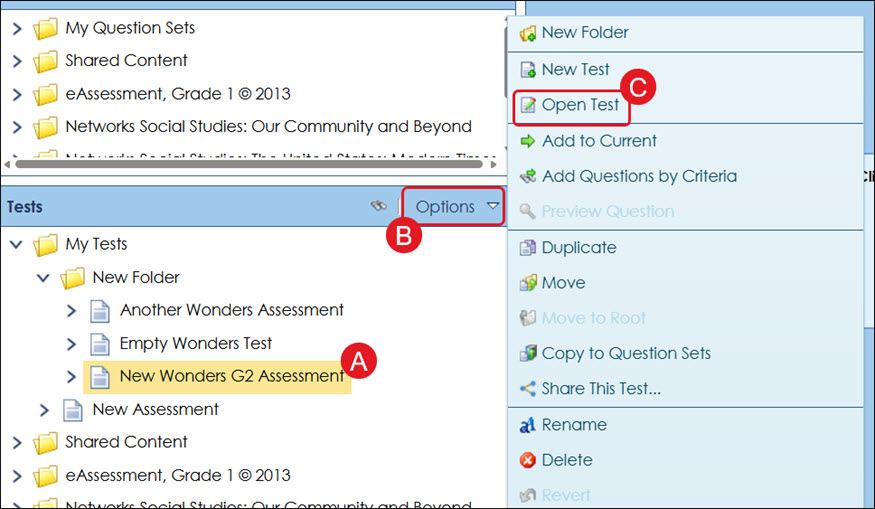
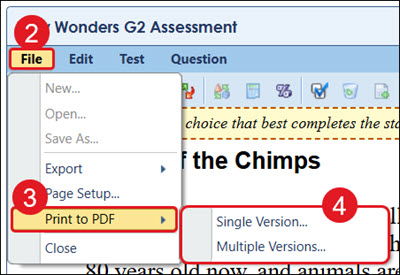
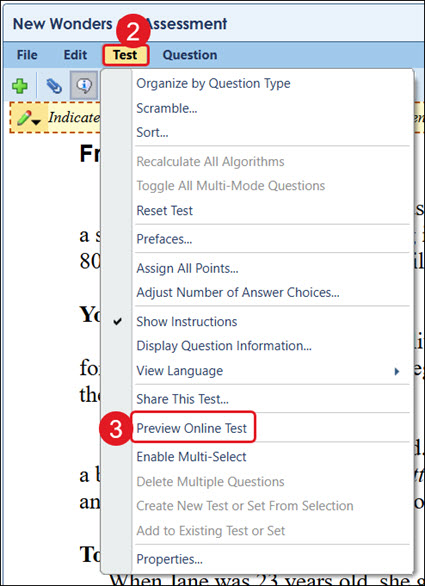
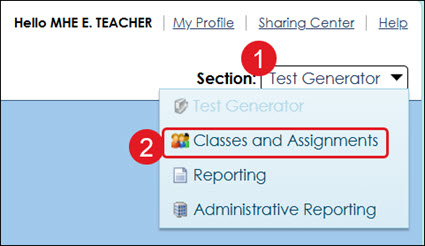
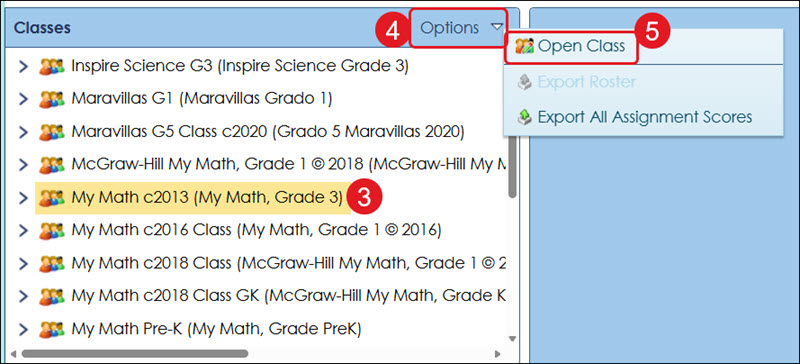
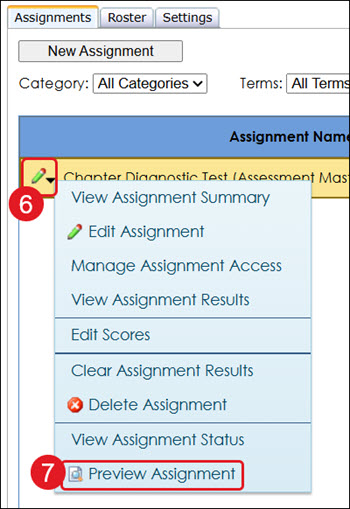
Article Contents Access eAssessment Create, Edit, or Delete an eAssessment Assignment Print Test or Question Set Preview Test Preview Assignment Access eAssessment Click Menu at the top right. Click Assessment from the menu. A. For certain programs, such as Networks, click on Assess from the navigation menu. For Wonders ©2014, hover over Assessment & Data and select Online Assessment Center from the menu. Click on the eAssessment tile. Print Test or Question Set Click on the test or question set name and drag it to the center page (blue area). Another option is to right-click on the test or question set name (A), click on Options (B), and select Open Test (C) or Open Question Set from the menu. Click on File in the toolbar. Click Print to PDF from the menu. Select Single Version or Multiple Versions to print. On the Print Options pop-up, select the preferred settings. These will vary based on the option selected. D. For Multiple Versions, you will need to enter the Total versions printed in the provided field. Click the Print New Version button. Preview Test Click on the test or question set name and drag it to the center page (blue area). Another option is to right-click on the test or question set name (A), click on Options (B), and select Open Test (C) or Open Question Set from the menu. Click on Test in the toolbar. Click Preview Online Test from the menu. Preview Assignment For steps on creating assignments, see the Create, Edit, or Delete an eAssessment Assignment article. Click on the Section drop-down. Select Classes and Assignments from the menu. Click on the Class name. Click on Options. Click Open Class from the menu. Another option is to click on the class name and drag it to the center of the page (blue area), or right-click on the class name and select Open Class from the menu. Hover over the assignment and click on the pencil icon. Click Preview Assignment from the menu. The assignment will open in a new browser window, and you'll be able to view and navigate the test as a student would.
dts
Customer Support, PreK-12, Classroom Teacher, Preschool, Elementary School, Middle School, High School, Direct Login & Auto-Rostering, Direct Login & Manual-Rostering, SSO & Auto-Rostering, SSO & Manual-Rostering, Core, Intervention, Supplemental, AP, Honors & Electives, Literacy, Math, Science, Social Studies, Health, Visual & Performing Arts, World Languages, Asi se Dice 2016, Building Blocks 2015, Core Plus Math 2015, Glencoe Health 2014, Glencoe Algebra 1 2014, Glencoe Algebra 1 2018, Glencoe Algebra 2 2014, Glencoe Algebra 2 2018, Glencoe Geometry 2014, Glencoe Geometry 2018, Glencoe Math Accelerated, Glencoe Math, Glencoe Math Course 1, Glencoe Math Course 2, Glencoe Math Course 3, Glencoe Science, Glencoe Science 2017, Inspire Science 2017, iScience 2017, McGraw Hill My Math 2013 & 2016, Networks 2014 & 2016, Networks 2014 (K-5), Number Worlds 2015, Pre-Algebra 2012, Wonders 2014, Online Assessments, Grades & Assignments