Navigating the Achieve30000 Literacy Teacher Dashboard
Get an overview of the Achieve3000 Literacy teacher dashboard and available instructional tools.
Tags
Customer Support
PreK-12
Classroom Teacher
Elementary School
Middle School
High School
Direct Login & Auto-Rostering
Direct Login & Manual-Rostering
SSO & Auto-Rostering
SSO & Manual-Rostering
Supplemental
Literacy
Achieve3000 Literacy
Getting Started & Orientation
Dashboard & Navigation Overview
Glencoe Algebra 2 2018
Share:
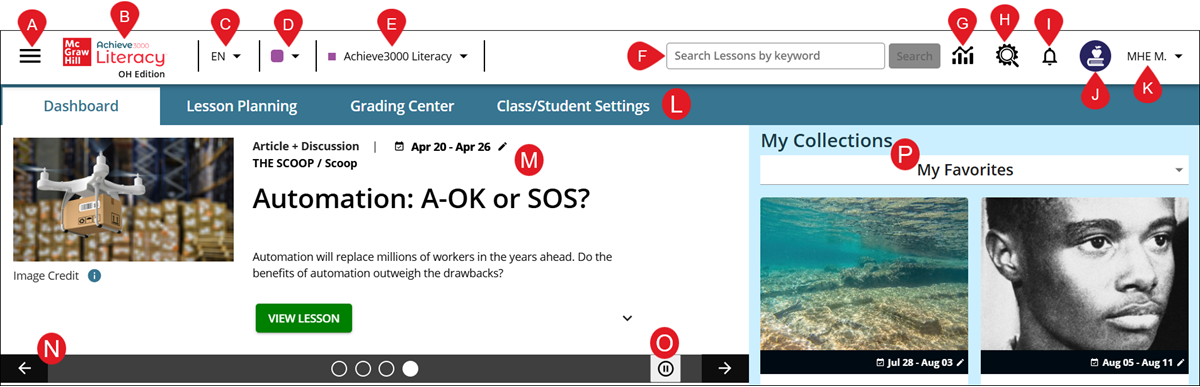
Menu - Click to open the menu panel to access the Favorite lessons page, LevelSet Scheduler, Data Center, Student Reports, the student Career and Writing centers.
Achieve3000 Literacy Logo - Click the logo to quickly navigate back to the home page.
Language Selector - Click to change between English, Spanish, and Spanish Support.
Class Color Selector - Click to select a color for the selected class.
Class Navigator - If more than one Achieve3000 Literacy class is created, click on the class name to navigate between them.
Search - Enter a keyword in the search field to located a specific/additional lessons.
Data Center - Click the graph icon to navigate to the Data Center reports page.
Resource Center - Click the magnifying glass icon to navigate to the help center page to view additional support articles.
Notifications - Click the bell icon to access the notifications page.
Avatar - Click on the avatar image to select a different option.
Featured Lessons/Lesson Carousel - These are the top lessons scheduled for the current day. If more than one lesson is scheduled for the day, it will scroll between them.
Previous/Next Arrows - Click the back and forth arrows to navigate between the featured lessons.
Pause/Play - Click the pause/play button to activate/deactivate the lesson carousel.
My Collections - Easily navigate between the different lesson collections available within the program.
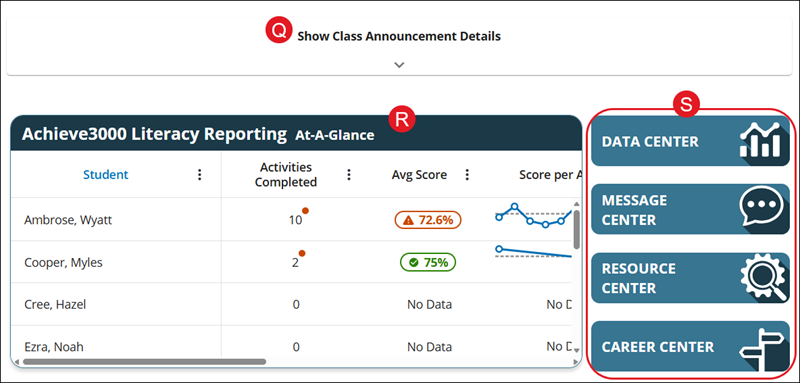
Class Announcements - Click the Show Class Announcement Details to expand the section.
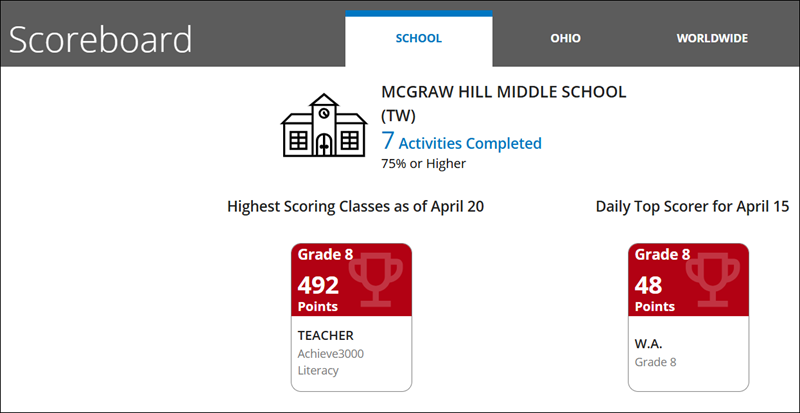
<p><img src="/content/dam/mhe/support/support-images/dts-k12-images/a3k-teacher-dashboard/a3k-teacher-dashboard-1.jpg" data-assetref="a3k-teacher-dashboard-1-1780929699888"></p> <ol class="list-type-alphabet-uppercase"> <li><strong>Menu </strong>- Click to open the menu panel to access the Favorite lessons page, LevelSet Scheduler, Data Center, Student Reports, the student Career and Writing centers.<br> <br> </li> <li><strong>Achieve3000 Literacy Logo</strong> - Click the logo to quickly navigate back to the home page. <br> <br> </li> <li><strong>Language Selector</strong> - Click to change between English, Spanish, and Spanish Support.<br> <br> </li> <li><strong>Class Color Selector</strong> - Click to select a color for the selected class.<br> <br> </li> <li><strong>Class Navigator</strong> - If more than one Achieve3000 Literacy class is created, click on the class name to navigate between them. <br> <br> </li> <li><strong>Search </strong>- Enter a keyword in the search field to located a specific/additional lessons. <br> <br> </li> <li><a href="https://mh.my.site.com/DTS/s/article/Achieve-Literacy-Data-Center"><strong>Data Center</strong></a> - Click the graph icon to navigate to the Data Center reports page.<br> <br> </li> <li><strong>Resource Center</strong> - Click the magnifying glass icon to navigate to the help center page to view additional support articles.<br> <br> </li> <li><strong>Notifications </strong>- Click the bell icon to access the notifications page.<br> <br> </li> <li><strong>Avatar </strong>- Click on the avatar image to select a different option. <br> <br> </li> <li><strong>Profile/Settings</strong> - Click on the name to <a href="https://mh.my.site.com/DTS/s/article/Achieve3000-Literacy---Edit-Profile?dc=Getting_Started_Teacher">Edit Profile</a>, <a href="https://mh.my.site.com/DTS/s/article/Achieve-Literacy-Student-Reports?dc=Getting_Started_Teacher">access Reports</a>, Help/Support, and Log Out.<br> <br> </li> <li><strong>Navigation Menu</strong> - Navigate between the Dashboard, <a href="https://mh.my.site.com/DTS/s/article/Achieve3000-Literacy---Create-and-Assign-Lesson-Collections">Lesson Planning</a>, <a href="https://mh.my.site.com/DTS/s/article/Achieve-Literacy-Grade-Written-Responses">Grading Center</a>, and <a href="https://mh.my.site.com/DTS/s/article/Achieve-Literacy-Class-Setup">Class/Student Settings</a> pages.<br> <br> </li> <li><strong>Featured Lessons/Lesson Carousel</strong> - These are the top lessons scheduled for the current day. If more than one lesson is scheduled for the day, it will scroll between them. <br> <br> </li> <li><strong>Previous/Next Arrows</strong> - Click the back and forth arrows to navigate between the featured lessons. <br> <br> </li> <li><strong>Pause/Play</strong> - Click the pause/play button to activate/deactivate the lesson carousel. <br> <br> </li> <li><a href="https://mh.my.site.com/DTS/s/article/Achieve3000-Literacy---Create-and-Assign-Lesson-Collections"><strong>My Collections</strong></a> - Easily navigate between the different lesson collections available within the program.<br> <br> <img src="/content/dam/mhe/support/support-images/dts-k12-images/a3k-teacher-dashboard/a3k-teacher-dashboard-2.jpg" data-assetref="a3k-teacher-dashboard-2-1780929704897"><br> <br> </li> <li><strong>Class Announcements</strong> - Click the Show Class Announcement Details to expand the section.<br> <br> For more information on Class Announcements, refer to the <a href="https://mh.my.site.com/DTS/s/article/Achieve-Literacy-Class-Announcement-Banner">Create Achieve3000 Litearcy Class Announcements</a> article.<br> <br> </li> <li><strong>Reporting At-A-Glance</strong> - The section provides a quick overview of the <a href="https://mh.my.site.com/DTS/s/article/Achieve-Literacy-Data-Center">data found within the Data Center.</a><br> <br> </li> <li><strong>Additional Resources</strong> - Click on the corresponding button to <a href="https://mh.my.site.com/DTS/s/article/Achieve-Literacy-Data-Center">access the Data Center</a>, Message Center, Resource Center, and <a href="https://mh.my.site.com/DTS/s/article/Achieve-Literacy-Career-Center?dc=Getting_Started_Student">student Career Center</a>.<br> <br> The <strong>Scoreboard </strong>can be found at the bottom of the <strong>Dashboard</strong>. This section shows the points for the <strong>School</strong>, the <strong>State</strong>, and <strong>Worldwide</strong>.<br> <br> <img src="/content/dam/mhe/support/support-images/dts-k12-images/a3k-teacher-dashboard/a3k-teacher-dashboard-3.jpg" data-assetref="a3k-teacher-dashboard-3-1780929710960"></li> </ol> dts Get an overview of the Achieve3000 Literacy teacher dashboard and available instructional tools. 2026-11-20 Navigating the Achieve30000 Literacy Teacher Dashboard Get an overview of the Achieve3000 Literacy teacher dashboard and available instructional tools. Get an overview of the Achieve3000 Literacy teacher dashboard and available instructional tools.
Get an overview of the Achieve3000 Literacy teacher dashboard and available instructional tools.
Menu - Click to open the menu panel to access the Favorite lessons page, LevelSet Scheduler, Data Center, Student Reports, the student Career and Writing centers. Achieve3000 Literacy Logo - Click the logo to quickly navigate back to the home page. Language Selector - Click to change between English, Spanish, and Spanish Support. Class Color Selector - Click to select a color for the selected class. Class Navigator - If more than one Achieve3000 Literacy class is created, click on the class name to navigate between them. Search - Enter a keyword in the search field to located a specific/additional lessons. Data Center - Click the graph icon to navigate to the Data Center reports page. Resource Center - Click the magnifying glass icon to navigate to the help center page to view additional support articles. Notifications - Click the bell icon to access the notifications page. Avatar - Click on the avatar image to select a different option. Profile/Settings - Click on the name to Edit Profile, access Reports, Help/Support, and Log Out. Navigation Menu - Navigate between the Dashboard, Lesson Planning, Grading Center, and Class/Student Settings pages. Featured Lessons/Lesson Carousel - These are the top lessons scheduled for the current day. If more than one lesson is scheduled for the day, it will scroll between them. Previous/Next Arrows - Click the back and forth arrows to navigate between the featured lessons. Pause/Play - Click the pause/play button to activate/deactivate the lesson carousel. My Collections - Easily navigate between the different lesson collections available within the program. Class Announcements - Click the Show Class Announcement Details to expand the section. For more information on Class Announcements, refer to the Create Achieve3000 Litearcy Class Announcements article. Reporting At-A-Glance - The section provides a quick overview of the data found within the Data Center. Additional Resources - Click on the corresponding button to access the Data Center, Message Center, Resource Center, and student Career Center. The Scoreboard can be found at the bottom of the Dashboard. This section shows the points for the School, the State, and Worldwide.