Assign specific sections or chapters from the Connect eBook.
Tags
Customer Support
PreK-12
Classroom Teacher
High School
Direct Login & Auto-Rostering
Direct Login & Manual-Rostering
SSO & Auto-Rostering
SSO & Manual-Rostering
AP, Honors & Electives
AP Connect
Grades & Assignments
Share:
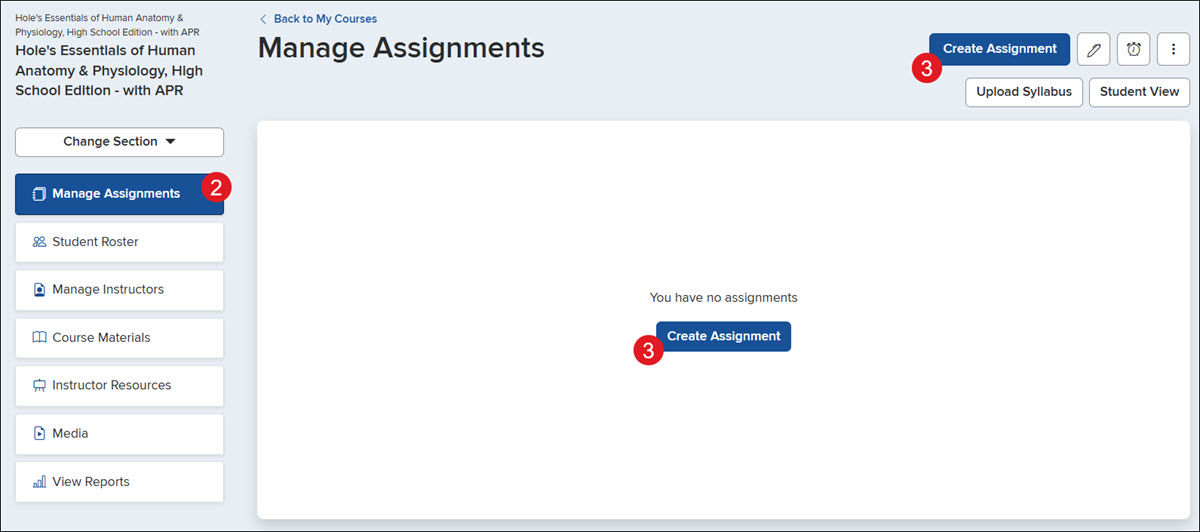
1. Click on the Section name.
2. Click on Manage Assignments from the left-hand menu.
3. Click the Create Assignment button.
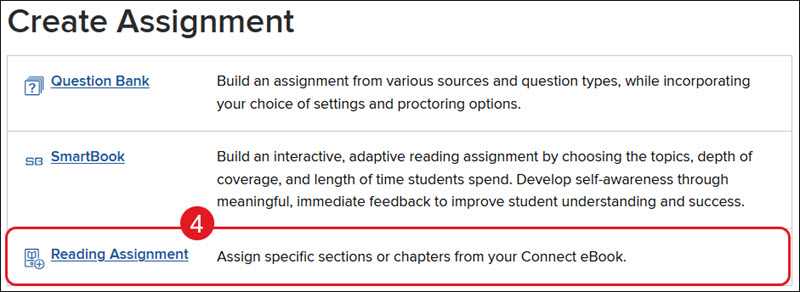
4. Click on the Reading Assignment link.
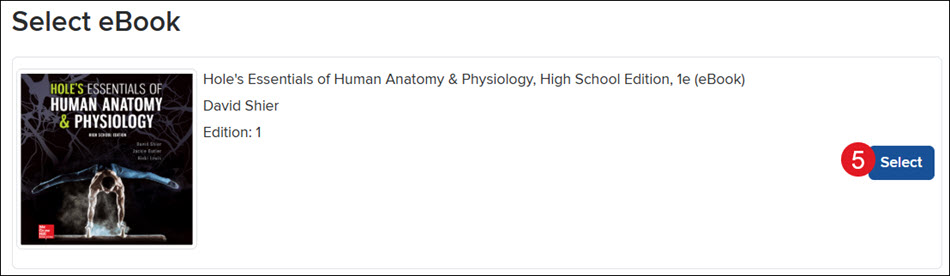
5. Click the Select button for the eBook.
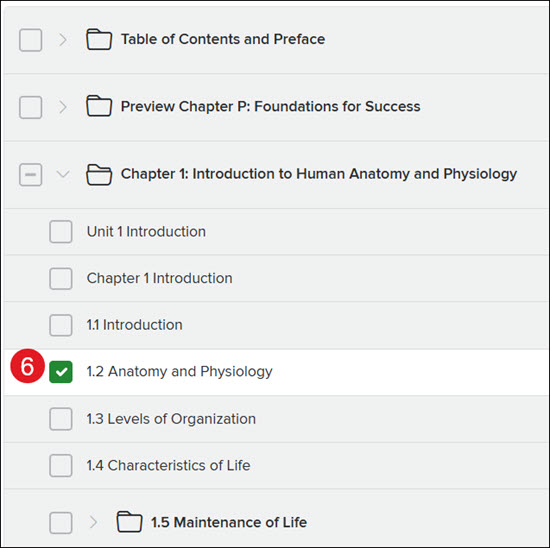
6. Checkmark the section you want to assign.
Note: If you want to assign multiple sections, you will need to create a new reading assignment for each, as only one option can be selected at a time.
7. Click the Next button at the bottom.
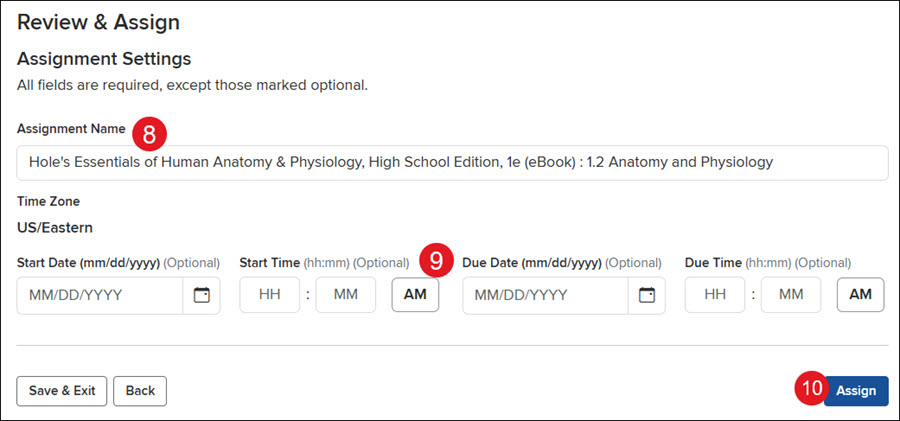
8. Enter an Assignment Name.
9. Enter a Start Date and Time and a Due Date and Time. This is optional.
10. Click the Assign button.
Help us improve!
Let us know how we can improve our support information by providing feedback in this short survey.
Top
Regional Page Available
It looks like you're outside the United States. Do you want to see your regional version of this page?
Support Topics/Assessments & Reporting/Grades & Assignments
Personas
Personas/School Educator
Personas/School Educator/Classroom Teacher
Context/Integration Type/SSO & Manual-Rostering
prek-12
2026-09-10T10:52:21.852-04:00
<p>1. Click on the Section name.</p> <p>2. Click on <strong>Manage Assignments</strong> from the left-hand menu.</p> <p>3. Click the <strong>Create Assignment</strong> button.</p> <p><img src="/content/dam/mhe/support/support-images/dts-k12-images/create-k12-connect-reading-assignments/k12-connect-reading-assignments-1.jpg" data-assetref="k12-connect-reading-assignments-1-1789051003711"></p> <p>4. Click on the <strong>Reading Assignment </strong>link.</p> <p><img src="/content/dam/mhe/support/support-images/dts-k12-images/create-k12-connect-reading-assignments/k12-connect-reading-assignments-2.jpg" data-assetref="k12-connect-reading-assignments-2-1789051188615"></p> <p>5. Click the <strong>Select </strong>button for the eBook.</p> <p><img src="/content/dam/mhe/support/support-images/dts-k12-images/create-k12-connect-reading-assignments/k12-connect-reading-assignments-3.jpg" data-assetref="k12-connect-reading-assignments-3-1789051346166"></p> <p>6. Checkmark the section you want to assign.</p> <p><strong>Note:</strong> If you want to assign multiple sections, you will need to create a new reading assignment for each, as only one option can be selected at a time.</p> <p><img src="/content/dam/mhe/support/support-images/dts-k12-images/create-k12-connect-reading-assignments/k12-connect-reading-assignments-4.jpg" data-assetref="k12-connect-reading-assignments-4-1789051551870"></p> <p>7. Click the <strong>Next </strong>button at the bottom.</p> <p>8. Enter an <strong>Assignment Name</strong>.</p> <p>9. Enter a <strong>Start Date</strong> and <strong>Time </strong>and a <strong>Due Date</strong> and <strong>Time</strong>. This is optional.</p> <p>10. Click the <strong>Assign </strong>button.</p> <p><img src="/content/dam/mhe/support/support-images/dts-k12-images/create-k12-connect-reading-assignments/k12-connect-reading-assignments-5.jpg" data-assetref="k12-connect-reading-assignments-5-1789051792224"></p> dts Assign specific sections or chapters from the Connect eBook. 2026-09-10 Create K-12 Connect® Reading Assignments Assign specific sections or chapters from the Connect eBook. Assign specific sections or chapters from the Connect eBook.
Assign specific sections or chapters from the Connect eBook.
1. Click on the Section name. 2. Click on Manage Assignments from the left-hand menu. 3. Click the Create Assignment button. 4. Click on the Reading Assignment link. 5. Click the Select button for the eBook. 6. Checkmark the section you want to assign. Note: If you want to assign multiple sections, you will need to create a new reading assignment for each, as only one option can be selected at a time. 7. Click the Next button at the bottom. 8. Enter an Assignment Name. 9. Enter a Start Date and Time and a Due Date and Time. This is optional. 10. Click the Assign button.
dts
Customer Support, PreK-12, Classroom Teacher, High School, Direct Login & Auto-Rostering, Direct Login & Manual-Rostering, SSO & Auto-Rostering, SSO & Manual-Rostering, AP, Honors & Electives, AP Connect, Grades & Assignments