glencoe-math
glencoe-science
networks
iscience
instructor
Business Unit
Business Unit/PreK-12
Context
Context/Integration Type
Context/Integration Type/Direct Login & Manual-Rostering
Context/Curriculum Type
Context/Curriculum Type/Core
Context/Education Level
Context/Education Level/High School
Programs & Solutions
Programs & Solutions/Glencoe Math
Programs & Solutions/Glencoe Science
Context/Subject
Context/Subject/Science
Context/Integration Type/Direct Login & Auto-Rostering
Context/Integration Type/SSO & Auto-Rostering
Programs & Solutions/Networks
Programs & Solutions/Networks/Networks 2018
Asset Format Type
Asset Format Type/Customer Support
Programs & Solutions/Glencoe Math/Glencoe Algebra 1 2018
Context/Education Level/Middle School
Programs & Solutions/Glencoe Math/Glencoe Algebra 1 2014
Programs & Solutions/Glencoe Math/Glencoe Geometry 2014
Programs & Solutions/Glencoe Science/Glencoe Science 2017
Programs & Solutions/Glencoe Math/Glencoe Math Accelerated
Programs & Solutions/Glencoe Math/Glencoe Geometry 2018
Support Topics
Support Topics/Tools & Product Integrations
Support Topics/Tools & Product Integrations/LearnSmart®
Support Topics/Tools & Product Integrations/Smartbook® Integration
Programs & Solutions/Glencoe Math/Glencoe Algebra 2 2014
Personas
Personas/School Educator
Personas/School Educator/Classroom Teacher
Context/Subject/Math
Programs & Solutions/Glencoe Math/Glencoe Algebra 2 2018
Programs & Solutions/Glencoe Math/Glencoe Math Course 1
Programs & Solutions/Glencoe Math/Glencoe Math Course 2
Programs & Solutions/Glencoe Math/Glencoe Math Course 3
Programs & Solutions/iScience
Programs & Solutions/iScience/iScience 2017
Context/Integration Type/SSO & Manual-Rostering
prek-12
2026-10-06T14:07:57.860-04:00
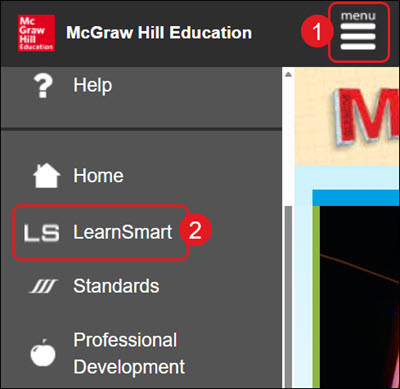
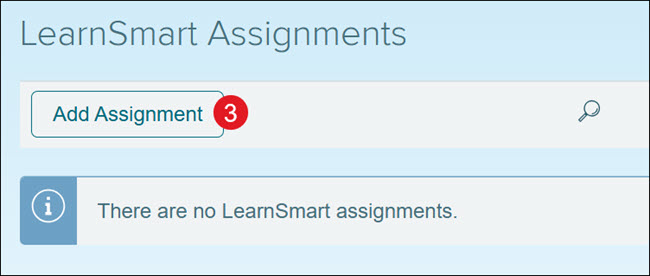
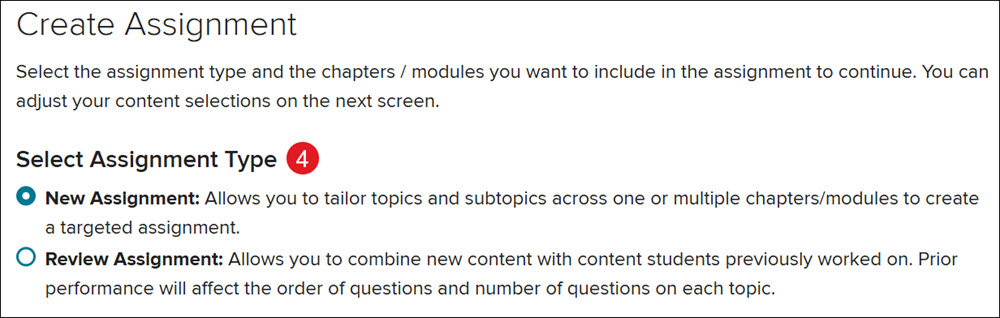
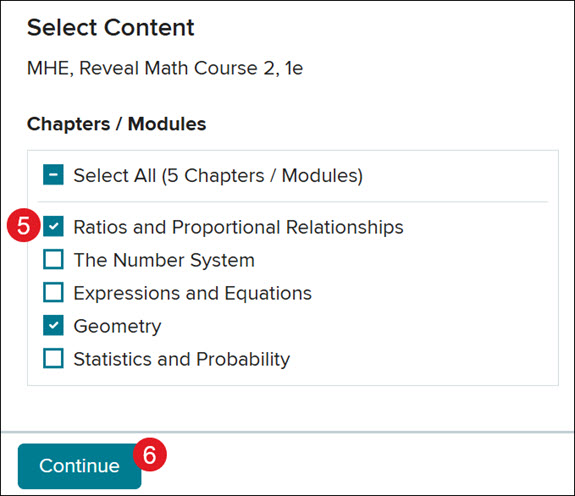
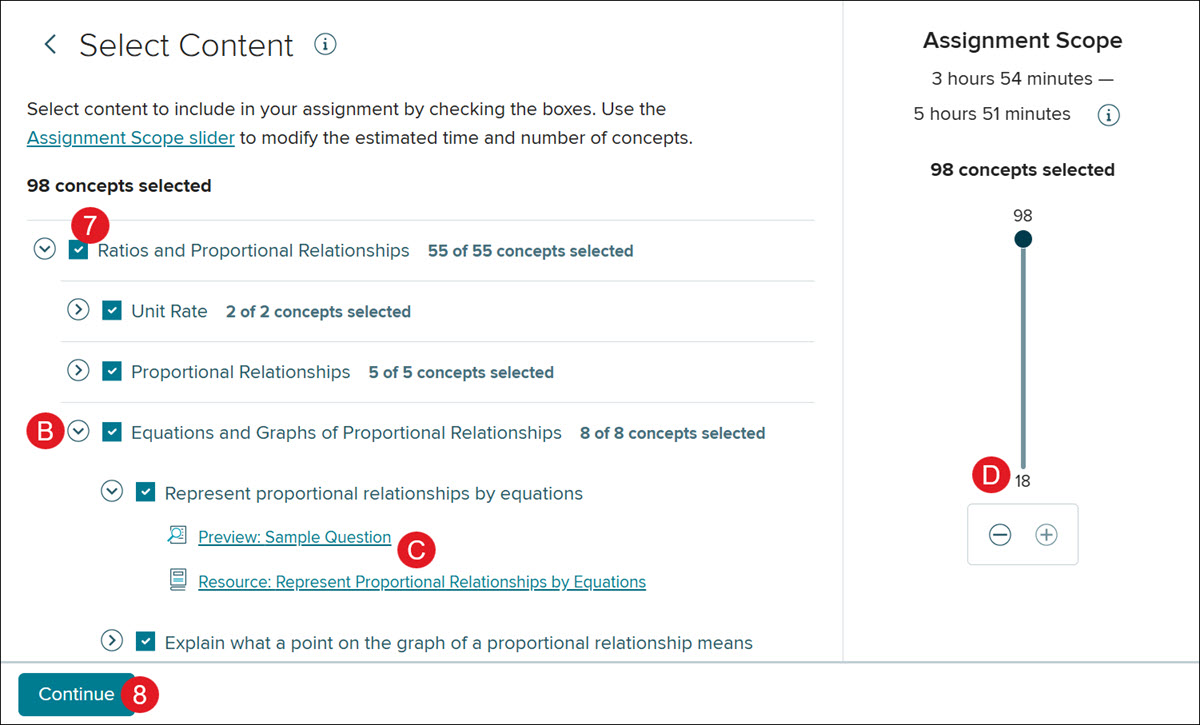
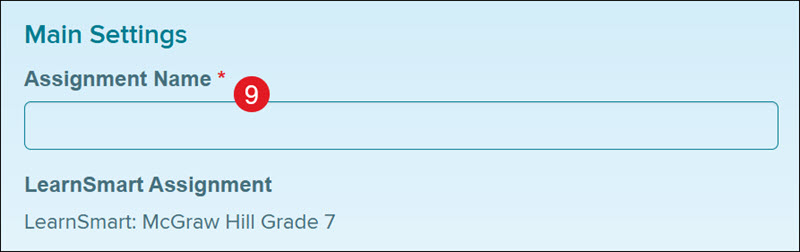
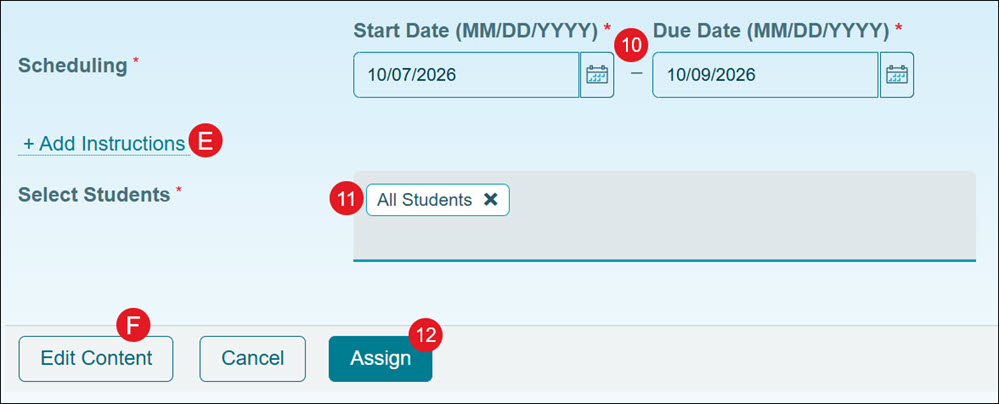
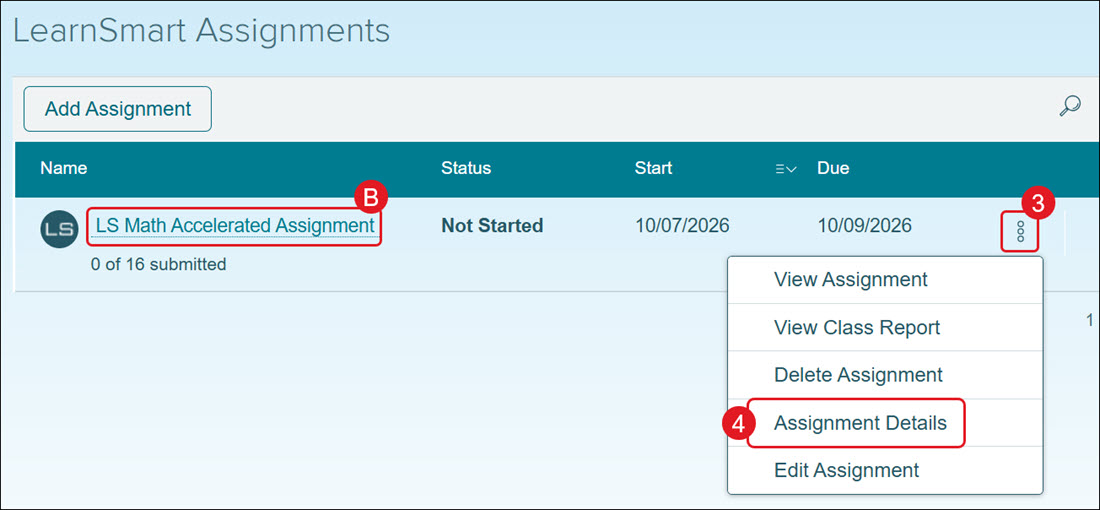
<h2 class="fs-5">Article Contents</h2> <p><a href="https://www.youtube.com/embed/K1tgdaLrbN8" target="_blank">View a video walkthrough</a></p> <p><a href="#create_assignments">Create SmartBook/LearnSmart Assignments</a></p> <p><a href="#view_details">View SmartBook/LearnSmart Assignment Details</a></p> <p><a href="#view_assignment">View SmartBook/LearnSmart Assignment</a></p> <p><a href="#edit_assignment">Edit SmartBook/LearnSmart Assignments</a></p> <p><a href="#delete_assignment">Delete SmartBook/LearnSmart Assignments</a></p> <p><a href="https://www.mheducation.com/prek-12/support/knowledge/view-connected-teacher-reports-for-smartbook-and-learnsmart" target="_blank">View SmartBook/LearnSmart Assignment Reports</a></p> <p> </p> <h3 class="fs-5"><a id="create_assignments"></a>Create SmartBook/LearnSmart Assignments</h3> <p><strong>Note:</strong> Students will not have access to the LearnSmart/SmartBook option until an assignment has been created.</p> <ol> <li>Click <strong>Menu </strong>at the top left.<br> <br> </li> <li>Click on <strong>SmartBook </strong>or <strong>LearnSmart </strong>from the menu. Options will vary based on the program being used.<br> <br> <img src="/content/dam/mhe/support/support-images/dts-k12-images/create-ced-sb-ls-assignments/ced-sb-ls-assignments-1.jpg" data-assetref="ced-sb-ls-assignments-1-1791307028477"><br> <br> A. For <strong>Networks</strong>, you will want to click on <strong>SmartBook </strong>from the navigation menu at the top.<br> <br> <img src="/content/dam/mhe/support/support-images/dts-k12-images/create-ced-sb-ls-assignments/ced-sb-ls-assignments-2.jpg" data-assetref="ced-sb-ls-assignments-2-1791307124308"><br> <br> </li> <li>Click the <strong>Add Assignment</strong> button.<br> <br> <img src="/content/dam/mhe/support/support-images/dts-k12-images/create-ced-sb-ls-assignments/ced-sb-ls-assignments-3.jpg" data-assetref="ced-sb-ls-assignments-3-1791307208639"><br> <br> </li> <li>Select the radio button to create a <strong>New Assignment</strong> or a <strong>Review Assignment</strong>.<br> <br> <strong>- New Assignment -</strong> Allows you to tailor topics and subtopics across one or multiple chapters/modules to create a targeted assignment.<br> <br> <strong>- Review Assignment -</strong> Allows you to combine new content with content students previously worked on. Prior performance will affect the order of questions and number of questions on each topic.<br> <br> <img src="/content/dam/mhe/support/support-images/dts-k12-images/create-ced-sb-ls-assignments/ced-sb-ls-assignments-4.jpg" data-assetref="ced-sb-ls-assignments-4-1791307323469"><br> <br> </li> <li>Check the box(es) next to the <strong>Chapters/Modules</strong> you want to include in the assignment. More than one can be selected.<br> <br> </li> <li>Click the <strong>Continue </strong>button.<br> <br> <img src="/content/dam/mhe/support/support-images/dts-k12-images/create-ced-sb-ls-assignments/ced-sb-ls-assignments-5.jpg" data-assetref="ced-sb-ls-assignments-5-1791307413529"><br> <br> </li> <li>All sections are automatically selected. Uncheck any <strong>Content </strong>you do not want included.<br> <br> B. Click on the arrow beside the content to drill down into each section.<br> <br> C. Click on an associated link to preview a question for that section and/or view the available resources.<br> <br> D. You can also click and drag or use the minus and plus buttons on the <strong>Assignment Scope</strong> to change the number of concepts selected.<br> <br> </li> <li>Click the <strong>Continue </strong>button.<br> <br> <img src="/content/dam/mhe/support/support-images/dts-k12-images/create-ced-sb-ls-assignments/ced-sb-ls-assignments-6.jpg" data-assetref="ced-sb-ls-assignments-6-1791307707404"><br> <br> </li> <li>Enter an <strong>Assignment Name</strong>.<br> <br> <img src="/content/dam/mhe/support/support-images/dts-k12-images/create-ced-sb-ls-assignments/ced-sb-ls-assignments-7.jpg" data-assetref="ced-sb-ls-assignments-7-1791307793833"><br> <br> </li> <li>Select the <strong>Start </strong>and <strong>Due Date</strong> for the assignment by typing it in or clicking on the calendar icons.<br> <br> <strong>Note:</strong> Students won't be able to see the assignment until the Start Date.<br> <br> E. Click on the <strong>Add Instructions</strong> link to add directions for the students.<br> <br> </li> <li>All students assigned to the roster are automatically selected for the assignment. Click the <strong>All Students</strong> button in the <strong>Select Students</strong> section to select specific students for the assignment.<br> <br> F. Click the <strong>Edit Content</strong> button to change the concepts.<br> <br> </li> <li>Click the <strong>Assign </strong>button.<br> <br> <img src="/content/dam/mhe/support/support-images/dts-k12-images/create-ced-sb-ls-assignments/ced-sb-ls-assignments-8.jpg" data-assetref="ced-sb-ls-assignments-8-1791308041318"></li> </ol> <p> </p> <h3 class="fs-5"><a id="view_details"></a>View SmartBook/LearnSmart Assignment Details</h3> <ol> <li>Click <strong>Menu </strong>at the top left.<br> <br> </li> <li>Click on <strong>SmartBook </strong>or <strong>LearnSmart </strong>from the menu. Options will vary based on the program being used.<br> <br> <img src="/content/dam/mhe/support/support-images/dts-k12-images/create-ced-sb-ls-assignments/ced-sb-ls-assignments-1.jpg" data-assetref="ced-sb-ls-assignments-1-1791308083972"><br> <br> A. For <strong>Networks</strong>, you will want to click on <strong>SmartBook </strong>from the navigation menu at the top.<br> <br> <img src="/content/dam/mhe/support/support-images/dts-k12-images/create-ced-sb-ls-assignments/ced-sb-ls-assignments-2.jpg" data-assetref="ced-sb-ls-assignments-2-1791308097443"><br> <br> </li> <li>Click the options icon to the right of the assignment name.<br> <br> </li> <li>Click <strong>Assignment Details</strong> from the menu.<br> <br> B. You can also click on the assignment <strong>Name </strong>to view the details.<br> <br> <img src="/content/dam/mhe/support/support-images/dts-k12-images/create-ced-sb-ls-assignments/ced-sb-ls-assignments-9.jpg" data-assetref="ced-sb-ls-assignments-9-1791308303718"><br> </li> </ol> <p>The assignment details show the <strong>Assignment Name</strong>, the <strong>Status</strong>, the <strong>Start </strong>and <strong>Due Dates</strong>, and any <strong>Instructions</strong> that were included. It also provides the list of <strong>students assigned</strong> to the assignment and their <strong>completion percentage</strong>.</p> <p><img src="/content/dam/mhe/support/support-images/dts-k12-images/create-ced-sb-ls-assignments/ced-sb-ls-assignments-10.jpg" data-assetref="ced-sb-ls-assignments-10-1791308533616"></p> <p> </p> <h3 class="fs-5"><a id="view_assignment"></a>View SmartBook/LearnSmart Assignment</h3> <ol> <li>Click <strong>Menu </strong>at the top left.<br> <br> </li> <li>Click on <strong>SmartBook </strong>or <strong>LearnSmart </strong>from the menu. Options will vary based on the program being used.<br> <br> <img src="/content/dam/mhe/support/support-images/dts-k12-images/create-ced-sb-ls-assignments/ced-sb-ls-assignments-1.jpg" data-assetref="ced-sb-ls-assignments-1-1791308563143"><br> <br> A. For <strong>Networks</strong>, you will want to click on <strong>SmartBook </strong>from the navigation menu at the top.<br> <br> <img src="/content/dam/mhe/support/support-images/dts-k12-images/create-ced-sb-ls-assignments/ced-sb-ls-assignments-2.jpg" data-assetref="ced-sb-ls-assignments-2-1791308579766"><br> <br> </li> <li>Click the options icon to the right of the assignment name.<br> <br> </li> <li>Click <strong>View Assignment</strong> from the menu.<br> <br> <img src="/content/dam/mhe/support/support-images/dts-k12-images/create-ced-sb-ls-assignments/ced-sb-ls-assignments-11.jpg" data-assetref="ced-sb-ls-assignments-11-1791309027296"><br> <br> The assignment will load in a secondary browser window. You will then be able to navigate through the assignment as students will see it. Keep in mind that the program is adaptive so the questions will not all be the same/in the same order.<br> <br> B. Click the <strong>Exit Assignment</strong> button to navigate back to the LearnSmart/SmartBook Assignments page.<br> <br> <img src="/content/dam/mhe/support/support-images/dts-k12-images/create-ced-sb-ls-assignments/ced-sb-ls-assignments-12.jpg" data-assetref="ced-sb-ls-assignments-12-1791309218647"></li> </ol> <p> </p> <h3 class="fs-5"><a id="edit_assignment"></a>Edit SmartBook/LearnSmart Assignments</h3> <p><strong>Note:</strong> You will only be able to edit assignments that have a future start date.</p> <ol> <li>Click <strong>Menu </strong>at the top left.<br> <br> </li> <li>Click on <strong>SmartBook </strong>or <strong>LearnSmart </strong>from the menu. Options will vary based on the program being used.<br> <br> <img src="/content/dam/mhe/support/support-images/dts-k12-images/create-ced-sb-ls-assignments/ced-sb-ls-assignments-1.jpg" data-assetref="ced-sb-ls-assignments-1-1791309287302"><br> <br> A. For <strong>Networks</strong>, you will want to click on <strong>SmartBook </strong>from the navigation menu at the top.<br> <br> <img src="/content/dam/mhe/support/support-images/dts-k12-images/create-ced-sb-ls-assignments/ced-sb-ls-assignments-2.jpg" data-assetref="ced-sb-ls-assignments-2-1791309300563"><br> <br> </li> <li>Click the options icon to the right of the assignment name.<br> <br> </li> <li>Click <strong>Edit Assignment</strong> from the menu.<br> <br> <img src="/content/dam/mhe/support/support-images/dts-k12-images/create-ced-sb-ls-assignments/ced-sb-ls-assignments-13.jpg" data-assetref="ced-sb-ls-assignments-13-1791309366049"><br> <br> </li> <li>Select <strong>Content </strong>you want to add/remove from the assignment by checking/unchecking the content boxes or using the Assignment Scope slider.<br> <br> </li> <li>Click the <strong>Continue </strong>button.<br> <br> <img src="/content/dam/mhe/support/support-images/dts-k12-images/create-ced-sb-ls-assignments/ced-sb-ls-assignments-14.jpg" data-assetref="ced-sb-ls-assignments-14-1791309510304"><br> <br> </li> <li>Make adjustments the needed changes to the <strong>Main Settings</strong> and <strong>Settings</strong>.<br> <br> </li> <li>Click the <strong>Assign </strong>button.<br> <br> <img src="/content/dam/mhe/support/support-images/dts-k12-images/create-ced-sb-ls-assignments/ced-sb-ls-assignments-15.jpg" data-assetref="ced-sb-ls-assignments-15-1791309626295"></li> </ol> <p> </p> <h3 class="fs-5"><a id="delete_assignment"></a>Delete SmartBook/LearnSmart Assignments</h3> <p>Keep in mind, once an assignment has been deleted, it also removes student scores and there is not a way to get it back.</p> <ol> <li>Click <strong>Menu </strong>at the top left.<br> <br> </li> <li>Click on <strong>SmartBook </strong>or <strong>LearnSmart </strong>from the menu. Options will vary based on the program being used.<br> <br> <img src="/content/dam/mhe/support/support-images/dts-k12-images/create-ced-sb-ls-assignments/ced-sb-ls-assignments-1.jpg" data-assetref="ced-sb-ls-assignments-1-1791309683436"><br> <br> A. For <strong>Networks</strong>, you will want to click on <strong>SmartBook </strong>from the navigation menu at the top.<br> <br> <img src="/content/dam/mhe/support/support-images/dts-k12-images/create-ced-sb-ls-assignments/ced-sb-ls-assignments-2.jpg" data-assetref="ced-sb-ls-assignments-2-1791309695033"><br> <br> </li> <li>Click the options icon to the right of the assignment name.<br> <br> </li> <li>Click <strong>Delete Assignment</strong> from the menu.<br> <br> <img src="/content/dam/mhe/support/support-images/dts-k12-images/create-ced-sb-ls-assignments/ced-sb-ls-assignments-16.jpg" data-assetref="ced-sb-ls-assignments-16-1791309742375"><br> <br> </li> <li>On the pop-up, click the <strong>Delete Assignment</strong> button to confirm.<br> <br> <img src="/content/dam/mhe/support/support-images/dts-k12-images/create-ced-sb-ls-assignments/ced-sb-ls-assignments-17.jpg" data-assetref="ced-sb-ls-assignments-17-1791309820749"></li> </ol> dts Learn how to create SmartBook and LearnSmart assignments to assist students with learning the course. 2026-10-06 Create and Manage ConnectED SmartBook® and LearnSmart® Assignments Learn how to create SmartBook and LearnSmart assignments to assist students with learning the course. Learn how to create SmartBook and LearnSmart assignments to assist students with learning the course.
Learn how to create SmartBook and LearnSmart assignments to assist students with learning the course.
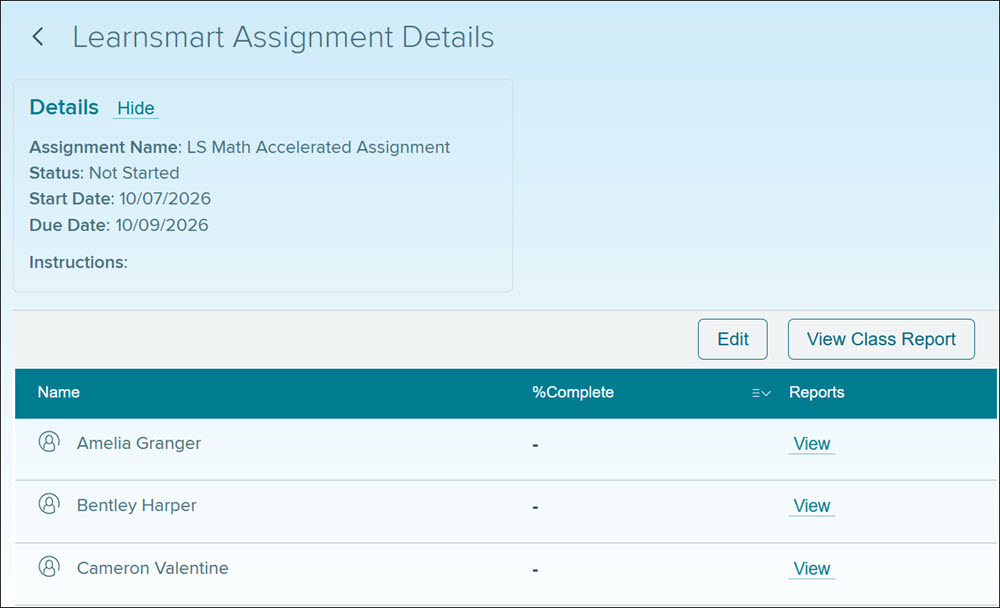
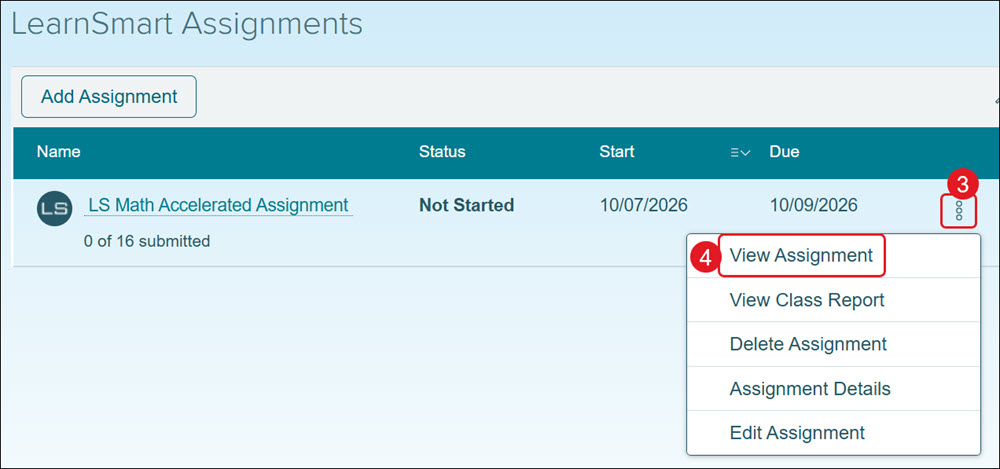
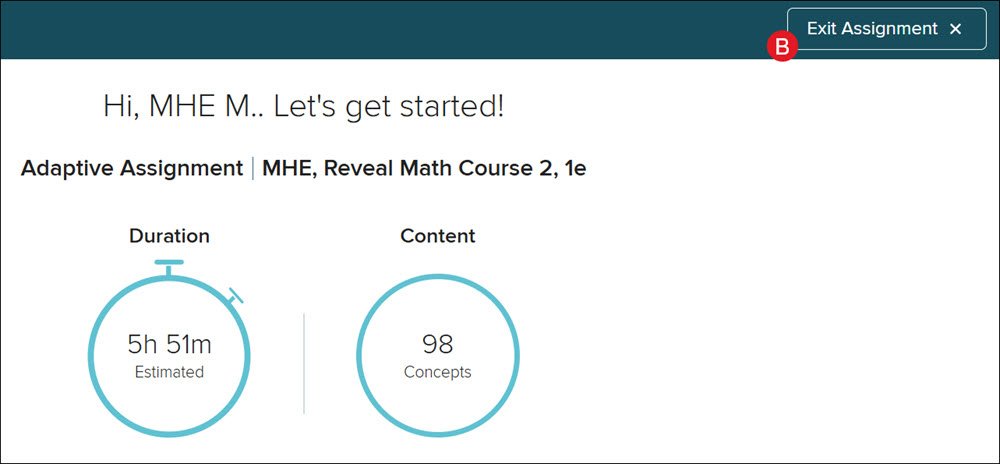
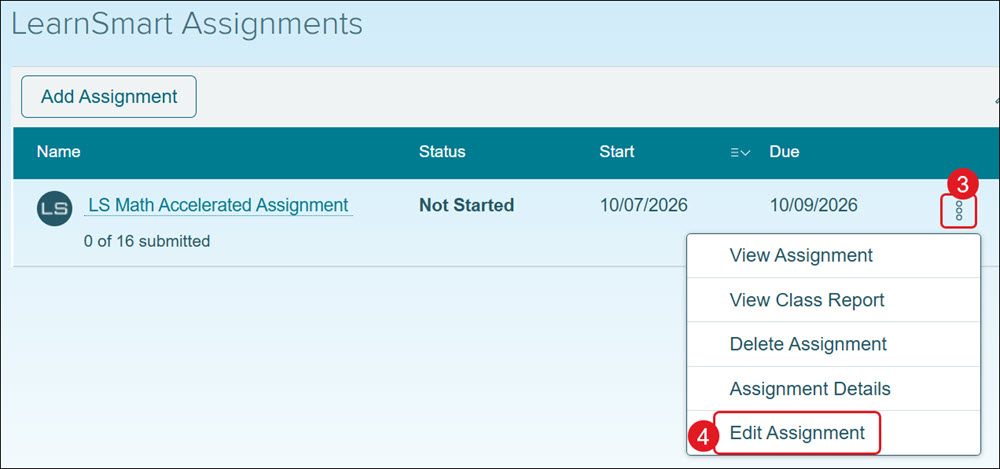
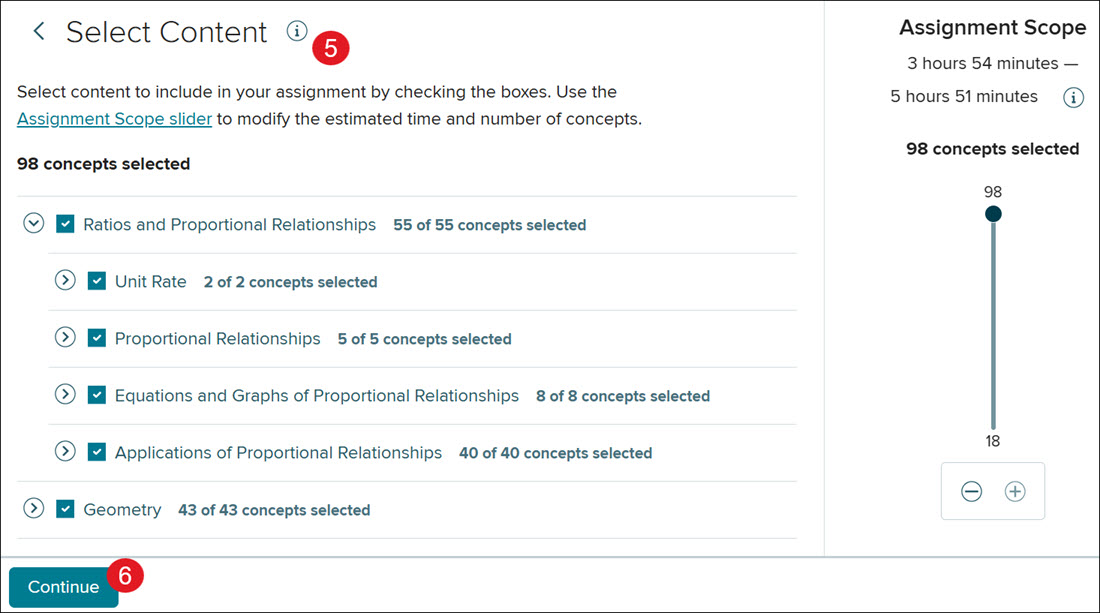
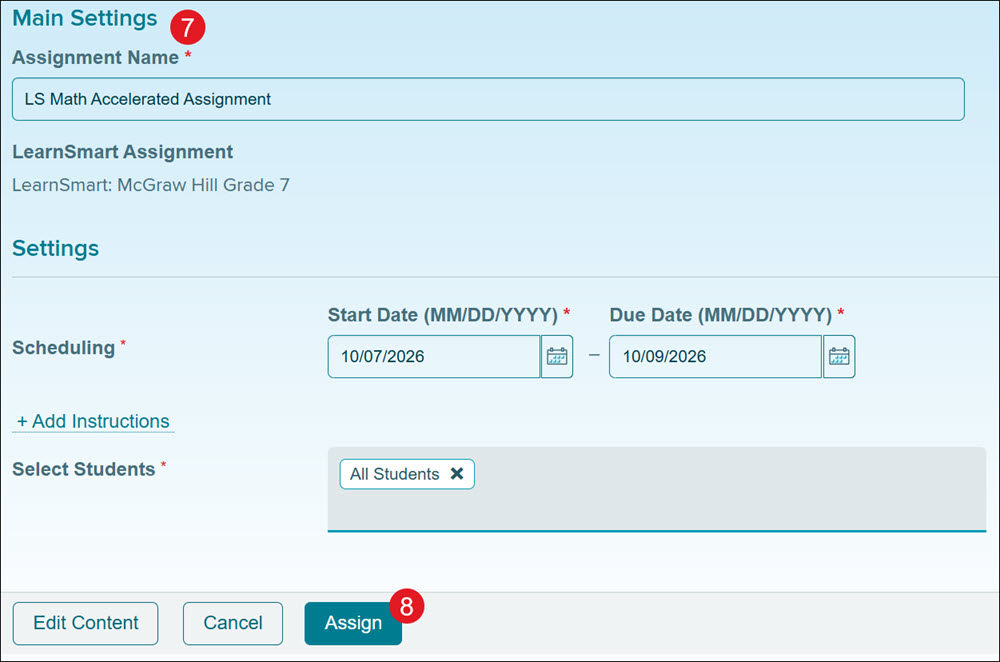
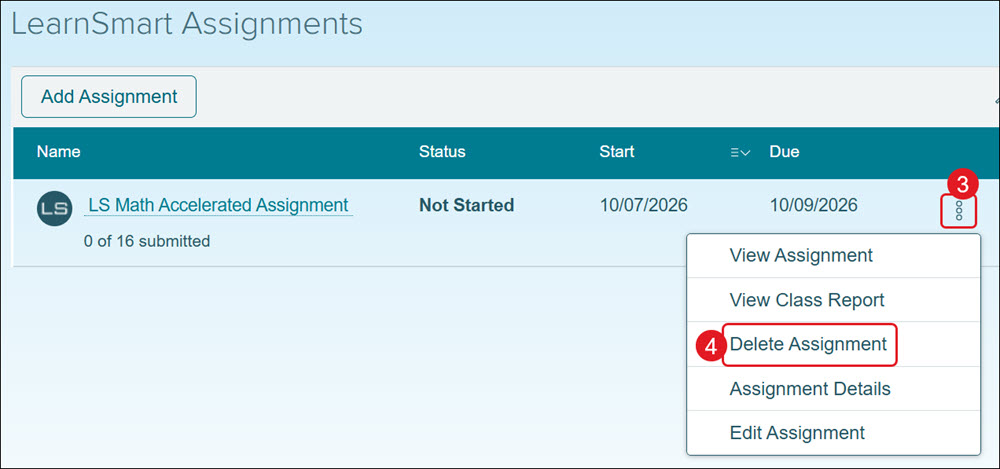
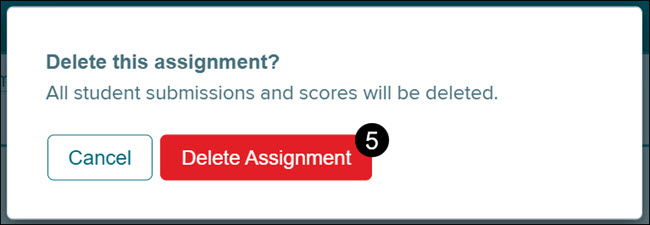
Article Contents View a video walkthrough Create SmartBook/LearnSmart Assignments View SmartBook/LearnSmart Assignment Details View SmartBook/LearnSmart Assignment Edit SmartBook/LearnSmart Assignments Delete SmartBook/LearnSmart Assignments View SmartBook/LearnSmart Assignment Reports Create SmartBook/LearnSmart Assignments Note: Students will not have access to the LearnSmart/SmartBook option until an assignment has been created. Click Menu at the top left. Click on SmartBook or LearnSmart from the menu. Options will vary based on the program being used. A. For Networks, you will want to click on SmartBook from the navigation menu at the top. Click the Add Assignment button. Select the radio button to create a New Assignment or a Review Assignment. - New Assignment - Allows you to tailor topics and subtopics across one or multiple chapters/modules to create a targeted assignment. - Review Assignment - Allows you to combine new content with content students previously worked on. Prior performance will affect the order of questions and number of questions on each topic. Check the box(es) next to the Chapters/Modules you want to include in the assignment. More than one can be selected. Click the Continue button. All sections are automatically selected. Uncheck any Content you do not want included. B. Click on the arrow beside the content to drill down into each section. C. Click on an associated link to preview a question for that section and/or view the available resources. D. You can also click and drag or use the minus and plus buttons on the Assignment Scope to change the number of concepts selected. Click the Continue button. Enter an Assignment Name. Select the Start and Due Date for the assignment by typing it in or clicking on the calendar icons. Note: Students won't be able to see the assignment until the Start Date. E. Click on the Add Instructions link to add directions for the students. All students assigned to the roster are automatically selected for the assignment. Click the All Students button in the Select Students section to select specific students for the assignment. F. Click the Edit Content button to change the concepts. Click the Assign button. View SmartBook/LearnSmart Assignment Details Click Menu at the top left. Click on SmartBook or LearnSmart from the menu. Options will vary based on the program being used. A. For Networks, you will want to click on SmartBook from the navigation menu at the top. Click the options icon to the right of the assignment name. Click Assignment Details from the menu. B. You can also click on the assignment Name to view the details. The assignment details show the Assignment Name, the Status, the Start and Due Dates, and any Instructions that were included. It also provides the list of students assigned to the assignment and their completion percentage. View SmartBook/LearnSmart Assignment Click Menu at the top left. Click on SmartBook or LearnSmart from the menu. Options will vary based on the program being used. A. For Networks, you will want to click on SmartBook from the navigation menu at the top. Click the options icon to the right of the assignment name. Click View Assignment from the menu. The assignment will load in a secondary browser window. You will then be able to navigate through the assignment as students will see it. Keep in mind that the program is adaptive so the questions will not all be the same/in the same order. B. Click the Exit Assignment button to navigate back to the LearnSmart/SmartBook Assignments page. Edit SmartBook/LearnSmart Assignments Note: You will only be able to edit assignments that have a future start date. Click Menu at the top left. Click on SmartBook or LearnSmart from the menu. Options will vary based on the program being used. A. For Networks, you will want to click on SmartBook from the navigation menu at the top. Click the options icon to the right of the assignment name. Click Edit Assignment from the menu. Select Content you want to add/remove from the assignment by checking/unchecking the content boxes or using the Assignment Scope slider. Click the Continue button. Make adjustments the needed changes to the Main Settings and Settings. Click the Assign button. Delete SmartBook/LearnSmart Assignments Keep in mind, once an assignment has been deleted, it also removes student scores and there is not a way to get it back. Click Menu at the top left. Click on SmartBook or LearnSmart from the menu. Options will vary based on the program being used. A. For Networks, you will want to click on SmartBook from the navigation menu at the top. Click the options icon to the right of the assignment name. Click Delete Assignment from the menu. On the pop-up, click the Delete Assignment button to confirm.
dts
Customer Support, PreK-12, Classroom Teacher, Middle School, High School, Direct Login & Auto-Rostering, Direct Login & Manual-Rostering, SSO & Auto-Rostering, SSO & Manual-Rostering, Core, Math, Science, Glencoe Algebra 1 2014, Glencoe Algebra 1 2018, Glencoe Algebra 2 2014, Glencoe Algebra 2 2018, Glencoe Geometry 2014, Glencoe Geometry 2018, Glencoe Math, Glencoe Math Course 1, Glencoe Math Course 2, Glencoe Math Course 3, Glencoe Math Accelerated, Networks 2018, Glencoe Science, Glencoe Science 2017, iScience 2017, Smartbook® Integration, LearnSmart®