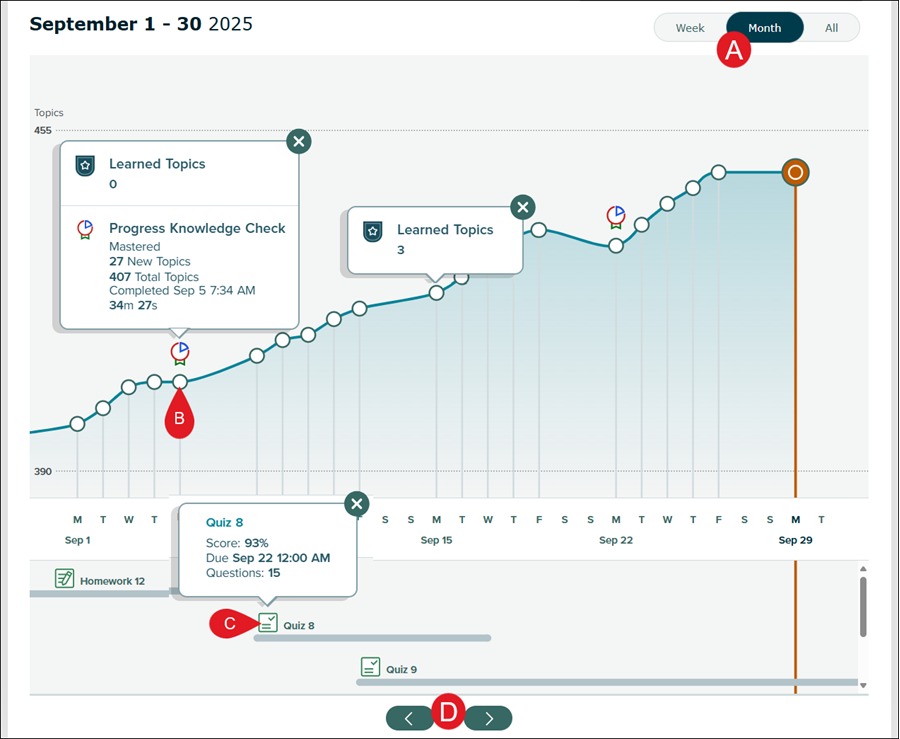
A. Toggle between viewing the report by Week, Month, or All progress milestones at a time.
B. Click a dot on the graph to view how many topics were Learned.
By clicking on a Progress Knowledge Check dot, teachers can view how many topics were Mastered, New Topics learned, Total Topics, when the Knowledge Check was Completed, and how long it took the student to complete it.
C. Click on an assignment icon to view the student's Score, when it was Due, and how many Questions it had.
D. Click the arrows at the bottom to navigate between weeks, months, and pages.
Help us improve!
Let us know how we can improve our support information by providing feedback in this short survey.
Top
Regional Page Available
It looks like you're outside the United States. Do you want to see your regional version of this page?
Support Topics/Assessments & Reporting/Reports & Analytics
Personas
Personas/School Educator
Personas/School Educator/Classroom Teacher
Context/Subject
Context/Subject/Math
Context/Curriculum Type
Context/Curriculum Type/Supplemental
Asset Format Type
Asset Format Type/Customer Support
Context/Education Level/Middle School
Context/Integration Type/SSO & Manual-Rostering
prek-12
2026-03-24T19:18:12.202-03:00
<p>For a full page view of the demo, <a href="https://hub.mheducation.com/share/3myshimtytnq" target="_blank">click here</a>.</p> <p>For a Spanish version of the demo, <a href="https://hub.mheducation.com/share/pngfjvcuhupc" target="_blank">click here</a>.</p> <p>This report allows teachers to view a student's progress milestones over time.</p> <p>1. SSO or log in at <a target="_blank" href="https://my.mheducation.com/login">my.mheducation.com</a>.</p> <p>2. Launch <strong>ALEKS</strong>.</p> <p>3. Select the <strong>Class </strong>from the drop-down.</p> <p>4. Select the <strong>Student</strong>.</p> <p>5. Hover over <strong>Reports</strong>.</p> <p>6. Click on <strong>Timeline</strong> from the menu.</p> <p><img src="/content/dam/mhe/support/support-images/migrated/rtaImage--2074704572.jpeg" data-assetref="rtaImage--2074704572-1777321806044"></p> <p><img src="/content/dam/mhe/support/support-images/migrated/rtaImage--2074706581.jpeg" data-assetref="rtaImage--2074706581-1777321806045"></p> <p>A. Toggle between viewing the report by <strong>Week</strong>, <strong>Month</strong>, or <strong>All </strong>progress milestones at a time.</p> <p>B. Click a dot on the graph to view how many topics were <strong>Learned</strong>.</p> <p>By clicking on a <strong>Progress Knowledge Check</strong> dot, teachers can view how many topics were <strong>Mastered</strong>, <strong>New Topics</strong> learned, <strong>Total Topics</strong>, when the Knowledge Check was <strong>Completed</strong>, and how long it took the student to complete it.</p> <p>C. Click on an assignment icon to view the student's <strong>Score</strong>, when it was <strong>Due</strong>, and how many <strong>Questions</strong> it had.</p> <p>D. Click the arrows at the bottom to navigate between weeks, months, and pages.</p> dts Use the Classic ALEKS timeline report to review student activity over time. 2025-11-19 Classic ALEKS View Timeline Report Use the Classic ALEKS timeline report to review student activity over time. Use the Timeline report in classic ALEKS view to review student activity over time.
Use the Timeline report in classic ALEKS view to review student activity over time.
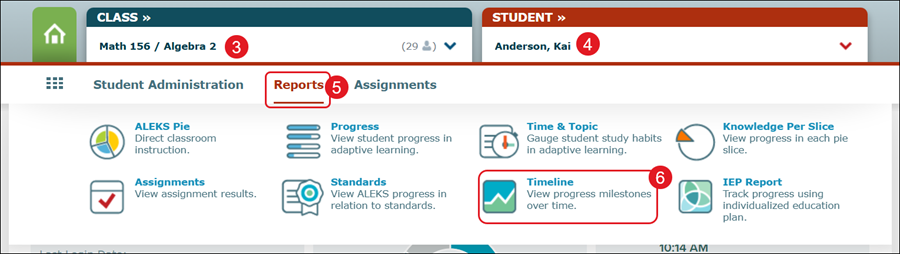
For a full page view of the demo, click here. For a Spanish version of the demo, click here. This report allows teachers to view a student's progress milestones over time. 1. SSO or log in at my.mheducation.com. 2. Launch ALEKS. 3. Select the Class from the drop-down. 4. Select the Student. 5. Hover over Reports. 6. Click on Timeline from the menu. A. Toggle between viewing the report by Week, Month, or All progress milestones at a time. B. Click a dot on the graph to view how many topics were Learned. By clicking on a Progress Knowledge Check dot, teachers can view how many topics were Mastered, New Topics learned, Total Topics, when the Knowledge Check was Completed, and how long it took the student to complete it. C. Click on an assignment icon to view the student's Score, when it was Due, and how many Questions it had. D. Click the arrows at the bottom to navigate between weeks, months, and pages.