
Building Blocks Adaptive PK-8 - Placement Tests
Review Respondus LockDown Browser system requirements and installation steps for student devices.
Tags
- Math
- Getting Started & Orientation
- Intervention
- SSO & Manual-Rostering
- Customer Support
- Online Assessments
- Number Worlds 2024
- Direct Login & Auto-Rostering
- Direct Login & Manual-Rostering
- Building Blocks 2024
- Classroom Teacher
- SSO & Auto-Rostering
- PreK-12
- Preschool
- Elementary School


Teachers who use
Number Worlds/
Building Blocks 2024 and
Building Blocks PreK 2025 have access to an additional dashboard that provides student progress details, placement tests, and reporting.
This article covers the Placement Tests page.
Refer to the Student Progress and Trajectory Report articles to learn more about those pages.
Additional Resource: Building Blocks Adaptive PK-8 - Adaptive Learning User Guide
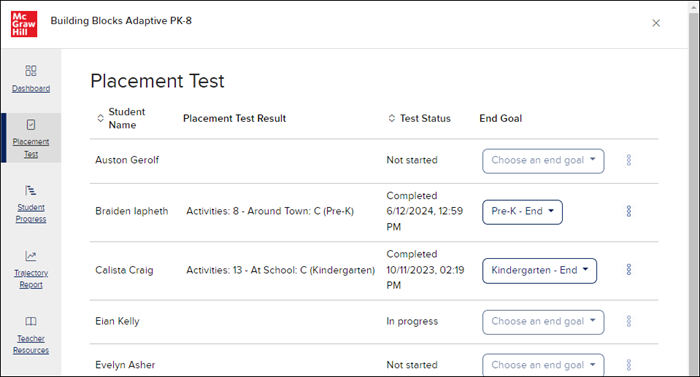
The Placement Tests page provides details for each student in the class on their Placement Test status, their results, where you can set their end goal for the program, as well as reassign the Placement Test.
You can sort the least by Student Name or Test Status.
2. Click on the drop-down in the End Goal column for the student.
Note: This drop-down will not be activated until the student completes the Placement Test.
3. Select the desired grade level from the menu. The selection will save automatically.
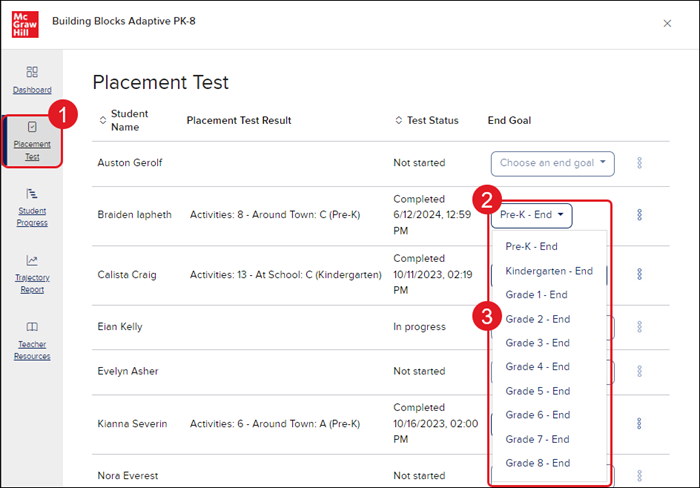
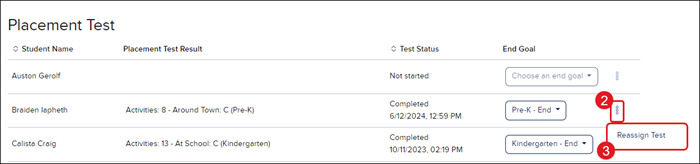
1. Click on Placement Test in the Navigation menu on the left.
2. Click on the kebob icon to the far right of the student.
3. Click on Reassign Test from the menu.
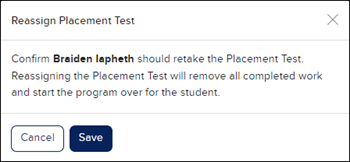
4. On the Reassign Placement Test pop-up, click the Save button to confirm.
This article covers the Placement Tests page.
Refer to the Student Progress and Trajectory Report articles to learn more about those pages.
Additional Resource: Building Blocks Adaptive PK-8 - Adaptive Learning User Guide
The Placement Tests page provides details for each student in the class on their Placement Test status, their results, where you can set their end goal for the program, as well as reassign the Placement Test.
You can sort the least by Student Name or Test Status.
Set End Goal
1. Click on Placement Test in the Navigation menu on the left.2. Click on the drop-down in the End Goal column for the student.
Note: This drop-down will not be activated until the student completes the Placement Test.
3. Select the desired grade level from the menu. The selection will save automatically.
Reassign Placement Test
Keep in mind, reassigning the Placement Test will also remove all completed work for the student and have them start the program over.1. Click on Placement Test in the Navigation menu on the left.
2. Click on the kebob icon to the far right of the student.
3. Click on Reassign Test from the menu.
4. On the Reassign Placement Test pop-up, click the Save button to confirm.
