
Classic ALEKS Progress Report
Review ALEKS Progress Report in classic view to track student mastery, time spent, and learning growth.
- Customer Support
- PreK-12
- Classroom Teacher
- Elementary School
- Middle School
- High School
- Direct Login & Auto-Rostering
- Direct Login & Manual-Rostering
- SSO & Auto-Rostering
- SSO & Manual-Rostering
- Supplemental
- Math
- ALEKS
- Reports & Analytics


View the demo in a separate tab.
View the Spanish version of the demo.
Article Contents
The ALEKS Progress Report shows overall student progress in both Learning Mode and Assessment Mode, as well as average learning rates. They can be used to monitor progress and identify students who could benefit from intervention by comparing data points.
Access Progress Report
1. SSO or sign in at my.mheducation.com.
2. Launch ALEKS.
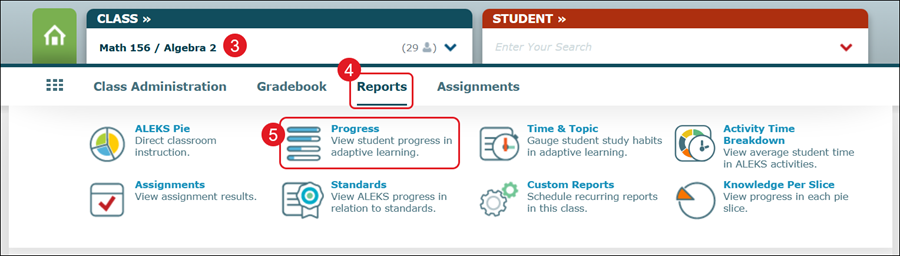
3. Select the class from the Class drop-down.
4. Hover over Reports.
5. Click on Progress from the menu.
Class Progress Report
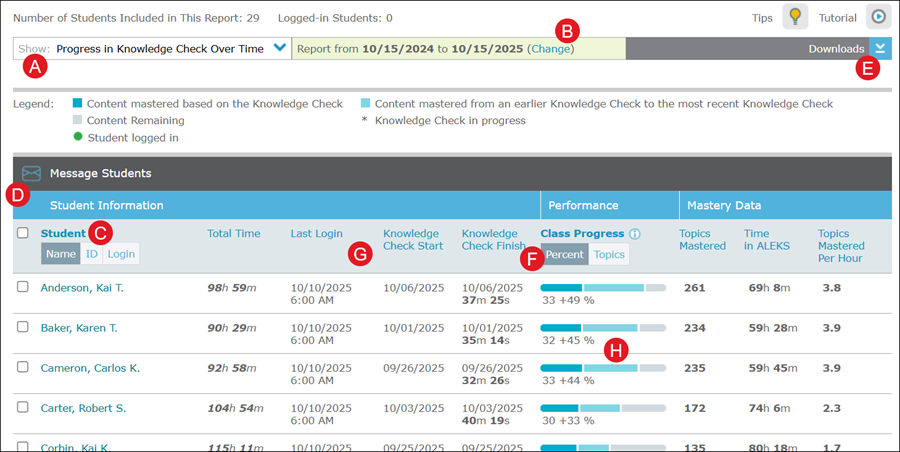
A. The view of progress data can be changed from the Show drop-down menu. There are five different views that display student progress in Knowledge Check and in Learning Mode.
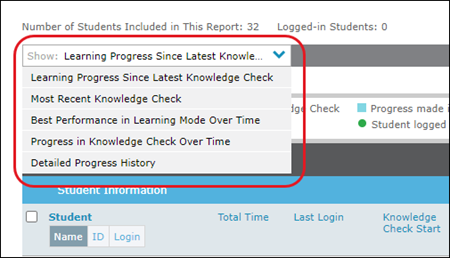
B. If Best Performance in Learning Mode Over Time, Progress in Knowledge Check Over Time, or Detailed Progress History is selected, you can change the report date range by clicking the Change link.
C. Click on Name, ID, or Login to view the Student list by the selected option.
D. Check the box next to a Student and click Message Students to send a message to one or more students.
E. Click the Downloads button to download a .xslx or Example file of the report.
F. In the Performance column, click Percent or Topics to toggle between the two views.
G. Click on a header to reorganize the data by that option.
H. The Performance Bars break down what the student has mastered.
- Dark Blue - Content mastered after the most recent Knowledge Check
- Light Blue - Content mastered from an earlier Knowledge Check to the most recent Knowledge Check
- Gray - Content remaining
Student Progress Report
Click on the student's Name, ID, or Login in the Student list to open their individual progress report.
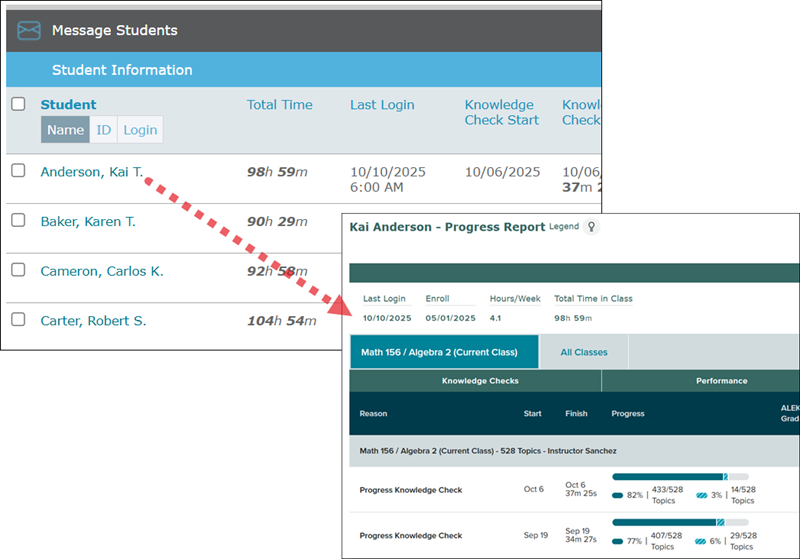
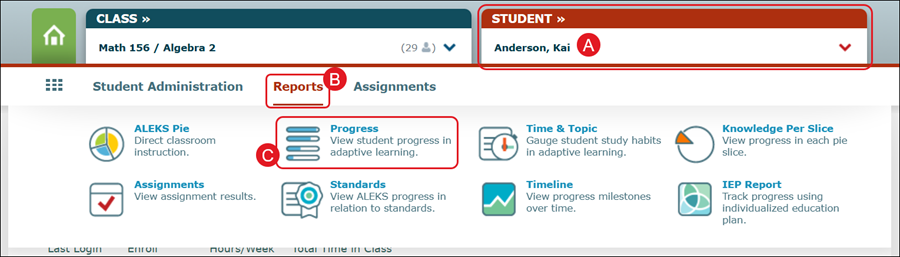
You can also select a Student (A) from the drop-down, hover over Reports (B), and click on Progress (C) from the menu.
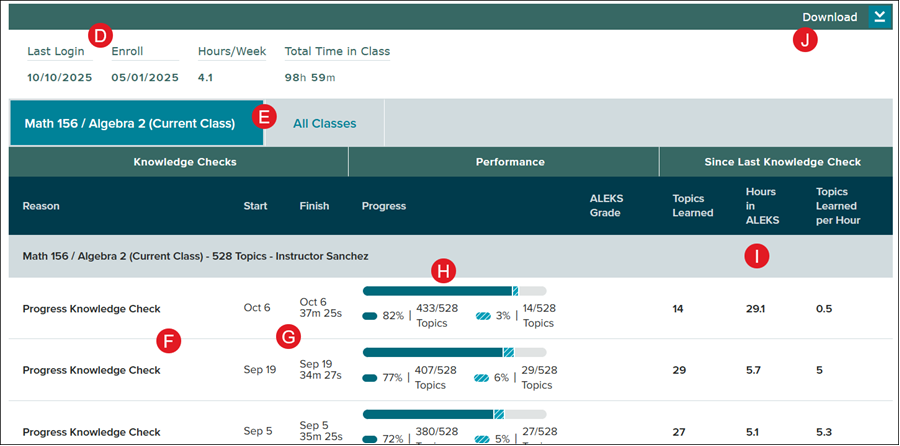
D. The student progress report will show their Last Login date, when they were enrolled in the class, how many hours per week they are in the program, and the total time they have spent in the program for the class.
E. If they are enrolled in more than one ALEKS class, you can toggle between only viewing data for the selected class, or viewing combined data for all of the classes they are assigned to.
F. The student's progress report will show data for their Initial Knowledge Check, each of their Progress Knowledge Checks, and any assessments they've completed.
G. The date the student started and finished the Knowledge Check or Assessment will be listed for each.
H. The Performance Bars break down what the student has mastered.
- Dark Blue - content mastered based on the Knowledge Check
- Striped Blue - progress the student has made in Learning Mode
- Gray - content remaining
I. The three far-right columns represent the Topics Learned, Hours spent within ALEKS, and the Topics Learned per Hour.
J. Click the Download button to download a PDF copy of the student report.
