Classic ALEKS Custom Reports
Create and use ALEKS custom reports to analyze targeted student or class data.
- Customer Support
- PreK-12
- Classroom Teacher
- Elementary School
- Middle School
- High School
- Direct Login & Auto-Rostering
- Direct Login & Manual-Rostering
- SSO & Auto-Rostering
- SSO & Manual-Rostering
- Supplemental
- Math
- ALEKS
- Reports & Analytics


View the demo in a separate tab.
View the Spanish version of the demo.
Custom Reports allow you to tailor a report specific to your progress monitoring needs by creating a template and choosing the data to include in your report. You can schedule a one-time report or automate a report to run daily, weekly, or monthly to ensure that you save time and receive the most up-to-date information.
Article Contents
Access Custom Reports
1. SSO or log in at my.mheducation.com.
2. Launch your ALEKS course.
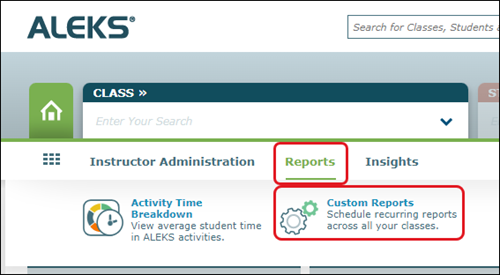
3. With or without a Class selected, hover over Reports.
4. Click Custom Reports from the menu.
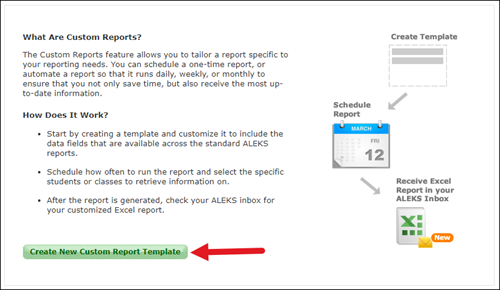
5. Click Create New Custom Report Template.
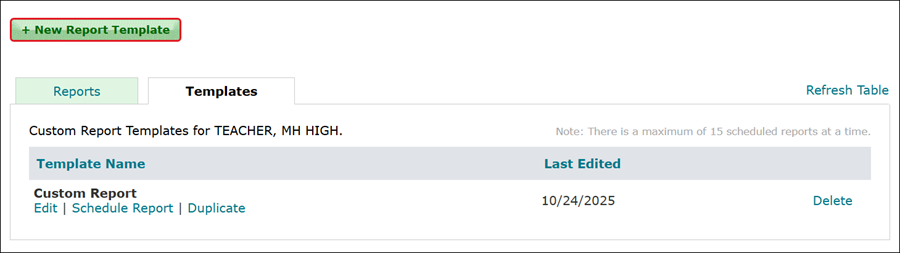
If a template was already created, click the +New Report Template button.
Create Report Template
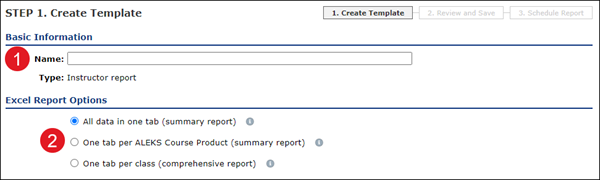
1. In the Basic Information section, enter a Name for your template.
2. Select an Excel Report Option.
- All data in one tab (summary report) - Generate a summary report showing all data in a single tab.
- One tab per ALEKS Course Product (summary report) - Generate a summary report showing data for each ALEKS Course Product on one tab per course product.
- One tab per class (comprehensive report) - Generate a comprehensive report showing data for each class on a separate tab.
Note: This option is only available if you did not select a class.
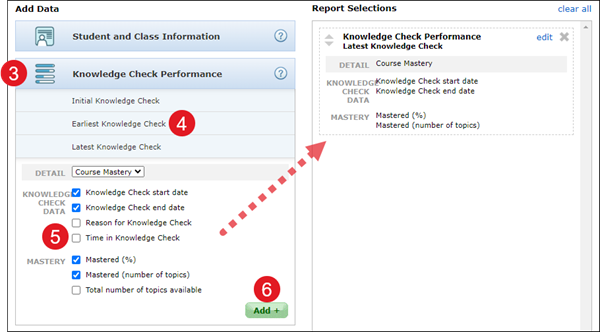
3. Click on a box under the Add Data section to expand the section.
4. Click on a link to expand the section further.
5. Check the box next to the options you want to add to the report.
6. Click the Add+ button to add them to the Report Selections section on the right.
Repeat these steps until you have added all the desired options you want for the report to the Report Selections section.
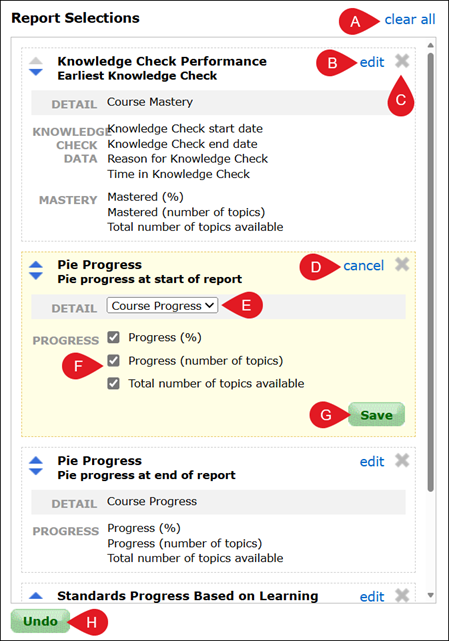
A. Click the Clear All link to remove all selections from the Report Selections box.
B. Click Edit to open the section and check/uncheck any selections for that section.
C. Click the X to remove the section from the Report Selections box.
D. Click Cancel to exit out of the Edit box.
E. Click the Detail drop-down to make changes to the options available for the report.
F. Check/Uncheck any options you want to add or remove from the report.
G. Click the Save button to save any changes made.
H. Click Undo/Redo to go back to the previous click in the Report Selections box.
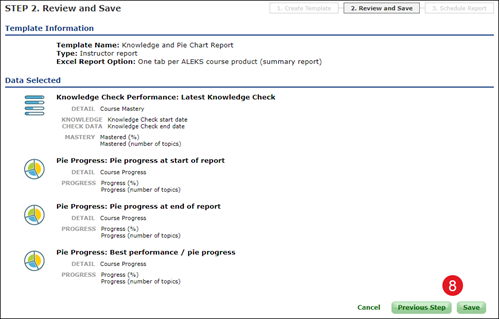
7. Click the Next Step button.
8. After reviewing your selections for the report, click the Save button.
Click the Previous Step button to go back to the Create Template page.
Schedule Report
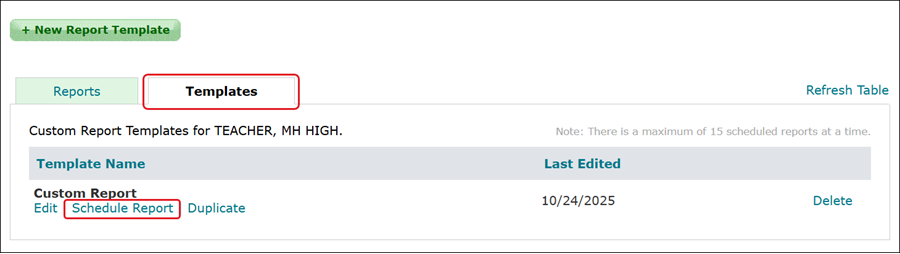
A report can be scheduled during the third step of the template creation process, or by clicking on the Schedule Report link under the Templates tab.
1. On the Schedule Report page, enter a Report Name.
2. Select the radio button next to the correct Output Format.
Note: Due to data limitations, Excel 2003 and earlier versions (.xls) will only display up to 256 columns per tab.
3. Select a radio button next to the desired Display of Duration option.

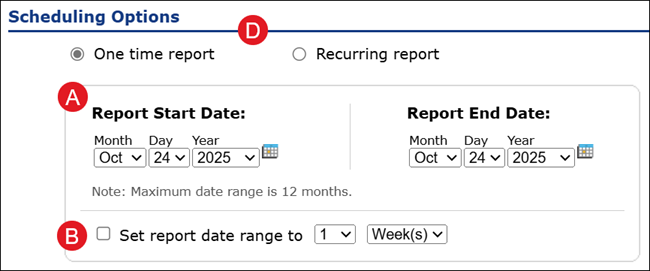
4. Under Scheduling Options, select the radio button next to if you want a One time report or a Recurring report.
A. For a One time report, select the Report Start and End Date. The date range cannot extend past 12 months.
B. Check the box next to Set report date range to and select a number and Days or Weeks from the appropriate drop-downs, if desired.
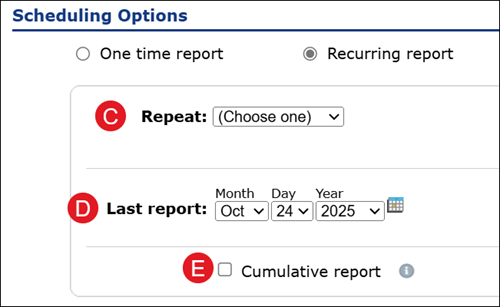
C. For a Recurring report, select how often you want the report to run from the drop-down.
D. Select the Last report date.
E. Check the box next to Cumulative report, if desired.
Note: Select this option if you will run this report repeatedly and want to track growth from one report to the next. Rather than using a new start date for each instance of the report, a cumulative report will use the same start date for each instance of the report and include all selected data from that start date to the date the report is due.
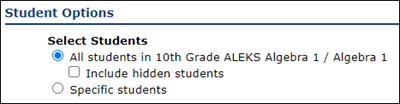
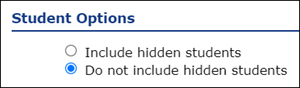
7. In the Student Options section, select the radio button next to the option of including all students assigned to the class, and if you want to include hidden students, or for the report to include only specific students.
Note: You will only see these options if you selected a Class before creating a Custom Report.
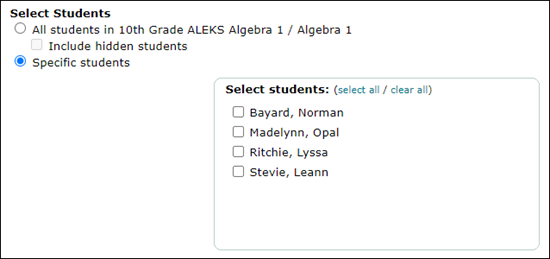
If you select the option to only include specific students, check the students you want to be included in the report from the pop-up box.
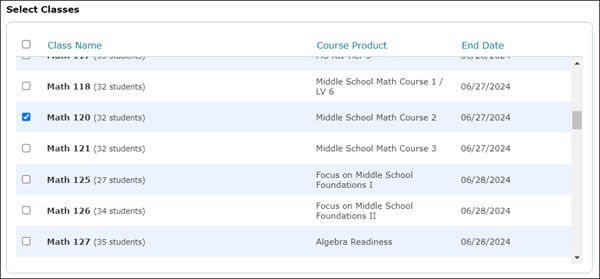
If you did not select a class before creating a Custom Report, in the Select Classes section, check the box next to the class(es) you want to generate the report for. You will not see this option if you selected a class before creating a Custom Report.
8. Select the Type of Data you want for the report. The options available will depend on if you selected a class or not before creating a Custom Report.
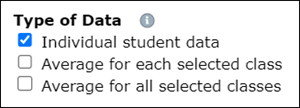
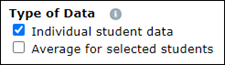
- Individual student data – Show the selected data for each student on a single line in the Excel report.
- Average for each selected class – Include for each selected class an average summary for the data selected. One average line per class selected will be added to the report.
- Average for all selected classes – Include for all selected classes an average summary for the data selected. One average line for all classes selected will be added to the report.
9. In the Student Options, select if you want to include any hidden students that are in the class in the report.
10. Click the Schedule Report button.
Manage Reports & Templates
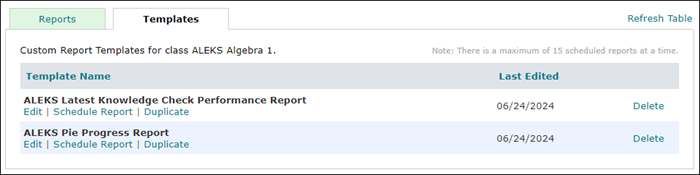
Once you have created a report or template, they can be found Custom Reports page under their respective tabs.
A. Under the Reports tab, if a report is showing as Scheduled in the Status column, you can Edit or Cancel Report by clicking on the associated link.
B. If the report has already been created, you can Download Report or Delete Report.
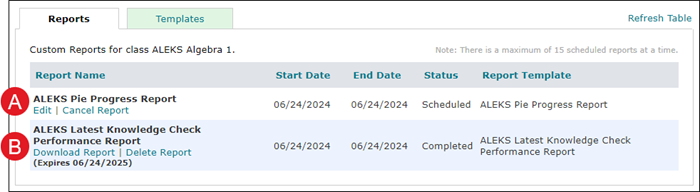
Under the Templates tab, you can Edit, Schedule Report, Duplicate, or Delete the report template.