Set Permanent Passwords for Students Who Use ALEKS
Set permanent passwords for students using ALEKS or ALEKS Adventure to ensure consistent access.
Tags
Customer Support
PreK-12
Classroom Teacher
Elementary School
Middle School
High School
Direct Login & Manual-Rostering
Supplemental
Math
ALEKS
ALEKS Adventure
Log-In & Passwords
Account Management
User Management
Share:
Direct Login and Manual Rostering
This article applies to Direct Login and Manual Rostering districts.
Direct Login means that teachers, students, and administrators log in at my.mheducation.com.
Manual Rostering means that teachers redeem their own program content and roster their own classes.
Not sure which Access Service your district uses? View the Access Service Descriptions article to learn more about the four Access Services that we support.
You can also create permanent passwords for students by following the Import Students/Rosters steps. However, keep in mind, if the student already has an account created, adding a password through this process will only make it a temporary password.
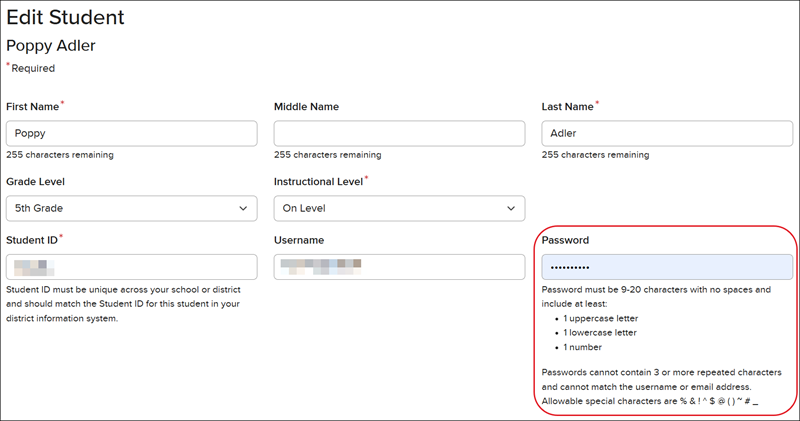
When setting a permanent password, refer to the Password Policy article for requirements.
Note: Making adjustments to the student's Name, Student ID, Username, and Password changes these fields for all classes they are assigned to.
Support Topics/User Guides & Account Management/Log-In & Passwords
Context/Curriculum Type
Context/Curriculum Type/Supplemental
Asset Format Type
Asset Format Type/Customer Support
Context/Education Level/Middle School
Support Topics/User Guides & Account Management/Account Management
prek-12
2026-03-24T19:21:42.580-03:00
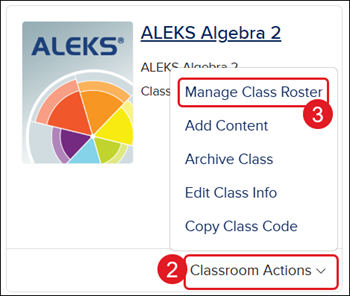
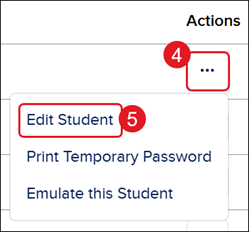
<p>For a full page view of the demo, <a href="https://hub.mheducation.com/share/ijo8ouqraehi" target="_blank">click here</a>.</p> <p>For a Spanish version of the demo, <a href="https://hub.mheducation.com/share/o7dxakchyb6m" target="_blank">click here</a>.</p> <p> </p> <p>You can also create permanent passwords for students by following the <a target="_blank" href="/content/mheducation/us/en/prek-12/support/knowledge/import-students-rosters-resources">Import Students/Rosters</a> steps. However, keep in mind, if the student already has an account created, adding a password through this process will only make it a temporary password.</p> <p>When setting a permanent password, refer to the <a target="_blank" href="/content/mheducation/us/en/prek-12/support/knowledge/password-policy-change">Password Policy</a> article for requirements.</p> <p><strong>Note:</strong> Making adjustments to the student's Name, Student ID, Username, and Password changes these fields for all classes they are assigned to.</p> <p> </p> <p>1. Sign into your account at <a href="https://my.mheducation.com/secure/teacher/urn:com.mheducation.openlearning:enterprise.identity.organization:prod.global:organization:62faaae2-8a36-4e6e-bf9f-511328666bf1/home" target="_blank">my.mheducation.com</a>.</p> <p>2. Click on <strong>Classroom Actions</strong>.</p> <p>3. Click on <strong>Manage Class Roster</strong> from the menu.</p> <p><img src="/content/dam/mhe/support/support-images/migrated/rtaImage-1105565364.jpeg" data-assetref="rtaImage-1105565364-1777037223691"></p> <p>4. Click the <strong>Options </strong>icon in the <strong>Actions </strong>column to the right of the student.</p> <p>5. Click <strong>Edit Student</strong> from the menu.</p> <p><img src="/content/dam/mhe/support/support-images/migrated/rtaImage-4915802.jpeg" data-assetref="rtaImage-4915802-1777037223691"></p> <p>6. On the <strong>Edit Student</strong> page, enter the preferred <strong>Password </strong>for the student.</p> <p><img src="/content/dam/mhe/support/support-images/migrated/rtaImage-4929088.jpeg" data-assetref="rtaImage-4929088-1777037223691"></p> <p>7. Click the <strong>Update </strong>button at the bottom.</p> dts This article walks teachers through setting permanent student passwords for ALEKS. 2026-05-04 Set Permanent Passwords for Students Who Use ALEKS This article walks teachers through setting permanent student passwords for ALEKS. Set permanent passwords for students using ALEKS or ALEKS Adventure to ensure consistent access.
Set permanent passwords for students using ALEKS or ALEKS Adventure to ensure consistent access.
For a full page view of the demo, click here. For a Spanish version of the demo, click here. You can also create permanent passwords for students by following the Import Students/Rosters steps. However, keep in mind, if the student already has an account created, adding a password through this process will only make it a temporary password. When setting a permanent password, refer to the Password Policy article for requirements. Note: Making adjustments to the student's Name, Student ID, Username, and Password changes these fields for all classes they are assigned to. 1. Sign into your account at my.mheducation.com. 2. Click on Classroom Actions. 3. Click on Manage Class Roster from the menu. 4. Click the Options icon in the Actions column to the right of the student. 5. Click Edit Student from the menu. 6. On the Edit Student page, enter the preferred Password for the student. 7. Click the Update button at the bottom.
dts
Customer Support, PreK-12, Classroom Teacher, Elementary School, Middle School, High School, Direct Login & Manual-Rostering, Supplemental, Math, ALEKS, ALEKS Adventure, Log-In & Passwords, Account Management, User Management