
View Student Actively Learn Research Projects
Directions on how to view student research projects within Actively Learn.
- Customer Support
- PreK-12
- Classroom Teacher
- Elementary School
- Middle School
- High School
- Direct Login & Auto-Rostering
- Direct Login & Manual-Rostering
- SSO & Auto-Rostering
- SSO & Manual-Rostering
- Supplemental
- Literacy
- Science
- Social Studies
- Actively Learn
- Dashboard & Navigation Overview
- Reports & Analytics


Students can annotate their own texts using the Research Projects section in Actively Learn. These texts and/or resources have not been assigned in classes by teachers, but instead selected and uploaded by the student into their Research page.
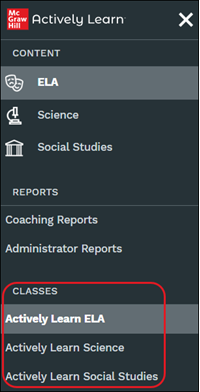
1. Click Menu at the top-left.
2. In the Classes section, select the class.
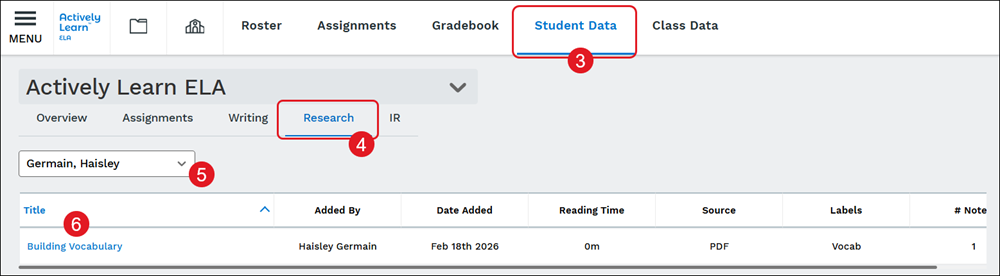
3. Click on the Student Data tab.
4. Click on Research.
5. Select the student from the drop-down.
6. Click on a research Title to view the project and view/respond to any added notes from the student.
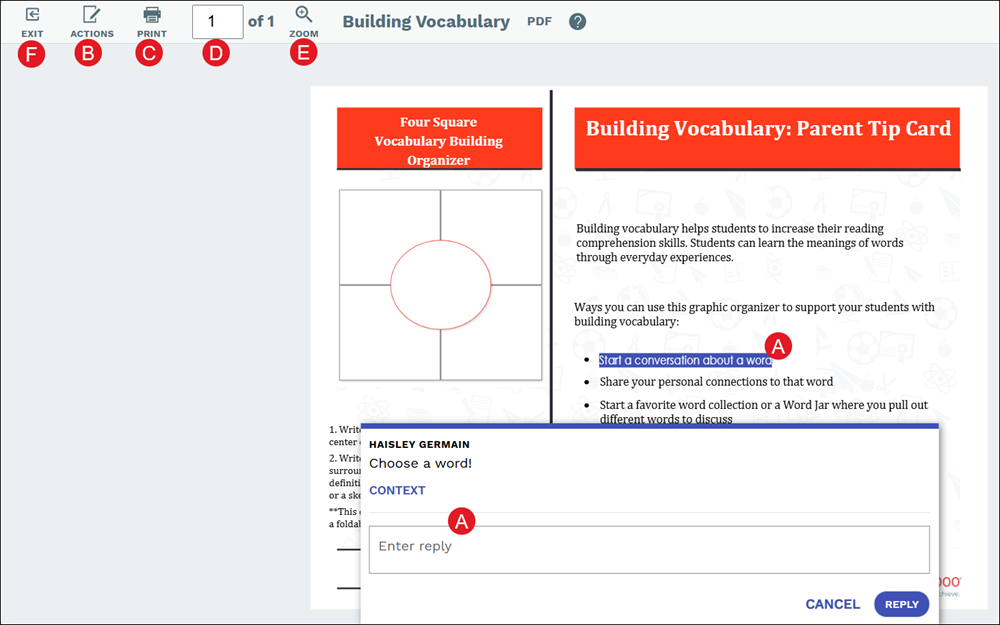
A. Click on any highlights within the project to reply to notes added by the student.
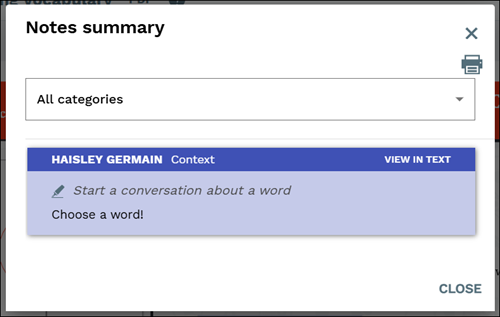
B. Click the Actions button to View notes added by the student.
C. Click the Print button to download/save/print the student's project and the notes they added.
D. Enter a page number to navigate to the page.
E. Click Zoom to zoom in and out of the pages of the project.
F. Click Exit to navigate back to the Research page.
