
Proctorio - Troubleshooting for screenshare
Troubleshoot screen sharing issues when using Proctorio.
Tags
- Assignment Issues
- Higher Ed Student
- Higher Education
- Proctorio
- Customer Support
- Connect


How to Share Desktop
If you see the following:
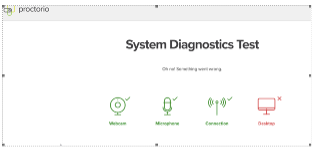
You will need to select the screen to share even if you are only using one screen:
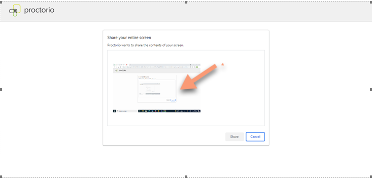
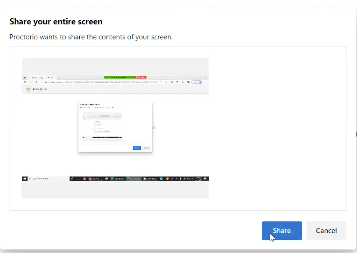
Once the small screen is clicked the image of the screen will become rounded blue and the share button will be clickable.
For macOS,
Exit out Full Screen with the mouse cursor positioned at the top right of the page and select the green dot.
Click the Apple icon at the upper left-hand corner of the screen and go to System Preferences. Navigate to Security & Privacy > Then select Privacy tab > After selecting the Screen Recording within the list on the left side, enable Google Chrome on the right.
If you are using the 10.15+ version and you are not able to see Screen Recording within the list on the left side, try to scroll up or down. Also, if Google Chrome is grayed out when you click Screen Recording you will have to follow the step below:
Depending on your macOS version you might need to click on the small padlock in the lower-left part of the window to make the changes.
However, if you are still not able to see the Google Chrome option under Screen Recording on the right side, please Reset Permissions:
Open Finder > Go > Computer or ( ⌘ + ⇧+ C ) > Macintosh HD > Users > User > Get Info > Sharing & Permissions > ⚙ > Apply to enclosed items
Also, Navigate to Security & Privacy > Firewall > Turn Off Firewall. Go back to Security & Privacy > Accessibility > + Google Chrome > Enable Google Chrome