
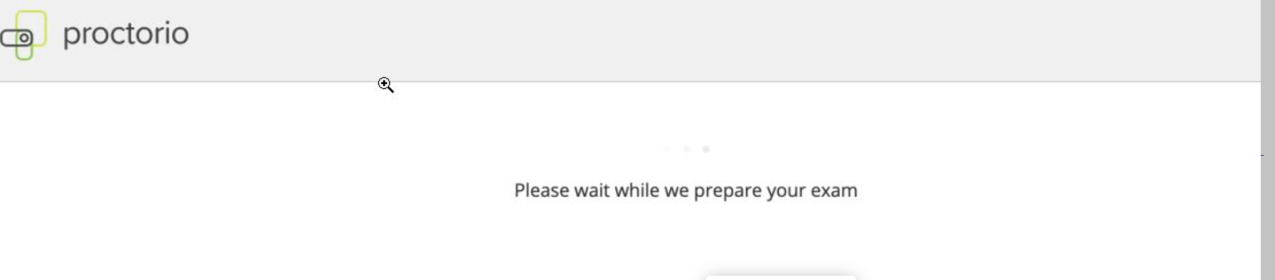
Proctorio - Please wait while we prepare your exam
Resolve issues when Proctorio displays the exam preparation screen.
Tags
- Higher Ed Student
- Error Messages
- Higher Education
- Proctorio
- Customer Support
- Connect


Note: Restart Browser or Computer (confirm that only Connect assignment is open on system)
1. Re-Install the Proctorio Extension
- Uninstall the Proctorio extension by clicking the shield icon at the upper right corner of the Chrome browser and then click on "Remove from Chrome". Start the exam again. On the prechecks page, follow the Proctorio instructions to reinstall the Proctorio extension.
- Note: Make sure the Proctorio extension is being allowed on all sites
- Go to the three-dot icon in the top right-hand corner of your browser > More tools > Extensions > select the Proctorio extension > click on Details > In the drop-down menu choose "On all sites"
- Note: Make sure the Proctorio extension is being allowed on all sites
2. Try adding another Google account
- To add another Google account you should click on the account user image icon in the top right corner of your browser screen right in front of the three-dot(line) icon. Then select Add and then Add Person button. Type in a new name and select the image and click on the Add button in the bottom right corner. A new Chrome window will pop up under the new account name. There you should install Proctorio and go to your school account and try taking the quiz. Make sure to completely close the previous account in order for the new one to work.
- Note: Verify that you are using the latest version of Google Chrome .
- Clicking on the three dots in the top right corner of the browser >> help >> about Chrome. You will be able to upload Google Chrome on that page If it hasn't been uploaded automatically.
- Note: Verify that you are using the latest version of Google Chrome .
- You can see the Microsoft Edge browser and install the Proctorio extension: Available here
