Connect - Posting Messages for Students
Post announcements and messages for students within Connect.
- Higher Ed Student
- Higher Education
- Customer Support
- Connect
- Course Management
- Instructor


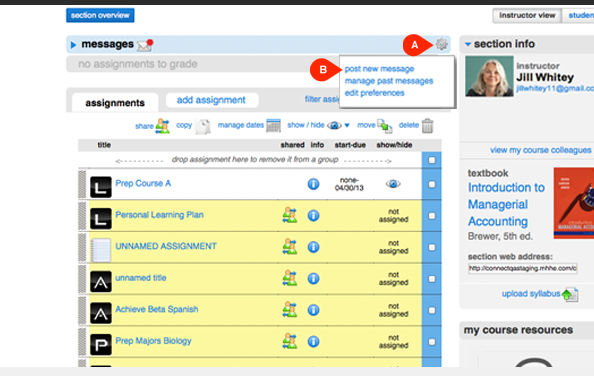
Go to your Section Home page and click the gear icon (A) in your message area. Then select post new message (B). Here you can also manage past messages and edit preferences.
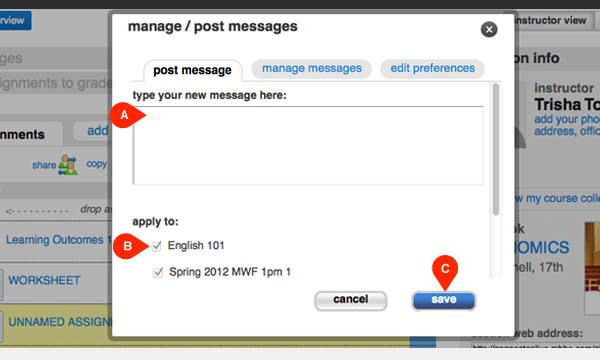
Type your new message in the message field (A). If you have more than one section you can click the checkbox (B) next to other sections you want the message to appear in. Click save (C) to post the message.
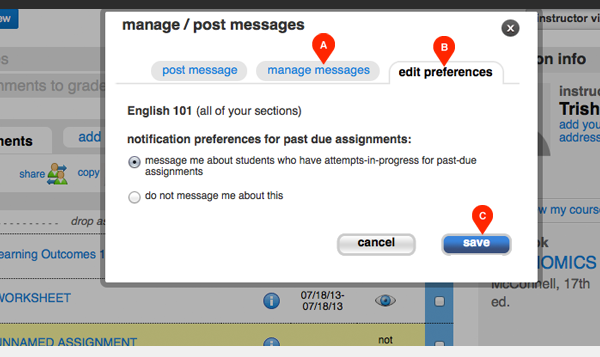
A confirmation message will appear briefly. You can review and/or delete this and any other sent messages by clicking manage messages (A). Click edit preferences (B) to open up these notification preferences. Select your preferred option and click save (C). The default preference is to message you about students who have attempts in-progress for past-due assignments.