
Connect - Create Questions
Use the Section Performance widget in Connect to view class progress, scores, and engagement at a glance.
Tags
- Higher Ed Student
- Higher Education
- Customer Support
- Connect
- Instructor
- Assignment Management


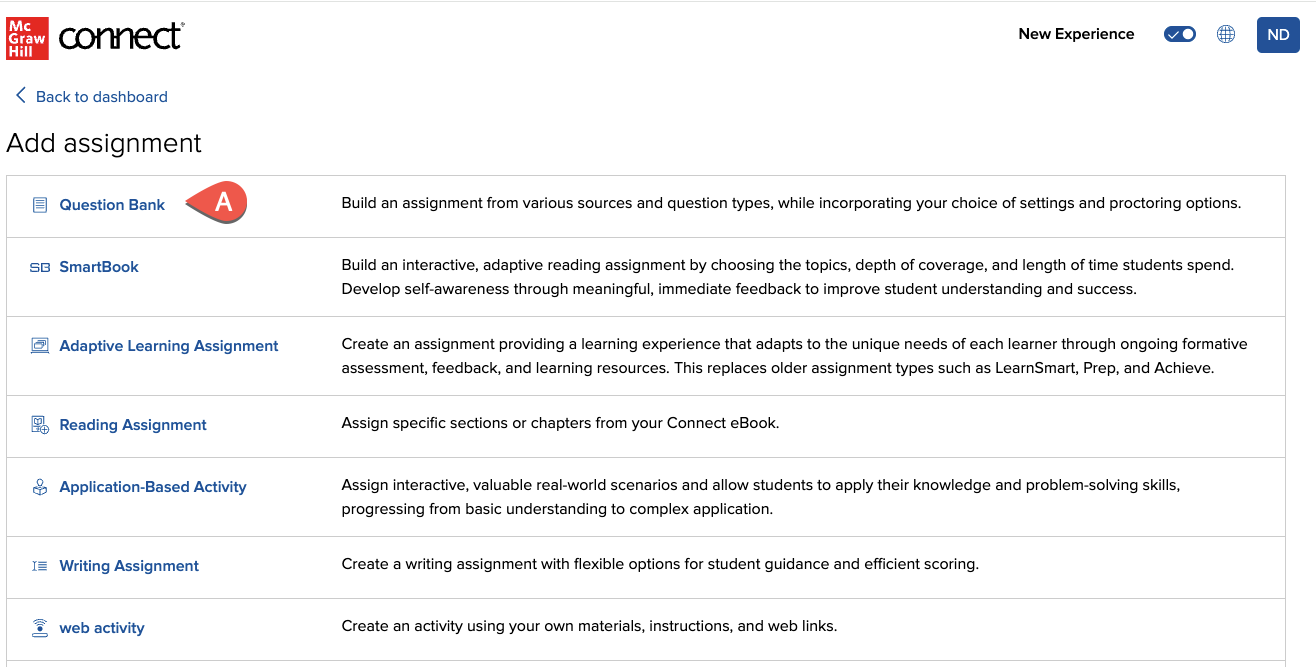
From your Section Home page, click the
Add Assignment button, and then select
Question Bank (A).
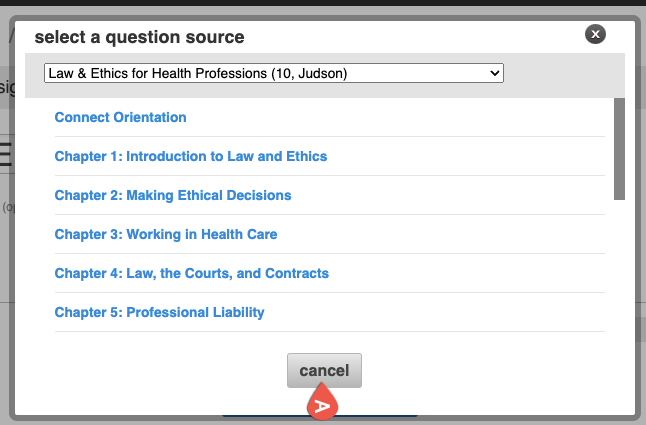
Click the cancel button when the question source window opens (A).
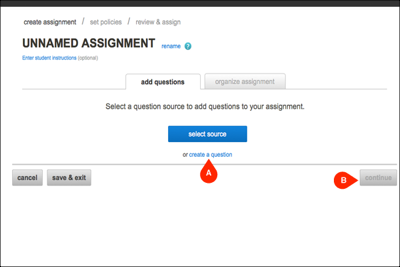
Select create a question (A), and then continue (B).
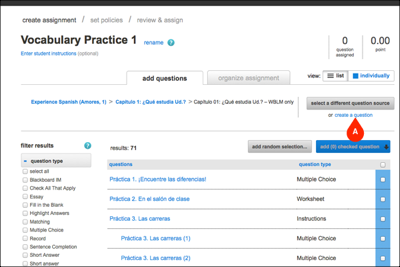
If you opted to select questions from the question source, you can still create your own questions from this screen. Select the create a question (A) link on the right.
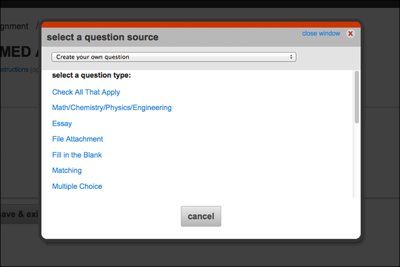
Select a question type.
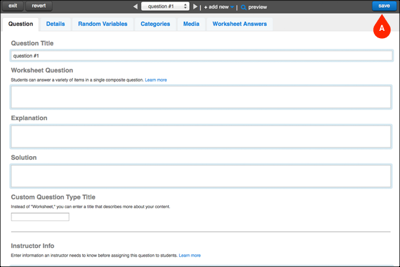
Enter the title of your question under Question Title and the text of your question under Worksheet Question. You can complete any of the other fields if desired. Click the save button (A) before exiting.
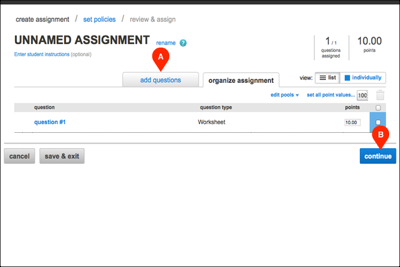
Click add questions (A) to continue creating your own questions. Repeat these steps for each question you wish to create. Once you are finished creating questions, click continue (B).
Click the cancel button when the question source window opens (A).
Select create a question (A), and then continue (B).
If you opted to select questions from the question source, you can still create your own questions from this screen. Select the create a question (A) link on the right.
Select a question type.
Enter the title of your question under Question Title and the text of your question under Worksheet Question. You can complete any of the other fields if desired. Click the save button (A) before exiting.
Click add questions (A) to continue creating your own questions. Repeat these steps for each question you wish to create. Once you are finished creating questions, click continue (B).
