
Connect - Create Assignment with Question Pooling
Create assignments with question pooling to vary assessments.
- Higher Education
- Customer Support
- Connect
- Instructor
- FAQ


Adding Questions to a Question Pool
After creating a new assignment through the question bank, you're ready to build your question pool.
Note: Question pools do not support multi-part questions or survey questions. Please keep this in mind when selecting your source.
Step 1: Select Your Questions
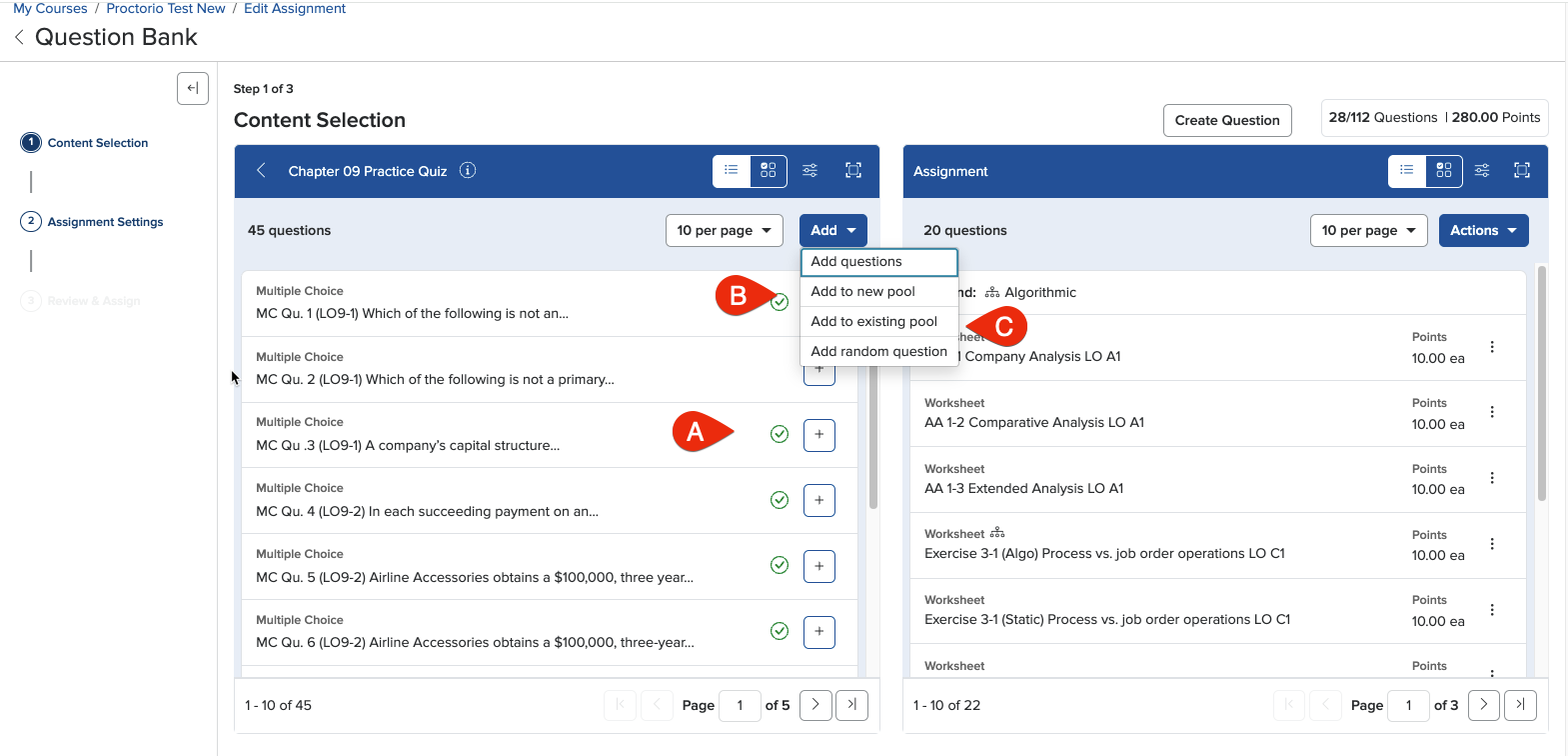
Choose a source to pull your questions from, then select the questions (A) you'd like to add to the pool.
Step 2: Add to a Pool
Click Add to New Pool (B) or Add to Existing Pool (C).
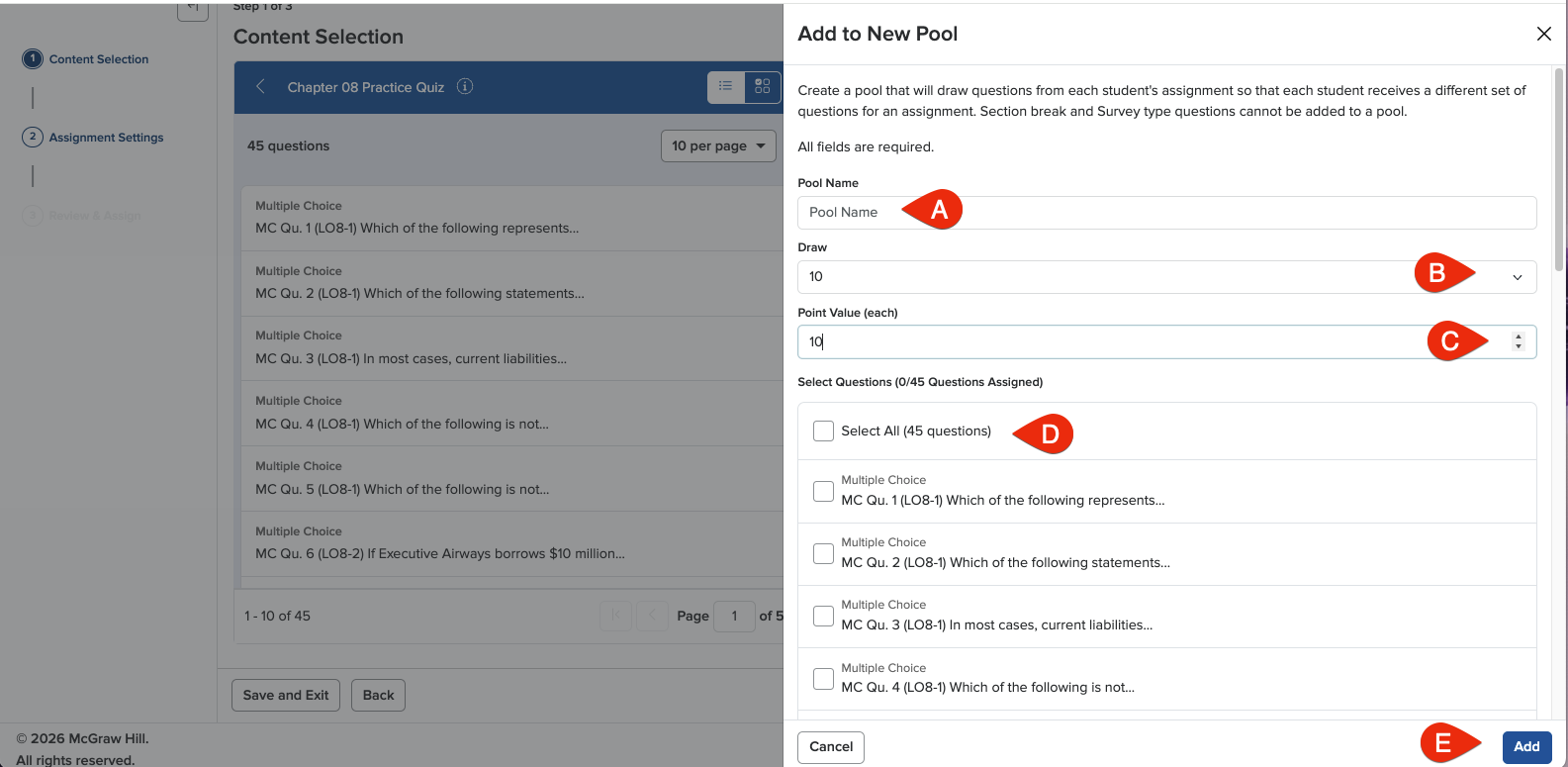
When the window appears, name your pool something specific (A). Next, configure your pool by selecting the number of questions (B) from which the pool can draw. You can also set the value of each question (C) in your pool. Select the question to add to the pool (D), click add to save your question pool. (E).
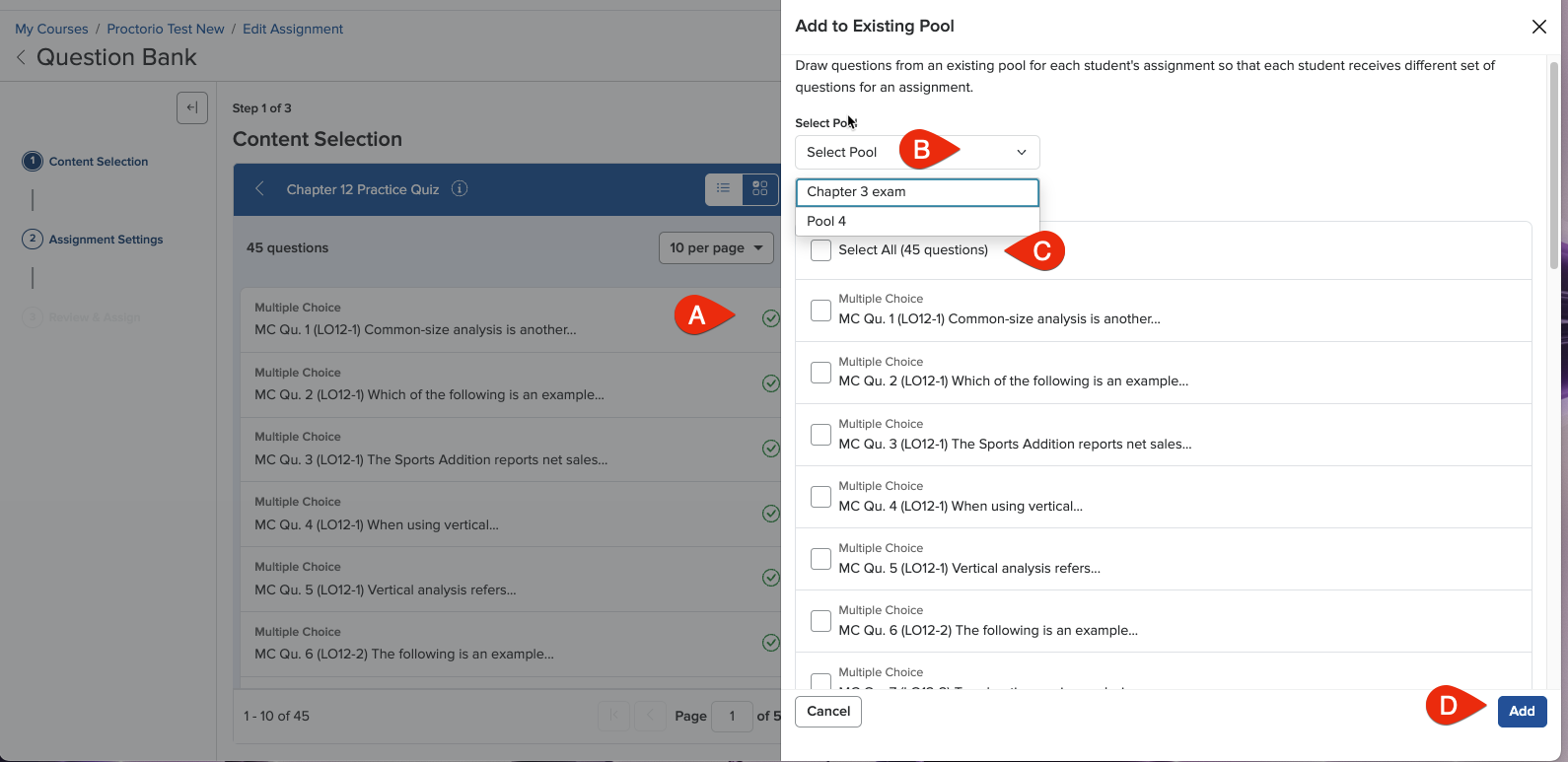
Once you’ve successfully added questions to a pool and Connect will bring you back to the add questions page. Now you want to add to an existing pool. select add to a pool the questions that you’ve already selected will have a green check mark (A) next to them. Select the pool you'd like to add questions to from the dropdown menu (B). Select the next set of questions (C), click Add to save pool (D).
Click the organize assignment (A) tab and select the question pools (B) from which your assignment will draw. Click continue (C) to move on to the review & assignment page.
Best Practices:
- Create a question pool for quizzing, exams, or whenever randomization is needed (i.e., to prevent cheating or provide new question sets for practice)
- NOTE: Some questions are more time-consuming than others. Be aware of this as you develop assignments for your students
